

This block supports dynamic variables, multiple recipients, and both plain-text and HTML email content.
- Open Agent Design from your Phonely dashboard.
- Create a new flow or select an existing one to edit.
- Ensure the flow has a trigger condition defined (for example, when a caller asks for a callback or appointment).
Gather Required Information
Before sending an email, your workflow should collect the information you want to include.- Add a Prompt Block or Multi-Ask Block early in the flow.
- Instruct the AI to collect details such as:
- Name
- Email address
- Phone number
- Appointment intent or reason for calling
- Store these responses as variables with appropriate types (text, email, phone, date, etc.).
Configure the Send Email Block
To (Required)
Specify one or more recipients. You can:- Enter a static email address (e.g.
[email protected]) - Insert a variable (e.g. Caller Email)
- Add multiple recipients using Add Email
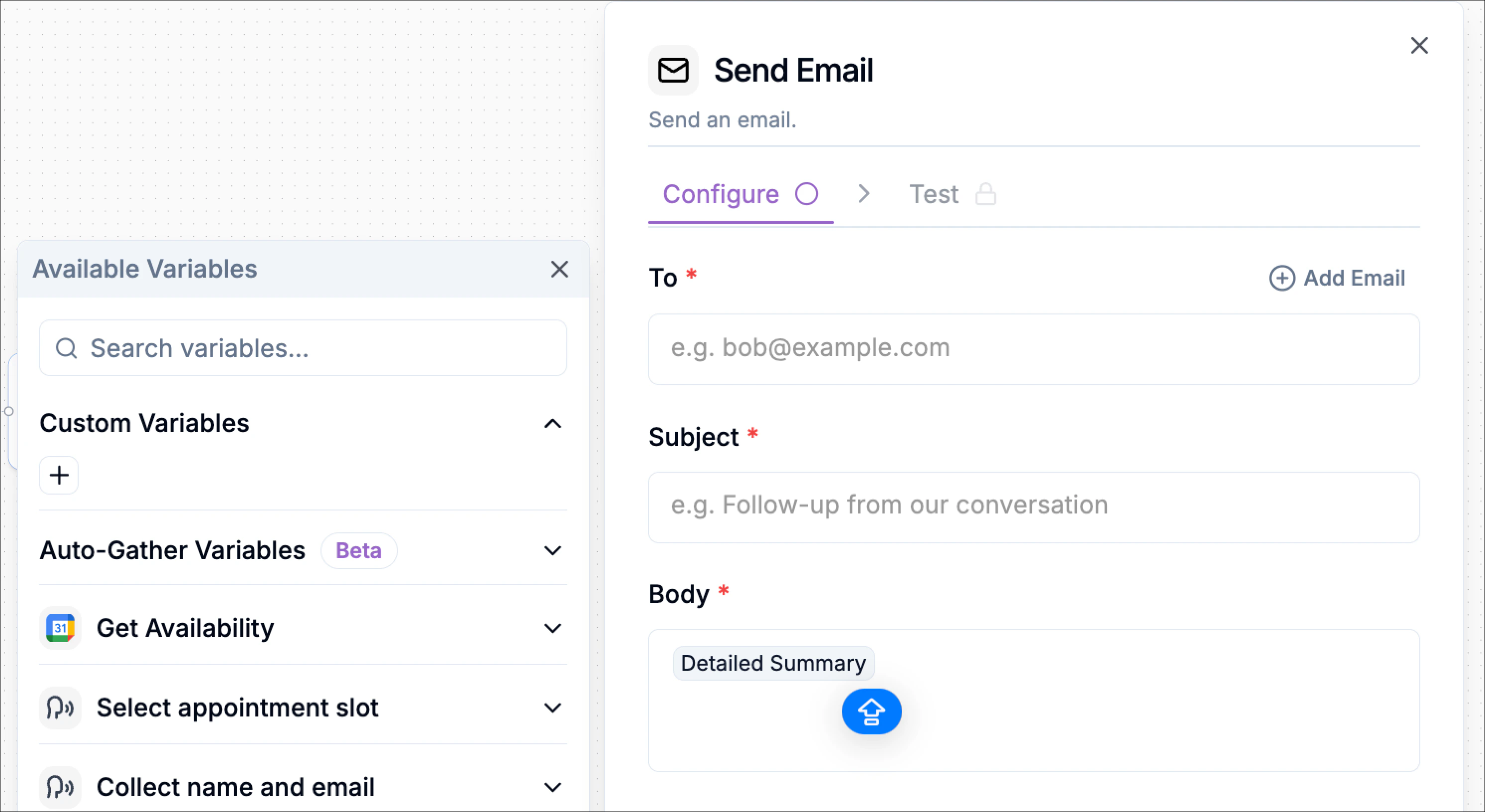
Subject (Required)
Enter the email subject line. Supports:- Static text
- Variables for personalization
Body (Required)
Define the email content. You can:- Write plain text or formatted content
- Embed variables captured during the call
- Include AI-generated summaries or dashboard links
Using Variables in Email Fields
All fields in the Send Email block support variables. You can insert variables by:- Typing
@inside any input field - Selecting from the Available Variables panel
- Custom variables you defined
- Auto-Gather variables (e.g. Caller Email, Appointment Time)
- Post-call variables such as summaries or call metadata
Advanced Settings
Expand Advanced Settings to control formatting and sender details.Body Type
Choose how the email body is rendered:- Plain Text
Best for simple notifications and internal alerts. - HTML
Recommended for:- Structured summaries
- Branded emails
- Rich layouts and links
From Name
Set the sender name shown in the recipient’s inbox. If left blank, it will default to ‘PhonelySaving and Continuing
Once all required fields are completed:- Click Continue to move to the Test step
- Any missing required fields will be flagged before proceeding
Testing the Send Email Block
The Test tab sends a real email using your current configuration. During testing, Phonely display the recipient email, from name, subject, body type, rendered email content. A success message confirms delivery.Testing sends a real email. You can skip this step if you’re confident in your setup.
Example Use Case
Here’s an example workflow to illustrate the process of using the Post Call Send Email Block for callback requests: Trigger: Customer says “I want to schedule an appointment with Joe” Action 1 (Prompt Block):- Instruct AI to: “Get the caller’s name, email, and best callback phone number. Inform them that an appointment scheduling link will be sent to their email”
- Store variables: customer_name (text), customer_email (email), callback_phone (phone).
- Recipient: [email protected] (or select customer_email variable for customer notifications).
- From Name: Phonely AI Agent.
- Subject: Appointment Scheduling for [customer_name]
- Body:
- Customer Name: [customer_name]
- Email: [customer_email]
- Callback Phone: [callback_phone]
- Conversation Summary: [summary]
- Appointment Scheduling Link: [email protected]