- Open pages faster
- Switch agents from anywhere
- Discover pages that may not be visible in the default sidebar
- Personalize the sidebar for your workflow
- Use AI when search does not find a page or result
- Quickly jump to a page without browsing the sidebar
- Search for and switch to a specific agent
- Access hidden pages such as Call Paths, Data Tables, or Call Events
- Pin or unpin features in the sidebar
- Add external tools as custom shortcuts
Global Search
Global Search lets you search across pages, tools, settings, and agents from one place. It is the fastest way to move through the platform without manually opening each navigation section. You can open Search in either of these ways:- Click the Search field in the left sidebar
- Use the keyboard shortcut Command + K on Mac

- ↑↓ navigate
- ↵ open
- esc close
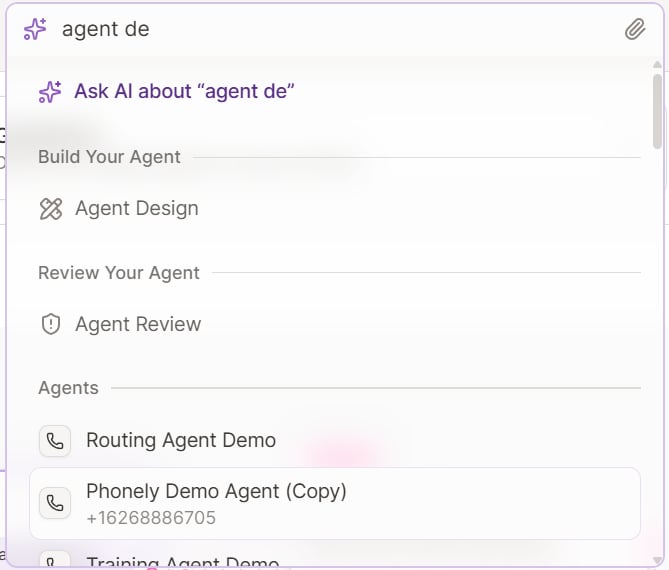
For example, if you type Call, Search will show the matching pages under the relevant section.

Using Search to switch agents
Search is not just for pages. You can also use it to find and switch to a specific agent. To do this:
This is useful when you have multiple agents and do not want to manually switch from the sidebar dropdown. The result also shows the agent’s linked number.
If your search does not match a page or agent, Phonely shows a fallback state such as nothing found for “…”. In that state, you will also see: Ask AI instead.
This is helpful when your request is more conversational than navigational.

Keyboard shortcuts
Phonely includes built-in keyboard shortcuts so you can move through the platform faster without relying entirely on the mouse. The most important navigation shortcut is Command + K, which opens the global search panel from anywhere in the platform. From there, you can quickly jump to pages grouped under sections such as General, Optimize Your Agent, Build Your Agent, Review Your Agent, Account Settings, and Support.
- Up / Down arrows to move through results
- Enter to open the selected result
- Esc to close the panel
Customizable Sidebar
The default sidebar is intentionally kept focused on the pages most people use often. However, Phonely includes many more pages and tools than what appears there by default. The Customize Sidebar feature allows you to choose which pages appear in the sidebar. This is especially useful for power users who want faster access to more of the platform. Customize the sidebar when you want to:- Pin pages you use often
- Expose advanced features that are hidden by default
- Simplify the sidebar for your own workflow
- Reduce navigation friction for repeated tasks
From Search
From the account/settings area
If it appears in the account/settings section, you can open it from there as well. When opened, the customize sidebar modal allows you to toggle pages on or off. Changes apply on save. The modal includes:- The page name
- A short description
- A longer explanation of what that page does
- A toggle switch
- Cancel and Save buttons
Hiding something from the sidebar does not remove access to it. You can still reach it through Search by pressing **⌘K. **

Click the page to view its description
Understand what it does before deciding whether to enable it.

Custom shortcuts
In addition to built-in pages, Phonely also supports custom shortcuts. A custom shortcut lets you add your own navigation item to the sidebar using a URL. This is useful when you want faster access to tools or pages you regularly open outside of Phonely, such as an external dashboard, internal documentation, a project tracker, a CRM, a company homepage, or any other platform your team uses alongside Phonely. A custom shortcut creates a new sidebar item that links directly to the URL you provide. This helps turn the sidebar into a more complete workspace launcher, especially when your workflow depends on both Phonely and external systems. Use a custom shortcut when you repeatedly leave Phonely to open the same external tool.How to add a custom shortcut
To create a custom shortcut:
Once saved, the new shortcut appears in the sidebar and can be used like any other navigation item.