
Ask AI from Home
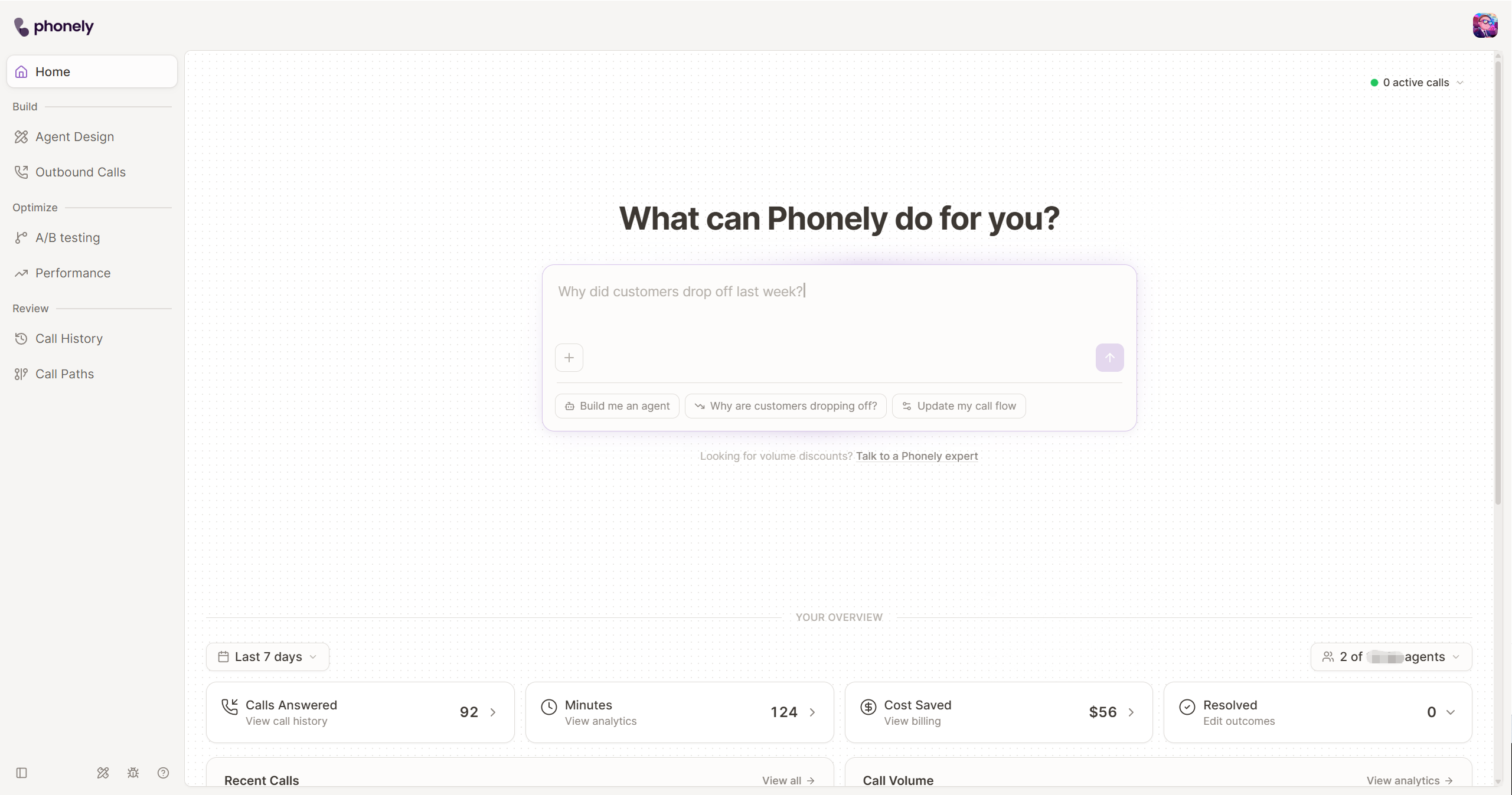
The prompt under What can Phonely do for you? opens Ask AI in the app side panel and sends your request. You can type a request, attach one supported file, or begin with one of the suggested prompts. Ask AI can help with different kinds of work, so make the requested outcome explicit. For example, ask it to investigate a call pattern, explain a product concept, or help change an agent. Review proposed changes before relying on them in a live call experience.Set the overview scope
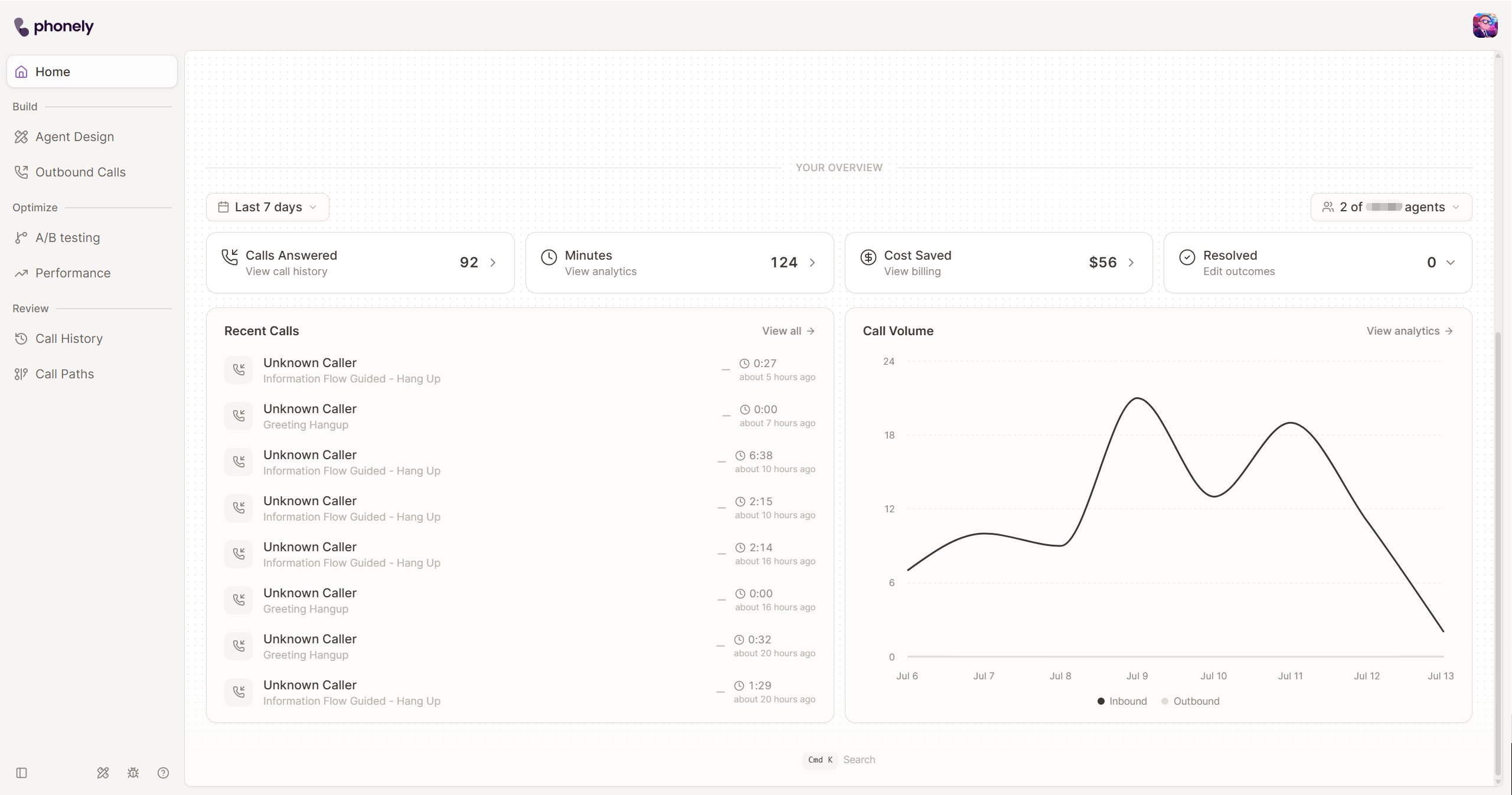
The overview uses date and agent filters. A change to either filter updates the metrics, recent calls, active calls, and call-volume chart. Home starts with Last 7 days and all agents you can access selected. If you have access to agents across multiple organizations, narrow the selection before interpreting the totals.Choose a date range
Select Today, Last 7 days, Last 14 days, Last 30 days, or Last 90 days. You can also choose a custom range.Choose agents
Use the agent selector to include one or more agents. You can search by organization, agent name, or business phone number, then select or deselect all agents in the displayed results. The overview shows zeroed or empty states when no agent is selected.Read the summary metrics
Home displays these summary cards for the selected scope:
Cost Saved is an estimate for the selected scope. Use Plan and Billing for actual billing information.
Select Resolved to choose which observed call outcomes count toward that card. This changes the Home summary for the current view; it does not rename or reconfigure outcomes on your agents. If no outcomes are selected, the card prompts you to set them instead of showing a resolved total.
Review recent and active calls
Recent Calls lists recent calls in the selected scope with their direction, phone number, outcome, sentiment indicator, duration, and relative time. Select a call to open its details, or select View all to open Call History. The active-calls control groups calls currently in progress by agent and identifies calls in conversation or warm transfer. Select a call to inspect its details without leaving Home.Compare call volume
Call Volume plots inbound and outbound calls over the selected period. Use View analytics when you need the deeper Performance view.