The Test from a block feature lets you run and validate a call flow starting from any block, without triggering the entire workflow from the beginning. Normally, testing a flow means starting from the trigger and walking through every step before reaching the area you want to verify.
Test from here removes that friction. It allows you to jump directly into a specific block, such as an intake block, lookup step, or escalation path, and simulate how the agent behaves from that exact point onward.
This is especially useful for long or complex flows where re-testing from the start would slow you down.
Choose a test mode
When you open the Test from here dialog, you can choose between two modes:
| Mode | What it opens | Best for |
|---|
| Chat | A web chat session in the Ask AI / Test panel | Testing text-based conversation flows |
| Voice | A web call session in the Test panel | Testing voice prompts and audio behavior |
Start from a specific block
To begin, locate the block you want to test in the Flow Builder canvas. Open the block’s context menu (the three-dot menu) and select test from here. This tells Phonely to treat the selected node as the entry point for the test.
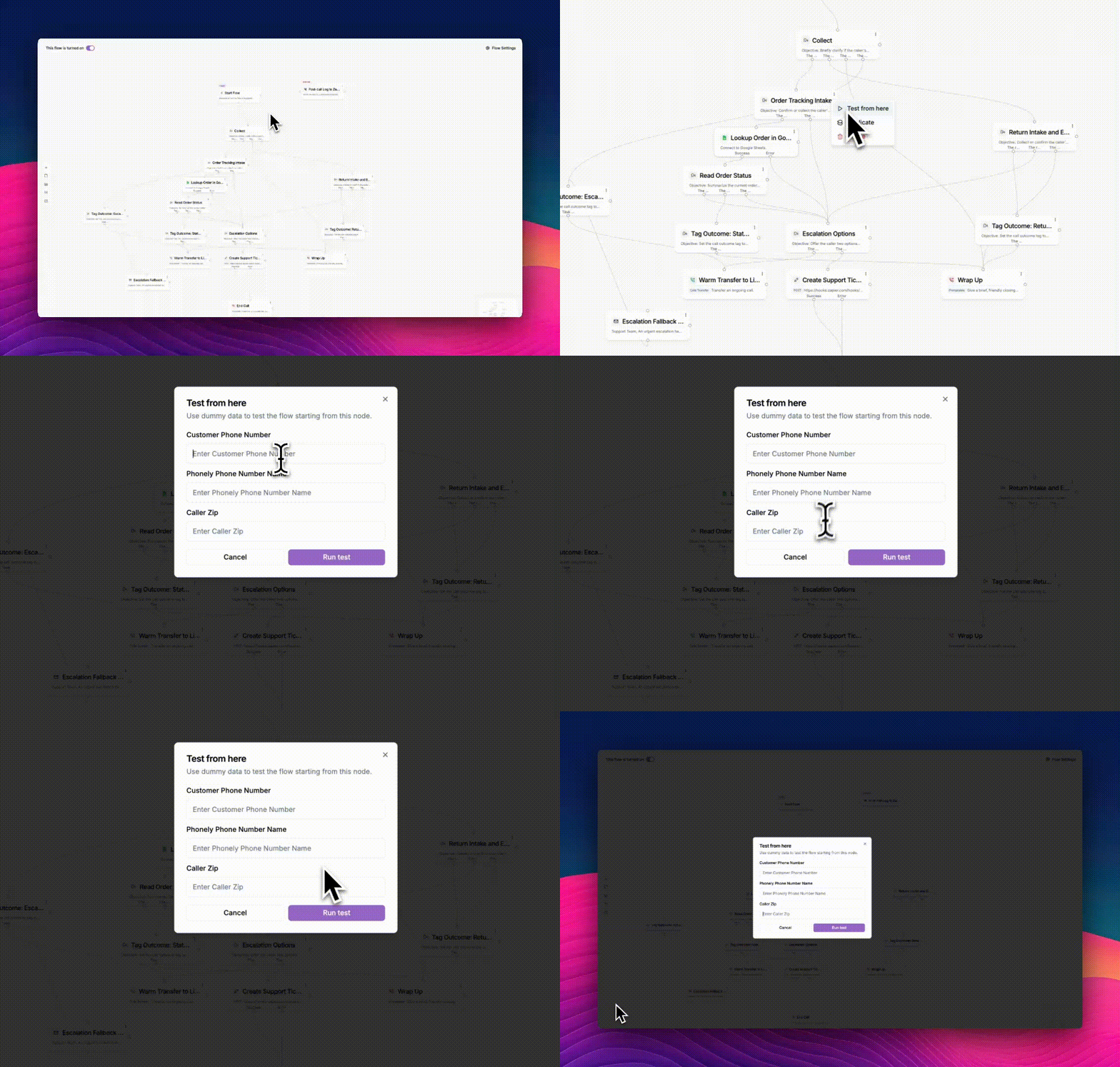 Once selected, a test setup dialog appears.
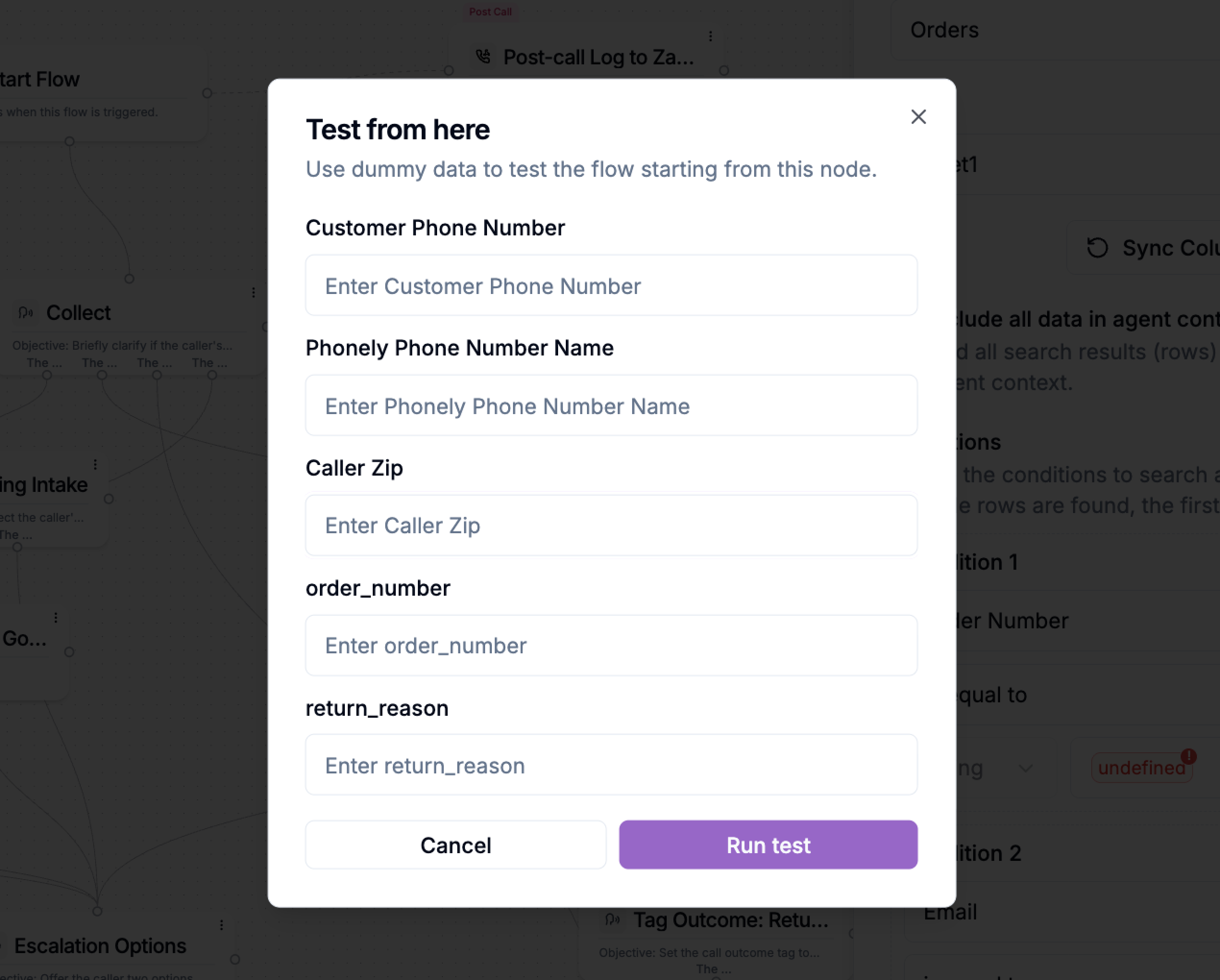
In the Test from here modal, you’ll see fields for key call context values such as the customer phone number, the Phonely phone number, and caller metadata like ZIP code. These values act as dummy data that simulate a real inbound call.
Enter realistic values here if your downstream logic depends on them, for example, when testing personalization, routing rules, or integrations that rely on caller metadata. When ready, click Run test to start the simulation.
Once selected, a test setup dialog appears.
In the Test from here modal, you’ll see fields for key call context values such as the customer phone number, the Phonely phone number, and caller metadata like ZIP code. These values act as dummy data that simulate a real inbound call.
Enter realistic values here if your downstream logic depends on them, for example, when testing personalization, routing rules, or integrations that rely on caller metadata. When ready, click Run test to start the simulation.
Run the test
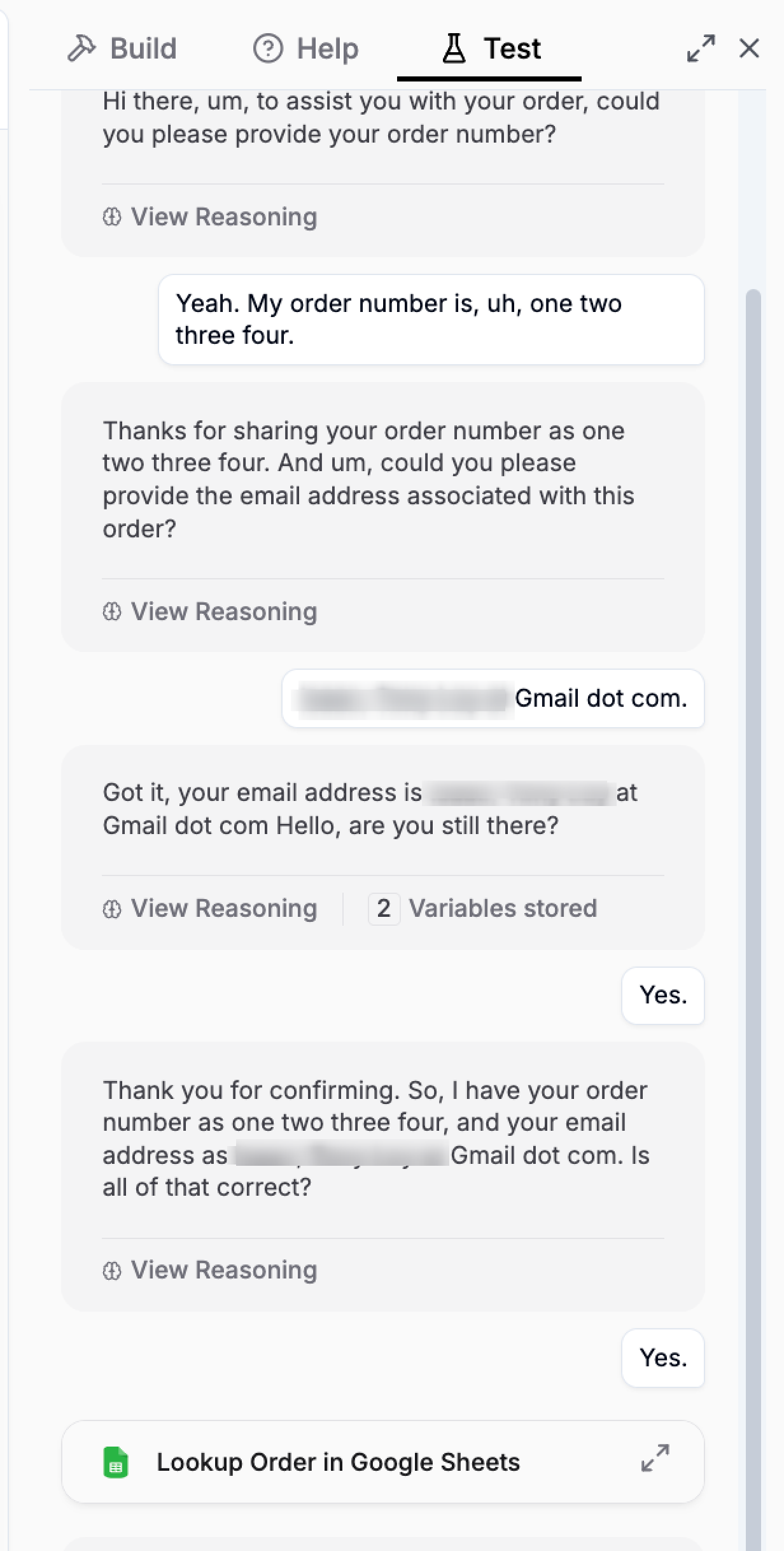
After launching the test, Phonely opens the Test panel and begins the conversation exactly as if a real caller had reached that block. You can respond using text or voice, just like a live call.
As the conversation progresses, the panel shows:
- The agent’s spoken responses
- Your replies
- When variables are captured and stored
- Any connected actions, such as database lookups or HTTP requests
This makes it easy to verify that prompts sound natural, variables are confirmed correctly, and branching logic behaves as expected.
Validate variables and integrations
One of the most powerful aspects of test from here is visibility. When the agent captures information, like an order number or email, you’ll see a confirmation that variables were stored successfully. If the flow includes external integrations (for example, a Google Sheets lookup or a support ticket creation), you can immediately see whether those steps execute correctly and how the agent responds to success or failure.
This tight feedback loop helps you catch issues early, before publishing your flow.
Restart and iterate quickly
If something doesn’t work as expected, you don’t need to exit the builder or restart the entire flow. You can:
- Restart the test from the same node
- Adjust prompts, conditions, or variables
- Run test from here again to confirm your fix
This makes iteration fast and keeps you focused on the part of the flow you’re actively improving. It’s the fastest way to ensure each part of your call flow works exactly as intended before you publish. Last modified on July 11, 2026

