

First Flow and its Greeting
The First Flow is the agent’s default entry point for inbound calls. Each agent can have only one First Flow, and its trigger appears as Greeting. Select Greeting to configure:- Greeting Message: The first thing the agent says when it answers an inbound call.
- Answers: Up to six optional routes from the greeting. Expand Advanced Settings to add them, then connect each answer to the appropriate next block.
- No engagement outcome: The outcome recorded when the call ends before the caller engages with the agent. It defaults to Greeting Hangup and can be edited. This setting is under Advanced Settings.
Change the First Flow
A flow must have at least one published version before you can make it the First Flow.- Publish the target flow first if it has no published version.
- Select its Start Flow trigger and enable Set as First Flow.
- Wait for the First Flow change to auto-save.
- Review the Greeting and its paths, then publish draft changes before testing.
Making a flow the First Flow also turns it on and updates the agent’s inbound entry point. It does not publish draft changes; publish any later edits separately.
Start Flow for other inbound flows
An inbound flow that is not the First Flow begins at Start Flow. It does not receive a new call or replay the First Flow’s greeting. The active conversation enters it in one of two ways:- Transfer Flow: A connected block routes the active call into the flow.
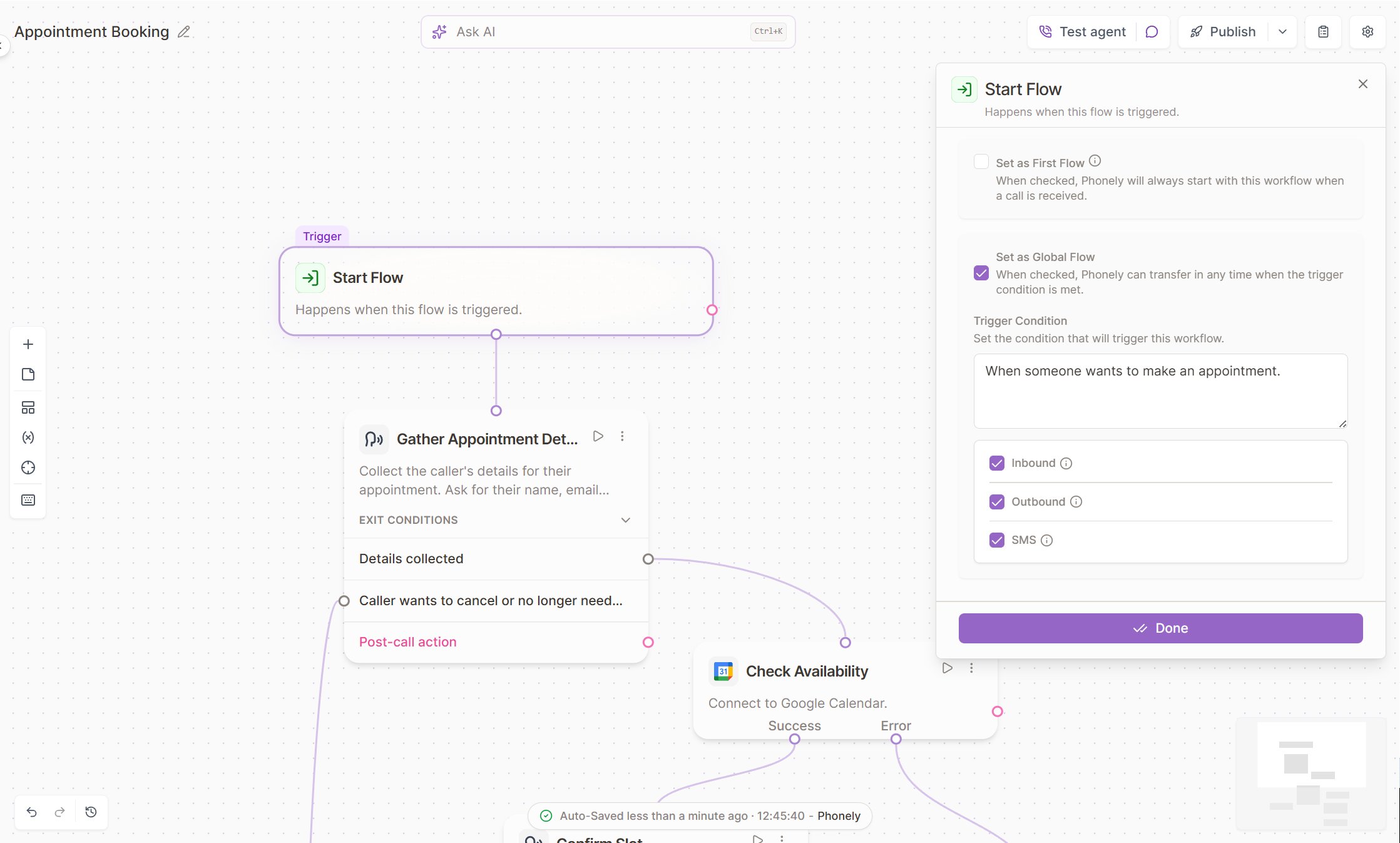
- Global Flow: Phonely enters the flow when its Trigger Condition matches in an enabled conversation type.
Transfer Flow keeps the call active, but flow-specific variables do not carry automatically from the source flow to the target flow. Import a Flow Input in the target flow to reuse a value the source flow collected, or design the target flow to collect or retrieve the data it needs.
Configure a Global Flow
A Global Flow is available from across a conversation instead of only through a connected Transfer Flow block. Use one when a distinct intent should be reachable from multiple parts of the agent. To configure it:- Open another inbound flow and select Start Flow.
- Enable Set as Global Flow.
- In Trigger Condition, describe when to enter the flow.
- Select at least one conversation type: Inbound, Outbound, or SMS.
- Turn on the flow, then test conversations that should and should not enter it.
Make Call for outbound flows
Every outbound flow begins with Make Call. Select the trigger to configure:- Phone Number: The destination to call. Insert a variable when the number is supplied at runtime.
- Voice Mail Message: The message Phonely leaves when voicemail is detected.
- Provide Call Screening Details: Optional caller identity and reason for calling. When an automated call screener answers, Phonely provides this information so the recipient knows who is calling and why. Caller Name and Reason for Calling can use variables available before the call begins. When it is enabled, you can also set a Call screening AI hangup outcome, recorded when the agent ends a call after reaching an automated screener; it defaults to Call Screening AI Hangup.
- No engagement outcome: The outcome recorded when the call ends before the recipient engages with the agent. It defaults to Greeting Hangup and can be edited.
- Voicemail Call Outcome Tagging: Outcome tags recorded for calls that reach voicemail. This setting is under Advanced Settings.
- Answered: Continue the live call path when someone answers.
- Voicemail: Start an optional post-call path for voicemail handling.
Run actions before Greeting or Make Call
Run actions before Greeting or Make Call
Pre-call blocks are optional. Add one from the connection above Greeting or Make Call to run it before the agent greets an inbound caller or dials an outbound number.Use pre-call blocks to prepare or validate data, set variables for later blocks, end an inbound call before the greeting, or prevent an outbound call from being placed.A failed request does not stop the call automatically. Route the relevant failure result to a pre-call End Call block when Greeting or Make Call should not run.Start Flow does not support pre-call blocks because the conversation is already active when another inbound flow begins.
Call Flows
Understand flow stages, drafts, versions, and the complete editing process.
Connections and Routing
Connect trigger outputs, branches, transfers, and fallback paths.
Flow Checklist
Find missing trigger settings and connections before publishing.
Test and Publish
Test the right version and release reviewed changes safely.