

What is it?
The time filter block essentially acts as a gatekeeper, directing the conversational flow down different paths depending on whether the current time falls within or outside of predefined time ranges. This ensures callers receive appropriate assistance regardless of when they call.Key Features
Time-Based Routing - Automatically directs the conversation based on custom-defined timeframes, ensuring seamless transitions between different operational modes (e.g., business hours, after-hours). True/False Outcomes - Provides distinct output paths:- True: When the current time falls within the set time range(s).
- False: When the current time falls outside the set time range(s).
How to Use
Using the Time Filter Block involves defining your operational hours and connecting the appropriate workflow paths.Add a Time Filter Block
Navigate to your workflow in the Agent Design tab.Click the + button to add a new block.Select the “Time Filter Block” from the available options.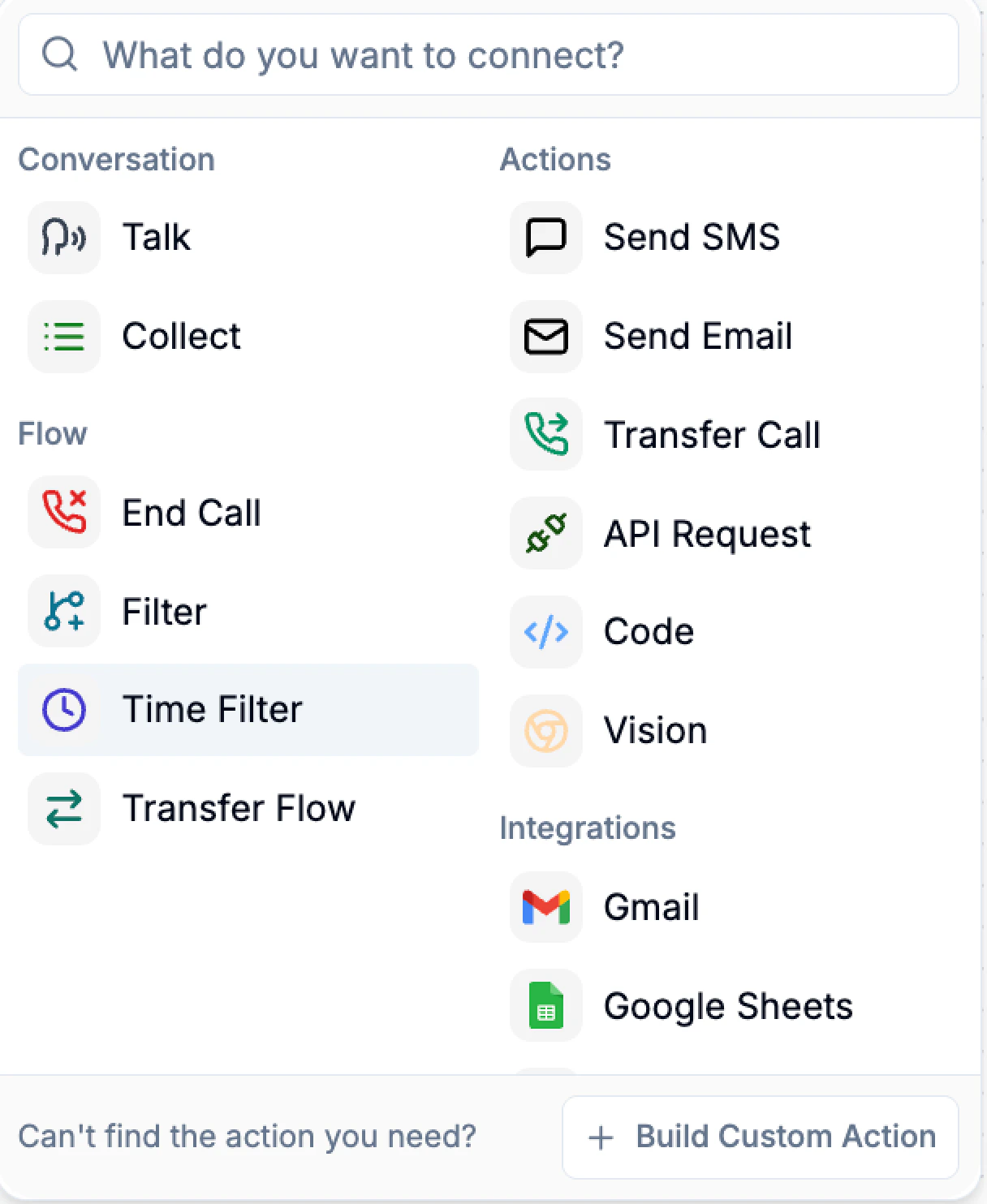
Configure Time Ranges
Within the block’s settings, you will see a calendar interface to define your time ranges.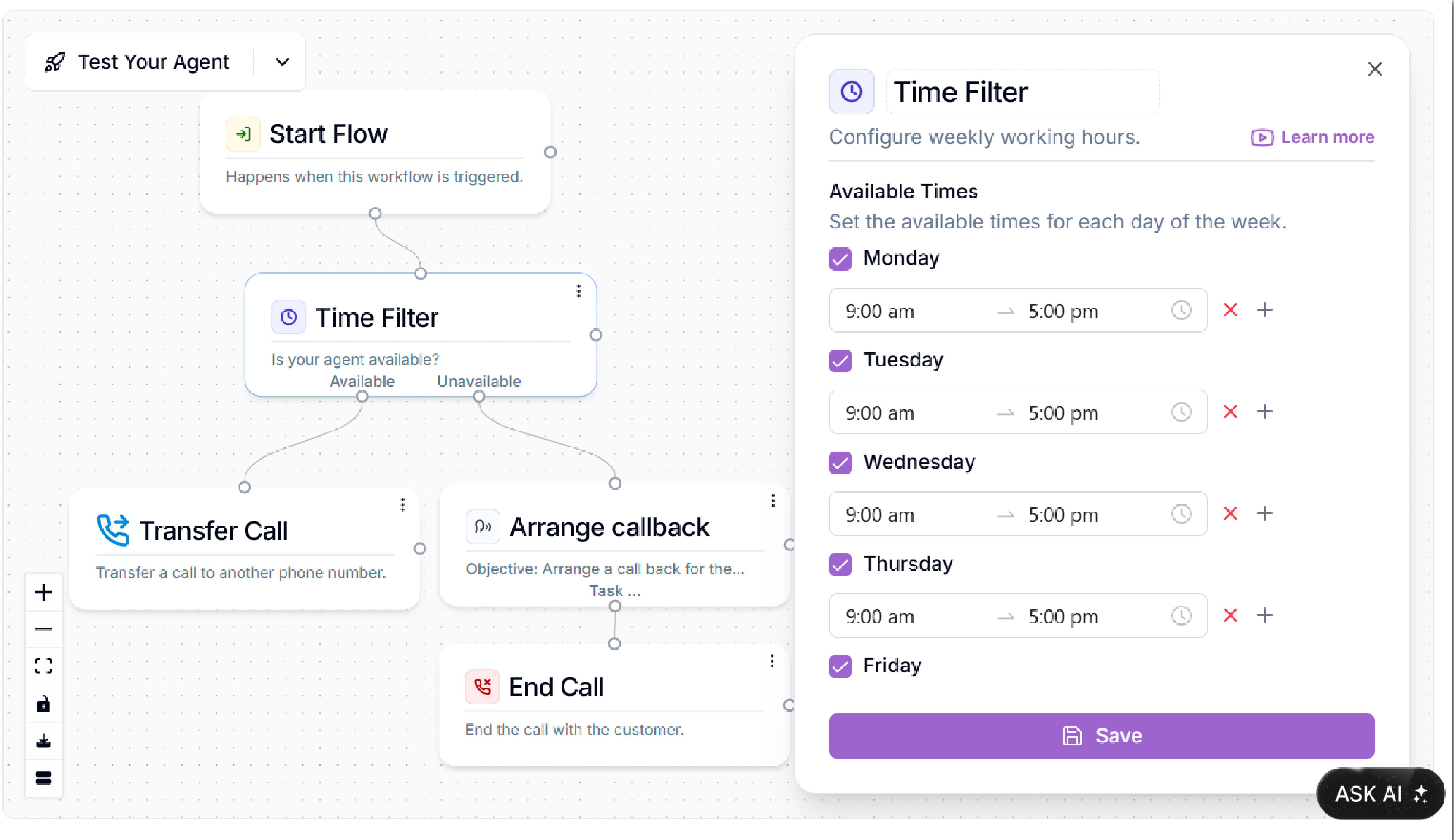
- Set Daily Hours: For each day of the week, input exact times to set the desired “open” hours.
- Add Multiple Ranges: If you have breaks or multiple shifts within a day (e.g., open from 9 AM-12 PM and 1 PM-5 PM), click the + button to add additional time blocks for that specific day.
- Disconnect Times: If you want no action to occur during a specific time block, ensure it is disconnected from any output path. The AI will not route through any “true” path for disconnected times.