

Use a variable
- Open a block and focus a field that supports variables. The Available Variables panel opens with the list already filtered for that block.
- Select a variable from the list. Phonely adds it to the field.
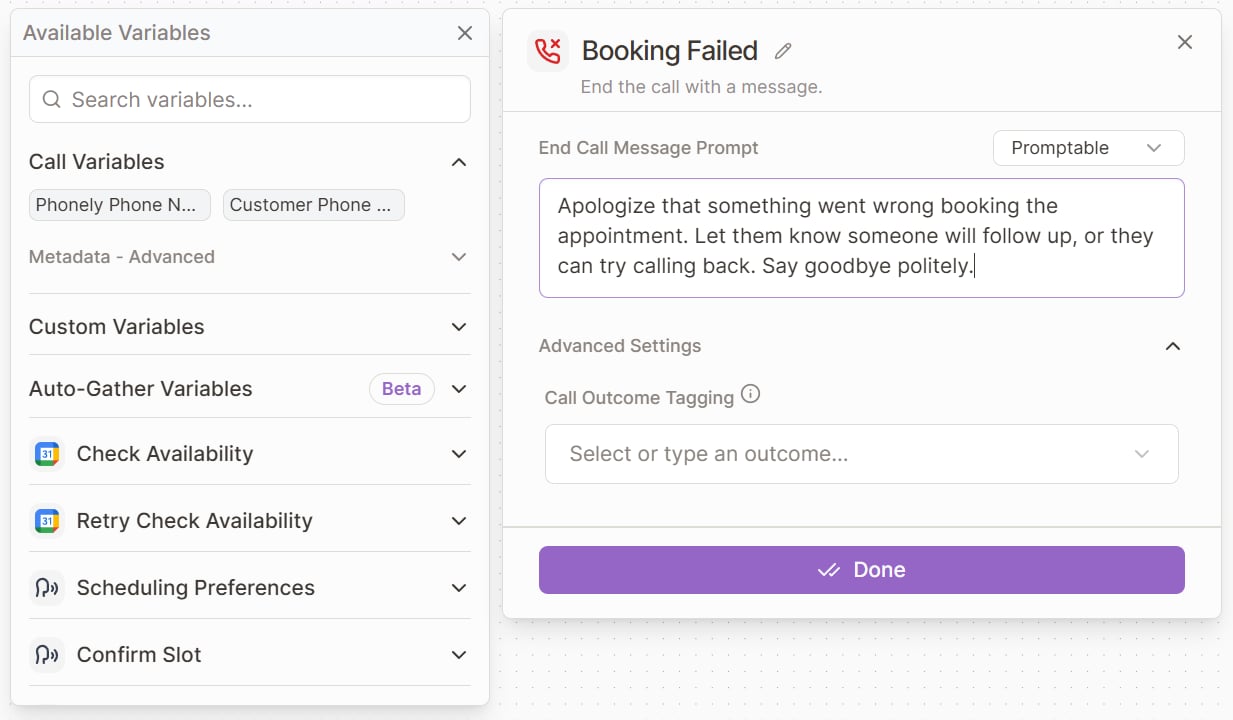
@ and select a variable from the matching results.
Where variables come from
The Available Variables panel groups variables by their source:- A block’s variables appear under its name and contain information that block collected or returned.
- Call Variables contain information about the current call, such as phone numbers and call metadata.
- Custom Variables contain reusable values you define for the flow.
- Post Call Variables contain finalized information such as the transcript, summary, outcome, recording link, and call duration.
- Outbound Variables contain values supplied when an outbound call starts.
- Auto-Gather Variables provide a shorter way for supported actions to collect information from the caller.
- Flow Inputs contain values collected earlier in the same call that you import from another flow for reuse after a transfer.
Some fields also show knowledge-base content when you type
@. Knowledge-base content gives the agent information to reference; it does not store a value that moves through the flow.Use variables from blocks
Blocks are the main source of values that change while a flow runs. Their variables are created in three ways:- Defined by the configuration: In Talk and Collect, you name the information the block should collect. Google Sheets uses the selected sheet’s columns for its Search a Row variables.
- Provided by the action: Some actions have known results. For example, Google Calendar’s Check Availability action provides Available Appointment Slots.
- Discovered from test data: API Request and Code create variables from a successful test result. Webhook creates variables from the fields in a received test payload.
Open a variable’s source block
To inspect where a value comes from, click its variable chip in an editor text field. For a valid variable produced by an upstream block on the current canvas, Phonely moves to that block and opens its settings. You can also focus the chip with the keyboard and pressEnter or Space.
This shortcut is for block-produced variables. Custom Variables, Auto-Gather Variables, knowledge-base references, and Flow Inputs do not navigate to a source block. An invalid variable opens the replacement dialog instead. Source-block navigation is unavailable in a proposal preview.
Collect information from the caller
Add a variable to a Talk or Collect block when the block should ask the caller for information. Give the variable a clear name, choose its type, and describe what the agent should collect.- Enable Required when the block must collect the value before it finishes.
- Enable Confirm when the caller should verify a required value.
- Enable Spell Back when the agent should read a confirmed value character by character.
Create variables from test data
For API Request and Code:- Configure the block with safe sample data.
- Run its block-level test.
- Check the result.
- Open a later block and select the result you need from Available Variables.
Use Auto-Gather Variables
An Auto-Gather Variable is a shortcut for collecting information without adding a separate Talk or Collect block. When a supported action needs the value, the agent asks the caller for it before the action runs. Use it for a simple value needed mainly by that action. Prefer a Talk or Collect block when collecting the information should be a clear part of the conversation or when several later blocks need the value.Use Custom Variables
A Custom Variable stores a fixed value with the flow so you can use it in several places. It is useful for repeated configuration such as an API key, account ID, webhook URL, or business constant. For example, place an API key in a Custom Variable and select it wherever an API Request needs that key. If the key changes, update the Custom Variable instead of editing every request. Select + beside Custom Variables, choose Custom Variable, then enter its name and value.Advanced input sources
The Add Custom Variable dialog also supports these specialized inputs:Runtime Variable for Web SDK calls
Runtime Variable for Web SDK calls
A Runtime Variable receives its value when a Phonely Web SDK call starts. After creating it, copy the generated Runtime Variable ID and use that ID as the input key in the Web SDK call.Runtime Variables are currently available only for Phonely Web SDK calls. Their definitions cannot be edited after creation; delete and recreate one if its setup is incorrect.
SIP Header for incoming SIP calls
SIP Header for incoming SIP calls
A SIP Header variable reads a custom header sent with an incoming SIP call. Enter the header name used by the caller’s SIP provider. It must begin with
x-, such as x-customer-id.Phonely reads the matching value from the call metadata. SIP Header definitions cannot be edited after creation; delete and recreate one if its setup is incorrect.Use Outbound Variables
In an outbound flow, select + beside Outbound Variables to add values that will be supplied when a call starts. Create them before using them in later blocks, and give them clear names that are easy to map from the call source.Use Flow Inputs
A Flow Input reuses a value collected earlier in the same call after the conversation transfers into another flow. A transfer keeps the call active but does not automatically carry a source flow’s variables into the target flow, so a Flow Input lets the target flow reference a value the earlier flow already collected. Flow Inputs are available in inbound flows. Select + beside Flow Inputs and choose the source variable to import, searching by flow, block, or variable. The imported value is available to later blocks in the target flow.A Flow Input reflects the value collected earlier in the same call. If the call did not pass through the block that collects it, the value is empty. Design the target flow to handle a missing value, or collect it again when it is required.
When variables are available
The Available Variables panel already filters the list for the selected block. These rules explain why a variable may not appear or may have no value:- A value created by a block can be used only after that block runs.
- If a call takes a different route and skips the block that creates a value, a later shared block may receive no value.
- Outbound Variables appear only in outbound flows.
- Post-call blocks use Post Call Variables for finalized call information.
- Transfer Flow keeps the call active, but variables created in the source flow are not automatically available in the target flow. Import a Flow Input in the target flow to reuse a value the source flow collected.
Variable types
Phonely uses two kinds of type information. One guides how the agent collects information; the other records whether a variable’s value is text, a number, a boolean, or structured data.Types for collected information
When you add a variable to Talk or Collect, or create an Auto-Gather Variable, choose the type of information the agent should collect. The type helps the agent interpret, format, and check the caller’s answer. Use Text for an open-ended answer. When the format matters, choose a more specific type such as Number, Age, Date, Time, Name, Email, Phone, URL, Address, Zipcode, Currency, Percentage, or Duration. Use these options when the built-in formats are not enough:
Choose the type that best describes the expected answer. When the format matters, test valid, invalid, and corrected answers.
These collection types describe the meaning and expected format of an answer. They are separate from the data types used for block results.
Timezone sets the expected country format
Zipcode and Phone do not use one fixed format. Phonely derives the agent’s country from the timezone in Settings, then tells the agent which national format to expect and to check the answer against. An agent set to a US timezone asks for and validates a 5-digit ZIP code. An agent set toAustralia/Sydney asks for a 4-digit postcode instead. This applies even when the caller is in a different country than the agent.
Any timezone outside these countries falls back to the US formats.
When you need a format that these country defaults do not produce, use Regex or Custom to define the expected pattern yourself.
Data types for variable values
System-defined variables and values returned by blocks can have a data type ofstring, number, boolean, object, array, or null. Phonely determines the data type from the variable’s definition or a successful block test; you do not select it manually. For example, Live Call Duration (s) is a number, AI Success is a boolean, and Topics is an array. The Available Variables panel displays the type beside non-string values.
The data type matters when you pass a value to another system. For example, an API Request or Webhook JSON body can keep 42 as a number, false as a boolean, or a complete object or array as structured data instead of converting it to text.
Use an object or array as the complete value of a compatible JSON field, or select one of its nested values. Objects and arrays cannot be mixed into a text sentence, URL, header, or query parameter.
During a block-level test, enter test values that match the type shown for each variable. This lets the test reproduce how the values will be passed when the flow runs.
Resolve invalid variables
A variable becomes invalid when its value is no longer available to a block. This can happen after you delete the block that created it, change a connection, remove a result field, or delete the variable. For an isolated reference, open the affected block, remove the invalid variable, and select the intended variable from Available Variables. If the intended variable is missing, check the route or recreate the value before selecting a replacement. When the same invalid reference appears in several fields or blocks, select Replace Invalid Variables from the canvas toolbar. The dialog lists the affected blocks and replaces every use of that reference at once. Choose a replacement only when it has the same meaning and is available to every affected block.Test and inspect variables
When testing a flow, confirm that:- the call takes the route that creates the value;
- the agent collects the expected information;
- later blocks receive the correct value; and
- routes that do not create the value still behave safely.
Troubleshooting
A variable does not appear in Available Variables
A variable does not appear in Available Variables
Confirm that the block creating it runs earlier on a route that reaches the selected block. Outbound Variables appear only in outbound flows, and Post Call Variables appear only in post-call blocks.
A variable is empty for some calls
A variable is empty for some calls
Check whether those calls passed through the block that creates the value. Create the value on every relevant route, move the block that uses it, or handle the missing value.
The agent collects the wrong format
The agent collects the wrong format
Choose a more suitable type and make the description more precise. For strict formats, use Regex, Enum, or Custom, then test valid, invalid, and corrected answers.
A variable is highlighted as invalid
A variable is highlighted as invalid
Check whether a connection or the block that created it changed. Repair the route when appropriate. Otherwise, remove the invalid reference and select an available variable. Use Replace Invalid Variables when the same reference needs to be updated in several blocks.
Phone information is missing in a browser test
Phone information is missing in a browser test
Browser tests do not always have real telephony information. Provide a test value where supported and verify the final behavior with a phone call.