

- caller metadata (phone number, country, etc.)
- variables returned by other Pre-Call actions (API Request, Code, etc.)
- system variables or previously defined values
How Pre-Call Filtering Works
A Filter does not evaluate a single yes/no rule Instead, it evaluates cases. Each case represents a possible routing path. Inside each case, you define conditions that determine when that case should be used. In simple terms:| Component | Purpose |
|---|---|
| Cases | Define where the call can go |
| Conditions | Define when the call should take that path |
- Phonely checks case 1
- If its conditions match, the call follows case 1
- If not, Phonely checks case 2
- The process continues until a case matches
- If none match, the call follows the else path
Set Up a Pre-Call Filter Block
Pre-Call actions must be added above the Start Flow.Set the Start Flow
Open your Flow Editor and select the block that should run when a call begins. In the configuration panel on the right, enable Set as First Flow.When this option is checked, Phonely will always start the workflow with this block whenever a call is received. Once it is set, the system enables the Pre-Call Actions area above the Start Flow.
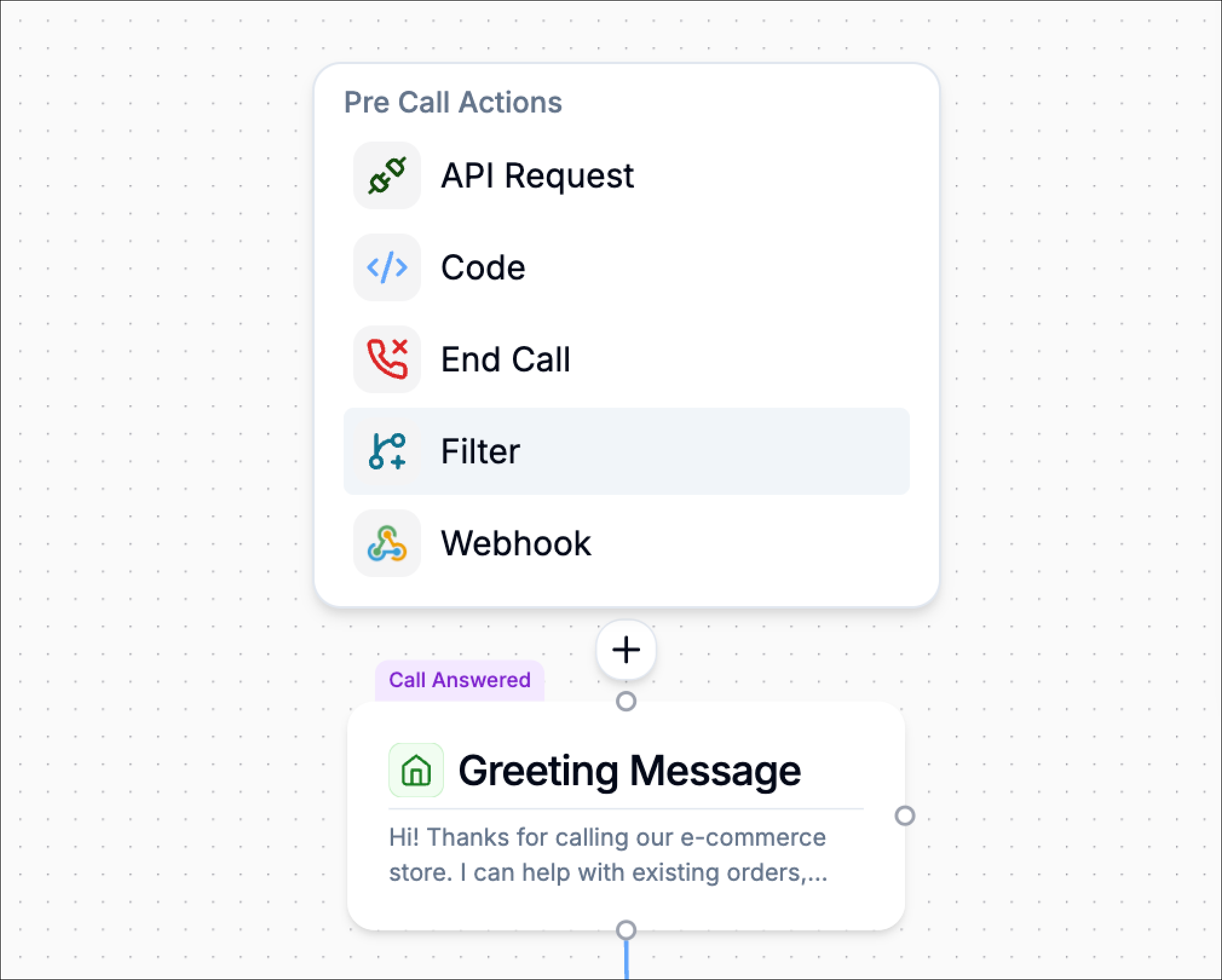
Create a Case (the routing path)
Click the Filter block to open the Filter configuration panel. Under Cases, you will see Case 1 by default.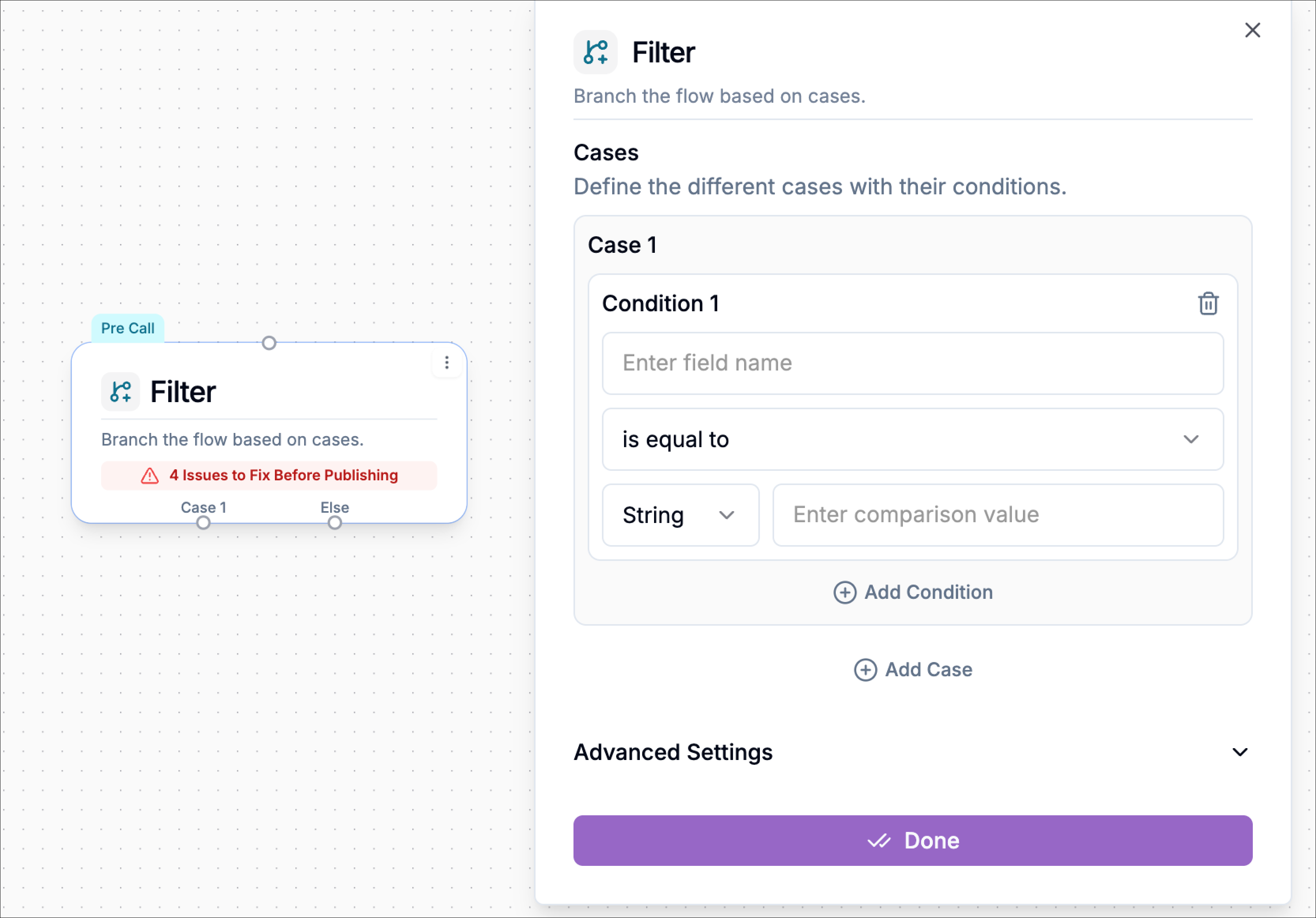
“If this case matches, send the call down this path before the Start Flow begins.”To add another routing option, click Add Case. This creates a new output path on the canvas (for example Case 3) that you can connect to a different workflow branch.
Define Your Conditions Inside a Case
Each condition is a rule that tells Phonely what to evaluate before deciding which case the call should follow. Click the filter block to open its configuration panel. Under Cases, locate Condition 1 inside a case. You will see three main fields:| Field | Description |
|---|---|
| Define Field | The variable or data point you want to evaluate (e.g., caller_phone, customer_name, plan_type). |
| Comparison Operator | Defines how the field is compared. Options include: • exists • doesn’t exist • is equal to • is not equal to • is an array containing • matches condition (AI) • does not match condition (AI) |
| Value Type & Comparison Value | Select the data type (String, Number, or Boolean) and specify the value to compare against. AI-based operators do not require a value type because they evaluate natural-language conditions. |
Select the Comparison Operator
Click the dropdown that shows “is equal to” to see other comparison options.exists
Checks whether the variable has any value. Useful for verifying that a variable was successfully populated before the call begins.Example: Confirm a customer record was retrieved before continuing.Condition:True path: continue with the workflow
False path: send caller to fallback or verification flow
False path: send caller to fallback or verification flow
doesn’t exist
Use this when you want a fallback path if a value is missing.
This condition is true when the variable is empty, null, or was never set.Example: Customer profile was not found during a Pre-Call lookup.Condition:True path: send caller to account verification flow
False path: continue normallyThis helps prevent workflows from continuing when required data is missing.
This condition is true when the variable is empty, null, or was never set.Example: Customer profile was not found during a Pre-Call lookup.Condition:
False path: continue normallyThis helps prevent workflows from continuing when required data is missing.
is equal to
Use this when you want exact matching. This is best for categories, flags, status fields, or known inputs.Allow verified customers to continue.
False path: route to standard support Start Flow
verification_status is equal to verifiedTrue path: route to priority support Start FlowFalse path: route to standard support Start Flow
is not equal to
Use this when one value should be handled differently while all other values follow another path.
Prevent unverified callers from entering the workflow.Example:
- Define Field:
verification_status - Comparison:
is not equal to - Value:
verified
- True path: send caller to verification or fallback path
- False path: continue to the Start Flow
is an array containing
Used when the variable is a list or array and you need to check whether it includes a specific value.
Block callers with a known risk tag.Example:
- Define Field:
risk_tags - Comparison:
is an array containing - Value:
blocked_caller
- True path: route to block or end call path
- False path: continue normally
matches condition (AI)
Uses AI to determine whether a variable semantically matches a natural-language condition.Examples:This allows routing decisions to be based on meaning rather than exact wording.
Enter the Comparison Value
Under the comparison dropdown, select the correct data type for the value you want to compare.| Data Type | When to Use |
|---|---|
| String | For text values such as names, statuses, or categories |
| Number | For numeric comparisons such as amounts or counts |
| Boolean | For true/false logic (for example is_verified = true) |
Add Multiple Conditions Inside the Same Case (AND vs OR)
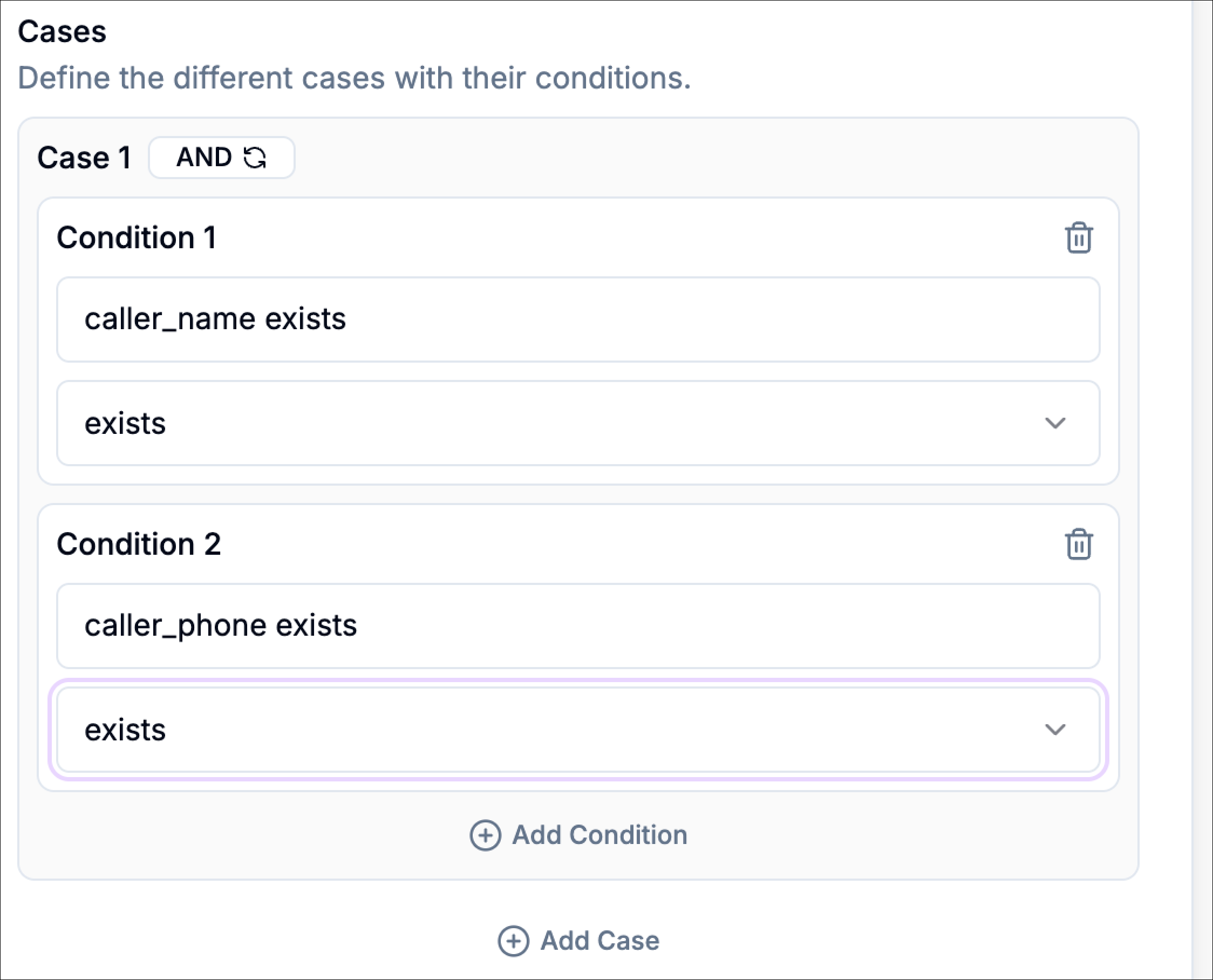
A case can contain more than one condition. When you add multiple conditions, you must define how they are evaluated together.| Logic Option | Description | |
|---|---|---|
| AND | All conditions must be true for the case to match | |
| OR | Only one condition needs to be true for the case to match |
Configure Advanced Settings
Advanced settings allow you to control what the caller hears while the Pre-Call Filter evaluates its cases, and optionally tag the call outcome for reporting and analytics. Scroll down to the Advanced Settings section in the filter configuration panel and click to expand it.Interim Message
Enable Interim Message to play a short message to the caller while Phonely evaluates the Pre-Call Filter logic (for example, checking conditions or determining which case should be selected). Because the Pre-Call Filter runs before the start flow begins, this message helps prevent silence while the system determines the correct routing path.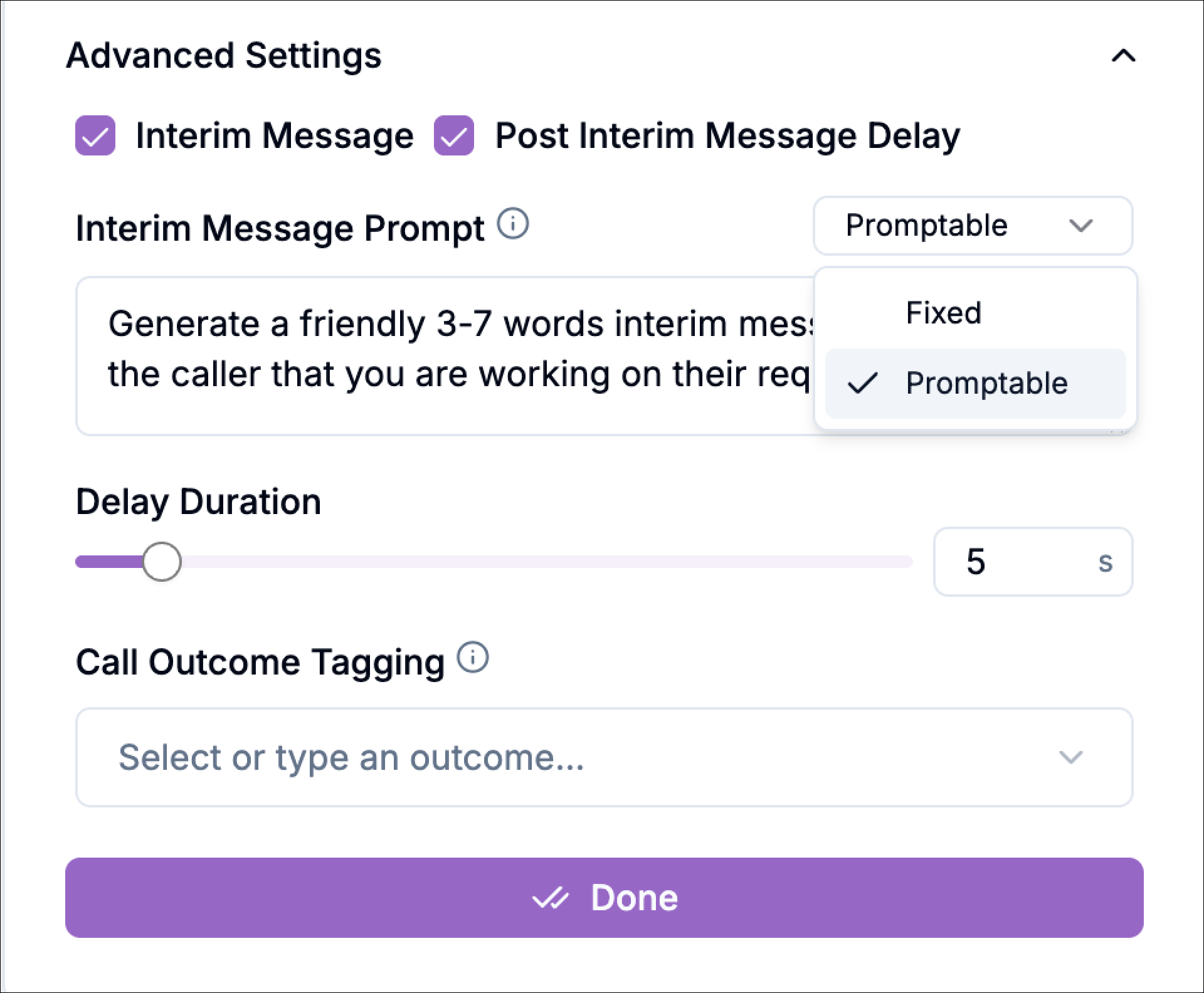
You write the exact message Phonely should say each time.
Example: “One moment while I check that.”Promptable
You provide a prompt and Phonely generates a short interim message automatically based on that instruction. Example prompt:
“Generate a friendly 3–7 word interim message to inform the caller that you are working on their request.”This approach keeps the experience natural while the system determines the correct case path.
Post Interim Message Delay
Enable Post Interim Message Delay if you want to add a short pause after the interim message is spoken, before the workflow continues to the selected case path. You can adjust the delay duration using the delay slider. This is useful when you want the interim message to feel intentional and natural instead of transitioning immediately into the next block.Call Outcome Tagging
Use Call Outcome Tagging to assign an outcome label to the call at the point where the Pre-Call Filter runs. You can either select an existing outcome or type a custom one. This is helpful for analytics because it allows you to track how often certain routing decisions occur. Later, you can filter or group calls in reporting dashboards using these outcome tags. Example outcome tags:eligible_callerverification_requiredrisk_flaggedblocked_caller
Save the Filter
Click Done to confirm your configuration and close the Filter panel. Once saved:- The pre-call filter block will display its routing outputs on the canvas.
- Each case output represents a possible routing path.
- The Else output acts as the fallback route if no cases match.
Example: Using Variables in Pre-Call Filter Logic
Suppose a pre-call API request retrieved the caller’s location data and returned the following variables:customer_idverification_statusrisk_score
For example, the call could be routed to the Chicago downtown Store Start Flow or trigger a follow-up action such as retrieving store details. If the conditions do not match, the call follows the Else path. For example, the workflow might play a message such as:
“Sorry, we couldn’t find a nearby store based on your location. Please check your ZIP code and try again.”Using Pre-Call Filters this way ensures callers are directed to the correct workflow before the AI agent begins the conversation.
When to Use a Pre-Call Filter
Use a pre-call filter when the call should begin differently depending on available data. Use a pre-all filter when you need to evaluate the caller before the conversation starts and decide whether the call should continue. The primary use cases for pre-call Filters are:Eligibility Checks
Use a pre-call filter to determine whether the caller meets the requirements to continue into the workflow. Examples include:is_verified = true→ continue to the Start Flowsubscription_status = active→ continue normallycustomer_id exists→ continue- Else → route to verification, fallback, or end call path
Spam or Risk Screening
Use a Pre-Call Filter to block, redirect, or flag suspicious calls before the AI agent begins speaking. Examples include:spam_score > 80→ block or end callrisk_flag = true→ send to verification pathcaller_reputation is equal to blocked→ end call- Else → continue normally