

- Receives input variables
- Executes your code
- Returns output variables
- Makes those output variables available to the Start Flow and the rest of the conversation
When This Action Runs
The Pre-Call Code action runs immediately after the call starts, before the Start Flow begins. Execution order:When to Use Pre-Call Code
Use the Pre-Call Code action when you need to perform logic before the caller hears the first response. Common uses include: This action is especially helpful when the logic is too complex for a simple condition check.How to Add a Pre-Call Code Action
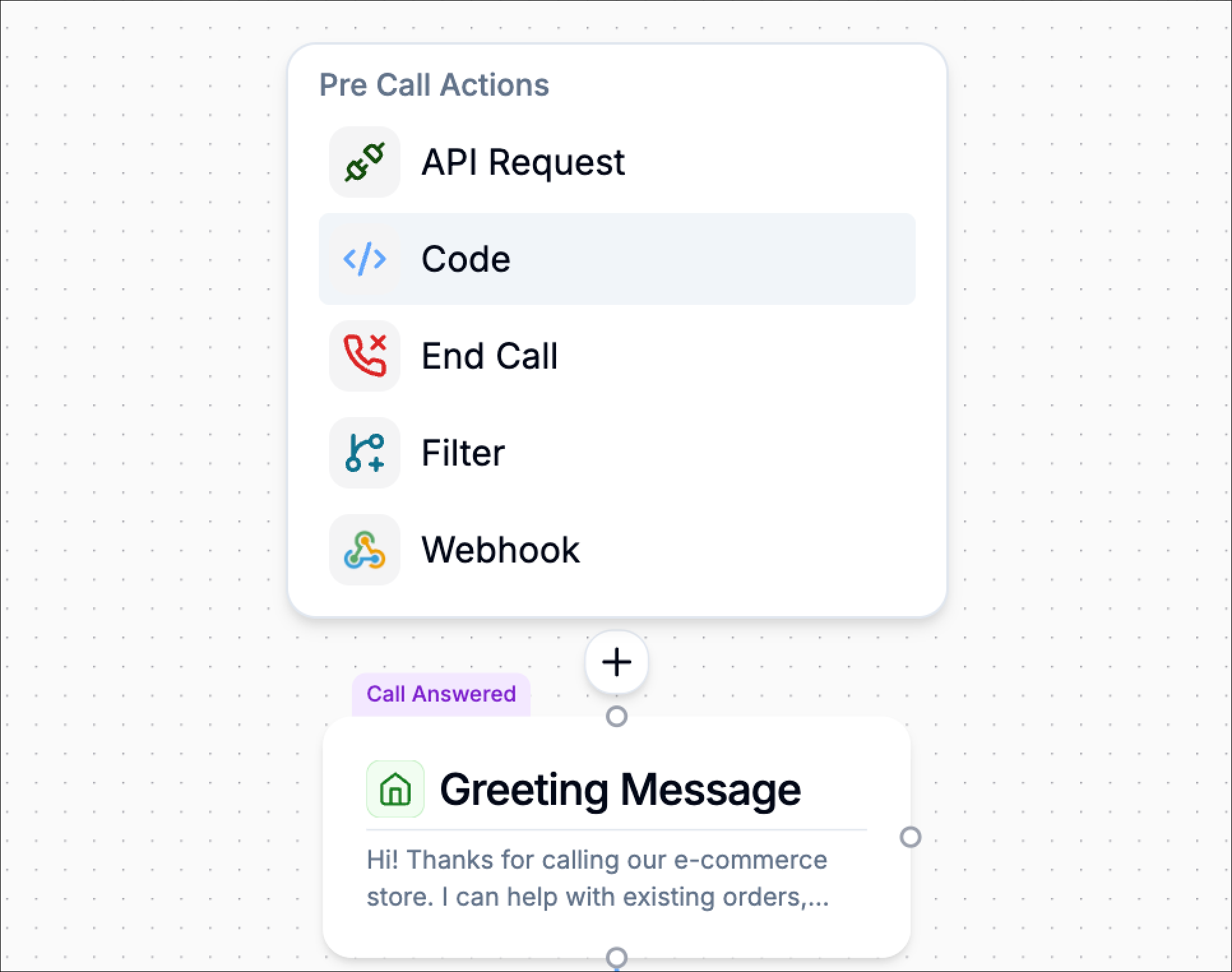
Pre-Call Actions can only be added above the Start Flow, which is the block that runs first when a call is answered. To add a Pre-Call Code action:Set the Start Flow
Open your Flow Editor and select the block that should run first when a call is received.In the settings panel on the right, enable Set as First Flow. Once this is enabled, the Add a pre-call action option appears above the Start Flow.
Setup
Add a New Block
In the Setup step, select the type of code action you want to run.For this action, choose Run Python. Once selected, click Continue to move to the Configure step.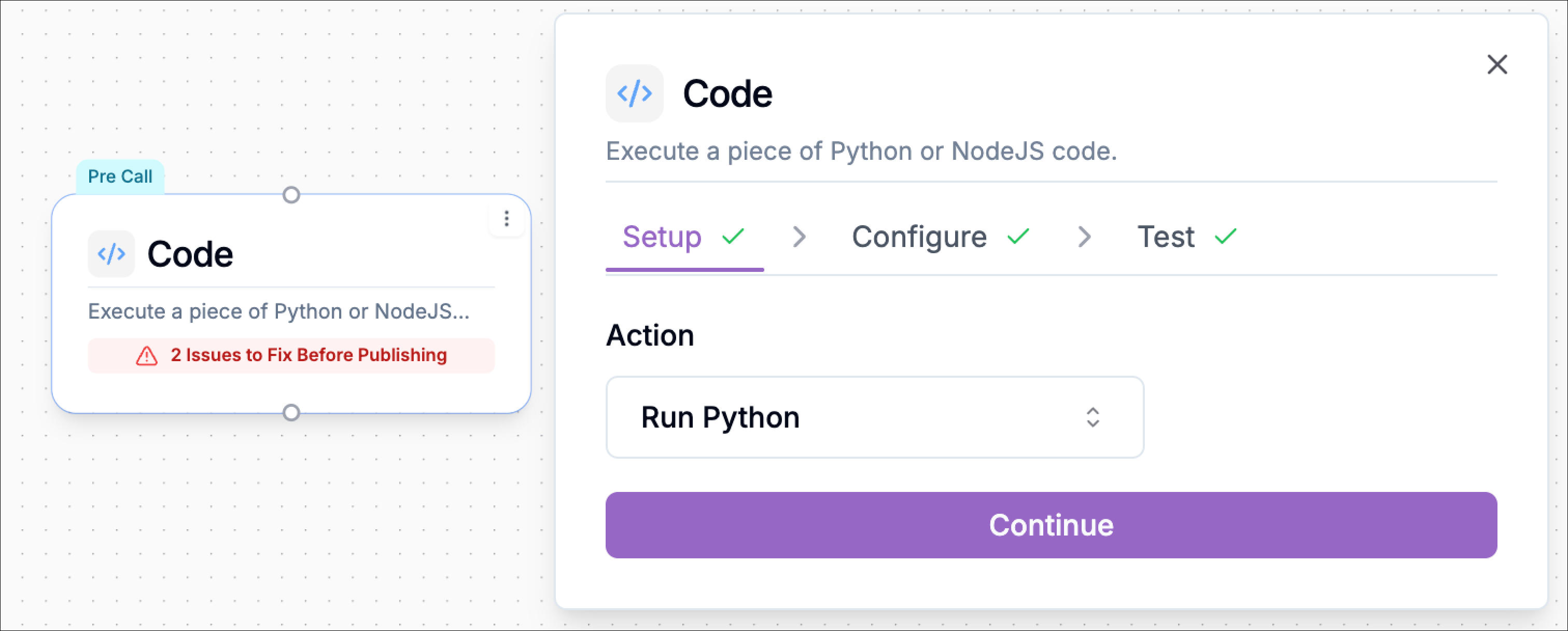
Configure
The Configure step is where you define the variables your code will use and write the Python logic.
Configure Input Variables
At the top of the configuration panel, you can define Input Variables. These are the values passed into your Python function.You can:
This allows your Python code to access values collected or generated earlier in the workflow.
- rename them
- remove them
- add more input variables
- Variable name – the name used inside your code
- Set variables – the workflow variable that should be passed into that input
| Variable name | Set variables |
|---|---|
| caller_phone | caller_phone_number |
| account_type | customer_account_type |
Write Your Code
The Python editor includes a starter function:This structure should remain in place.Your code must: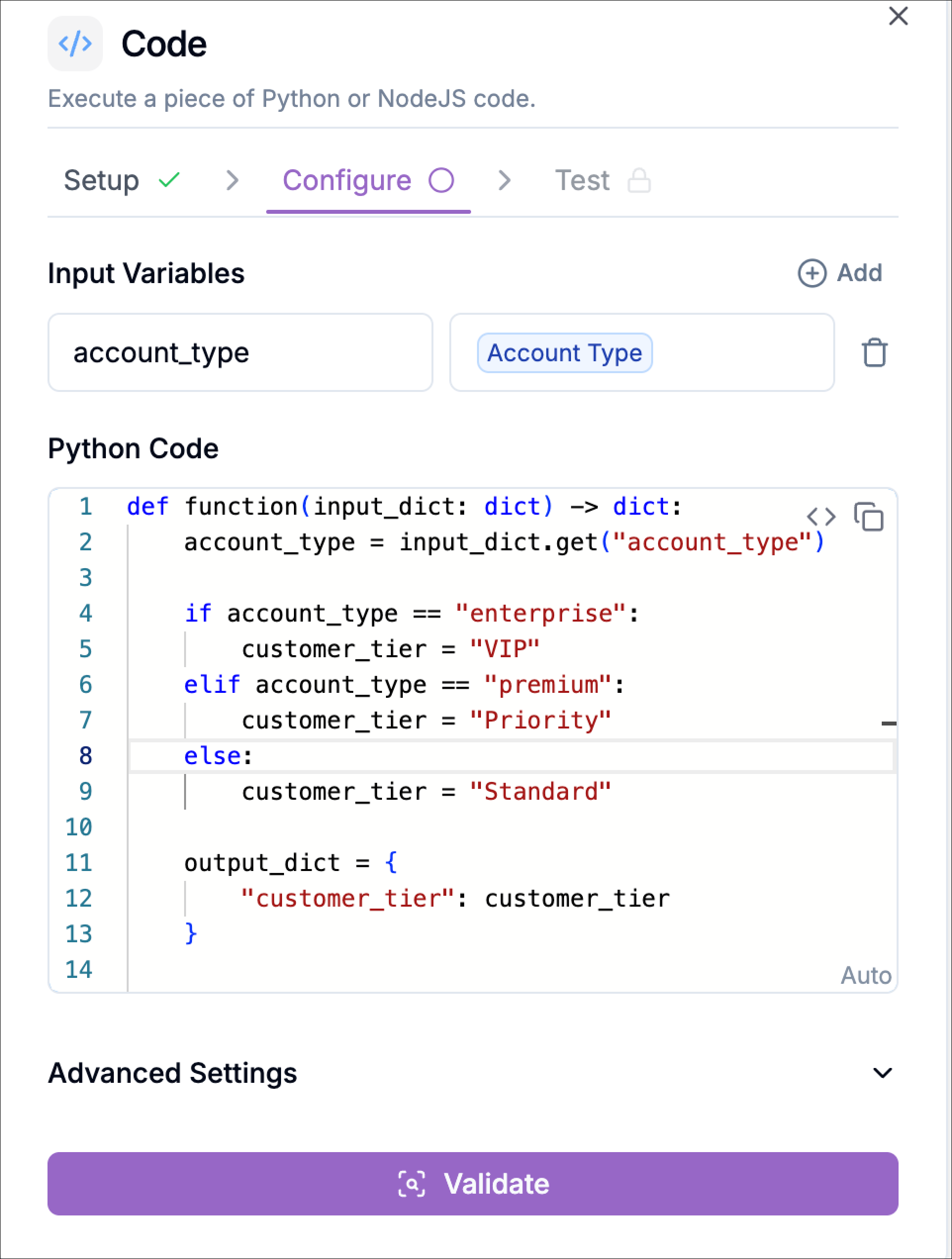
- accept
input_dict - return
output_dict
input_dict to pass values into the block and uses output_dict to make new values available after the block finishes.Example: Assign a Customer Tier
The example below checks a customer’s account type and returns a tier that can be used later in the workflow.- the block receives
account_type - it evaluates the value
- it returns a new variable called
customer_tier
How the Function Works
Function Definition
input_dictcontains all variables passed into the block- the function must return a dictionary of outputs
Reading Inputs
"premium", that value becomes available in the code.Applying Logic
- compare values
- assign labels
- transform strings
- calculate totals
- decide fallback values
Returning Outputs
customer_tier becomes available to later steps.Advanced Settings
The Pre-Call Code action includes advanced settings similar to other Phonely actions.Enable Error Handling
When enabled, the system can catch code execution failures and handle them more gracefully. This is useful when your logic depends on input values that may be missing or incorrectly formatted.Interim Message
If the code action takes time to execute, you can enable an interim message so the caller hears a short response while the system completes the task. Example:“One moment while I check that.”This helps avoid silence at the start of the call.
Post Interim Message Delay
Adds a delay after the interim message before the flow continues. This can make the interaction feel more natural.Interim Message Prompt
You can configure how the interim message is generated. Available options include:- Promptable – the system generates the interim message dynamically
- other available prompt types depending on your setup
Generate a friendly 3–7 word interim message to inform the caller that you are working on their request.
Call Outcome Tagging
You can assign an outcome tag to help classify the result of the code action for reporting and analytics. Examples:tier_assignedeligibility_checkedrouting_prepared
Validate Your Code
Before continuing, click Validate. Validation checks that the Python code is syntactically correct. If validation succeeds:- The Configure step is marked complete
- Click Continue to proceed to Test
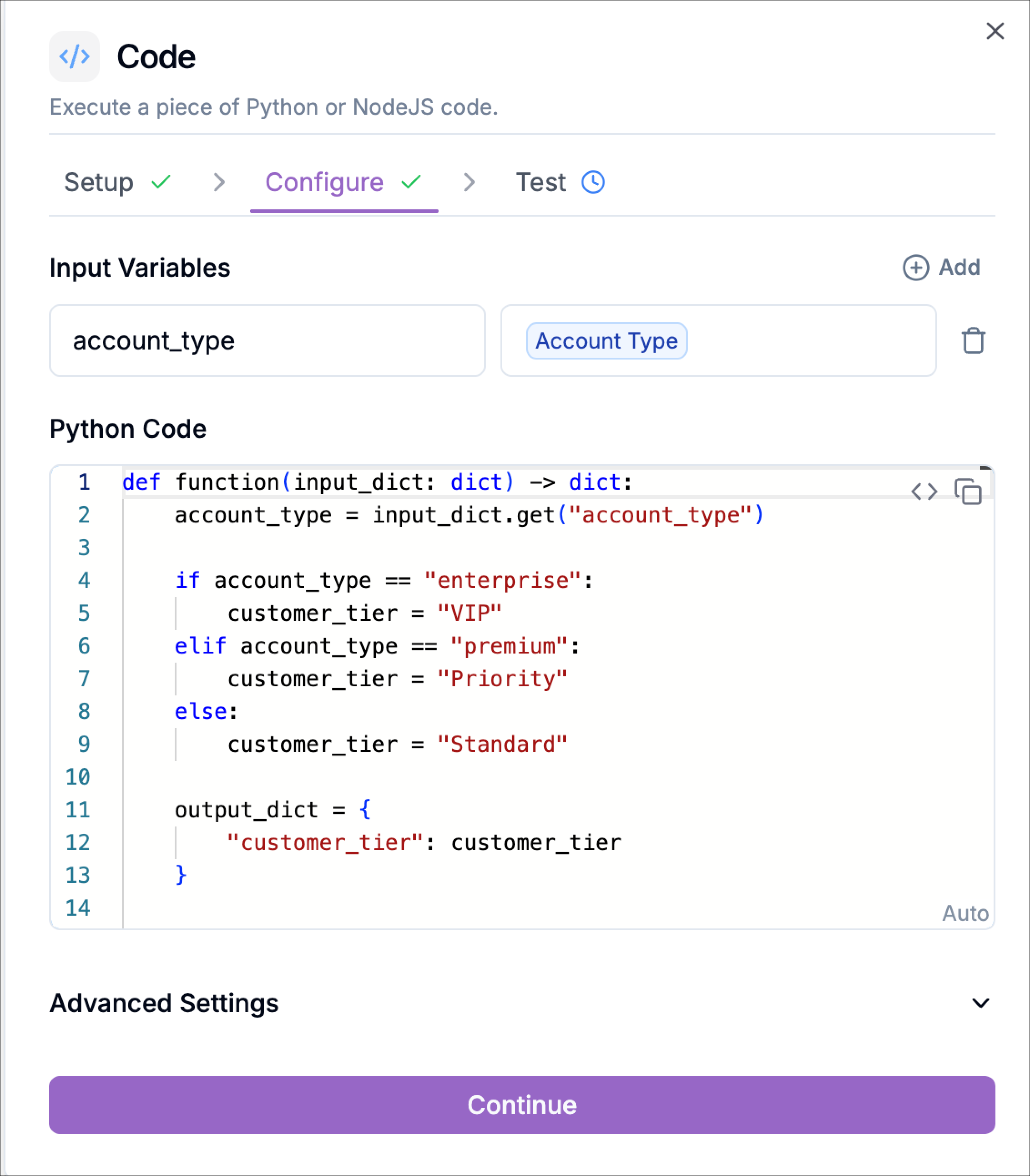
Test your Code
Use the Test step to confirm that your code behaves as expected. Enter sample values for the input variables and run the test.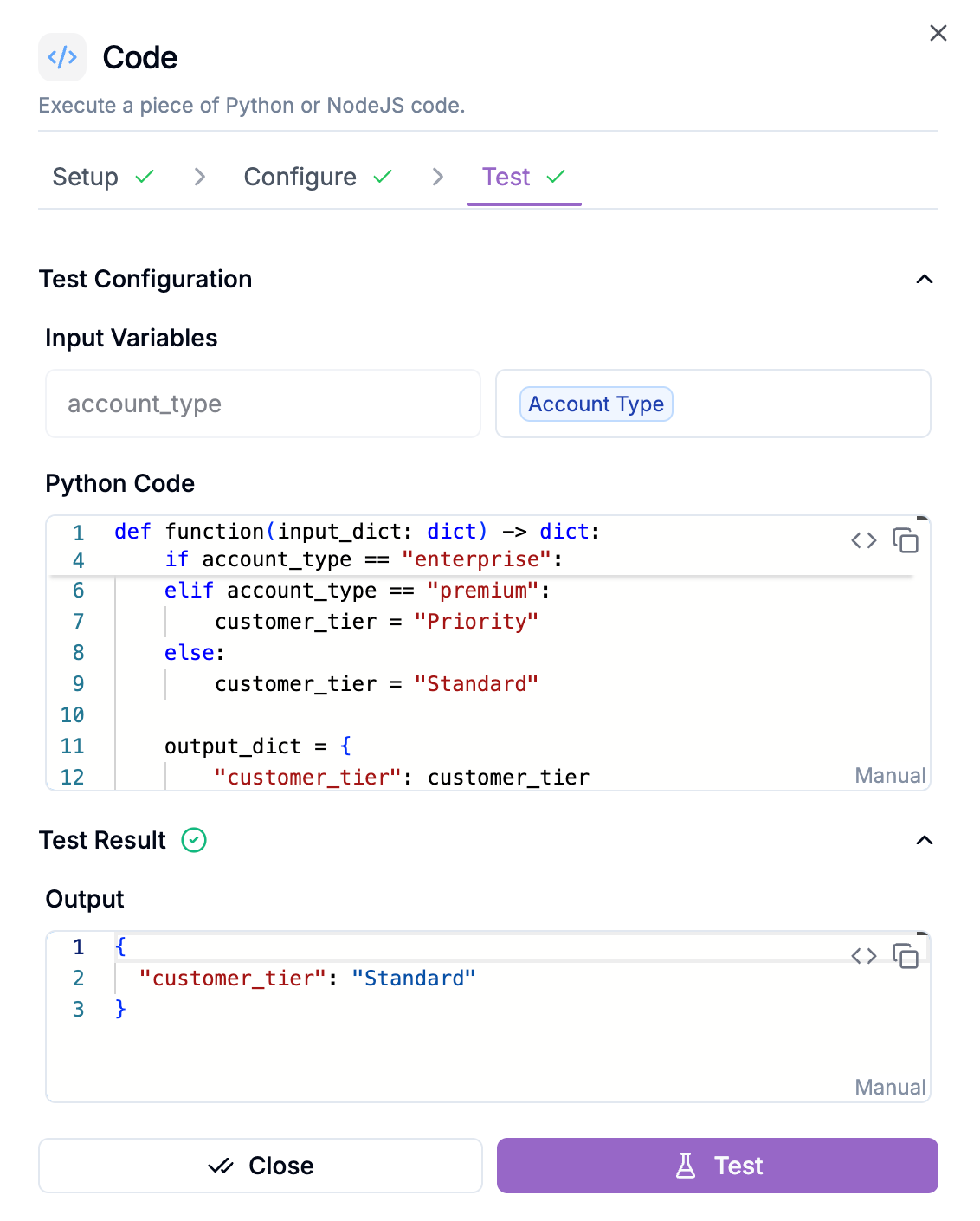
enterprise→VIPpremium→Prioritybasic→Standard
Using Output Variables
Every value returned inoutput_dict becomes available to downstream steps in the workflow.
These output variables can be used in later:
- Filters
- API Requests
- Transfer logic
- Messaging blocks
- Call outcome tagging
- other workflow actions
customer_tier to route VIP callers to a priority support path.