The version history panel shows whether your current draft differs from the latest published version, which helps teams review changes before publishing.
How to Access Agent Version History
- Open your agent’s flow editor.
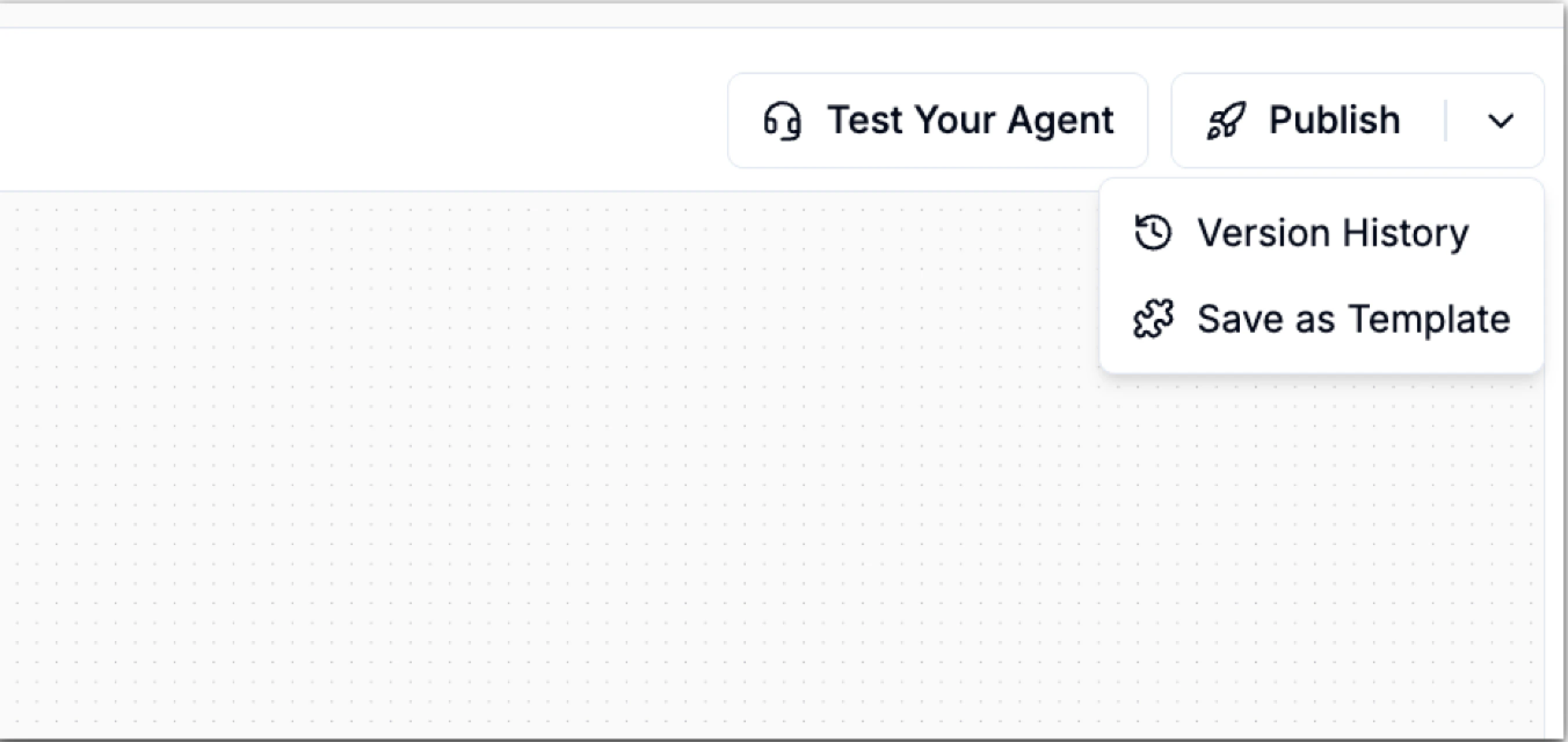
- Click drop-down icon besides the publish button in the top-right corner.
- From the dropdown, select Version History.
Understanding Version Types
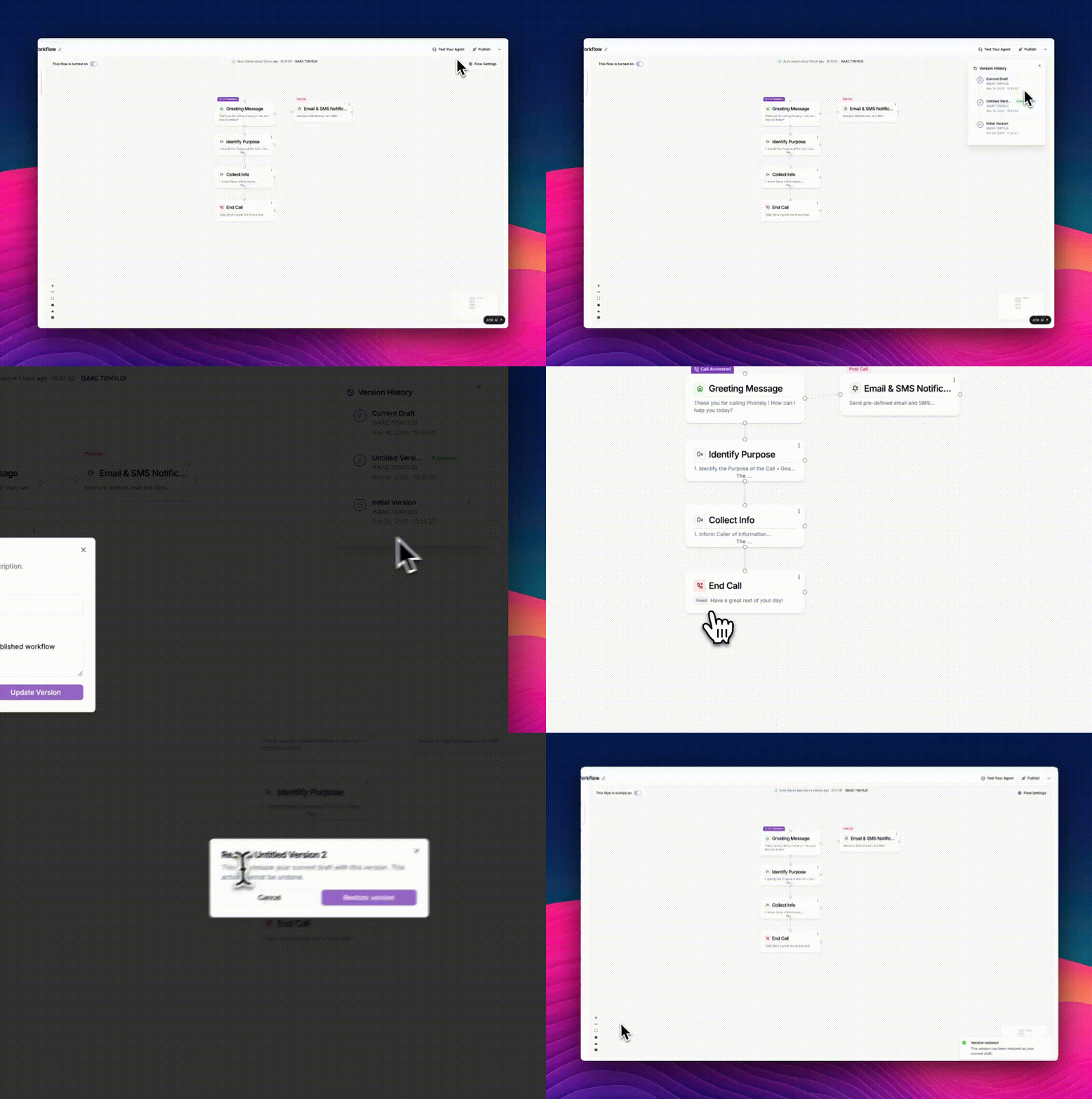
Inside the Version History panel, you’ll see:- Current Draft: Your most recent, unpublished changes.
- Published Version: The published version.
- Previous Versions: Archived snapshots created at different points in time.
Restoring an Older Version
If a recent update breaks something or you want to revert to a previous design, you can restore any earlier version.View & Restore a Version
- Click the dropdown button besides the publish button.
- Click the version history to open the version histoy window.
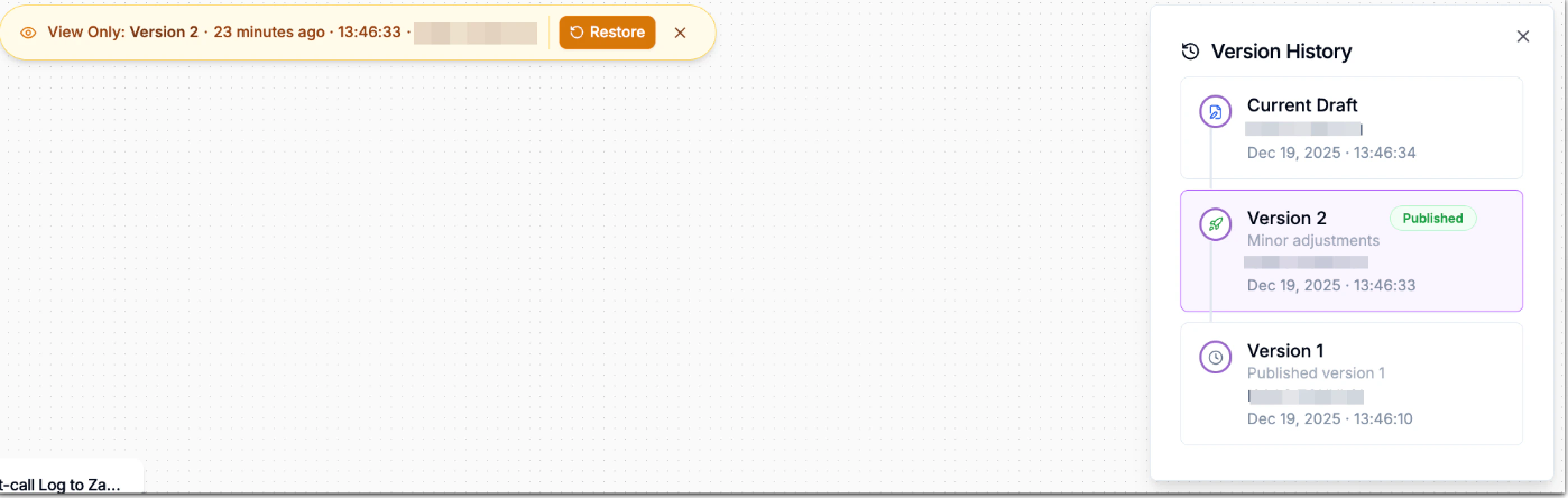
- You’ll also see a pop-up banner at the top indicating the version number, timestamp, author and a Restore button for prior versions.
- Click a version from the Version History panel.
- Click Restore in the banner at the top and confirm the action.
Restoring does not overwrite the live version until you publish.
Renaming a Version
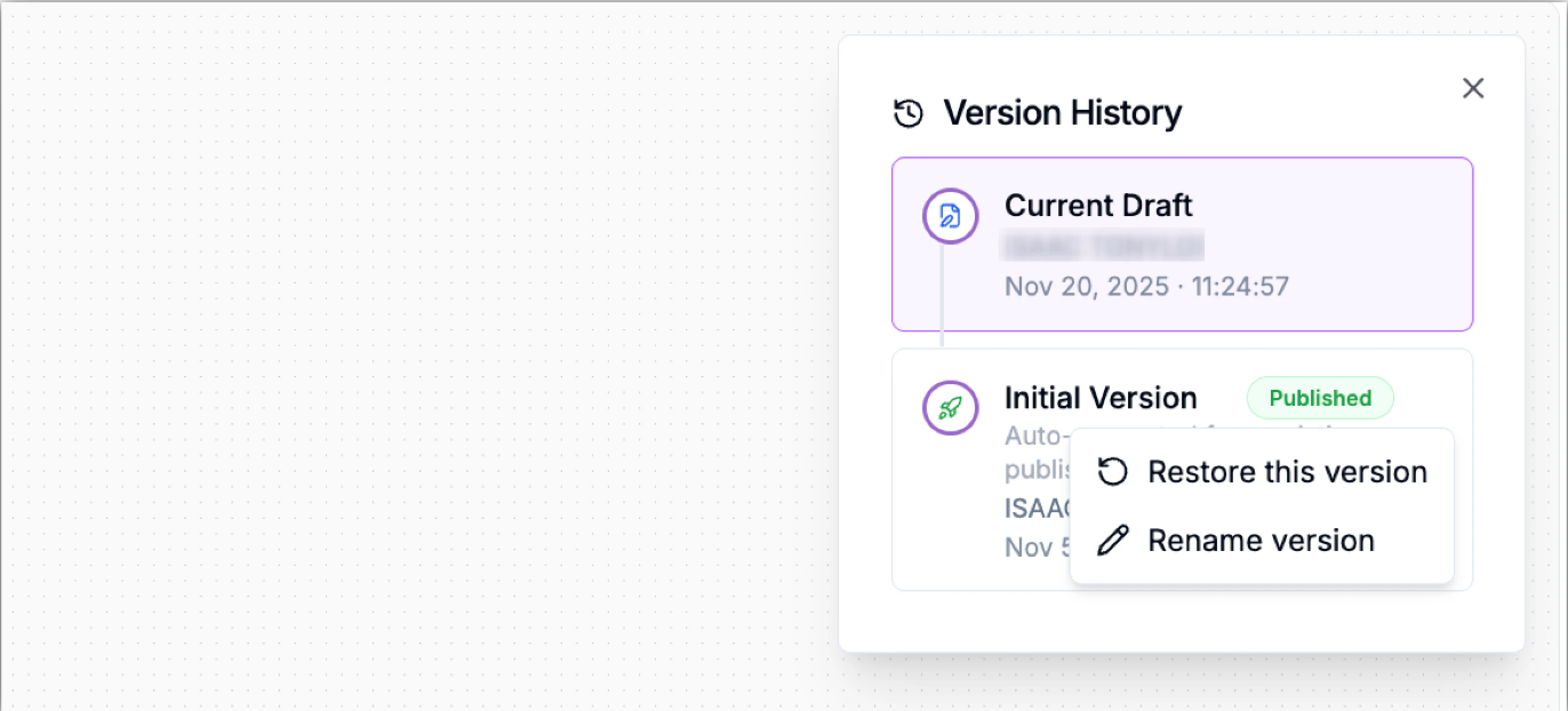
Clear version names make it easier to track iterations - especially in large teams. To rename a version:- Click the ⋯ next to the version and select Rename version.
- Enter a descriptive name.
- Save.
Deleting a Version
If you have redundant or obsolete versions, you can permanently remove them. To delete a version:- Click the ⋯ next to the version and select Delete version.
- Confirm deletion.
You cannot delete the currently published version.
How to Save a Workflow as a Template
Templates help you re-use successful flow structures across multiple agents or organizations.- Open the flow editor for the workflow you want to reuse.
- In the top-right corner, click Publish to open the publish menu.
- Select Save as Template. The Add Template dialog will appear.
- Complete the template details:
- Click Continue to proceed through the remaining steps and confirm.