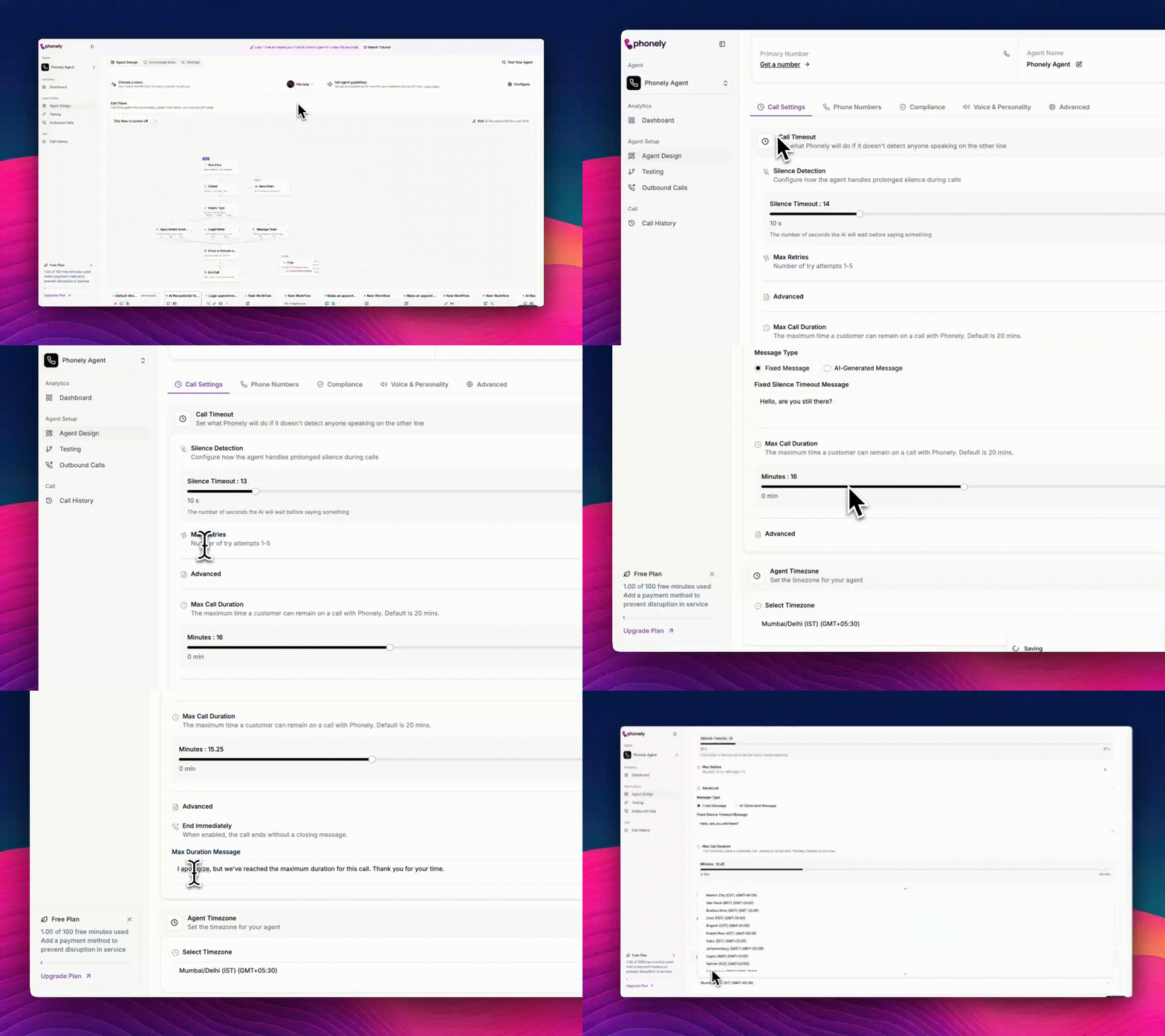
Call Timeout
This setting defines what the agent should do if it does not detect anyone speaking on the other side of the call. It determines the threshold at which your agent assumes the caller is unavailable or has hung up. Adjusting this helps you avoid scenarios where the agent waits indefinitely.Silence Timeout
Silence timeout defines how long the agent waits after it has finished speaking before taking further action if no response is detected from the caller. This is measured from the moment the agent last spoke. For example, if the silence timeout is set to 14 seconds, the agent will wait 14 seconds after its last message. If the caller does not respond within that time, the agent will proceed based on the configured behavior, such as sending a follow-up message or ending the call. This allows your agent to keep conversations flowing naturally, especially when callers hesitate, get distracted, or think before answering.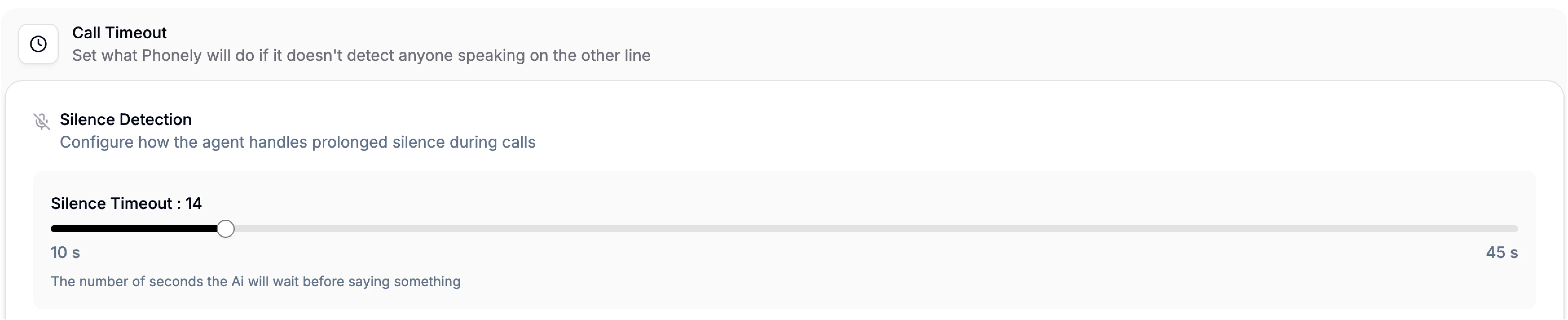
Max Retries
Max retries controls how many times Phonely should attempt a prompt again when a caller doesn’t respond or when the AI needs to retry part of a conversation. You can choose between 1 and 5 attempts.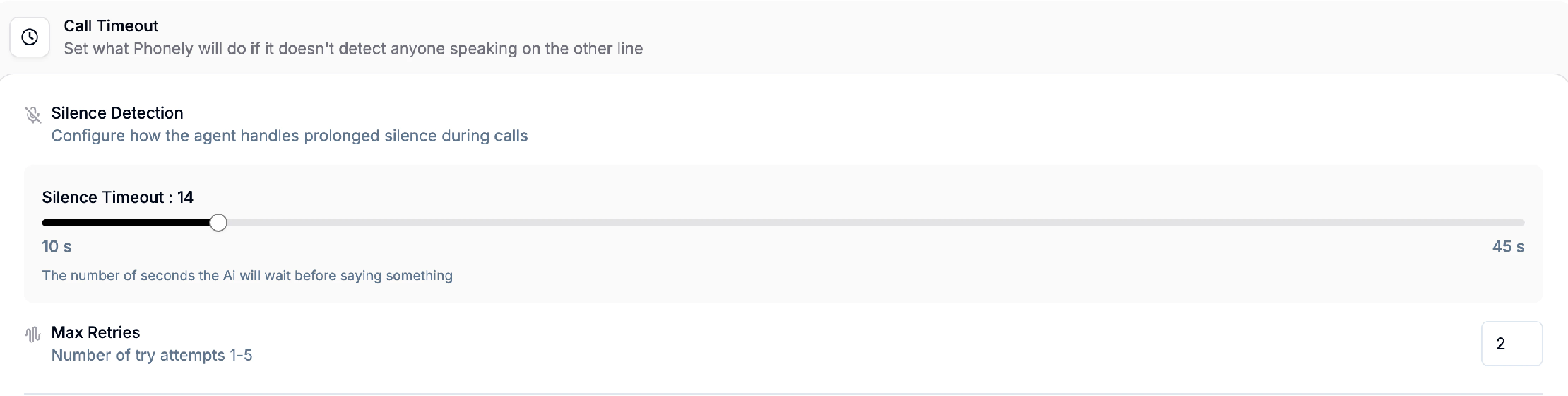
Advanced: Message Type
The message type section determines what the agent should say when responding to silence events. You can select a fixed message, which uses the same predefined sentence every time, or choose AI-generated message to let your agent craft contextual responses dynamically. If you use AI-generated message, you’ll see a field labeled AI message generation prompt.For example: “The user has been quiet. Respond appropriately.”

Max Call Duration
Max call duration limits how long a customer can stay on a call with your agent. By default, Phonely allows up to 20 minutes, but you can adjust this anywhere from zero minutes to one hour. The slider displays the exact number of minutes chosen as you modify it.Max Duration Message
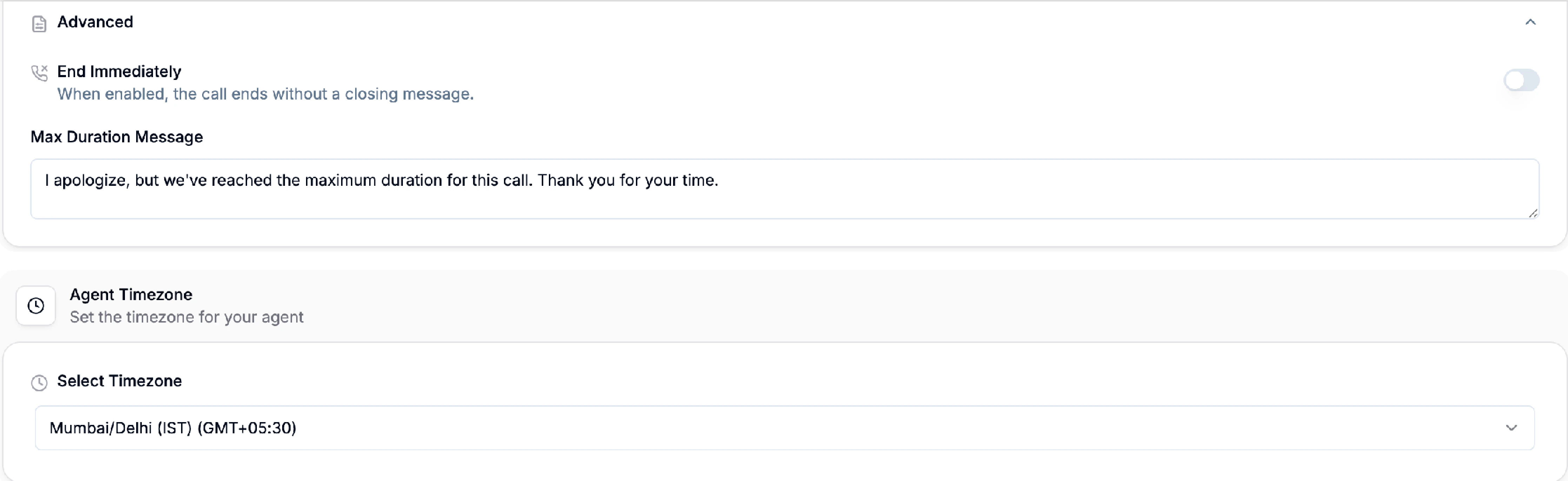
Once the maximum duration is reached, your agent ends the call automatically. You can customize the closing line using the max duration message field. This message is what the agent will say right before ending the call. If you prefer the call to end immediately without any closing message at all, you can toggle end Immediately.