

Workflow collaboration helps you work safely on a flow when other teammates are also making changes. Instead of overwriting updates silently, Phonely notifies you when a newer remote version is available and gives you tools to compare your current draft with the incoming changes before deciding what to do next. Use this when:Documentation Index
Fetch the complete documentation index at: https://docs.phonely.ai/llms.txt
Use this file to discover all available pages before exploring further.
- More than one person is editing the same workflow
- You have local edits open and a teammate saves a newer version
- You want to review exactly what changed before loading the latest version
How Workflow Collaboration works
When Phonely detects that a teammate has made newer changes to the same flow, a collaboration banner appears at the top of the Flow Editor. The banner shows that:- New remote updates are available
- Who made the remote update
- Actions you can take next
Collaboration banner
When remote updates are detected, Phonely displays a banner across the top of the workflow canvas.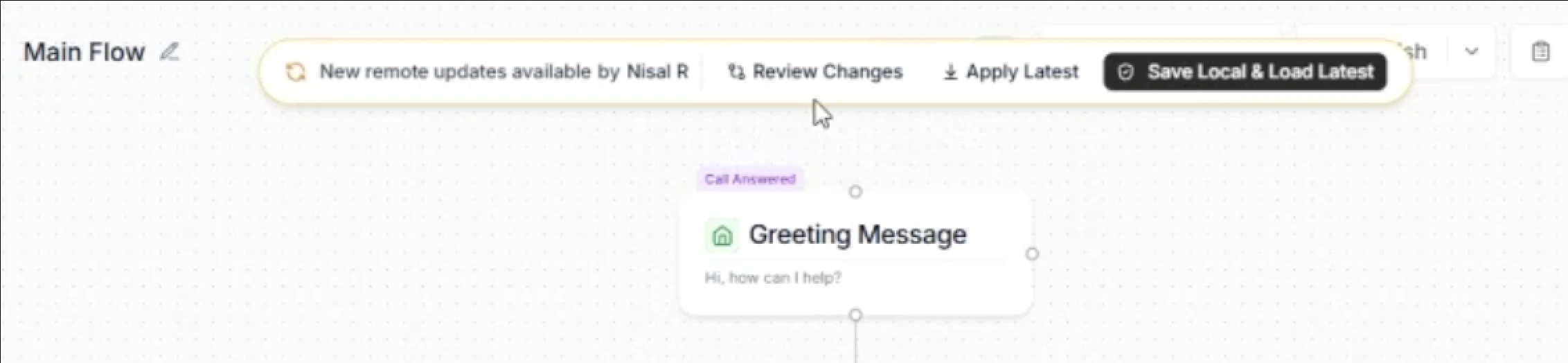
New remote updates available by [teammate]
This lets you know that another teammate has made a newer version of the current flow.
Review Changes
Opens the comparison view so you can inspect the differences between your local version and the incoming remote version.
Apply Latest
Loads the newest remote version into your editor. Use this when you do not need to keep your current local draft and simply want to move to the latest version.
Review Flow Changes
Click review changes from the collaboration banner to open the review flow changes modal. This is where you compare your current local draft with the incoming remote version side by side.Local Draft vs. Remote Updates
At the top of the modal, the comparison is split into two sides: **Local Draft - **This is your current local version of the flow the draft open in your editor. **Remote Updates -**This is the newer version saved remotely by your teammate. This layout makes it easy to compare your current work with the incoming version before taking action.Modified Nodes
Below the headers, Phonely lists the nodes that changed under modified nodes. Each changed node appears by name and shows how many fields inside that node were modified. To inspect the difference, click the modified node entry to expand it and review the changed content. Each modified node includes a badge showing how many fields changed.Simple mode
In simple mode, Phonely shows a readable, side-by-side summary of the change. If the changed text is long, click Show more to expand the full content, or Show less to collapse it again. This view is designed for readability. It is best when you want to understand prompt or content changes without reading raw structured data. In simple mode, changed content is displayed side by side in a more human-readable format. For example, if a prompt node changed, you may see readable content such as:- Objective
- Steps
- Guidelines
- Added or removed wording
- Revised instructions
- Prompt clarifications
- Small text changes inside an existing node
- Show more to expand the full content
- Show less to collapse it again
Advanced mode
You can also switch from the simplified view to a more technical comparison by turning on the Advanced toggle. This opens a Git-style JSON diff so you can inspect the exact structured field changes line by line. To return to the easier, readable comparison, toggle back to Simple view. Advanced mode is described as: This mode is useful when you want to inspect the exact structured data that changed. In Advanced mode, the changed node is displayed as a side-by-side structured diff. This includes fields such as:nameinstructionspromptexitconditionsvariables
- You want exact field-level differences
- You are reviewing configuration-heavy changes
- You need to verify raw node data
- You are comfortable reading structured diff output
- The change is too subtle to rely only on the readable summary
Actions you can take after reviewing
After inspecting the differences, return to the collaboration banner and choose the next step.Apply Latest
Use Apply Latest when you want to load the remote version directly. Choose this when:- the remote update is the version you want to continue with
- you do not need to preserve your current local draft separately
- you have already reviewed the changes and are ready to switch
Save Local & Load Latest
Use Save Local & Load Latest when you want to keep your current local work before switching to the remote version. Choose this when:- you have local edits you do not want to lose
- you want to preserve your draft before loading the newest shared version
- you want to compare or reuse your local work later
Review Changes again before deciding
If you are unsure which version to keep, use Review Changes first. This is especially important when:- the changed node affects prompt instructions
- more than one contributor is editing the same flow
- the latest update may affect logic, routing, or behavior
A typical collaboration workflow
A common workflow looks like this:- You open a shared workflow and start editing.
- Another teammate makes changes to the same flow.
- Phonely detects the new remote version.
- A collaboration banner appears at the top of the editor.
- You click Review Changes.
- The Review Flow Changes modal opens.
- You compare:
- Local Draft
- Remote Updates
- You inspect the changed node under Modified Nodes.
- You review the differences in Simple mode.
- If needed, you switch to Advanced mode for a structured diff.
- After reviewing, you choose:
- Apply Latest, or
- Save Local & Load Latest