

- Go to Analytics in the left sidebar.
- Open Performance.
- In the top-right corner, switch from Performance to Call Paths.
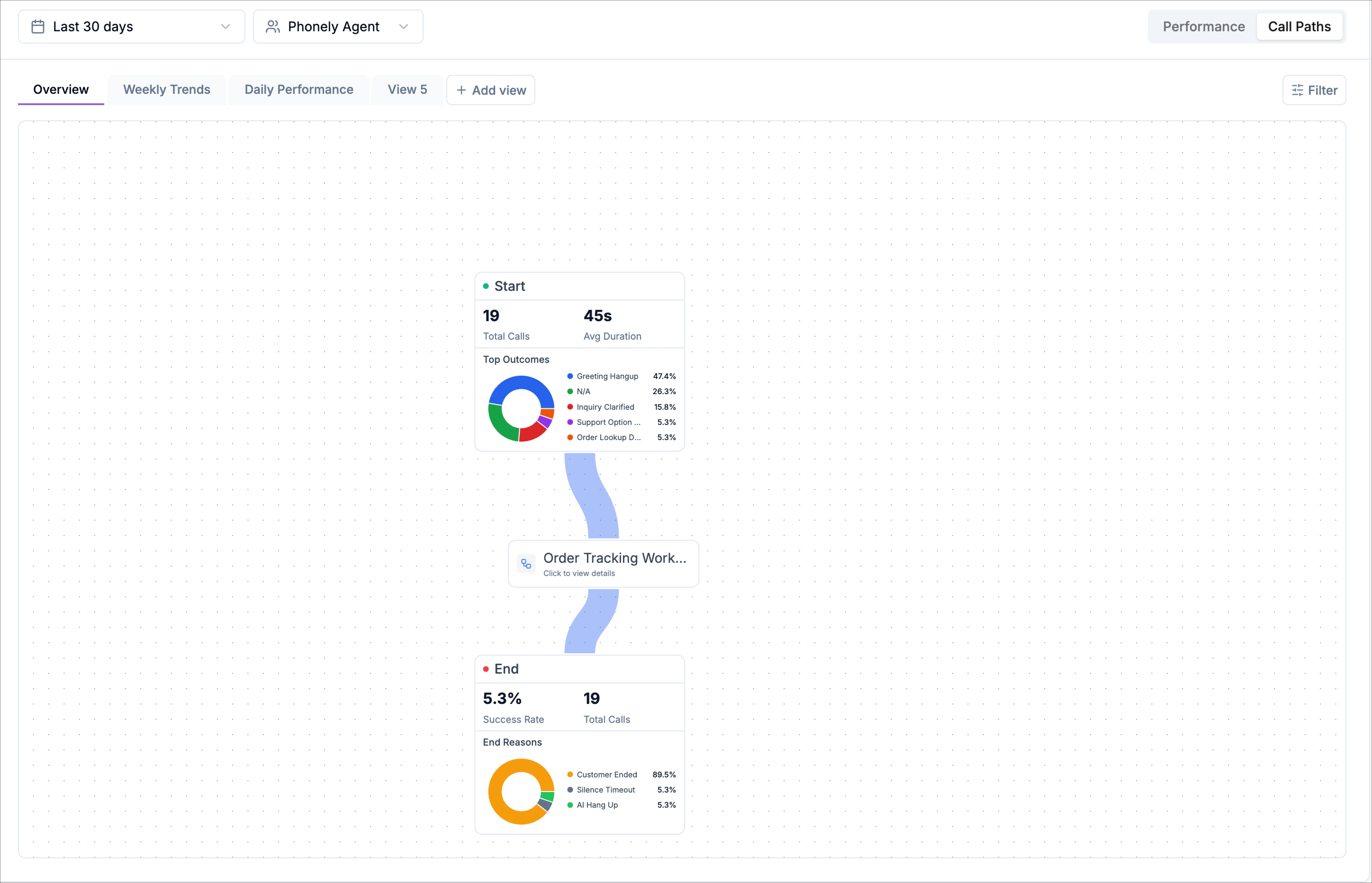
Controls
The top controls define which calls are included in the Call Paths diagram before the flow is rendered. Every block, connection, and metric in the flow is built from the data selected here.Date range selector
Use the date range dropdown to control the time window used to generate the call flow. Available preset ranges include: last 24 hours, 7 days, 30 days, 90 days. To analyze a specific period, switch to Custom and select an exact start and end date. The entire call path recalculates based on the selected range.Agent selector
The agent selector determines which agent’s workflow and calls are visualized in the Call Paths view.- Includes a Search agents… field for fast lookup
- Allows you to switch between agents.
How the Call Paths layout works
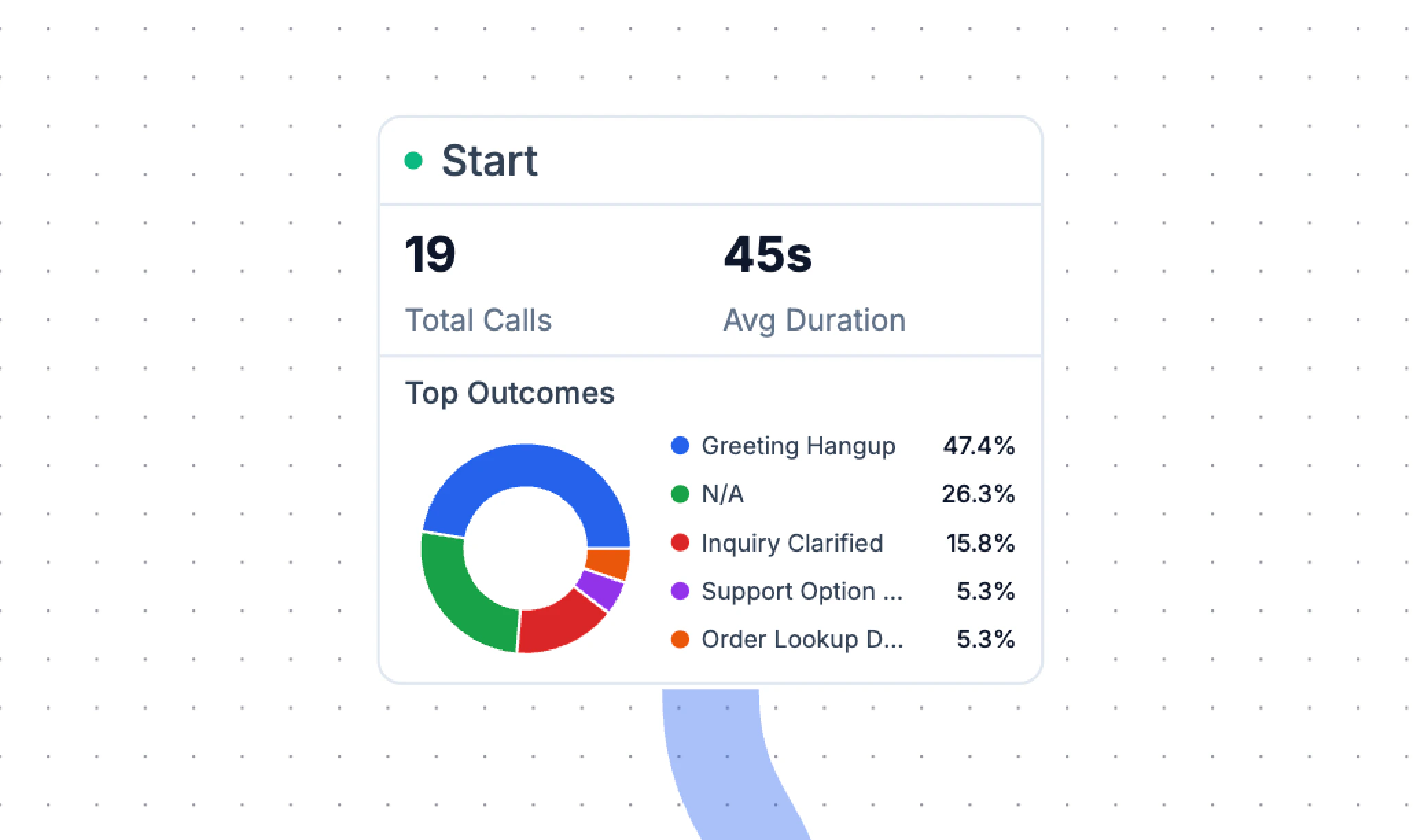
The call paths view is displayed as a vertical flow diagram made up of connected blocks. Each block represents a step in your agent’s workflow, and the connections show how callers move between steps.Start block
At the top of the flow is the Start block. This provides high-level context for the calls entering the workflow, including:- Total calls
- Average call duration
- A mini breakdown of top call outcomes
Workflow blocks
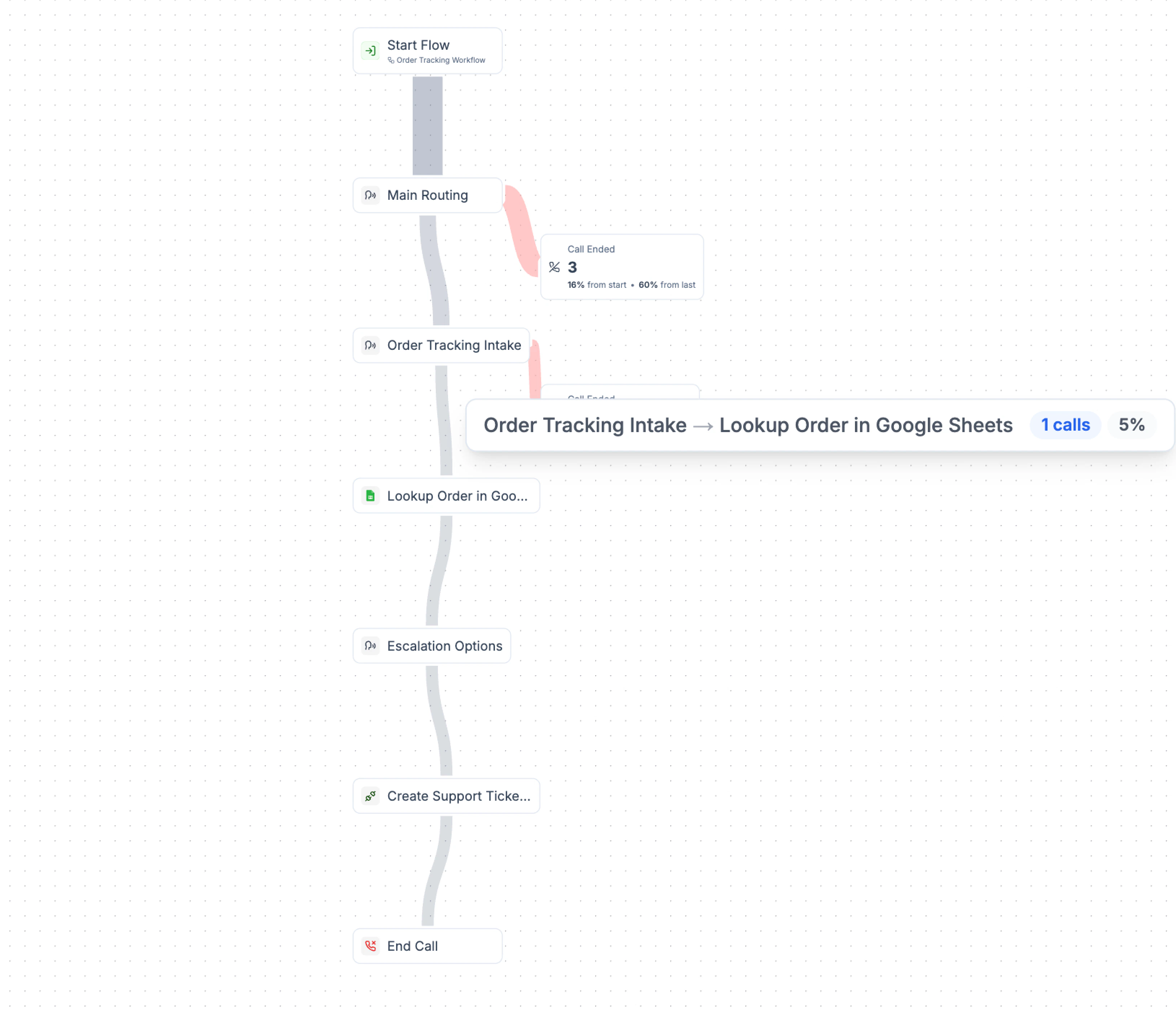
Below the start block are the workflow blocks, which represent the steps in your agent. The connecting lines between blocks show how callers progress through the flow. Thicker or more prominent paths typically indicate higher traffic, making it easy to see the most common routes.Inspecting Calls Along a Path
In call paths, the blue connectors between blocks aren’t just visual links, they’re interactive. Clicking a path lets you inspect the actual calls that traveled through that specific route, giving you concrete examples behind the flow. Each blue path represents a transition between two stages in your workflow, such as:- Start → Order Tracking Workflow
- Order Tracking Workflow → End
- The number of calls
- The percentage of total calls
Viewing calls on a path
When you click a blue path, a slide-in panel opens from the right side of the screen. This panel lists all calls that passed through that exact transition. Each call entry includes: the caller label, call summary snippet describing what the caller requested, date and time of the call and call duration. This makes it easy to move from high-level flow analysis to individual call examples without leaving the call paths view.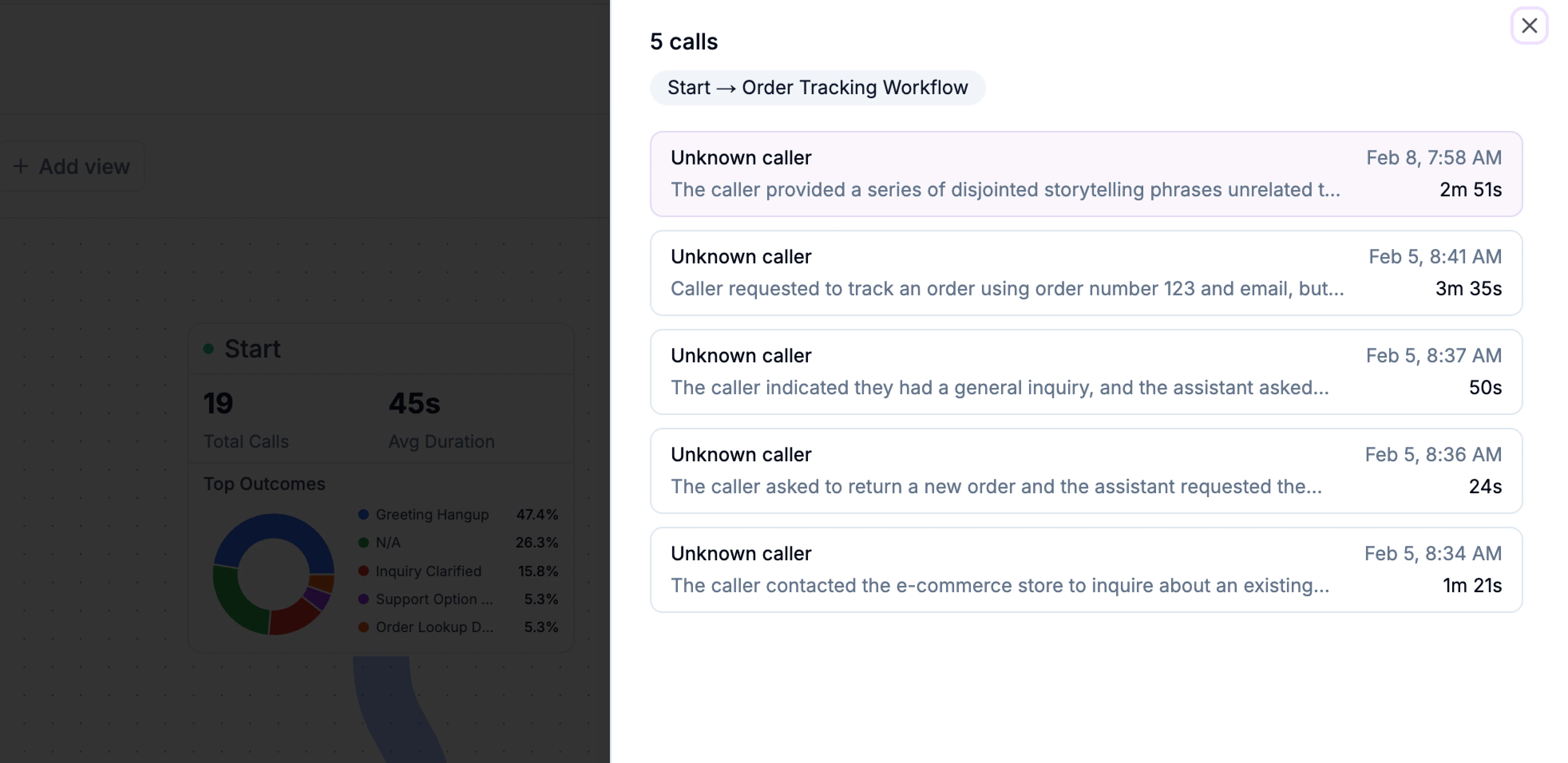
Viewing step-level details
Blocks display a “Click to view” label. Clicking one of these blocks lets you drill into that specific workflow allowing you to:- See how calls arrived at that block
- Understand what happened within the step
- Identify where callers continued, or dropped off
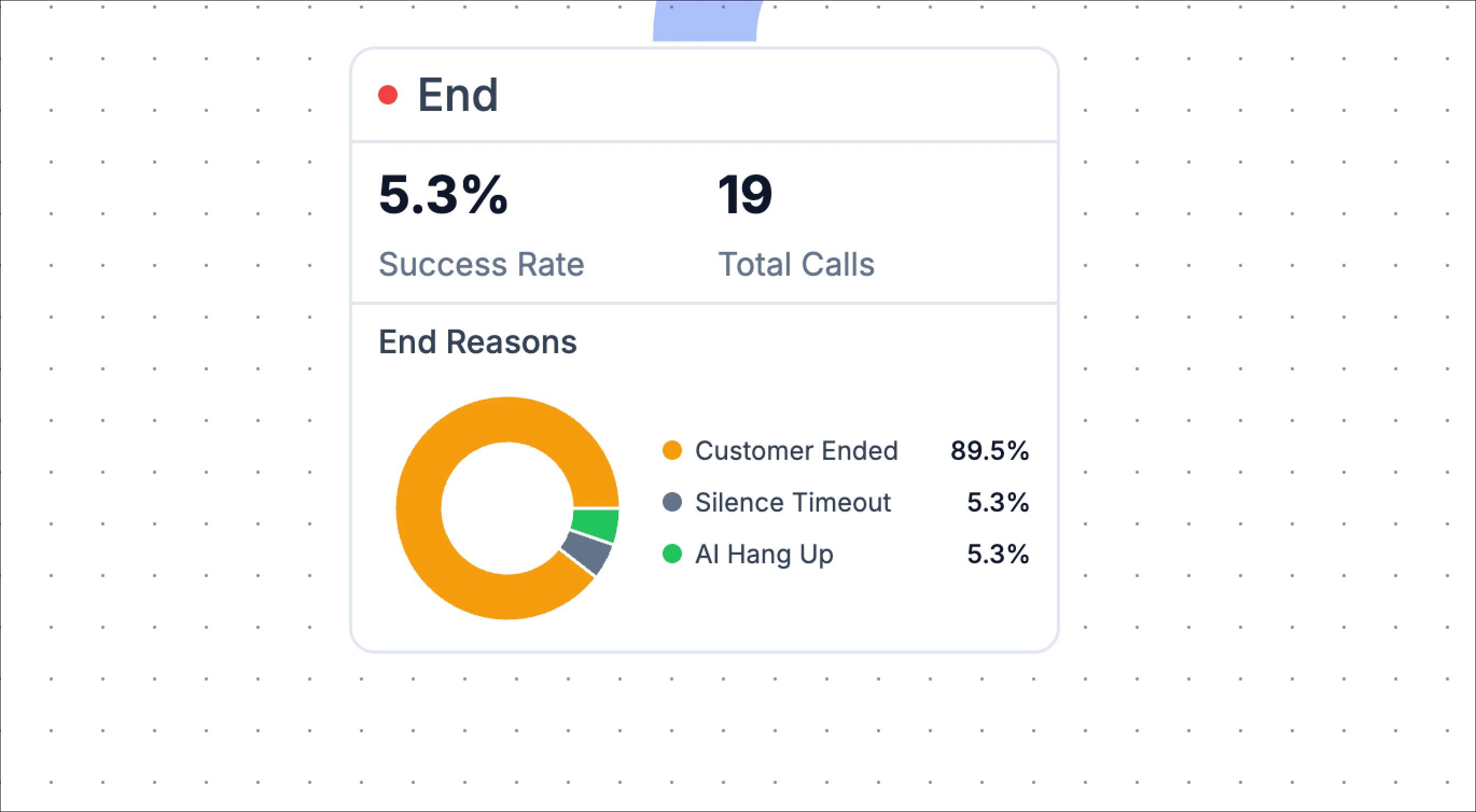
End block
At the bottom of the diagram is the End block, which summarizes how calls concluded. This section includes:- Total calls that reached the end
- Overall success rate
- A breakdown of end call reasons
Filtering Call Paths
Call Paths supports the same filtering system used on the Performance page. You can filter calls by: Filters allow you to focus on very specific behaviors. For example, you can isolate calls that ended in silence to see where they drop off, or filter to successful outcomes to identify which paths perform best. Once applied, filters update the flow instantly to reflect only the selected calls.Creating views for Call Paths
You can save filtered Call Paths as custom views, just like on the Performance page. This allows you to create focused views such as:- A failed-calls view showing only customer-ended calls.
- An escalation-focused view tracking support handoffs.
- A high-success view filtered to completed calls.