As your workflows evolve, variables can occasionally become invalid. This usually happens when a block is removed, disconnected, renamed, or no longer runs on a given path, but its variable is still referenced elsewhere in the flow. When this occurs, Phonely highlights the issue so you can resolve it safely without breaking your agent or downstream actions.Documentation Index
Fetch the complete documentation index at: https://docs.phonely.ai/llms.txt
Use this file to discover all available pages before exploring further.
How invalid variables appear
Invalid variables are visually flagged directly in the builder. You’ll see them highlighted inline within text fields (for example, in descriptions, messages, or API payloads), along with a warning indicator. Hovering over the variable shows a tooltip explaining that the variable is no longer valid and needs to be replaced.
Ways to replace an invalid variable
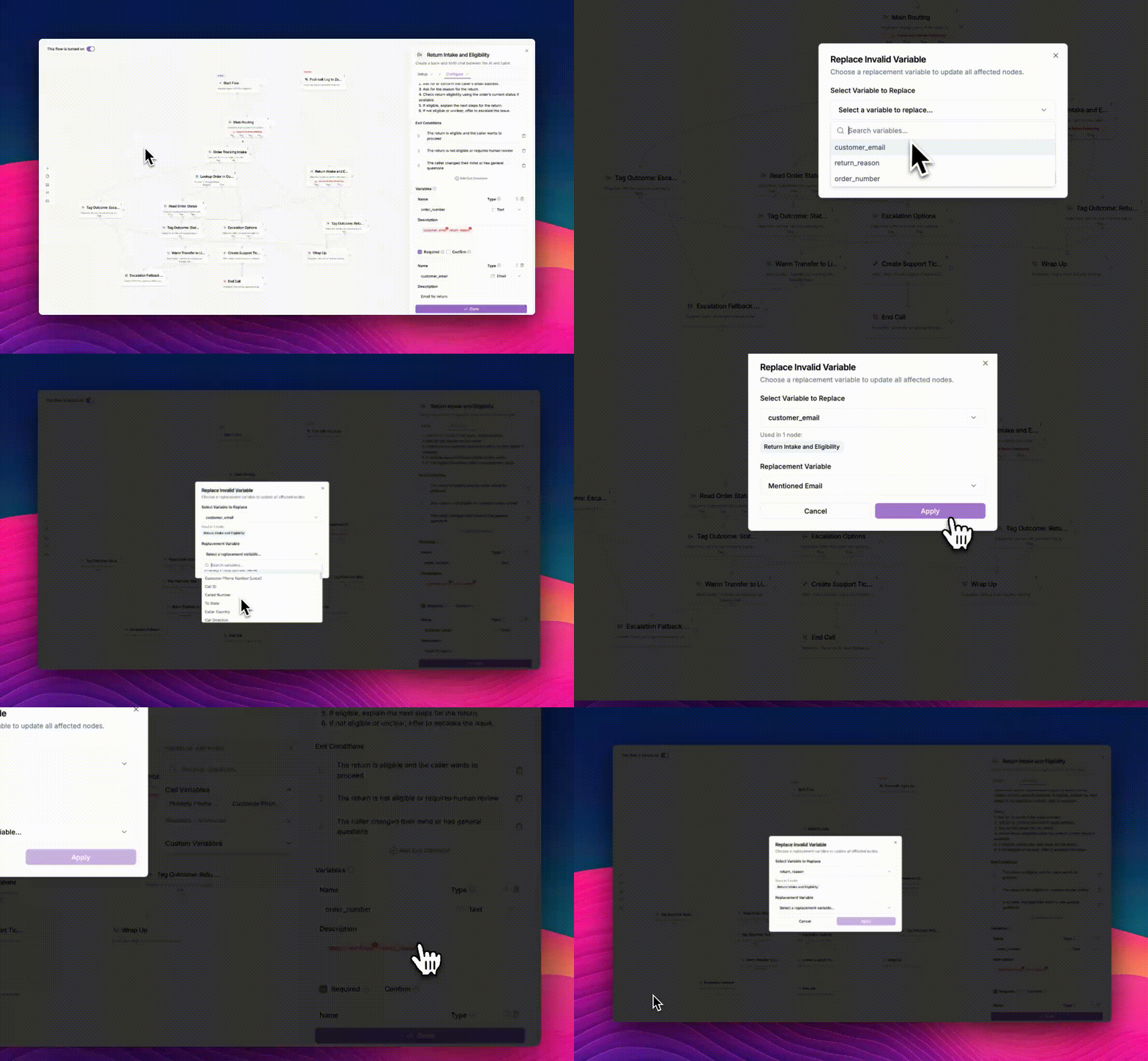
You can replace invalid variables in two ways:- Click the variable directly
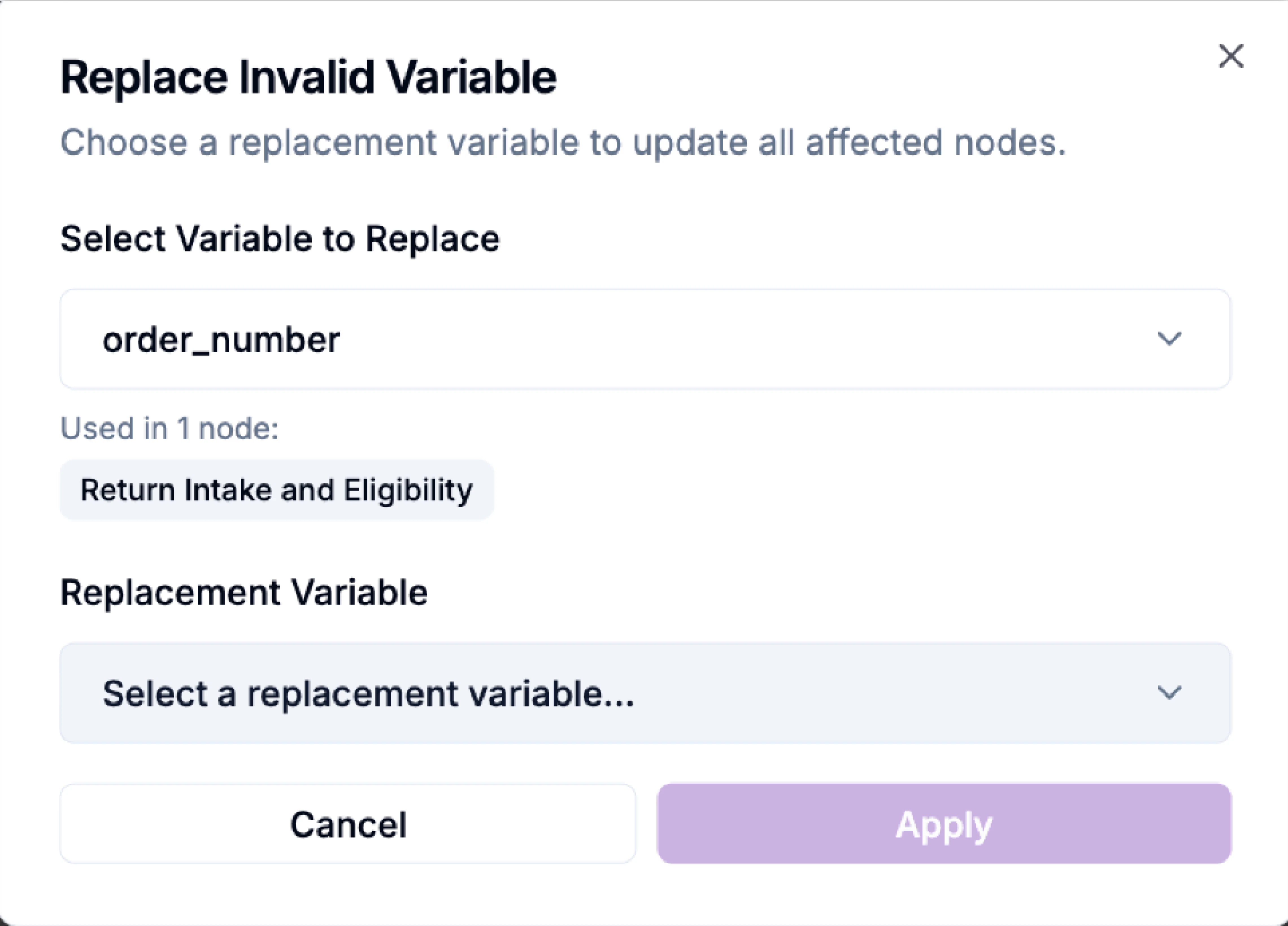
Clicking on the highlighted variable opens the Replace Invalid Variable dialog. - Use the left-hand toolbar
Select Replace Invalid Variables from the flow editor toolbar to review and resolve all invalid variables in one place.
Using the Replace Invalid Variable dialog
When the dialog opens, Phonely shows you exactly what needs fixing and where it’s used. First, you’ll see the invalid variable that is currently referenced, along with a list of the blocks or nodes where it appears. This helps you understand the impact of the change before making it. Next, choose a replacement variable from the dropdown. Search is supported, making it easy to find the correct variable even in large workflows. Click the Apply button to replace the vairable.