- Open your workflow in the Flow Builder.
- In the top bar (near Publish), click the checklist icon (the one showing a badge/count when issues exist).
- The workflow checklist panel opens and shows:
- Your Published version status.
- A summary like “X node(s) with errors”.
- A list of the nodes that need fixes, each with a clear error message.
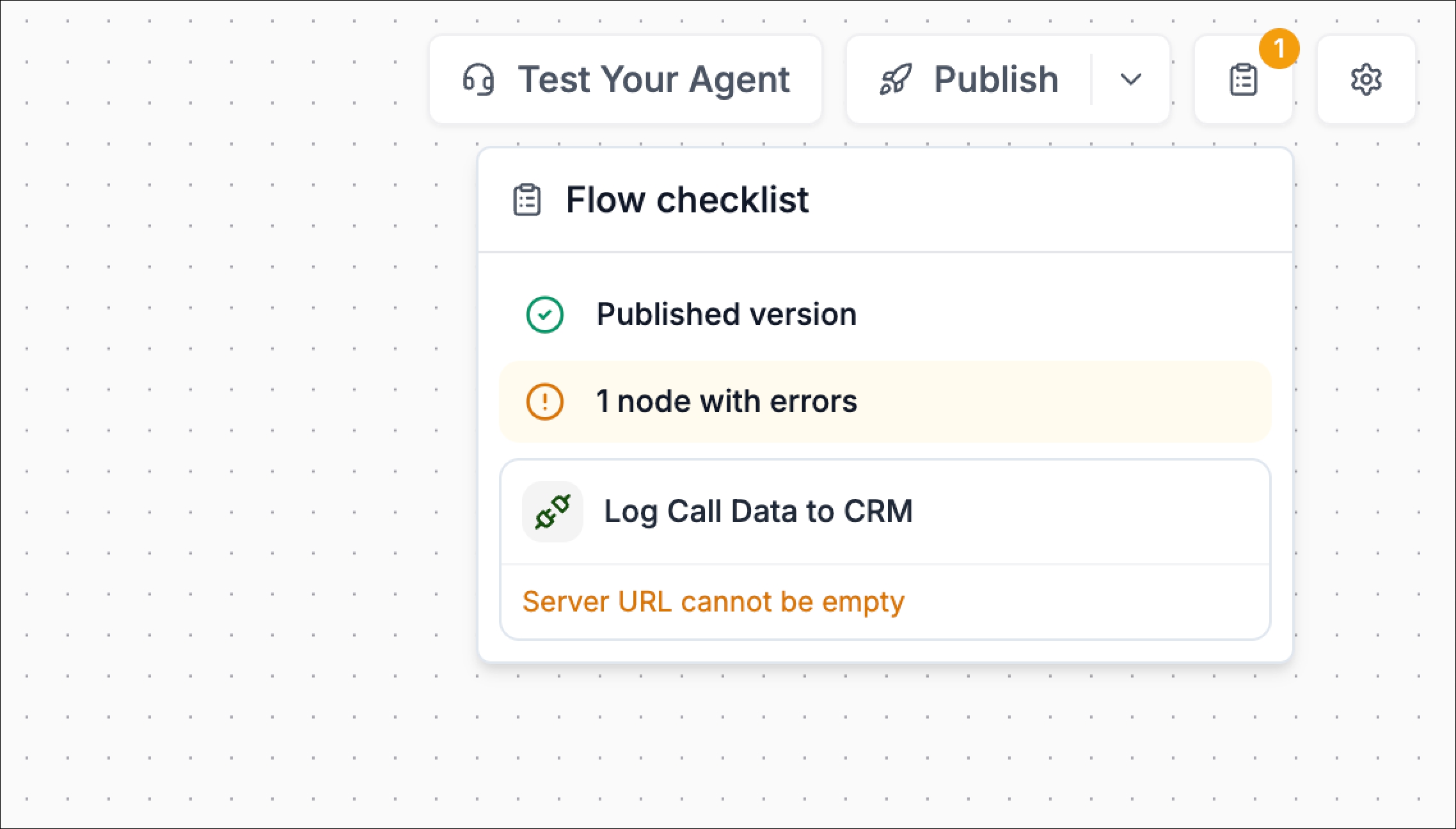
What’s in the checklist
More specific node errors. Each checklist item now points to a specific node and explains exactly what’s wrong.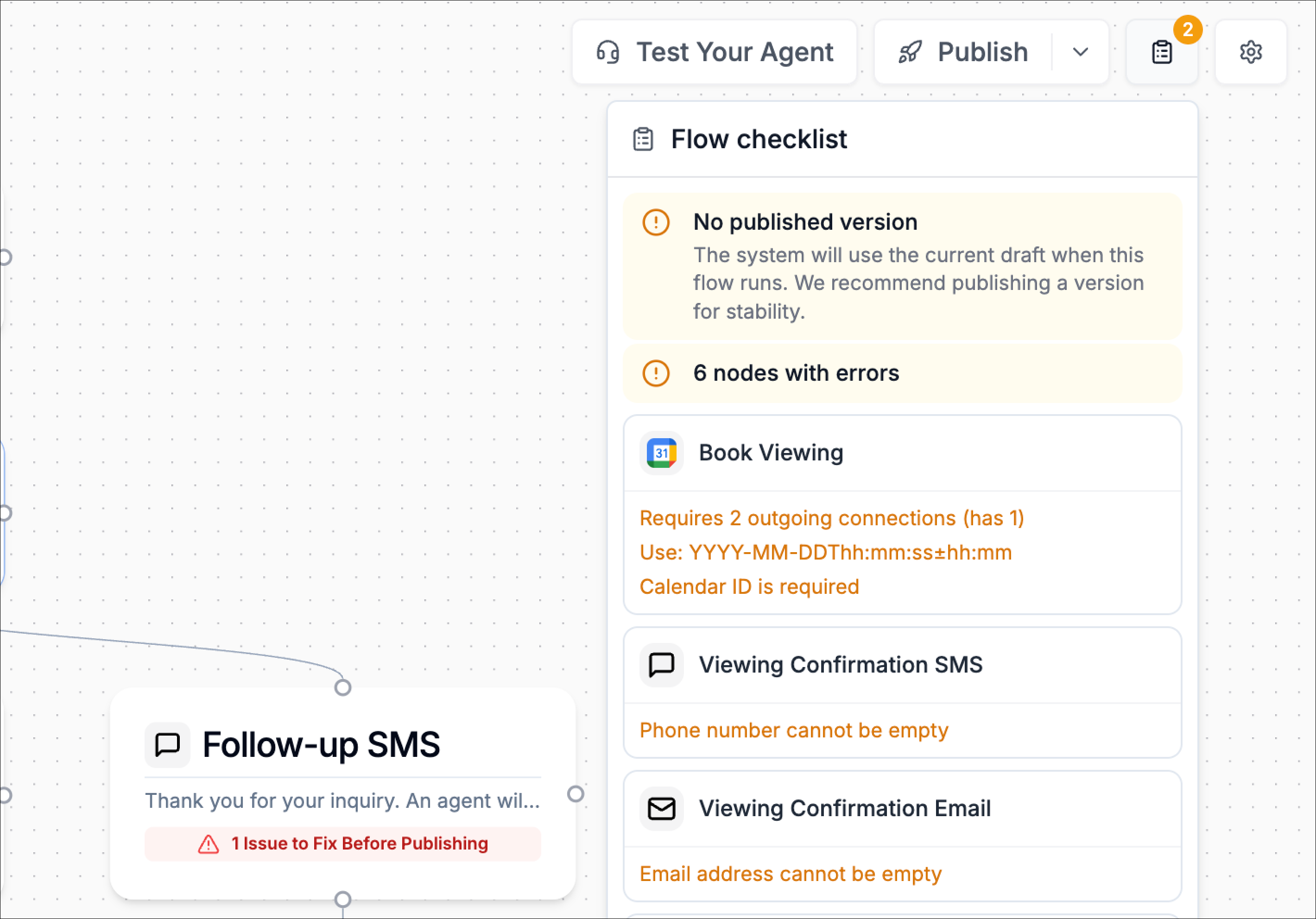
Go to the exact node
When you’re working on larger workflows, the best upgrade is that you can now navigate directly to the broken node.- In the Flow checklist, find the node listed under the errors section.
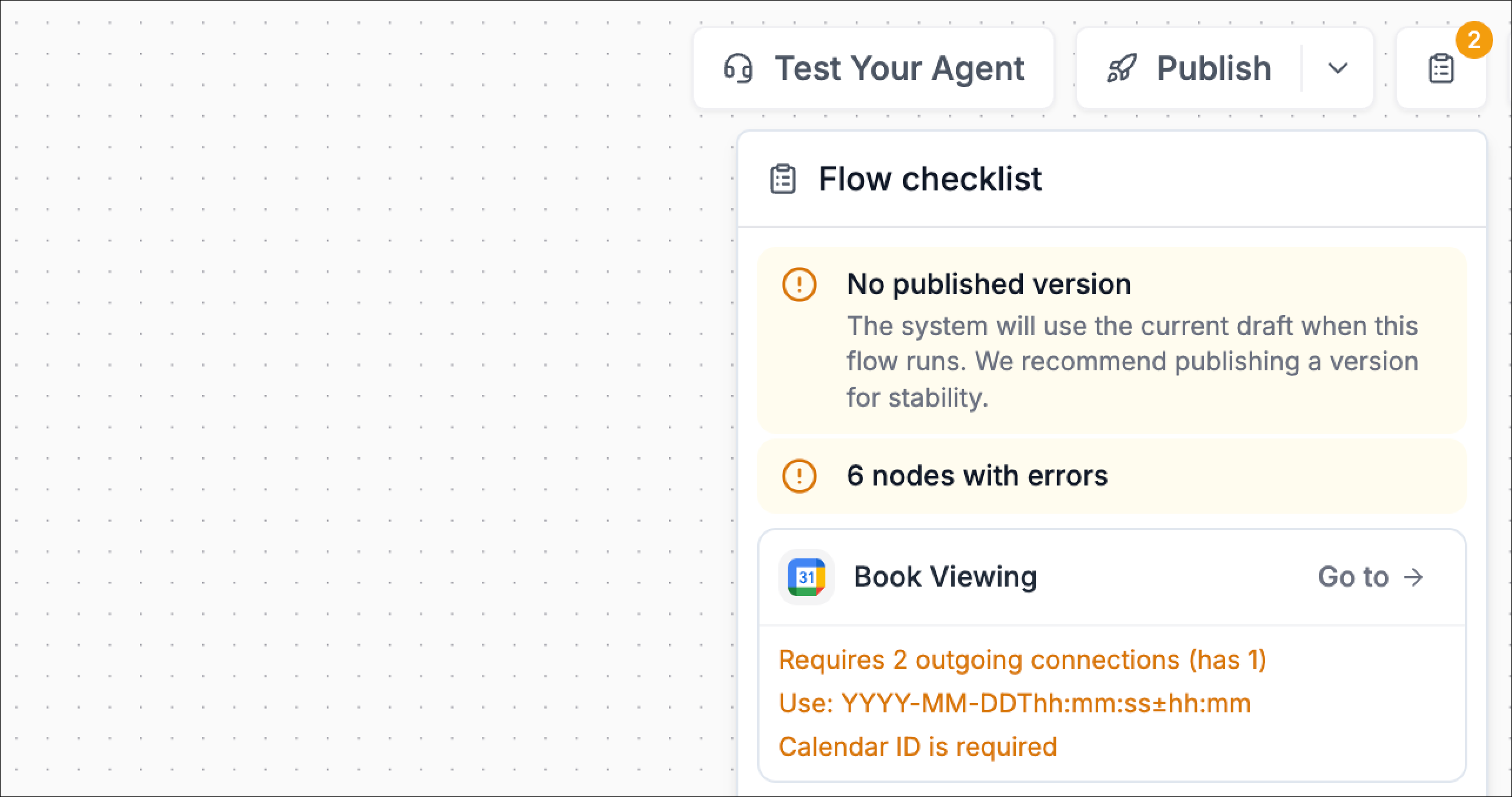
- Click Go to on that item.
- Phonely automatically:
- Scrolls/pans the canvas to that node
- Visually highlights the node with a selection highlight, so it’s obvious which one you need to edit
Fixing the error
Once the node is highlighted:- Click the highlighted node to open its configuration panel.
- Fix the fields mentioned in the checklist message.
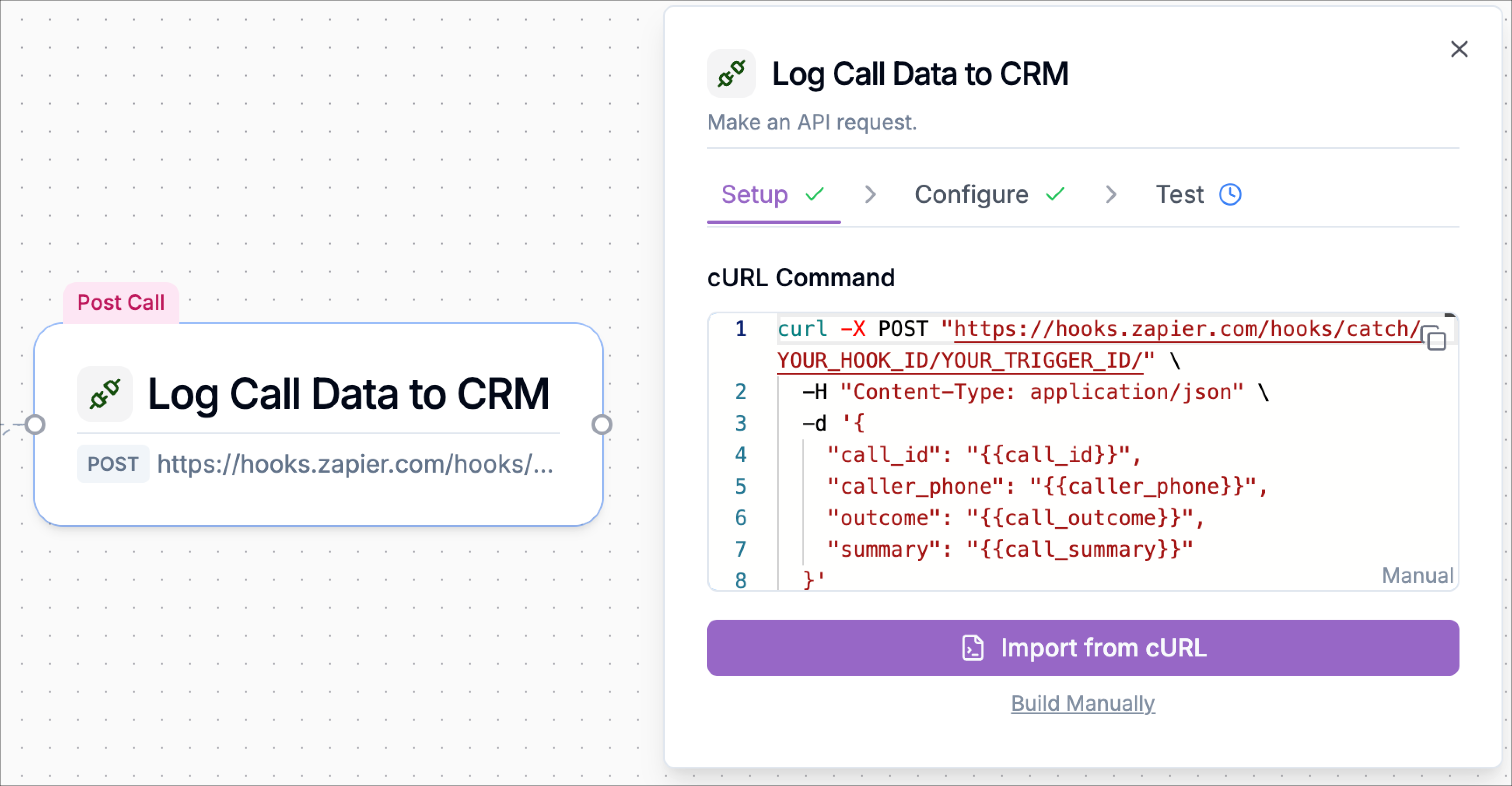
- Example: for “Server URL cannot be empty”, go to the API Request configuration and provide the missing URL/server value.
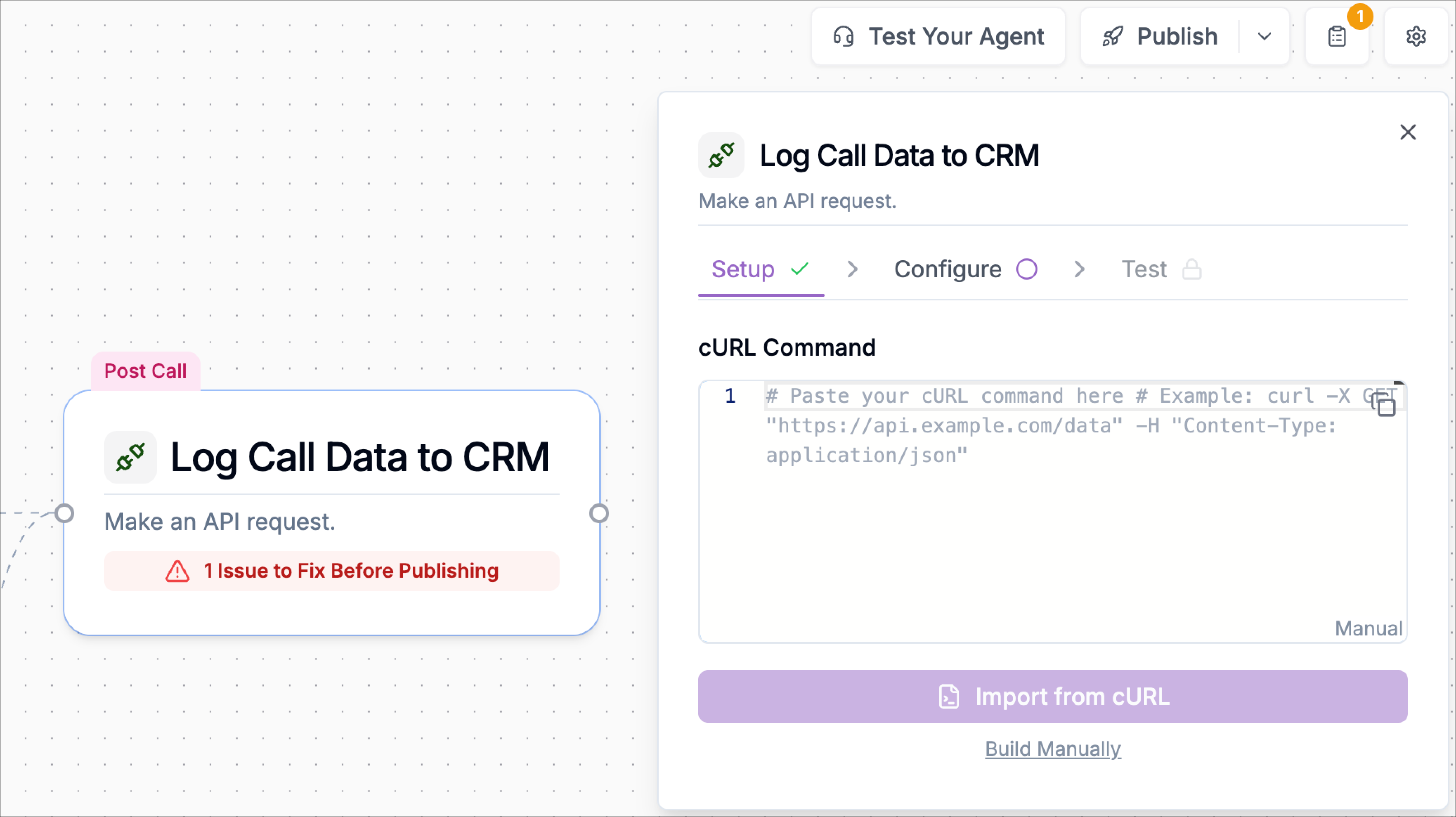
- Re-check the node card, publish warnings should clear once required fields are valid.
- Open the Flow checklist again to confirm the error count is reduced or gone.