

These notifications can be triggered after a call ends, keeping your team informed of customer interactions, lead updates, or any call outcomes, even when they’re away from their dashboard. This guide explains how to set up these notifications step-by-step.
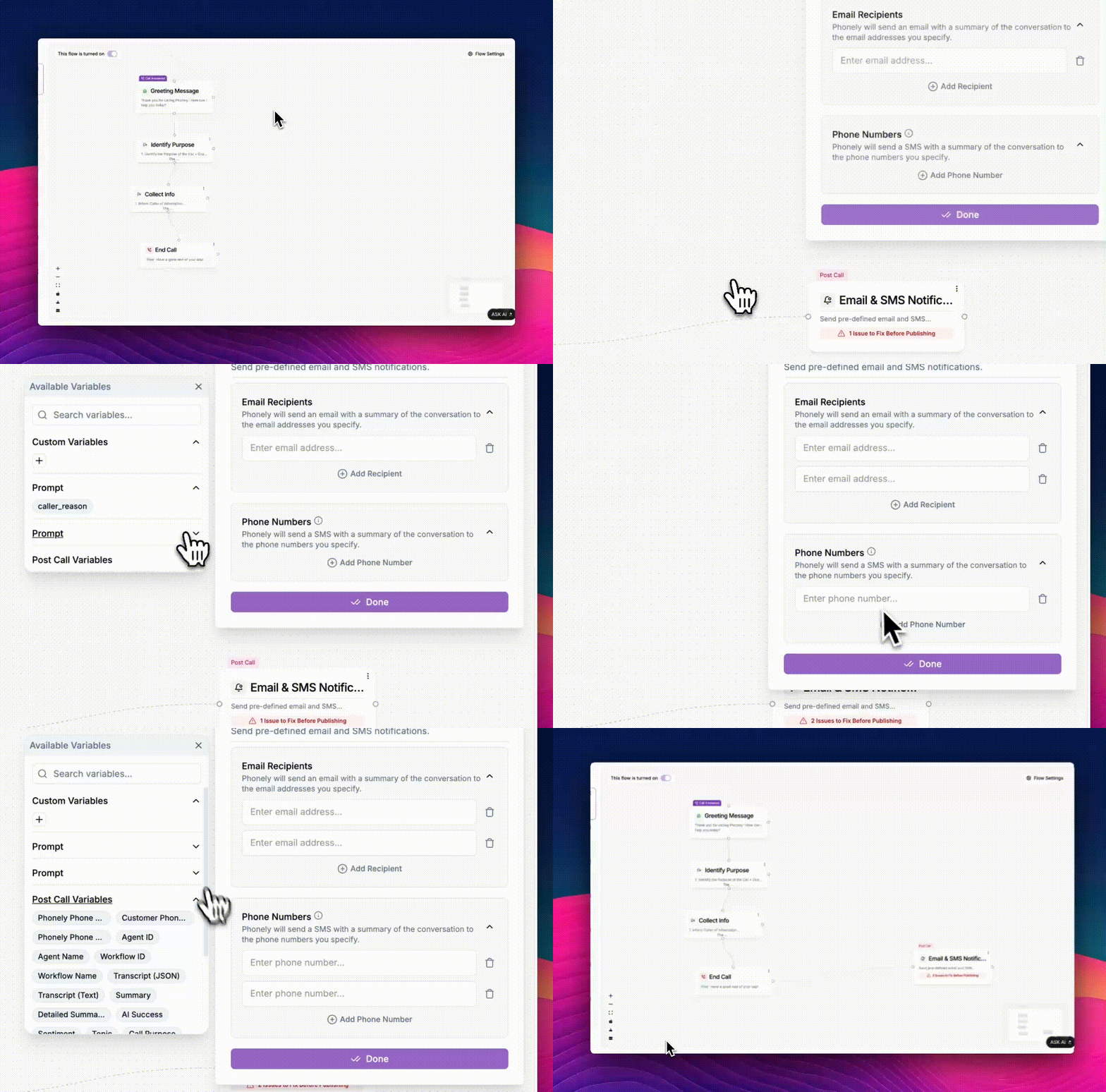
Access the Email & SMS Notification Block
- From your Phonely Dashboard, go to Agent Design.
- Open an existing workflow or create a new flow.
- Click the plus (+) icon to add a new block.
- Under Post Call Actions, select Email & SMS Notification.
Configure Notification Recipients
Once the Email & SMS Notification window opens, you’ll see two main sections:Email Recipients and Phone Numbers. Both sections let you define who should receive the call summary and follow-up information.
Email Recipients
Under Email Recipients, Phonely will send an email summary of the call to the listed addresses.- Enter one or more email addresses.
- Click Add Recipient to include additional email addresses.
- Each recipient will receive an automatic email containing:
- Caller details.
- Call summary or transcript (if available).
- Assigned agent name.
- Key notes or outcomes from the call.
Phone Numbers
Under Phone Numbers, you can configure SMS alerts to notify team members right after a call concludes.- Enter one or more phone numbers.
- Click Add Phone Number to add more recipients.
- Each number will receive a text message summarizing conversations.