> ## Documentation Index
> Fetch the complete documentation index at: https://docs.phonely.ai/llms.txt
> Use this file to discover all available pages before exploring further.
# Workflow Checklist
The **Flow checklist** helps you catch issues that would prevent a workflow from publishing, then takes you straight to the exact node that needs attention. Instead of a generic “something is wrong” warning, the checklist now shows specific, node-level errors (for example, a required field missing in an API Request block), so you can fix problems quickly without hunting through the canvas.
1. Open your workflow in the **Flow Builder**.
2. In the top bar (near **Publish**), click the **checklist icon** (the one showing a badge/count when issues exist).
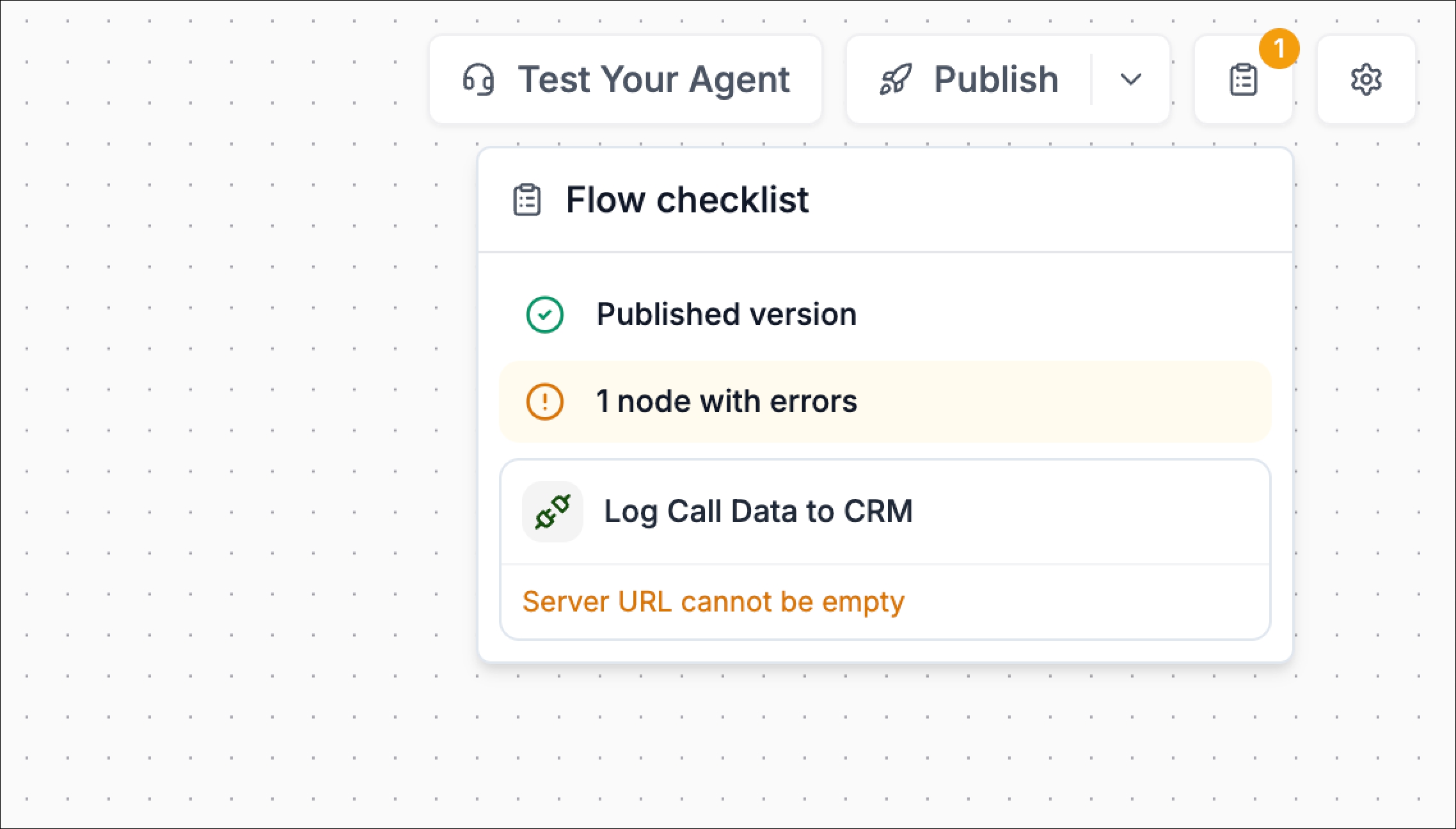
3. The workflow checklist panel opens and shows:
* Your Published version status.
* A summary like “X node(s) with errors”.
* A list of the nodes that need fixes, each with a clear error message.
 ## What’s in the checklist
More specific node errors. Each checklist item now points to a specific node and explains *exactly* what’s wrong.
## What’s in the checklist
More specific node errors. Each checklist item now points to a specific node and explains *exactly* what’s wrong.
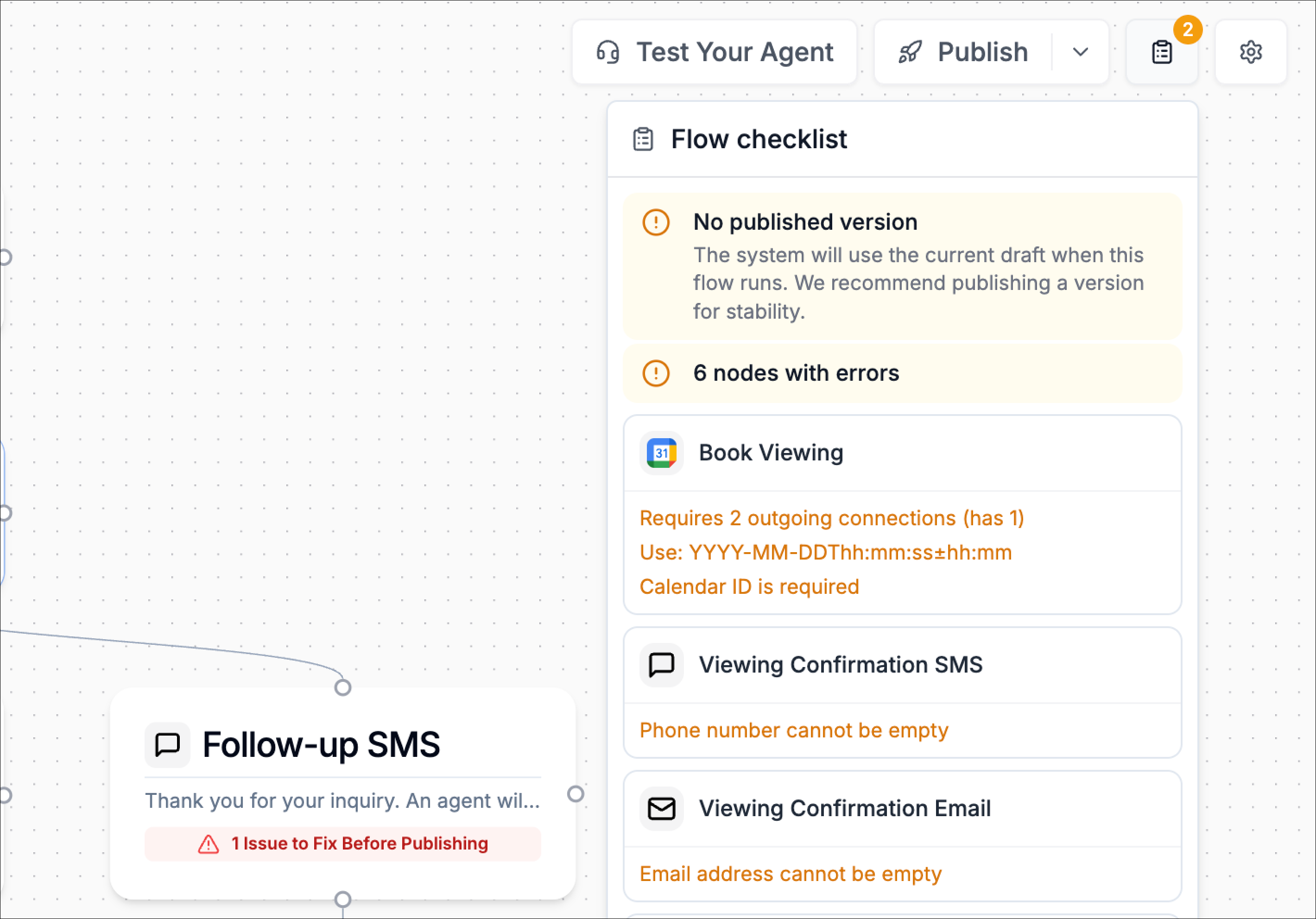 This is much more actionable than a generic publish error because you know which block is failing and what field is missing.
## Go to the exact node
When you’re working on larger workflows, the best upgrade is that you can now navigate directly to the broken node.
1. In the **Flow checklist**, find the node listed under the errors section.
2. Click **Go to** on that item.
3. Phonely automatically:
* Scrolls/pans the canvas to that node
* Visually highlights the node with a selection highlight, so it’s obvious which one you need to edit
This is much more actionable than a generic publish error because you know which block is failing and what field is missing.
## Go to the exact node
When you’re working on larger workflows, the best upgrade is that you can now navigate directly to the broken node.
1. In the **Flow checklist**, find the node listed under the errors section.
2. Click **Go to** on that item.
3. Phonely automatically:
* Scrolls/pans the canvas to that node
* Visually highlights the node with a selection highlight, so it’s obvious which one you need to edit
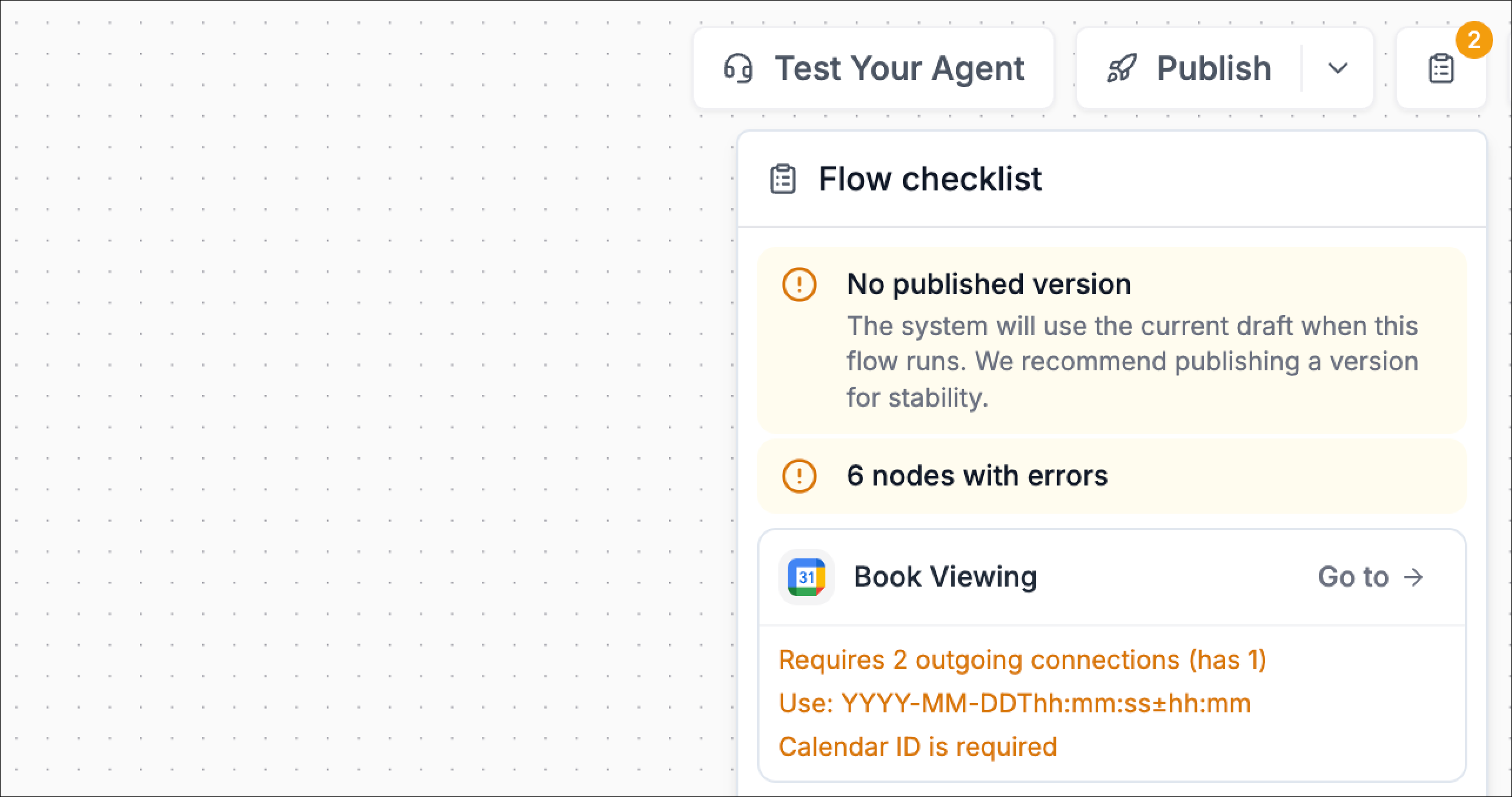 This saves time when a workflow has many blocks or when the error is in a post-call branch far from where you’re currently working.
## Fixing the error
Once the node is highlighted:
1. Click the highlighted node to open its configuration panel.
2. Fix the fields mentioned in the checklist message.
* Example: for **“Server URL cannot be empty”**, go to the API Request configuration and provide the missing URL/server value.
This saves time when a workflow has many blocks or when the error is in a post-call branch far from where you’re currently working.
## Fixing the error
Once the node is highlighted:
1. Click the highlighted node to open its configuration panel.
2. Fix the fields mentioned in the checklist message.
* Example: for **“Server URL cannot be empty”**, go to the API Request configuration and provide the missing URL/server value.
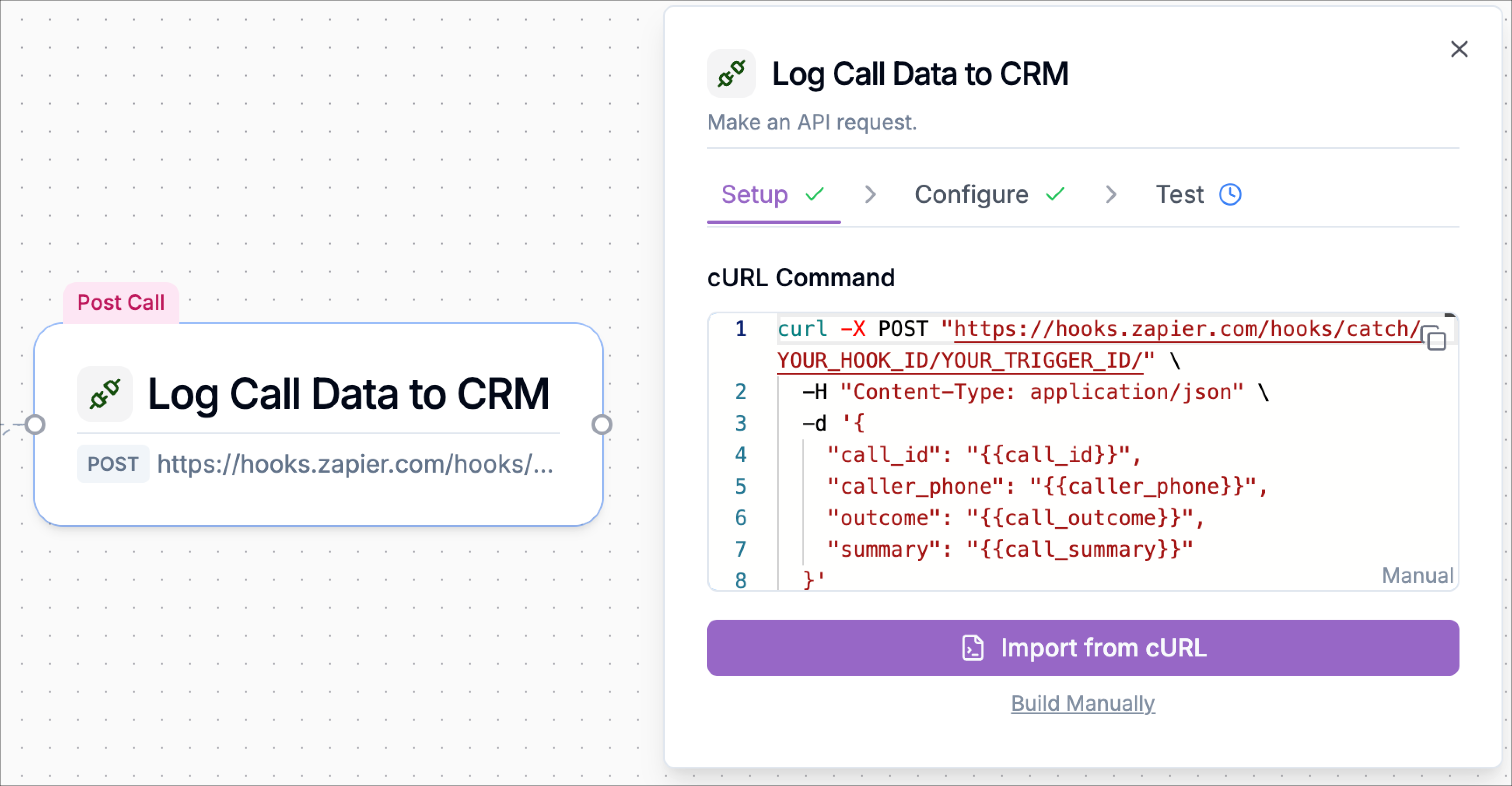 3. Re-check the node card, publish warnings should clear once required fields are valid.
4. Open the **Flow checklist** again to confirm the error count is reduced or gone.
3. Re-check the node card, publish warnings should clear once required fields are valid.
4. Open the **Flow checklist** again to confirm the error count is reduced or gone.