> ## Documentation Index
> Fetch the complete documentation index at: https://docs.phonely.ai/llms.txt
> Use this file to discover all available pages before exploring further.
# Webhook
The **Webhook Pre-Call Action** allows external systems (such as CRMs, IVRs, backend services, or third-party platforms) to send data into Phonely before a call is processed.
This data is cached and attached to the caller session, making it immediately available across your workflow.
Unlike API Requests, which retrieve data during execution, webhooks provide **preloaded context**, enabling Phonely to:
* Start conversations with full awareness of the caller
* Route calls without delays
* Skip unnecessary questions
* Execute logic based on external systems
Pre-Call actions can only be added **above the Start Flow**, which is the block that runs first when a call is answered.
To add a Pre-Call Webhook action:
Open your **Flow Editor** and select the block that should run first when a call is received.
In the settings panel on the right, enable **Set as First Flow**. Once this is enabled, the **Add a pre-call action** option appears above the Start Flow.
Click the **➕** button above the Start Flow.
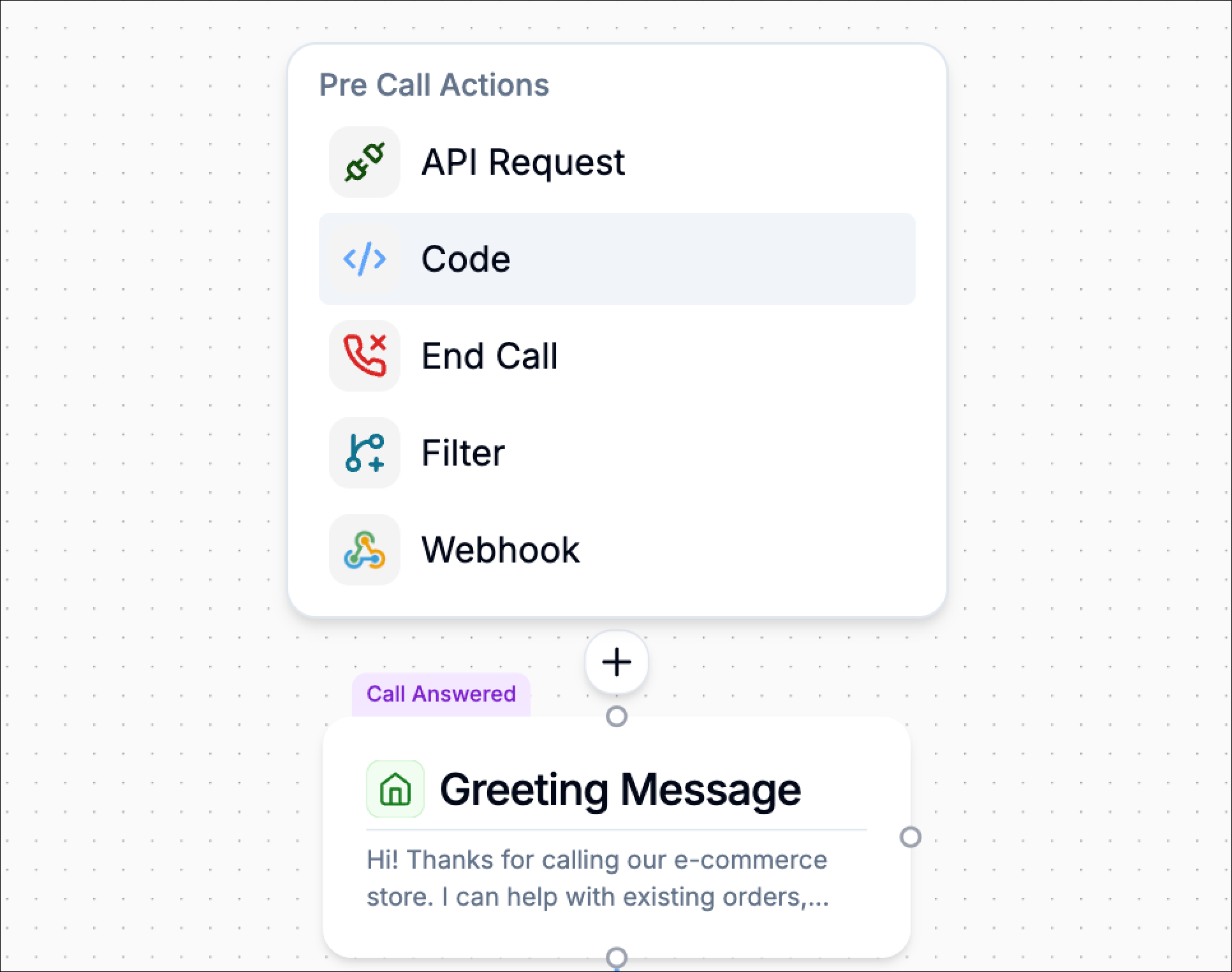 From the list of available Pre-Call Actions, choose **Webhook**.
The Webhook configuration panel opens with the following steps:
**Setup → Configure → Test**
In the **Setup** step, open the **Action** dropdown and select **Custom Webhook**.
From the list of available Pre-Call Actions, choose **Webhook**.
The Webhook configuration panel opens with the following steps:
**Setup → Configure → Test**
In the **Setup** step, open the **Action** dropdown and select **Custom Webhook**.
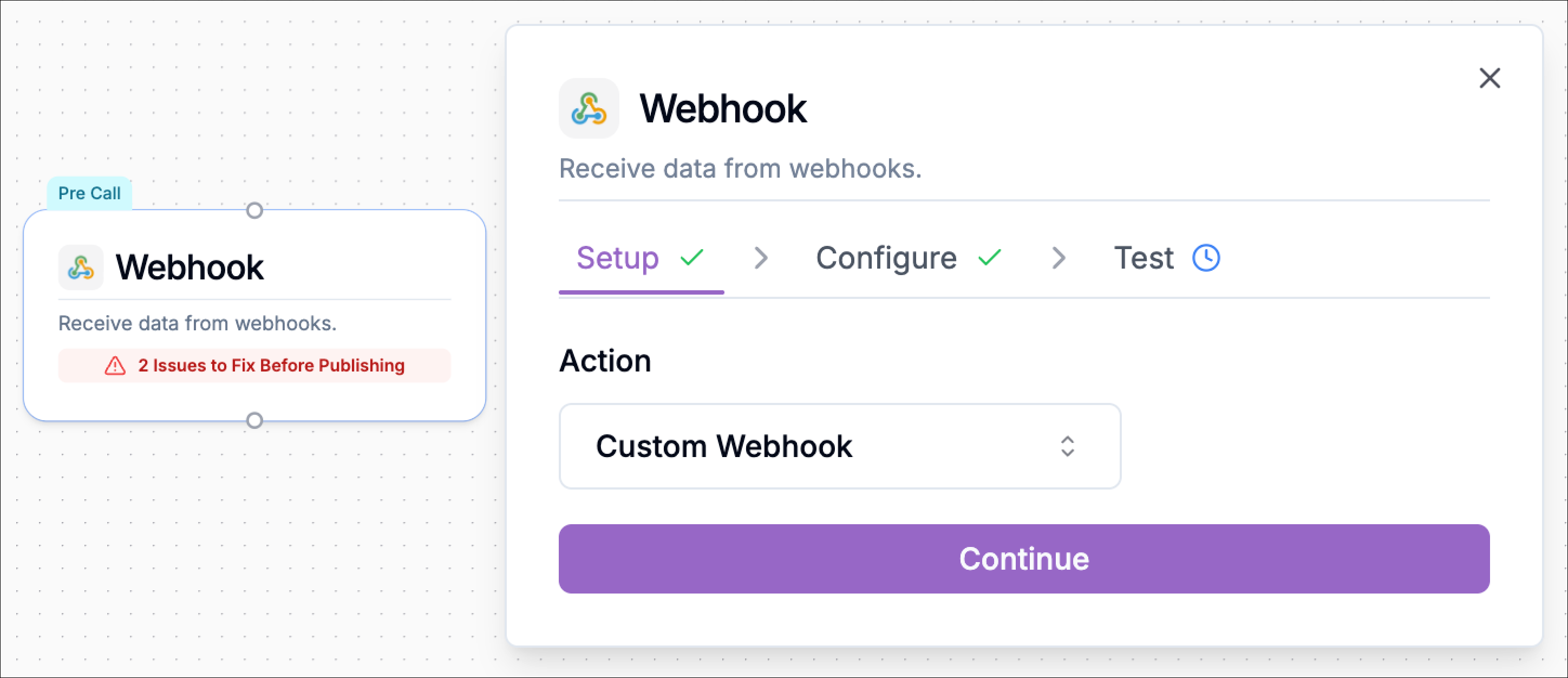 Click **Continue** to move to the next step.
In the **Configure** step, Phonely generates a webhook URL for this Pre-Call Action.
This is the endpoint your external system will send data to before the call begins.
From this section, you can also use:
* Copy cURL to copy a sample request
* Copy API Key if authentication details are needed
* Copy to copy the webhook URL directly
Click **Continue** to move to the next step.
In the **Configure** step, Phonely generates a webhook URL for this Pre-Call Action.
This is the endpoint your external system will send data to before the call begins.
From this section, you can also use:
* Copy cURL to copy a sample request
* Copy API Key if authentication details are needed
* Copy to copy the webhook URL directly
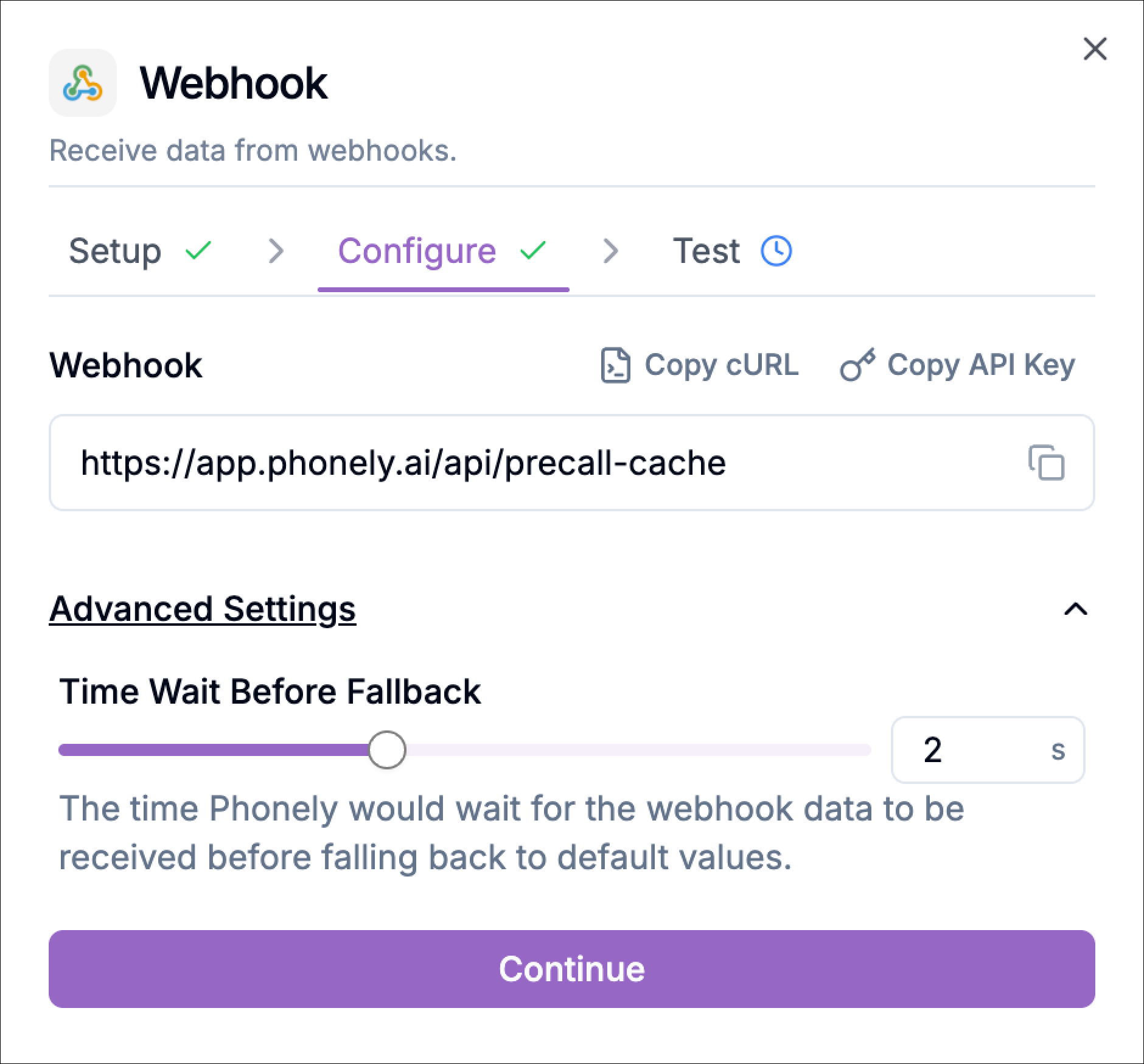 Under **Advanced Settings**, configure **Time Wait Before Fallback**.
This setting controls how long Phonely should wait for webhook data before continuing with default values.
If the webhook data arrives within this wait period, it becomes available in the workflow. If it does not arrive in time, Phonely proceeds without it.
Click the continue button to proceed to testing.
## Test
Use the **Test** step to verify that your external system can successfully send data to the Pre-Call Webhook and that Phonely can cache that data for use in the workflow.
To test the webhook:
1. Copy the webhook URL shown in the **Configure** step.
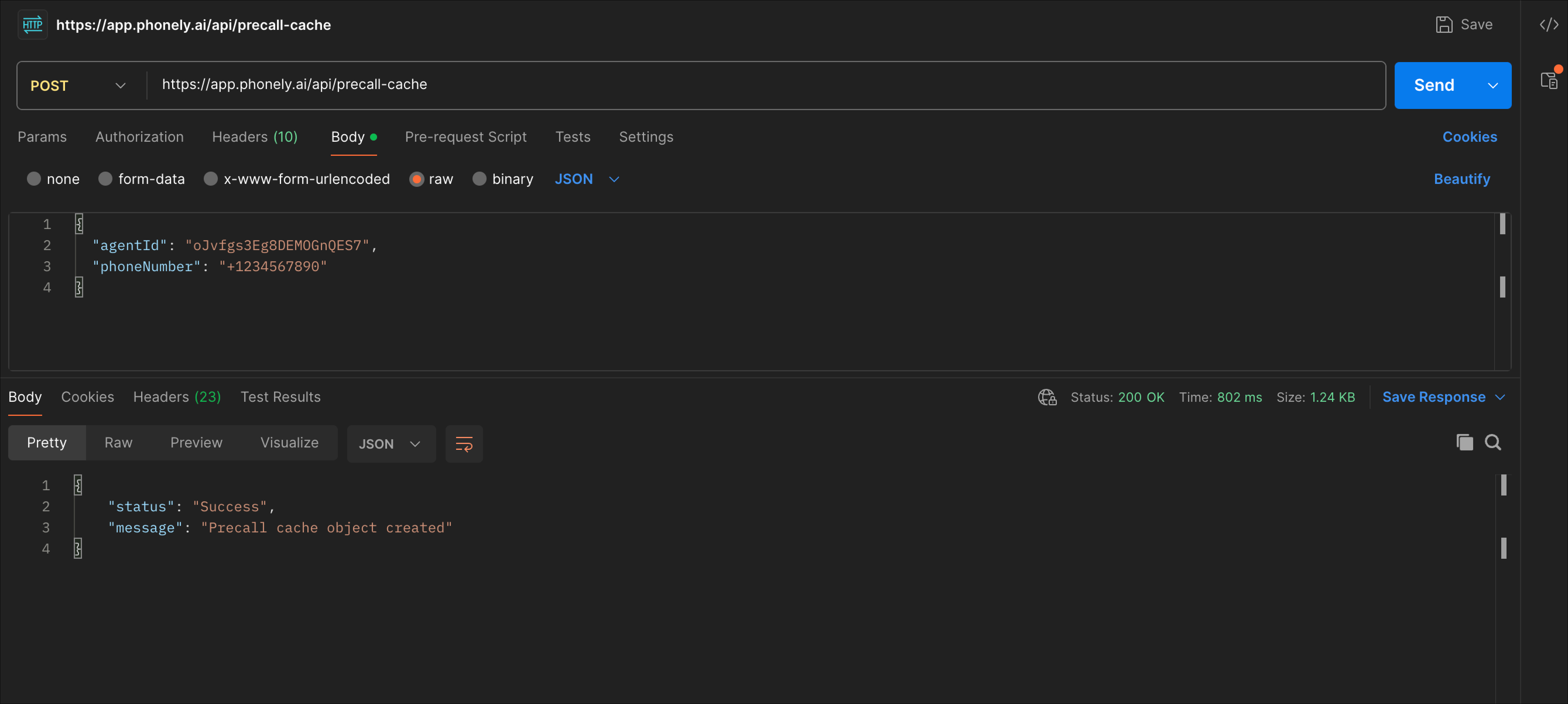
2. Send a **POST** request to that URL .
3. Include a JSON body with the required fields shown below.
Example test payload:
```json theme={null}
{
"agentId": "oJvfgs3Eg8DEMOGnQES7",
"phoneNumber": "+1234567890"
}
```
Both `agentId` and `phoneNumber` are required.
* `agentId` identifies the Phonely agent that should receive the data.
* `phoneNumber` is used to match the cached data to the caller.
You can also include any additional fields in the payload. These extra fields will be cached and made available as workflow variables.
Example with additional fields:
```json theme={null}
{
"agentId": "oJvfgs3Eg8DEMOGnQES7",
"phoneNumber": "+1234567890",
"customer_name": "Jane Doe",
"priority": "high",
"issue_type": "billing"
}
```
In this example, `customer_name`, `priority`, and `issue_type` would all become available for use in your Pre-Call and downstream workflow logic.
Use this test step to confirm that:
* The webhook endpoint is reachable
* The payload is structured correctly
* The required fields are included
* The cached values can be used in the workflow as expected
Under **Advanced Settings**, configure **Time Wait Before Fallback**.
This setting controls how long Phonely should wait for webhook data before continuing with default values.
If the webhook data arrives within this wait period, it becomes available in the workflow. If it does not arrive in time, Phonely proceeds without it.
Click the continue button to proceed to testing.
## Test
Use the **Test** step to verify that your external system can successfully send data to the Pre-Call Webhook and that Phonely can cache that data for use in the workflow.
To test the webhook:
1. Copy the webhook URL shown in the **Configure** step.
2. Send a **POST** request to that URL .
3. Include a JSON body with the required fields shown below.
Example test payload:
```json theme={null}
{
"agentId": "oJvfgs3Eg8DEMOGnQES7",
"phoneNumber": "+1234567890"
}
```
Both `agentId` and `phoneNumber` are required.
* `agentId` identifies the Phonely agent that should receive the data.
* `phoneNumber` is used to match the cached data to the caller.
You can also include any additional fields in the payload. These extra fields will be cached and made available as workflow variables.
Example with additional fields:
```json theme={null}
{
"agentId": "oJvfgs3Eg8DEMOGnQES7",
"phoneNumber": "+1234567890",
"customer_name": "Jane Doe",
"priority": "high",
"issue_type": "billing"
}
```
In this example, `customer_name`, `priority`, and `issue_type` would all become available for use in your Pre-Call and downstream workflow logic.
Use this test step to confirm that:
* The webhook endpoint is reachable
* The payload is structured correctly
* The required fields are included
* The cached values can be used in the workflow as expected
 ## Examples
### 1. Call Transfer with Context
A telecom or IVR system transfers a caller to Phonely.
Before transfer, it sends:
```json theme={null}
{
"agentId": "support-agent",
"phoneNumber": "+254700000000",
"customer_name": "Jane",
"issue": "billing_error",
"priority": "high"
}
```
**Result:**
* Call is routed immediately
* Phonely starts with context
* No need for initial questioning
### 2. CRM-Based Personalization
Your backend detects an incoming call and enriches it with CRM data.
```json theme={null}
{
"customer_name": "Michael",
"plan": "enterprise",
"account_manager": "Sarah"
}
```
**Result:**
* Personalized greeting
* Enterprise-level routing
* Context-aware responses
### 3. Lead Qualification
A marketing system sends pre-qualified lead data:
```json theme={null}
{
"lead_source": "Google Ads",
"budget": "10000",
"interest": "premium_plan"
}
```
**Result:**
* Routed directly to sales
* Tailored conversation
### 4. Fraud Detection
A risk system evaluates the caller:
```json theme={null}
{
"risk_score": 92,
"flagged": true
}
```
**Result:**
* Trigger verification flow
* Apply stricter handling
## Examples
### 1. Call Transfer with Context
A telecom or IVR system transfers a caller to Phonely.
Before transfer, it sends:
```json theme={null}
{
"agentId": "support-agent",
"phoneNumber": "+254700000000",
"customer_name": "Jane",
"issue": "billing_error",
"priority": "high"
}
```
**Result:**
* Call is routed immediately
* Phonely starts with context
* No need for initial questioning
### 2. CRM-Based Personalization
Your backend detects an incoming call and enriches it with CRM data.
```json theme={null}
{
"customer_name": "Michael",
"plan": "enterprise",
"account_manager": "Sarah"
}
```
**Result:**
* Personalized greeting
* Enterprise-level routing
* Context-aware responses
### 3. Lead Qualification
A marketing system sends pre-qualified lead data:
```json theme={null}
{
"lead_source": "Google Ads",
"budget": "10000",
"interest": "premium_plan"
}
```
**Result:**
* Routed directly to sales
* Tailored conversation
### 4. Fraud Detection
A risk system evaluates the caller:
```json theme={null}
{
"risk_score": 92,
"flagged": true
}
```
**Result:**
* Trigger verification flow
* Apply stricter handling