> ## Documentation Index
> Fetch the complete documentation index at: https://docs.phonely.ai/llms.txt
> Use this file to discover all available pages before exploring further.
# Post Call Outcomes
> Guide to post-call business outcomes and how they are interpreted inside Phonely analytics.
Post-Call Outcomes allow you to update what ultimately happened after a call ended. This makes it possible to track real business results, such as sales, booked appointments, or completed follow-ups, even if those events occur outside of Phonely.
This is one of the most powerful tools for measuring and optimizing your AI agent’s real-world performance.
### Why Post-Call Outcomes Matter
When building a voice AI agent, the goal is not just to complete conversations, but to achieve meaningful outcomes.
For example, your agent might:
* Book an appointment
* Qualify a lead
* Transfer a caller to a human
* Collect information for a follow-up
* Support a customer inquiry
However, the final result often happens after the call ends.
* A lead converts into a paying customer later
* An appointment is successfully completed
* A transferred call results in a sale
* A follow-up email leads to conversion
Post-Call Outcomes allow you to send this information back into Phonely so you can track and analyze real business impact, not just conversation activity.
## What You Can Track with Post-Call Outcomes
Each call can be updated with outcome data that helps you measure conversions, revenue, and performance across your business.
| Outcome Field | Description | Examples |
| :---------------------- | :--------------------------------------------------------------------------------------------------------------------------------------------------------------------------- | :-------------------------------------------------------------------------------------------------------------------------------------------------- |
| **Custom Call Outcome** | A label that describes the final result of the call. This defines what ultimately happened after the conversation. | Sold, No Sale, Appointment Completed, Appointment No-Show, Qualified Lead, Follow-Up Required, Escalated Successfully |
| **Outcome Value** | The monetary value associated with the call outcome. This represents the revenue or business value generated from the call. | custom\_call\_outcome\_value: 299 |
| **Custom Metadata** | Additional structured data attached to the call outcome. This can include campaign information, sales rep identifiers, product details, or any business-specific attributes. | campaign name, rep ID, notes |
```javascript theme={null}
curl -X PATCH "https://app.phonely.ai/api/calls/agent123/call456" \
-H "X-Authorization: your-api-key-here" \
-H "Content-Type: application/json" \
-d '{
"custom_call_outcome": "Sold",
"custom_call_outcome_value": 299,
"custom_call_metadata": {
"campaign": "spring_2026",
"rep_id": "12345",
"notes": "Customer was very interested"
}
}'
```
This allows you to measure:
* Revenue generated per call
* Conversion rates
* Campaign performance
* Agent effectiveness
* Lead quality etc.
## How Calls Are Identified
Phonely lets you update the post-call outcome fields for a call using either of the following identifiers:
**Call ID:** Use this endpoint when you want to update the outcome for a specific call.
```javascript theme={null}
PATCH /api/calls/{agent_id}/{call_id}
```
**Phone Number:** Use this endpoint to update the outcome based on the caller’s phone number. The `preference` parameter determines whether the update applies to the first or last call associated with that number.
```javascript theme={null}
PATCH /api/calls/{agent_id}/{e164_phone_number}?preference=first|last
```
### Option 1: Update by Call ID
Updates one exact call using its unique call ID.
```javascript theme={null}
curl -X PATCH "https://app.phonely.ai/api/calls/agent123/call456" \
-H "X-Authorization: your-api-key-here" \
-H "Content-Type: application/json" \
-d '{
"custom_call_outcome": "Sold",
"custom_call_outcome_value": 299,
"custom_call_metadata": {
"campaign": "spring_2026",
"rep_id": "12345",
"notes": "Customer was very interested"
}
}'
```
### Option 2: Update by Phone Number (Last Touch - default)
Updates a call using the caller’s phone number (E.164 format), and automatically picks the most recent call from that number.
Phone numbers must be in E.164 format.
**Correct:** +14155551234
**Incorrect**: 4155551234
This is common for workflows like:
* “Customer bought later”
* “Appointment completed”
* “Lead converted after follow-up”
**Why it matters:** If the same person called twice, the outcome attaches to the most recent interaction, which usually matches conversion reality.
**Example**
```javascript theme={null}
curl -X PATCH "https://app.phonely.ai/api/calls/agent123/+14155551234" \
-H "X-Authorization: your-api-key-here" \
-H "Content-Type: application/json" \
-d '{
"custom_call_outcome": "No Sale",
"custom_call_outcome_value": 0,
"custom_call_metadata": {
"reason": "Price too high",
"follow_up": true
}
}'
```
### Option 3: Update by Phone Number (First Touch)
Updates a call using the caller’s **phone number**, but selects the **earliest (first) call** from that number.
Common cases:
* Tracking conversions back to the first inbound call
* Measuring campaign performance where the first interaction matters
Updates the earliest call for that phone number. You must explicitly set:`?preference=first`
**Example**
```javascript theme={null}
curl -X PATCH "https://app.phonely.ai/api/calls/agent123/+14155551234?preference=first" \
-H "X-Authorization: your-api-key-here" \
-H "Content-Type: application/json" \
-d '{
"custom_call_outcome": "Sold",
"custom_call_outcome_value": 499,
"custom_call_metadata": {
"attribution": "first_touch",
"campaign": "spring_2026"
}
}'
```
### Option 4: Partial Update (Only Outcome)
Updates **only one field** without sending a full payload.
This is useful when:
* You only know the final outcome label
* You only want to update outcomes
**Attribution behavior**
Depends on how you identify the call:
* If you update by **call\_id** → no attribution
* If you update by **phone number** → attribution rules apply (first/last touch)
**Example**
```javascript theme={null}
curl -X PATCH "https://app.phonely.ai/api/calls/agent123/call456" \
-H "X-Authorization: your-api-key-here" \
-H "Content-Type: application/json" \
-d '{
"custom_call_outcome": "Follow Up Required"
}'
```
## Full Lifecycle Example
Example scenario: AI agent books an appointment.
Call happens: Agent collects information and books appointment.
Customer attends appointment later
Your CRM detects appointment completion
Your system sends outcome update
Phonely updates analytics automatically. You can now see:
* Appointment conversion rate
* Revenue generated
* Performance trends
## Viewing Post-Call Outcomes in Analytics
Once post-call outcomes are set using the API, webhook, or integration, they automatically appear in the performance page, where you can track, compare, and analyze results over time.
To open the performance page:
The charts and metrics will update automatically to include any post-call outcomes that were assigned.
Every time a call outcome is updated (for example, `"Sold"` or `"Appointment Completed"`), that outcome becomes a trackable category in your analytics.
You can view:
* When outcomes occurred (by day or week)
* How frequently each outcome occurs
* How outcomes compare to total calls
* How outcomes trend over time
This helps you understand not just call volume, but actual business impact.
## Groups
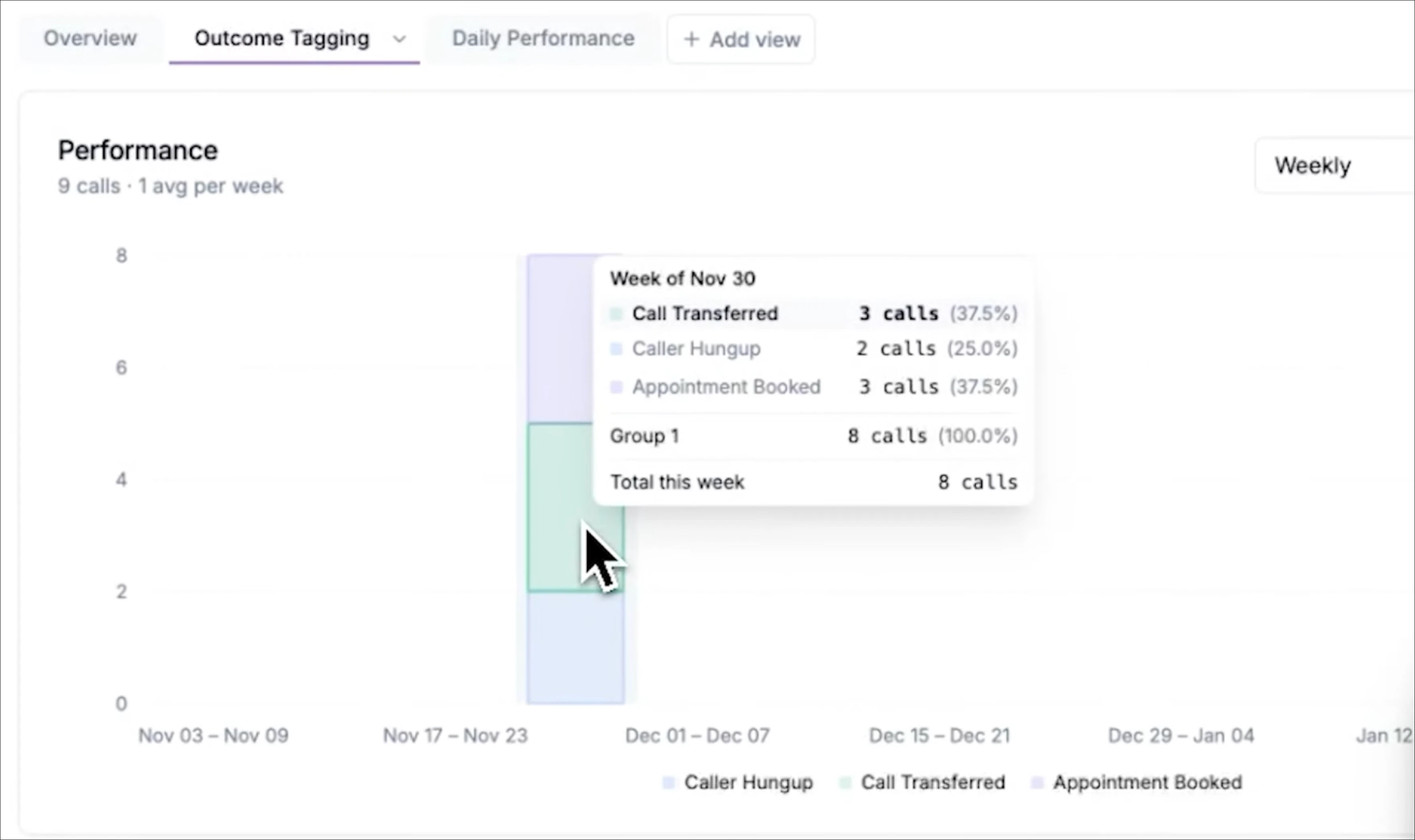
Grouping allows you to compare specific outcomes against total calls or other outcomes. This is one of the most powerful ways to measure conversion rates.
To configure grouping:
The chart will now show each group separately. This allows you to clearly see:
* How many calls resulted in appointments
* How that compares to total calls
* The percentage conversion rate over time
This helps you measure how effectively your AI agent is achieving your business goals.
## Absolute and Percentage Views
You can change how the data is displayed using the chart controls.
* **Absolute mode** shows raw counts (for example, 25 appointments)
* **Percentage mode** shows conversion rates (for example, 25%)
## View the Actual Calls Behind an Outcome
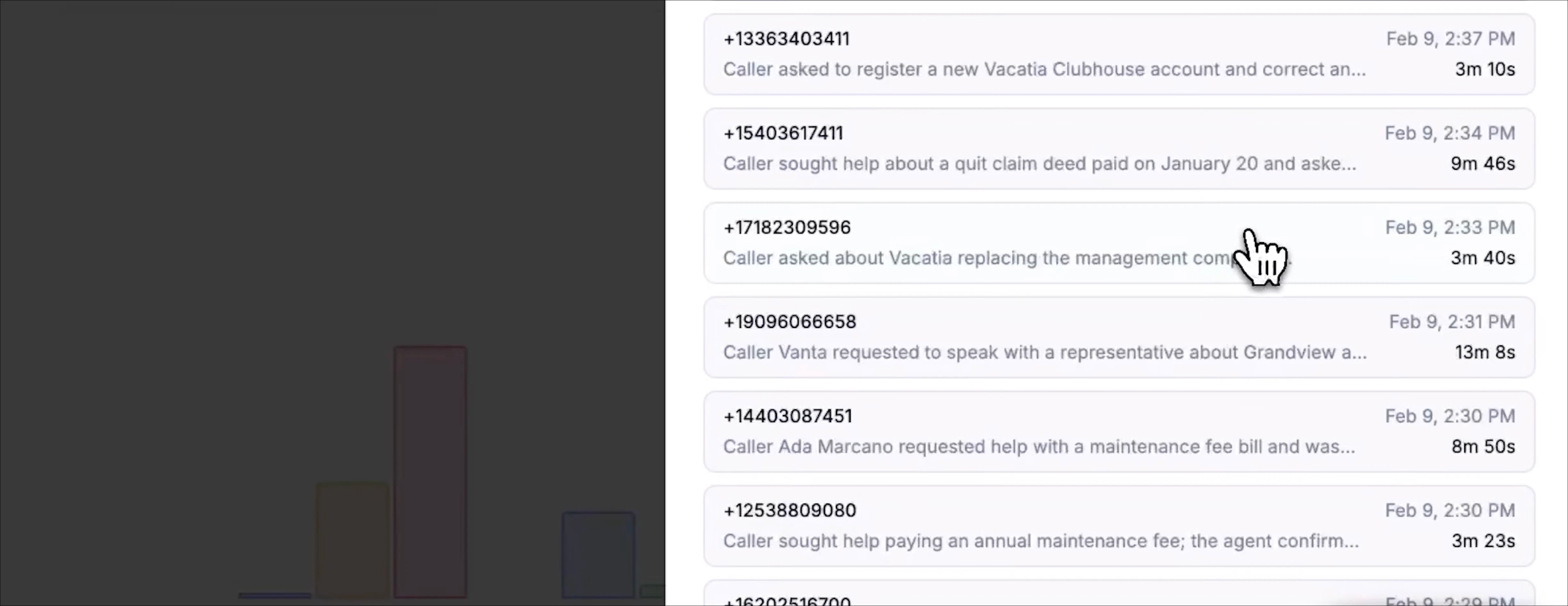
You can click any outcome, group, or chart segment to see the specific calls that produced that result. For example: Clicking the appointment booked group will open a list showing:
* All calls marked with that outcome
* Call timestamps
* Caller phone numbers
* Call summaries
* Call recordings
* Full transcripts
From there, you can:
* Listen to successful calls
* Identify patterns in high-performing conversations
* See exactly what the AI did correctly
* Identify areas for improvement
This allows you to move beyond analytics and understand real caller behavior. To learn more about the [performance page please refer to this guide](/performance).
 This helps you measure how effectively your AI agent is achieving your business goals.
## Absolute and Percentage Views
You can change how the data is displayed using the chart controls.
* **Absolute mode** shows raw counts (for example, 25 appointments)
* **Percentage mode** shows conversion rates (for example, 25%)
## View the Actual Calls Behind an Outcome
You can click any outcome, group, or chart segment to see the specific calls that produced that result. For example: Clicking the appointment booked group will open a list showing:
This helps you measure how effectively your AI agent is achieving your business goals.
## Absolute and Percentage Views
You can change how the data is displayed using the chart controls.
* **Absolute mode** shows raw counts (for example, 25 appointments)
* **Percentage mode** shows conversion rates (for example, 25%)
## View the Actual Calls Behind an Outcome
You can click any outcome, group, or chart segment to see the specific calls that produced that result. For example: Clicking the appointment booked group will open a list showing:
 From there, you can:
* Listen to successful calls
* Identify patterns in high-performing conversations
* See exactly what the AI did correctly
* Identify areas for improvement
This allows you to move beyond analytics and understand real caller behavior. To learn more about the [performance page please refer to this guide](/performance).
From there, you can:
* Listen to successful calls
* Identify patterns in high-performing conversations
* See exactly what the AI did correctly
* Identify areas for improvement
This allows you to move beyond analytics and understand real caller behavior. To learn more about the [performance page please refer to this guide](/performance).