> ## Documentation Index
> Fetch the complete documentation index at: https://docs.phonely.ai/llms.txt
> Use this file to discover all available pages before exploring further.
# Outbound Workflows
> Create the workflows used by outbound campaigns.
Outbound call flows allow you to automate how your AI agent interacts with leads from greeting and information collection to follow-up messages and task triggers. You can create call flows either by using prebuilt templates or by building from scratch.
A call flow defines the logic your AI agent follows during outbound calls, what it says, how it responds to user input, and what actions (like making calls, sending an SMS, email, or API request) it performs afterward. Each call flow can be used in a campaign, and a campaign determines how and when these calls are triggered.
## Creating Workflows From Templates
Templates provide prebuilt logic for common outbound use cases. Each one includes predefined prompts, logic branches, and post-call actions.
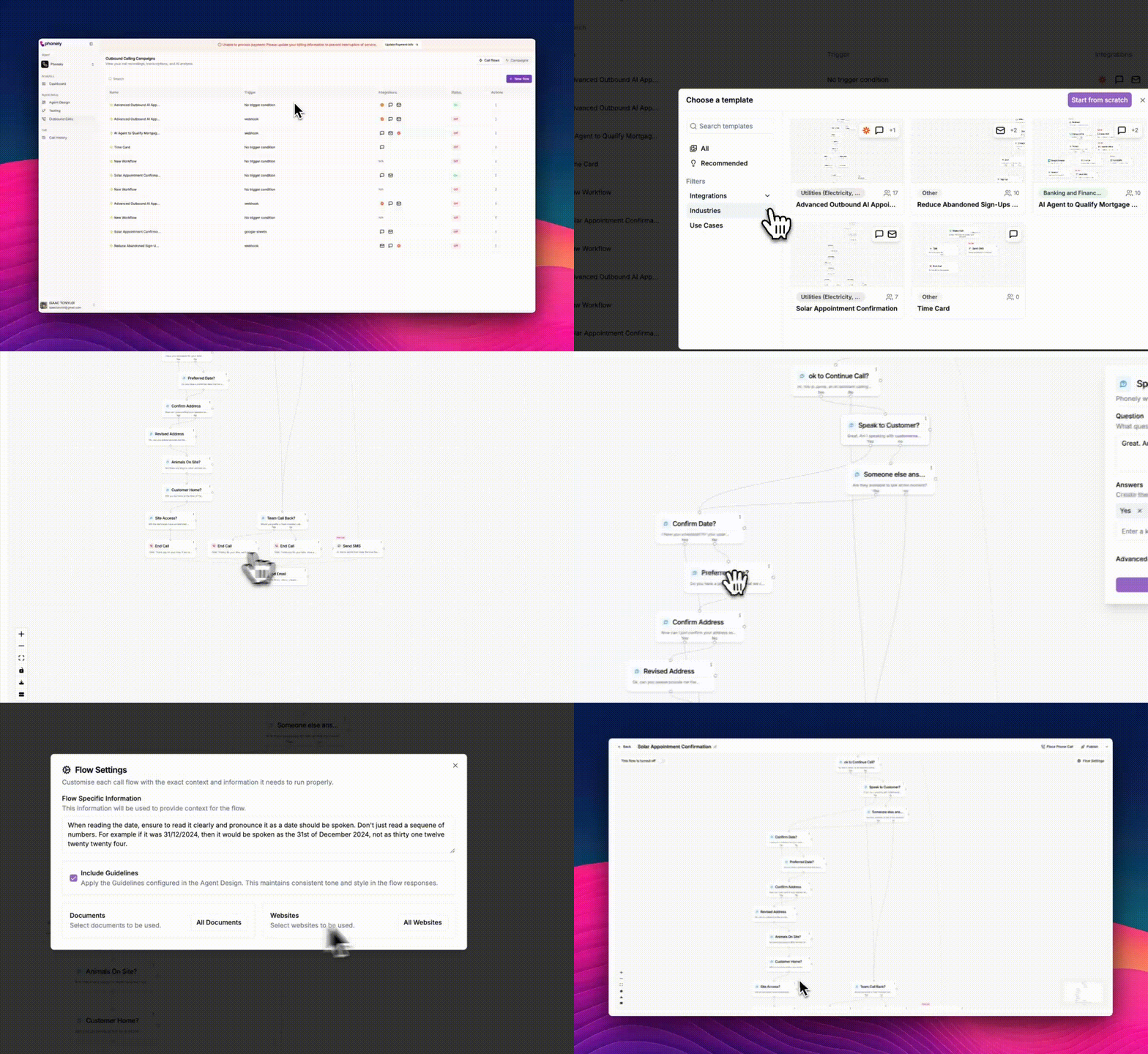 When you click **New Flow**, a choose a template window appears.\
Here, you can browse All templates or view Recommended ones.
Search by keywords or filter templates by:
* **Integrations** – e.g., Send SMS, Zapier, Make, Send Email.
* **Industries** – e.g., Banking, Insurance, Healthcare.
* **Use Cases** – e.g., Appointment Scheduling, Payment Processing, Refund Requests.
These filters help you quickly locate a template that fits your specific campaign purpose.
Click on a template to preview its structure. \
The preview shows:
* A flow diagram outlining each step (call prompts, responses, actions).
* A left panel describing:
* **About** – The goal of the template (e.g., scheduling handyman appointments).
* **Industry** – The domain it’s suited for (e.g., utilities, healthcare).
* **Use Case** – The specific type of automation (e.g., appointment scheduling).
* **Integrations** – Services connected.
For example, the Advanced Outbound AI Appointment Booking template helps businesses like construction or handyman services automatically schedule jobs. It calls the prospect, confirms details, and follows up with SMS or email notifications.
Once you click Use this Template, Phonely loads the flow into the visual editor.
Here you can:
* Edit each node (e.g., greeting, data collection, verification).
* Modify text prompts, logic conditions, or connected integrations.
* Add or remove actions such as:
* Send SMS
* Send Email
* Transfer Call
* API Request
* Connect to Google Sheets
* Run custom code
You can also toggle whether the flow is turned on at the top left.
Before publishing:
1. Click **Place Phone Call** to simulate a test call.
2. Enter dummy data like name, address, email, and phone number to verify responses.
3. The system will run through the workflow so you can confirm it behaves as expected.
Once testing is complete:
* Click **Publish** to make the flow live.
* Or select the dropdown to **Save as Draft** (if still refining) or **Save as Template** (to reuse for future campaigns).
## Creating Workflows from Scratch
If you prefer full control over the conversation design, you can start from scratch.
When you click **New Flow**, a choose a template window appears.\
Here, you can browse All templates or view Recommended ones.
Search by keywords or filter templates by:
* **Integrations** – e.g., Send SMS, Zapier, Make, Send Email.
* **Industries** – e.g., Banking, Insurance, Healthcare.
* **Use Cases** – e.g., Appointment Scheduling, Payment Processing, Refund Requests.
These filters help you quickly locate a template that fits your specific campaign purpose.
Click on a template to preview its structure. \
The preview shows:
* A flow diagram outlining each step (call prompts, responses, actions).
* A left panel describing:
* **About** – The goal of the template (e.g., scheduling handyman appointments).
* **Industry** – The domain it’s suited for (e.g., utilities, healthcare).
* **Use Case** – The specific type of automation (e.g., appointment scheduling).
* **Integrations** – Services connected.
For example, the Advanced Outbound AI Appointment Booking template helps businesses like construction or handyman services automatically schedule jobs. It calls the prospect, confirms details, and follows up with SMS or email notifications.
Once you click Use this Template, Phonely loads the flow into the visual editor.
Here you can:
* Edit each node (e.g., greeting, data collection, verification).
* Modify text prompts, logic conditions, or connected integrations.
* Add or remove actions such as:
* Send SMS
* Send Email
* Transfer Call
* API Request
* Connect to Google Sheets
* Run custom code
You can also toggle whether the flow is turned on at the top left.
Before publishing:
1. Click **Place Phone Call** to simulate a test call.
2. Enter dummy data like name, address, email, and phone number to verify responses.
3. The system will run through the workflow so you can confirm it behaves as expected.
Once testing is complete:
* Click **Publish** to make the flow live.
* Or select the dropdown to **Save as Draft** (if still refining) or **Save as Template** (to reuse for future campaigns).
## Creating Workflows from Scratch
If you prefer full control over the conversation design, you can start from scratch.
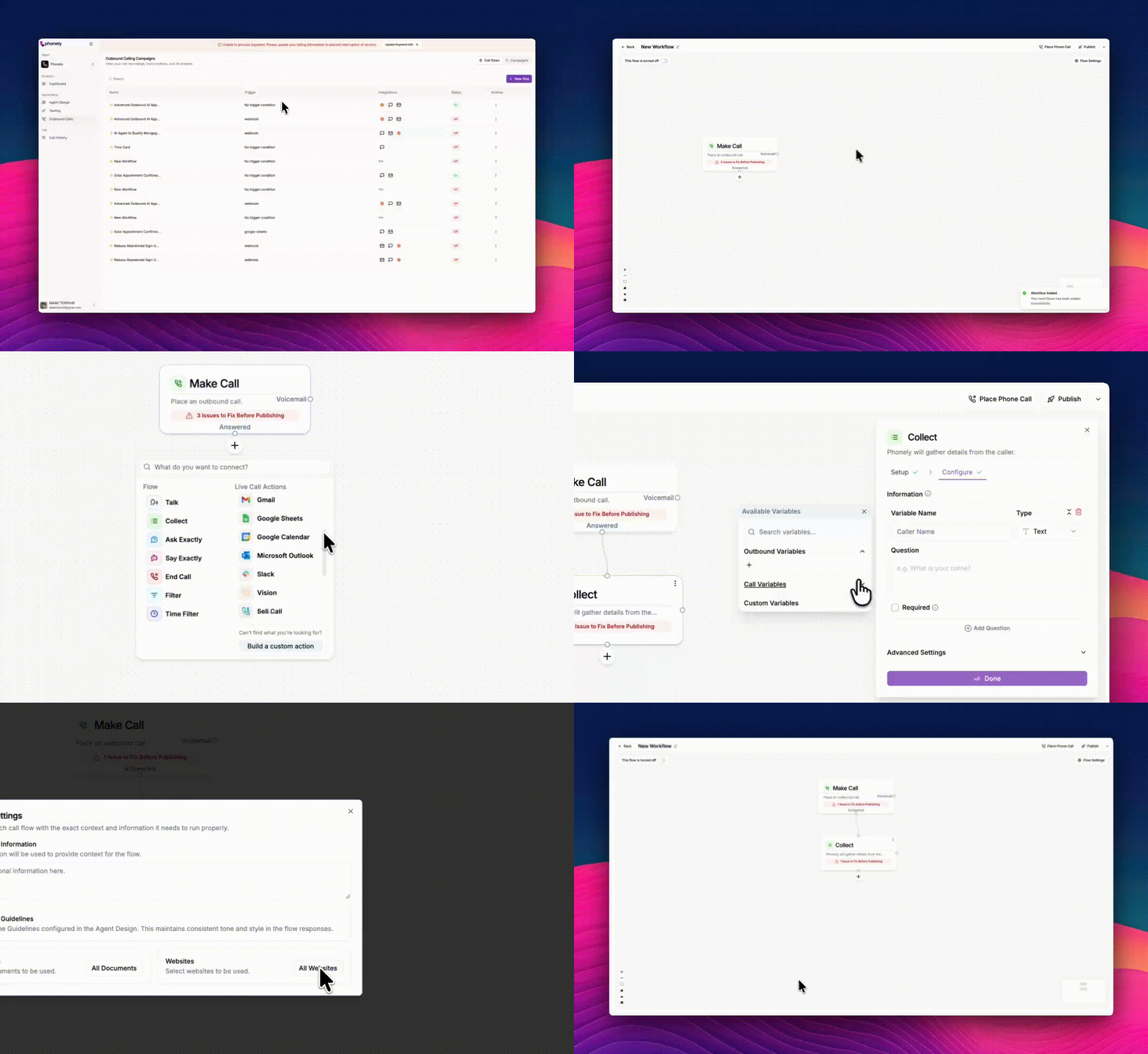 From the **Choose Template** window, click **Start from Scratch**.\
You’ll see a blank canvas with a single block: **Make Call**.
Click the **+** icon below Make Call to add new elements. You can select from two main categories:
#### **Flow Blocks**
* **Talk** – Add dialogue where the AI speaks to the customer.
* **Collect** – Capture data like name, email, or order number.
* **Ask Exactly** – Ask predefined questions that require specific responses.
* **Say Exactly** – Provide a fixed statement or message.
* **End Call** – Conclude the interaction.
* **Filter / Time Filter** – Control flow logic based on conditions (e.g., time of day, lead type).
#### **Live Call Actions**
* **Send SMS** – Trigger a follow-up text.
* **Send Email** – Send a personalized email.
* **Transfer Call** – Route the call to a live agent.
* **API Request** – Connect external apps or CRMs.
* **Code** – Add custom logic using scripts.
* **Google Sheets / Gmail** – Log data or send messages directly.
* **Build a Custom Action** – Create an advanced custom integration.
Drag connectors between nodes to define the call logic. The visual editor lets you zoom, pan, and adjust spacing for clarity.
As with templates, configure **Flow Settings** to add supporting context, link relevant documents, and apply agent tone guidelines.
Drag connectors between nodes to define the call logic. Each node can have conditions. \
The visual editor lets you zoom, pan, and adjust spacing for clarity.
Use Place Phone Call to run test interactions.\
Once the logic and tone are verified:
* Click **Publish** to activate the flow.
* Toggle the switch at the top left to turn it **On**.
Your flow is now active and can be used in a campaign.
To learn how to create and manage campaigns using these flows, refer to the [**Creating Outbound Calling Campaigns Guide**](/outboundcalling/createaoutboundcallingcampaign).
From the **Choose Template** window, click **Start from Scratch**.\
You’ll see a blank canvas with a single block: **Make Call**.
Click the **+** icon below Make Call to add new elements. You can select from two main categories:
#### **Flow Blocks**
* **Talk** – Add dialogue where the AI speaks to the customer.
* **Collect** – Capture data like name, email, or order number.
* **Ask Exactly** – Ask predefined questions that require specific responses.
* **Say Exactly** – Provide a fixed statement or message.
* **End Call** – Conclude the interaction.
* **Filter / Time Filter** – Control flow logic based on conditions (e.g., time of day, lead type).
#### **Live Call Actions**
* **Send SMS** – Trigger a follow-up text.
* **Send Email** – Send a personalized email.
* **Transfer Call** – Route the call to a live agent.
* **API Request** – Connect external apps or CRMs.
* **Code** – Add custom logic using scripts.
* **Google Sheets / Gmail** – Log data or send messages directly.
* **Build a Custom Action** – Create an advanced custom integration.
Drag connectors between nodes to define the call logic. The visual editor lets you zoom, pan, and adjust spacing for clarity.
As with templates, configure **Flow Settings** to add supporting context, link relevant documents, and apply agent tone guidelines.
Drag connectors between nodes to define the call logic. Each node can have conditions. \
The visual editor lets you zoom, pan, and adjust spacing for clarity.
Use Place Phone Call to run test interactions.\
Once the logic and tone are verified:
* Click **Publish** to activate the flow.
* Toggle the switch at the top left to turn it **On**.
Your flow is now active and can be used in a campaign.
To learn how to create and manage campaigns using these flows, refer to the [**Creating Outbound Calling Campaigns Guide**](/outboundcalling/createaoutboundcallingcampaign).