> ## Documentation Index
> Fetch the complete documentation index at: https://docs.phonely.ai/llms.txt
> Use this file to discover all available pages before exploring further.
# Smart Call Routing
> Learn how to configure call routing, transfer, and escalation in Phonely to combine AI automation with reliable human handoffs.
Most calls can be automated with Phonely's AI agents, but no automation system covers every scenario. A frustrated customer, a request for a specific team member, or a policy that requires human sign-off are all situations where escalation is necessary. Phonely makes it simple to design call flows that are both efficient and flexible: the AI handles routine calls while ensuring humans are available when needed.
Escalation is not a fallback of last resort. It is a deliberate part of your call design, ensuring every customer journey has a safe path to resolution.
 ## How Routing Works
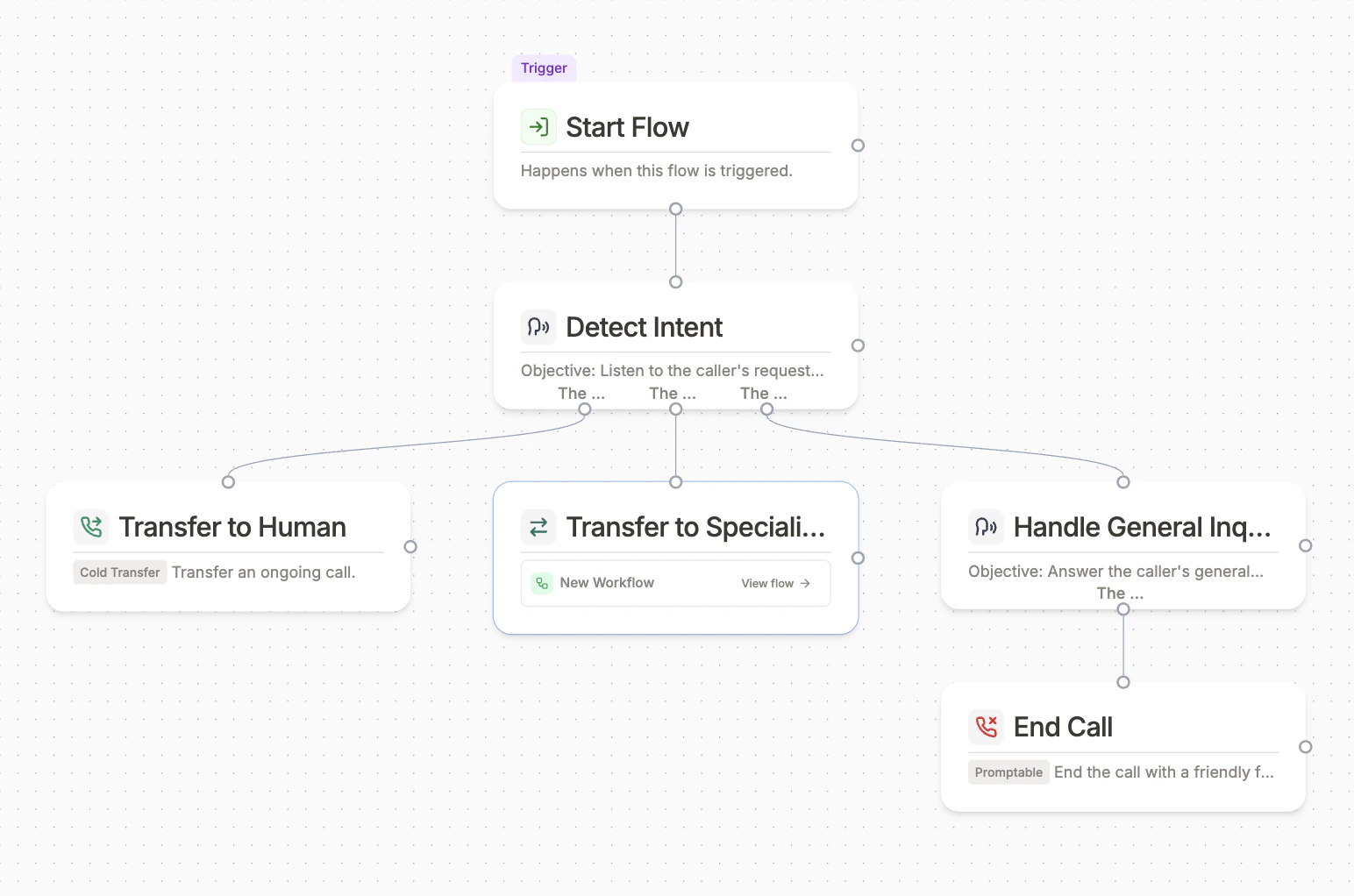
Routing in Phonely is built around **workflows**. Every call starts in a default workflow, but it can move between workflows at any point. Each workflow is a canvas of connected **blocks** that define the conversation path.
During a live call, the AI:
* Continuously listens to the conversation and tracks the current block in the flow
* Detects caller intent, sentiment, and keywords to determine when routing is needed
* Evaluates conditions (time-of-day, caller input, variable values) to pick the right path
* Executes routing seamlessly - the caller hears a single uninterrupted conversation
* Falls back gracefully when a transfer destination is unavailable
Routing is both **predictable** (you design the paths) and **adaptive** (the AI picks the right one), without locking you into rigid IVR-style menus.
## Routing Outcomes
At a high level, routing in Phonely leads to one of two outcomes:
1. **Transfer Call** - the call is handed off to a human or external phone number
2. **Transfer Flow** - the call is moved to a different workflow within the same agent
Both happen without ending the call, and both are handled using dedicated routing blocks in the flow builder.
## Transfer Calls
The [Transfer Call](/blocks/live-call-actions/new-transfer-call) block hands a live call off to a person, department, or external number. It supports two modes: **cold transfer** and **warm transfer**.
## How Routing Works
Routing in Phonely is built around **workflows**. Every call starts in a default workflow, but it can move between workflows at any point. Each workflow is a canvas of connected **blocks** that define the conversation path.
During a live call, the AI:
* Continuously listens to the conversation and tracks the current block in the flow
* Detects caller intent, sentiment, and keywords to determine when routing is needed
* Evaluates conditions (time-of-day, caller input, variable values) to pick the right path
* Executes routing seamlessly - the caller hears a single uninterrupted conversation
* Falls back gracefully when a transfer destination is unavailable
Routing is both **predictable** (you design the paths) and **adaptive** (the AI picks the right one), without locking you into rigid IVR-style menus.
## Routing Outcomes
At a high level, routing in Phonely leads to one of two outcomes:
1. **Transfer Call** - the call is handed off to a human or external phone number
2. **Transfer Flow** - the call is moved to a different workflow within the same agent
Both happen without ending the call, and both are handled using dedicated routing blocks in the flow builder.
## Transfer Calls
The [Transfer Call](/blocks/live-call-actions/new-transfer-call) block hands a live call off to a person, department, or external number. It supports two modes: **cold transfer** and **warm transfer**.
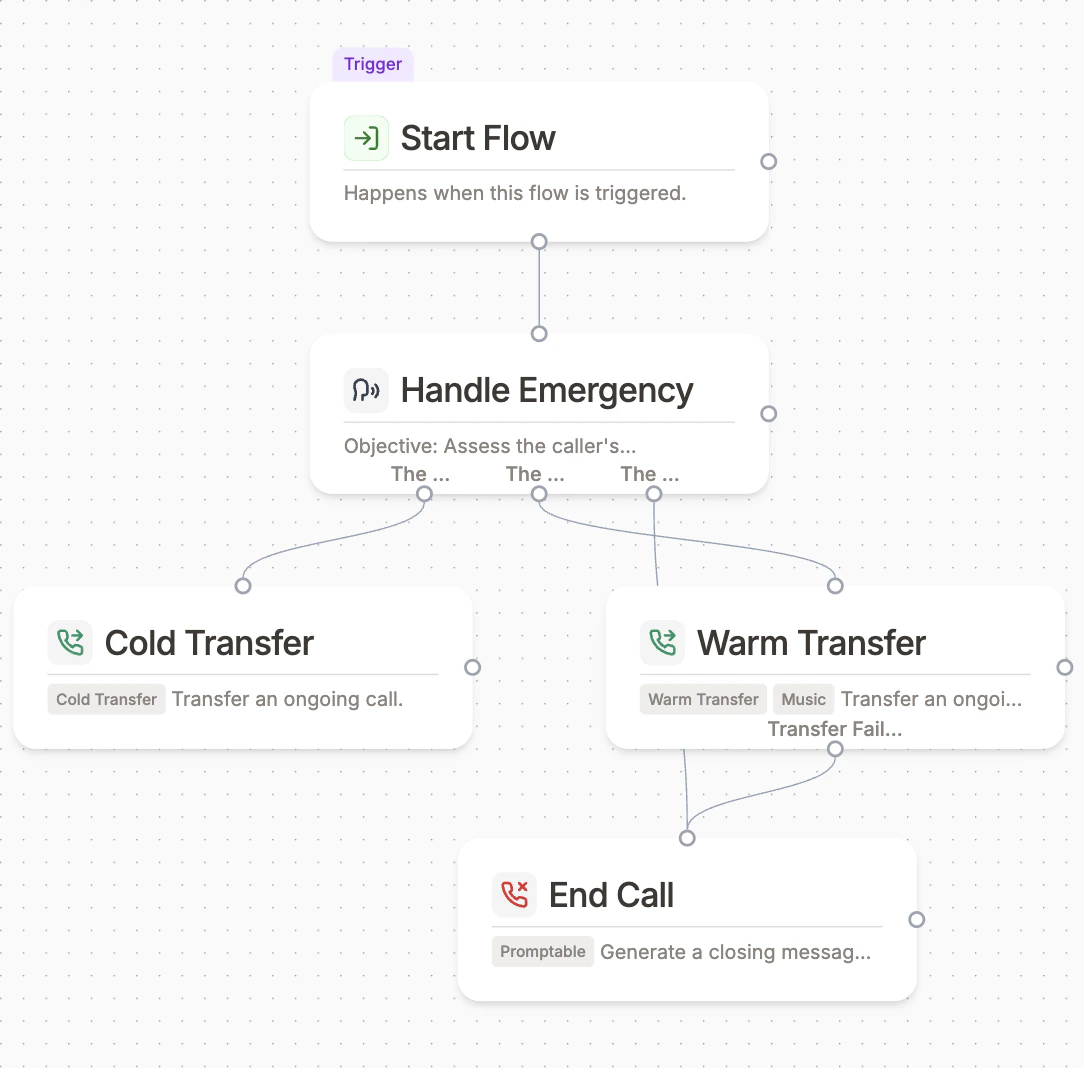 The call is forwarded immediately to the destination number. Phonely disconnects from the call as soon as the transfer is initiated - no introduction, no context sharing.
Use cold transfers when speed is more important than context: forwarding general inquiries to a receptionist line, or emergency situations where immediate connection is critical.
Phonely places the caller on hold, dials the destination, and introduces the caller with context before connecting the parties.
Use warm transfers when context matters: "Hi Sarah, I have John on the line regarding a billing question about his March invoice."
If the destination does not answer or voicemail is detected, the caller is brought back into the flow so the conversation can continue.
### Multiple Destinations and Conditional Routing
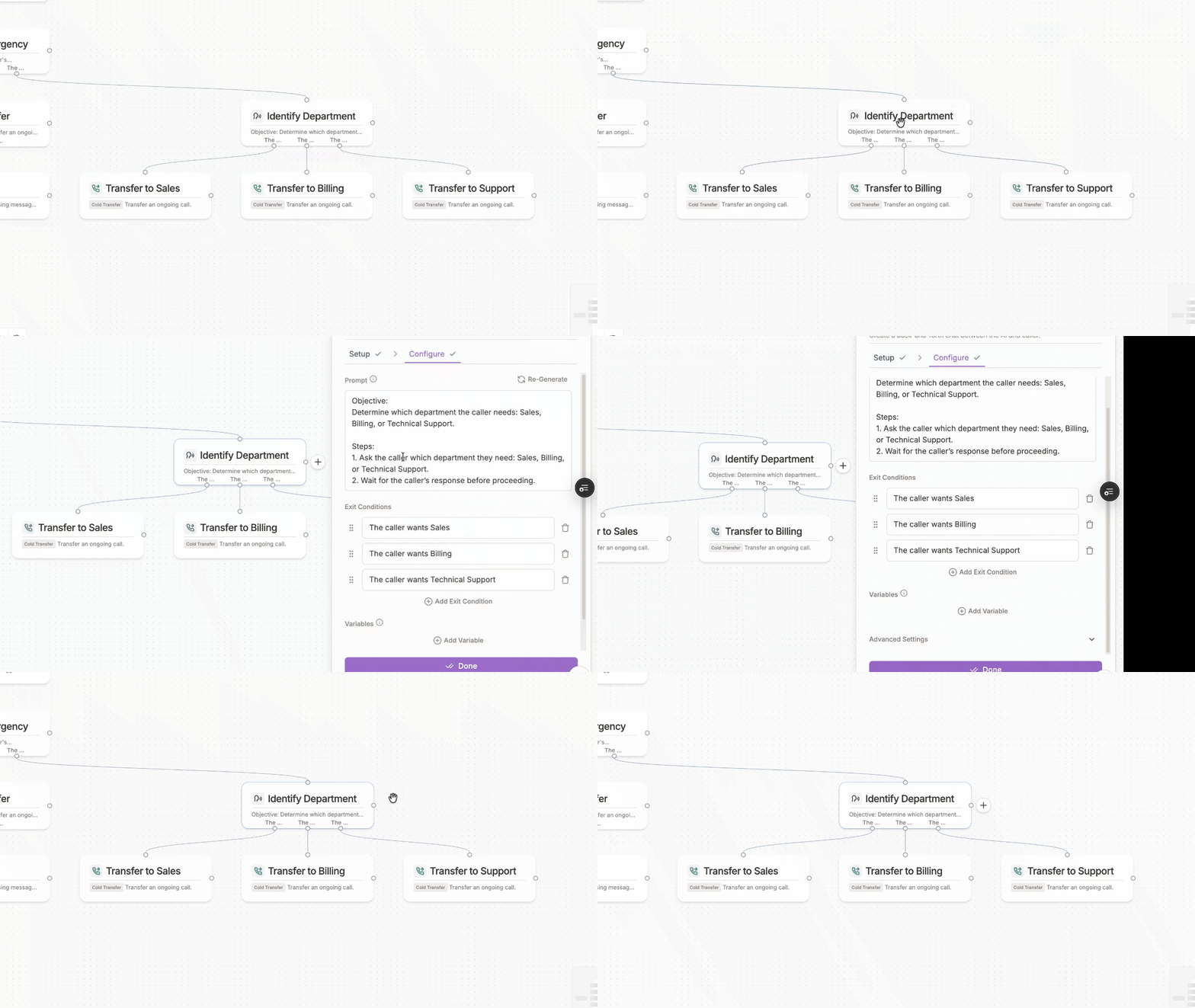
A single transfer call block can define multiple destinations, each with its own routing condition. When the block is reached, the AI evaluates what the caller said and routes to the matching destination.
For example, a single block can route:
* Sales inquiries to `+1 (555) 100-0001`
* Billing questions to `+1 (555) 100-0002`
* Technical support to `+1 (555) 100-0003`
When multiple destinations are configured, Phonely automatically prompts the caller to clarify who they want to reach, then routes based on the matched condition.
The call is forwarded immediately to the destination number. Phonely disconnects from the call as soon as the transfer is initiated - no introduction, no context sharing.
Use cold transfers when speed is more important than context: forwarding general inquiries to a receptionist line, or emergency situations where immediate connection is critical.
Phonely places the caller on hold, dials the destination, and introduces the caller with context before connecting the parties.
Use warm transfers when context matters: "Hi Sarah, I have John on the line regarding a billing question about his March invoice."
If the destination does not answer or voicemail is detected, the caller is brought back into the flow so the conversation can continue.
### Multiple Destinations and Conditional Routing
A single transfer call block can define multiple destinations, each with its own routing condition. When the block is reached, the AI evaluates what the caller said and routes to the matching destination.
For example, a single block can route:
* Sales inquiries to `+1 (555) 100-0001`
* Billing questions to `+1 (555) 100-0002`
* Technical support to `+1 (555) 100-0003`
When multiple destinations are configured, Phonely automatically prompts the caller to clarify who they want to reach, then routes based on the matched condition.
 ### Failover Numbers
Each destination can optionally enable failover. When failover is turned on, you provide one or more backup phone numbers. If the primary number does not answer, Phonely automatically tries each failover number in sequence before falling back to the failure path.
### Warm Transfer Options
Warm transfers come with several options that control the caller experience while the transfer is in progress:
| **Option** | **Description** |
| :------------------------------- | :--------------------------------------------------------------------------------------------------------------------------------------------------------------------------------------- |
| **Pre-Transfer Message** | A message spoken to the caller before the transfer begins (e.g., "Let me connect you with our billing team"). Supports fixed text or promptable mode where the AI generates the message. |
| **Post-Transfer Message** | A message spoken to the destination after connection (e.g., introducing the caller and summarizing the reason for the call). |
| **Outbound Leg Message** | A message spoken to the recipient when they pick up, before the parties are connected. |
| **Inbound Leg Message** | A message spoken to the caller while the transfer is being set up. |
| **On-Hold Music** | Play hold music while the caller waits for the destination to answer. |
| **On-Hold Reminder Message** | A periodic message played to the caller during hold (e.g., "Thank you for your patience, we are still connecting you"). Configurable frequency in seconds (default: 20s). |
| **On-Hold Chat** | Enable a secondary AI conversation with the caller while they wait for the transfer to complete. Requires a custom chat prompt. |
| **Ask Recipient for Permission** | Before connecting the caller, ask the recipient if they want to accept the call. |
| **Fast Transfer** | Skip detection steps and connect as quickly as possible. |
| **Warm Transfer Timeout** | Maximum time in seconds to wait for the destination to answer (default: 45s). If exceeded, the transfer fails and the caller returns to the flow. |
### Detection Features
Transfer Call blocks include AI-powered detection that classifies what answered the outbound call:
| **Option** | **Type** | **Description** |
| :---------------------- | :-------- | :------------------------------------------------------------------------------------------------------------------------------------------------------------------------------------------------------------------------------------------------ |
| **Voicemail Detection** | `boolean` | Uses an AI classifier to detect if the destination went to voicemail. When detected, the transfer is marked as failed and the caller is brought back into the flow via the `Voicemail Detected` output. Custom detection prompts can be provided. |
| **IVR Detection** | `boolean` | Detects if the destination number has an automated phone tree (IVR). Uses both string matching for common IVR phrases and an AI classifier. |
| **Transfer on IVR** | `boolean` | When IVR is detected and this is enabled, Phonely connects the caller directly to the IVR instead of treating it as a failure. When disabled, IVR detection triggers the `IVR Detected` output. |
| **Detection Timeout** | `number` | How long (in seconds) to wait before classifying the answering party (default: 0.3s). |
### Failover Numbers
Each destination can optionally enable failover. When failover is turned on, you provide one or more backup phone numbers. If the primary number does not answer, Phonely automatically tries each failover number in sequence before falling back to the failure path.
### Warm Transfer Options
Warm transfers come with several options that control the caller experience while the transfer is in progress:
| **Option** | **Description** |
| :------------------------------- | :--------------------------------------------------------------------------------------------------------------------------------------------------------------------------------------- |
| **Pre-Transfer Message** | A message spoken to the caller before the transfer begins (e.g., "Let me connect you with our billing team"). Supports fixed text or promptable mode where the AI generates the message. |
| **Post-Transfer Message** | A message spoken to the destination after connection (e.g., introducing the caller and summarizing the reason for the call). |
| **Outbound Leg Message** | A message spoken to the recipient when they pick up, before the parties are connected. |
| **Inbound Leg Message** | A message spoken to the caller while the transfer is being set up. |
| **On-Hold Music** | Play hold music while the caller waits for the destination to answer. |
| **On-Hold Reminder Message** | A periodic message played to the caller during hold (e.g., "Thank you for your patience, we are still connecting you"). Configurable frequency in seconds (default: 20s). |
| **On-Hold Chat** | Enable a secondary AI conversation with the caller while they wait for the transfer to complete. Requires a custom chat prompt. |
| **Ask Recipient for Permission** | Before connecting the caller, ask the recipient if they want to accept the call. |
| **Fast Transfer** | Skip detection steps and connect as quickly as possible. |
| **Warm Transfer Timeout** | Maximum time in seconds to wait for the destination to answer (default: 45s). If exceeded, the transfer fails and the caller returns to the flow. |
### Detection Features
Transfer Call blocks include AI-powered detection that classifies what answered the outbound call:
| **Option** | **Type** | **Description** |
| :---------------------- | :-------- | :------------------------------------------------------------------------------------------------------------------------------------------------------------------------------------------------------------------------------------------------ |
| **Voicemail Detection** | `boolean` | Uses an AI classifier to detect if the destination went to voicemail. When detected, the transfer is marked as failed and the caller is brought back into the flow via the `Voicemail Detected` output. Custom detection prompts can be provided. |
| **IVR Detection** | `boolean` | Detects if the destination number has an automated phone tree (IVR). Uses both string matching for common IVR phrases and an AI classifier. |
| **Transfer on IVR** | `boolean` | When IVR is detected and this is enabled, Phonely connects the caller directly to the IVR instead of treating it as a failure. When disabled, IVR detection triggers the `IVR Detected` output. |
| **Detection Timeout** | `number` | How long (in seconds) to wait before classifying the answering party (default: 0.3s). |
 ### Transfer Call Outcomes
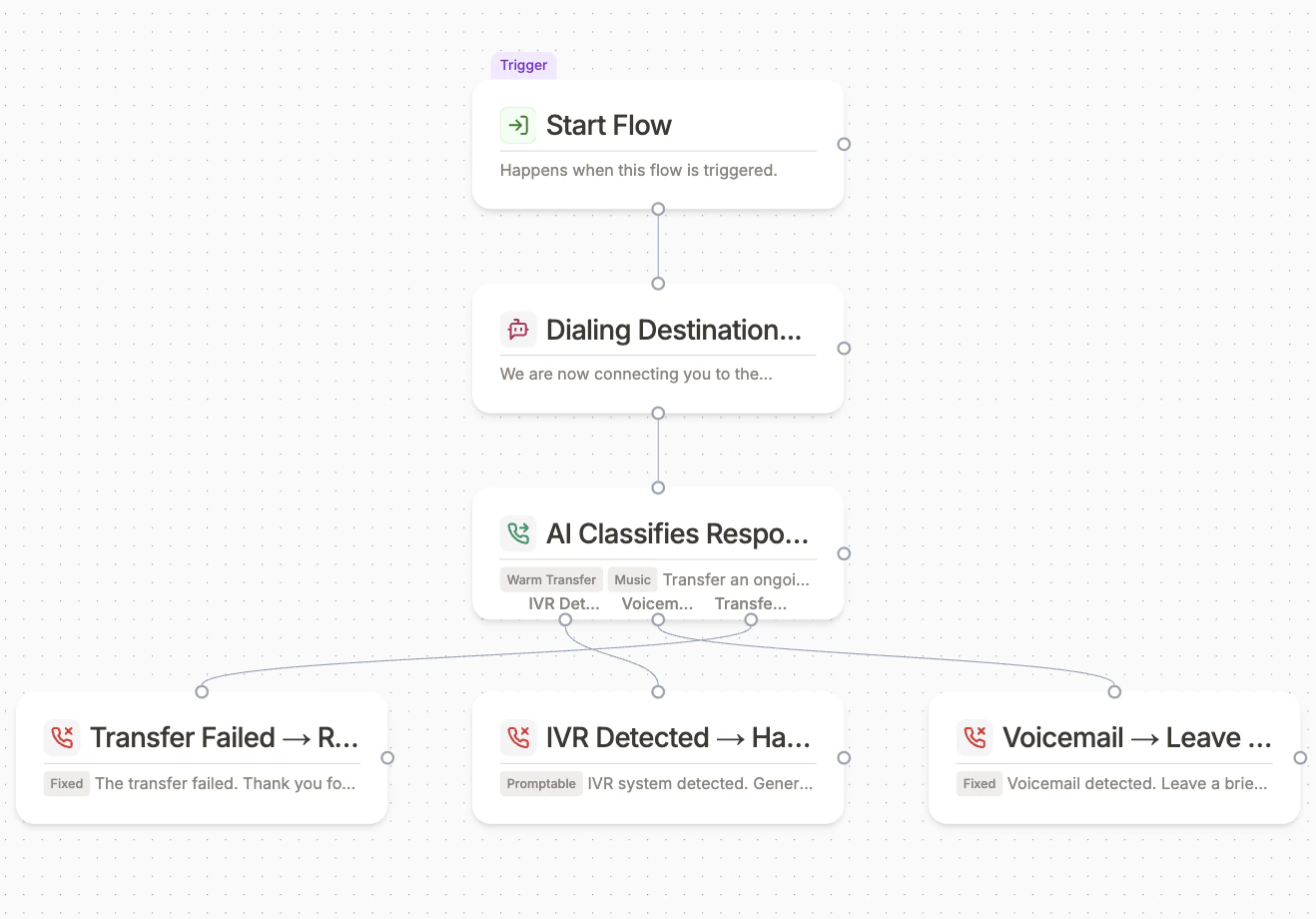
The transfer call block has four possible output paths that you can wire to subsequent blocks:
1. **Transfer Failed** - the destination did not answer, or the timeout was reached
2. **Voicemail Detected** - voicemail was detected at the destination (requires `detectVoicemail`)
3. **IVR Detected** - an IVR was detected and `transferOnIVR` is disabled (requires `detectIVR`)
4. **SMS Route** - the transfer is handled via SMS instead of voice
You can also define custom transfer answered call outcomes for when the transfer connects successfully.
## Transfer Flows
The [Transfer Flow](/blocks/live-call-actions/transfer-flow-new) block moves the caller to a different workflow without ending the call. The conversation context carries over, so the caller experiences a seamless transition.
Common use cases:
* Switching from appointment scheduling to a billing workflow.
* Moving from general inquiries to a specialized technical support workflow.
* Escalating from a self-service flow to a structured escalation workflow.
### Single vs. Multiple Destinations
When a Transfer Flow block has a single destination, the caller is moved directly to the target workflow.
When multiple destinations are configured, Phonely auto-generates a routing prompt that asks the caller what they need, then matches their response to the `transitionCondition` defined on each target workflow. The matched workflow is activated.
Each destination specifies:
* **Workflow ID** - which workflow to transfer to
* **Transition Condition** - stored in the target workflow's `meta.transitionCondition`, used by the AI to match caller intent
### Interim Messages
Transfer flow blocks support an optional **interim message** spoken to the caller during the transition (e.g., "One moment while I connect you with our scheduling system"). The message can be `fixed` or `promptable`, and an optional delay can be configured before it plays.
## Global Flows
Not all routing happens at predictable points in a conversation. A caller may ask for support halfway through an appointment booking, or express frustration at any time. **Global Flows** handle these cases.
A global flow is a workflow marked as globally available. The AI monitors every turn of the conversation for conditions that match a global flow's trigger, and can switch to it from any point in any active workflow.
### Transfer Call Outcomes
The transfer call block has four possible output paths that you can wire to subsequent blocks:
1. **Transfer Failed** - the destination did not answer, or the timeout was reached
2. **Voicemail Detected** - voicemail was detected at the destination (requires `detectVoicemail`)
3. **IVR Detected** - an IVR was detected and `transferOnIVR` is disabled (requires `detectIVR`)
4. **SMS Route** - the transfer is handled via SMS instead of voice
You can also define custom transfer answered call outcomes for when the transfer connects successfully.
## Transfer Flows
The [Transfer Flow](/blocks/live-call-actions/transfer-flow-new) block moves the caller to a different workflow without ending the call. The conversation context carries over, so the caller experiences a seamless transition.
Common use cases:
* Switching from appointment scheduling to a billing workflow.
* Moving from general inquiries to a specialized technical support workflow.
* Escalating from a self-service flow to a structured escalation workflow.
### Single vs. Multiple Destinations
When a Transfer Flow block has a single destination, the caller is moved directly to the target workflow.
When multiple destinations are configured, Phonely auto-generates a routing prompt that asks the caller what they need, then matches their response to the `transitionCondition` defined on each target workflow. The matched workflow is activated.
Each destination specifies:
* **Workflow ID** - which workflow to transfer to
* **Transition Condition** - stored in the target workflow's `meta.transitionCondition`, used by the AI to match caller intent
### Interim Messages
Transfer flow blocks support an optional **interim message** spoken to the caller during the transition (e.g., "One moment while I connect you with our scheduling system"). The message can be `fixed` or `promptable`, and an optional delay can be configured before it plays.
## Global Flows
Not all routing happens at predictable points in a conversation. A caller may ask for support halfway through an appointment booking, or express frustration at any time. **Global Flows** handle these cases.
A global flow is a workflow marked as globally available. The AI monitors every turn of the conversation for conditions that match a global flow's trigger, and can switch to it from any point in any active workflow.
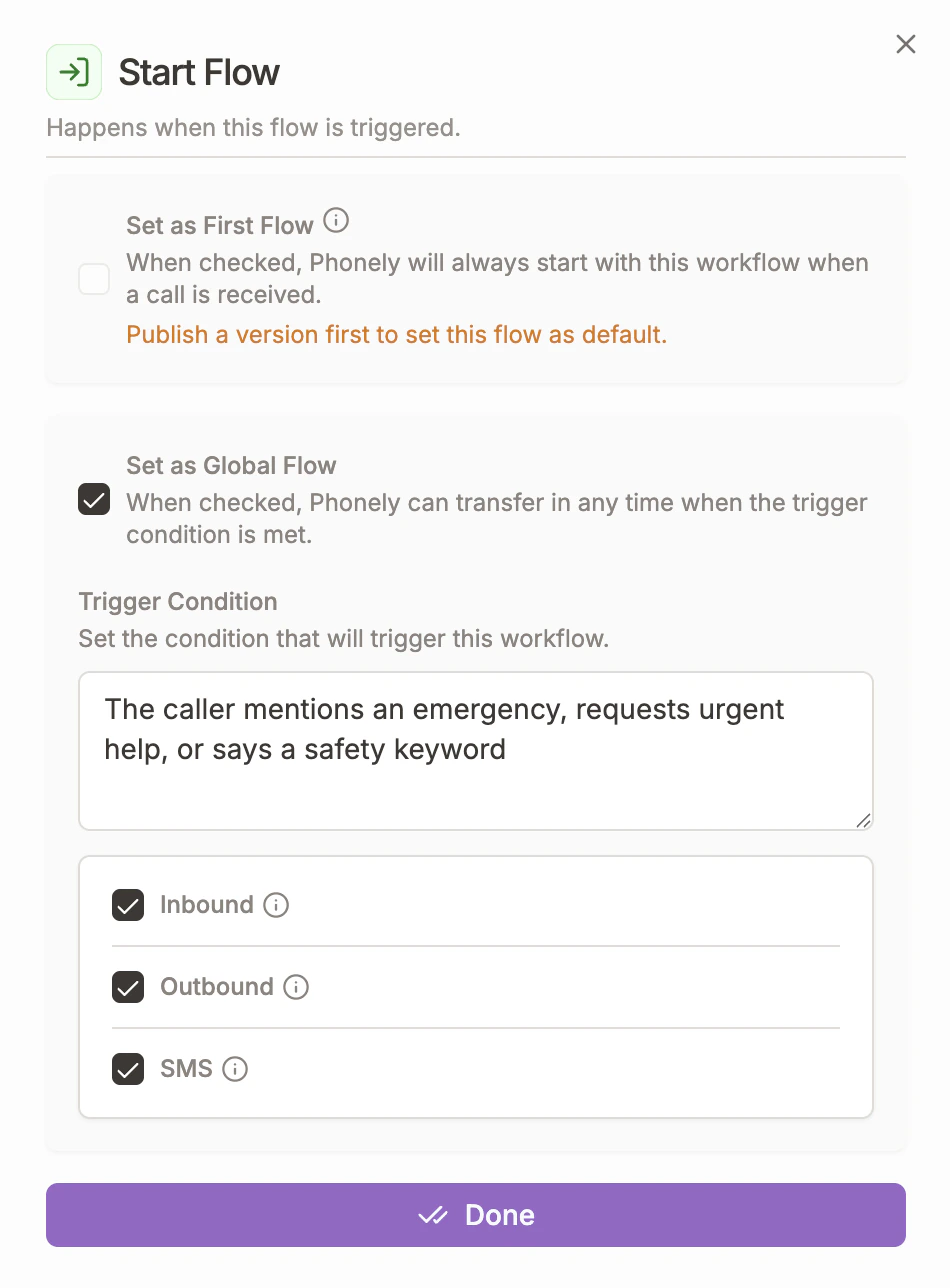 Use a global flow when you want a routing path to be available **at any point** in the conversation, regardless of which block the caller is currently in.
Examples: emergency escalation, "speak to a manager" requests, frustration detection, or switching to a completely different topic mid-call.
1. Create a new workflow (or open an existing one).
2. Select the **Receive Call** trigger node at the start of the flow.
3. Enable the **Global Workflow** toggle.
4. Choose which channels the global flow applies to: **Inbound**, **Outbound**, and/or **SMS**.
5. Build the flow as normal - add Talk blocks, Transfer Call blocks, or any other blocks.
The AI will automatically consider this flow as a possible routing target during every conversation turn. When the caller's intent matches the global flow's purpose, the system switches to it.
For every workflow marked as global, the AI state manager adds a `squad_switch` transition as a possible state during conversation. The LLM evaluates whether the caller's current intent matches a global flow's transition condition, and if so, activates it. The default workflow always takes priority over global flows when both match.
## Adding Conditions with Time Filters
Transfers can be made conditional. The most common condition is business hours: route calls to your support team during working hours, but handle them differently after hours.
The [Time Filter](/blocks/flow-blocks/time-filter) block evaluates the current day and time against a weekly schedule you define.
Place the block before your Transfer Call block in the flow. The Time Filter has two output paths: **Available** and **Unavailable**.
Configure availability per day of the week. Each day has an `isAvailable` toggle and one or more time ranges (e.g., Monday: 9:00 AM - 5:00 PM, 6:00 PM - 9:00 PM).
Connect the **Available** output to your Transfer Call block. Connect the **Unavailable** output to a Talk block that explains the team is unavailable and offers to take a message or schedule a callback.
For more complex conditions beyond time-of-day, use the **Filter** block. It supports multi-case branching with operators like `equal_to`, `greater_than`, `exists`, and `ai_matches` -- allowing you to route based on variable values, caller input, or AI-evaluated conditions.
## Example Flow
Use a global flow when you want a routing path to be available **at any point** in the conversation, regardless of which block the caller is currently in.
Examples: emergency escalation, "speak to a manager" requests, frustration detection, or switching to a completely different topic mid-call.
1. Create a new workflow (or open an existing one).
2. Select the **Receive Call** trigger node at the start of the flow.
3. Enable the **Global Workflow** toggle.
4. Choose which channels the global flow applies to: **Inbound**, **Outbound**, and/or **SMS**.
5. Build the flow as normal - add Talk blocks, Transfer Call blocks, or any other blocks.
The AI will automatically consider this flow as a possible routing target during every conversation turn. When the caller's intent matches the global flow's purpose, the system switches to it.
For every workflow marked as global, the AI state manager adds a `squad_switch` transition as a possible state during conversation. The LLM evaluates whether the caller's current intent matches a global flow's transition condition, and if so, activates it. The default workflow always takes priority over global flows when both match.
## Adding Conditions with Time Filters
Transfers can be made conditional. The most common condition is business hours: route calls to your support team during working hours, but handle them differently after hours.
The [Time Filter](/blocks/flow-blocks/time-filter) block evaluates the current day and time against a weekly schedule you define.
Place the block before your Transfer Call block in the flow. The Time Filter has two output paths: **Available** and **Unavailable**.
Configure availability per day of the week. Each day has an `isAvailable` toggle and one or more time ranges (e.g., Monday: 9:00 AM - 5:00 PM, 6:00 PM - 9:00 PM).
Connect the **Available** output to your Transfer Call block. Connect the **Unavailable** output to a Talk block that explains the team is unavailable and offers to take a message or schedule a callback.
For more complex conditions beyond time-of-day, use the **Filter** block. It supports multi-case branching with operators like `equal_to`, `greater_than`, `exists`, and `ai_matches` -- allowing you to route based on variable values, caller input, or AI-evaluated conditions.
## Example Flow
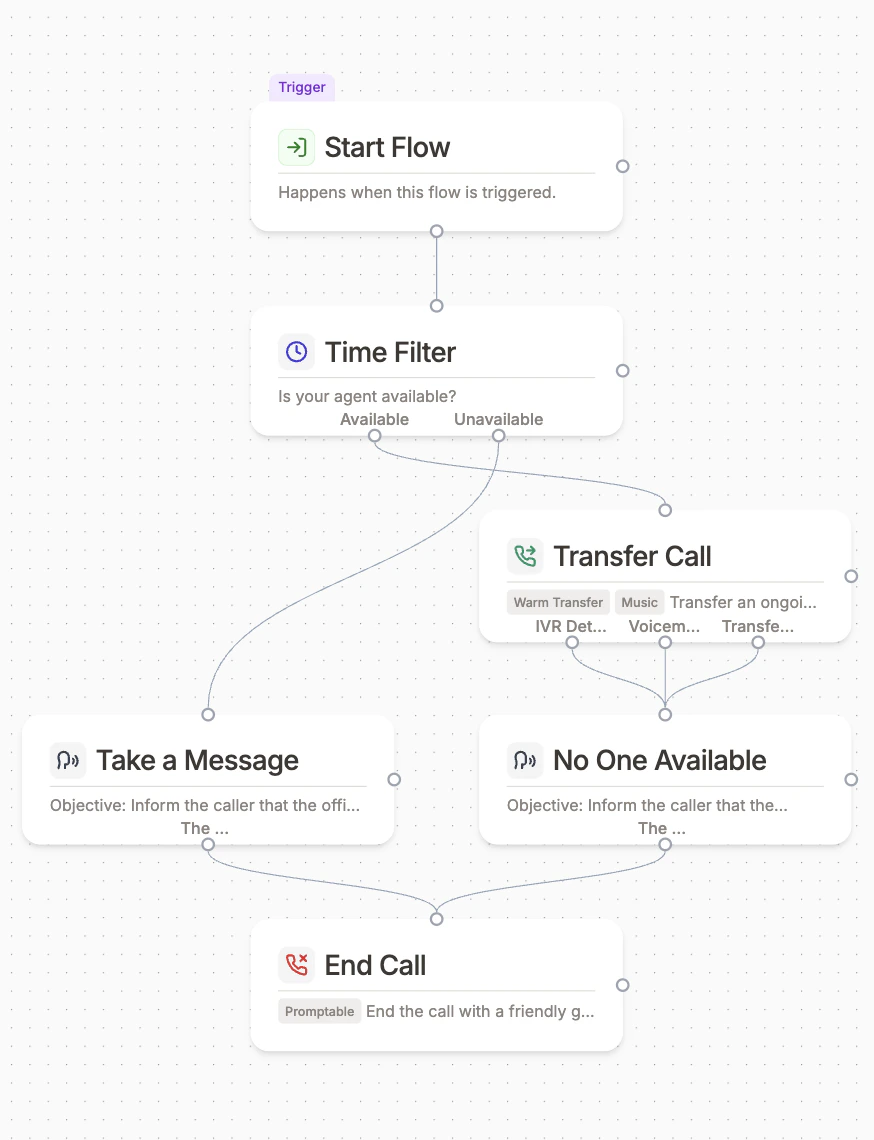 Here is how to build an escalation-ready appointment scheduling flow:
Start with a Time Filter block to check business hours. Wire the **Unavailable** path to a Talk block that takes a message.
On the **Available** path, add a Transfer Call block with multiple destinations. Set conditions like "Sales inquiry", "Billing question", and "Technical support", each with its own phone number.
Set the transfer mode to **Warm Transfer**. Write a pre-transfer message (e.g., "Let me connect you now") and a post-transfer message for the recipient (e.g., "I have a caller with a billing question about their March invoice").
Turn on **Voicemail Detection** and **IVR Detection**. Add failover numbers for each destination. Wire the **Transfer Failed** and **Voicemail Detected** outputs to a Talk block that tells the caller no one is available and offers to take a message.
## Full Configuration Reference
### Transfer Call Block Options
| **Option** | **Type** | **Default** | **Description** |
| :-------------------------------------- | :--------- | :---------- | :-------------------------------------------------------------------------------------------------------------- |
| **warmTransfer** | `boolean` | `false` | Enable warm transfer mode (cold when disabled) |
| **destinations** | `array` | -- | Array of destinations, each with a condition, phone number, pre-transfer message, and optional failover numbers |
| **postTransferMessage** | `tagify` | -- | Message spoken after transfer connects (warm only) |
| **onHoldMusicEnabled** | `boolean` | `false` | Play hold music during warm transfer |
| **onHoldChatEnabled** | `boolean` | `false` | Enable AI chat while caller is on hold |
| **onHoldChatPrompt** | `tagify` | -- | System prompt for the on-hold chat AI |
| **onHoldMusicReminderMessageFrequency** | `number` | `20` | Seconds between hold reminders |
| **detectVoicemail** | `boolean` | `false` | Enable voicemail detection on outbound leg |
| **detectIVR** | `boolean` | `false` | Enable IVR detection on outbound leg |
| **transferOnIVR** | `boolean` | `false` | Connect caller directly to detected IVR |
| **askOutboundLegForPermission** | `boolean` | `false` | Ask recipient before connecting caller |
| **fastTransfer** | `boolean` | `false` | Skip detection, connect as fast as possible |
| **warmTransferTimeout** | `number` | `45` | Max seconds to wait for destination to answer |
| **waitForDetectionTimeout** | `number` | `0.3` | Seconds to wait before classifying answering party |
| **transferAnsweredCallOutcomes** | `string[]` | `[]` | Custom outcomes when transfer is answered |
All message fields (pre-transfer, post-transfer, outbound leg, inbound leg, hold reminder, transfer failed) support `fixed` or `promptable` modes. In `fixed` mode you write the exact text; in `promptable` mode the AI generates an appropriate message using a prompt you provide.
### Transfer Flow Block Options
| **Option** | **Type** | **Description** |
| :------------------------ | :--------------------- | :------------------------------------------------------ |
| **Destinations** | `array` | One or more target workflows (each with a `workflowId`) |
| **interimMessageEnabled** | `boolean` | Play a message during the transition |
| **interimMessage** | `string` | The transition message text |
| **interimMessageMode** | `fixed` / `promptable` | How the message is generated |
| **interimMessageDelay** | `number` | Delay before playing the interim message |
### Time Filter Block Options
| **Option** | **Type** | **Description** |
| :---------------------------------------------------- | :------- | :---------------------------------------------------------------------------------------------- |
| **mondayAvailability** through **sundayAvailability** | `object` | Per-day config with `isAvailable` toggle and `timeRanges` array of `{startTime, endTime}` pairs |
## Best Practices
* **Use warm transfers** in customer-facing scenarios where context matters. The few seconds of introduction make a significant difference in customer experience.
* **Always wire the failure outputs.** Every transfer call block has `Transfer Failed`, `Voicemail Detected`, and `IVR Detected` outputs. Connect them to Talk blocks or alternative routing to ensure no call ends in silence.
* **Use failover numbers** for critical transfer destinations. If your main support line is busy, failover ensures the caller still reaches someone.
* **Apply time filters** before Transfer call blocks to avoid ringing phones no one will answer.
* **Use global flows sparingly.** They are powerful but add complexity -- reserve them for truly cross-cutting concerns like emergency escalation or "speak to a manager" requests.
* **Prefer multiple destinations in one block** over multiple Transfer Call blocks. A single block with conditions is easier to maintain and lets the AI handle routing automatically.
Failing to wire the Transfer Failed output can result in dropped calls. Always define what happens when a transfer does not complete.
For block-specific configuration details, see [Transfer Call](/blocks/live-call-actions/new-transfer-call), [Transfer Flow](/blocks/live-call-actions/transfer-flow-new), and [Time Filter](/blocks/flow-blocks/time-filter).
Here is how to build an escalation-ready appointment scheduling flow:
Start with a Time Filter block to check business hours. Wire the **Unavailable** path to a Talk block that takes a message.
On the **Available** path, add a Transfer Call block with multiple destinations. Set conditions like "Sales inquiry", "Billing question", and "Technical support", each with its own phone number.
Set the transfer mode to **Warm Transfer**. Write a pre-transfer message (e.g., "Let me connect you now") and a post-transfer message for the recipient (e.g., "I have a caller with a billing question about their March invoice").
Turn on **Voicemail Detection** and **IVR Detection**. Add failover numbers for each destination. Wire the **Transfer Failed** and **Voicemail Detected** outputs to a Talk block that tells the caller no one is available and offers to take a message.
## Full Configuration Reference
### Transfer Call Block Options
| **Option** | **Type** | **Default** | **Description** |
| :-------------------------------------- | :--------- | :---------- | :-------------------------------------------------------------------------------------------------------------- |
| **warmTransfer** | `boolean` | `false` | Enable warm transfer mode (cold when disabled) |
| **destinations** | `array` | -- | Array of destinations, each with a condition, phone number, pre-transfer message, and optional failover numbers |
| **postTransferMessage** | `tagify` | -- | Message spoken after transfer connects (warm only) |
| **onHoldMusicEnabled** | `boolean` | `false` | Play hold music during warm transfer |
| **onHoldChatEnabled** | `boolean` | `false` | Enable AI chat while caller is on hold |
| **onHoldChatPrompt** | `tagify` | -- | System prompt for the on-hold chat AI |
| **onHoldMusicReminderMessageFrequency** | `number` | `20` | Seconds between hold reminders |
| **detectVoicemail** | `boolean` | `false` | Enable voicemail detection on outbound leg |
| **detectIVR** | `boolean` | `false` | Enable IVR detection on outbound leg |
| **transferOnIVR** | `boolean` | `false` | Connect caller directly to detected IVR |
| **askOutboundLegForPermission** | `boolean` | `false` | Ask recipient before connecting caller |
| **fastTransfer** | `boolean` | `false` | Skip detection, connect as fast as possible |
| **warmTransferTimeout** | `number` | `45` | Max seconds to wait for destination to answer |
| **waitForDetectionTimeout** | `number` | `0.3` | Seconds to wait before classifying answering party |
| **transferAnsweredCallOutcomes** | `string[]` | `[]` | Custom outcomes when transfer is answered |
All message fields (pre-transfer, post-transfer, outbound leg, inbound leg, hold reminder, transfer failed) support `fixed` or `promptable` modes. In `fixed` mode you write the exact text; in `promptable` mode the AI generates an appropriate message using a prompt you provide.
### Transfer Flow Block Options
| **Option** | **Type** | **Description** |
| :------------------------ | :--------------------- | :------------------------------------------------------ |
| **Destinations** | `array` | One or more target workflows (each with a `workflowId`) |
| **interimMessageEnabled** | `boolean` | Play a message during the transition |
| **interimMessage** | `string` | The transition message text |
| **interimMessageMode** | `fixed` / `promptable` | How the message is generated |
| **interimMessageDelay** | `number` | Delay before playing the interim message |
### Time Filter Block Options
| **Option** | **Type** | **Description** |
| :---------------------------------------------------- | :------- | :---------------------------------------------------------------------------------------------- |
| **mondayAvailability** through **sundayAvailability** | `object` | Per-day config with `isAvailable` toggle and `timeRanges` array of `{startTime, endTime}` pairs |
## Best Practices
* **Use warm transfers** in customer-facing scenarios where context matters. The few seconds of introduction make a significant difference in customer experience.
* **Always wire the failure outputs.** Every transfer call block has `Transfer Failed`, `Voicemail Detected`, and `IVR Detected` outputs. Connect them to Talk blocks or alternative routing to ensure no call ends in silence.
* **Use failover numbers** for critical transfer destinations. If your main support line is busy, failover ensures the caller still reaches someone.
* **Apply time filters** before Transfer call blocks to avoid ringing phones no one will answer.
* **Use global flows sparingly.** They are powerful but add complexity -- reserve them for truly cross-cutting concerns like emergency escalation or "speak to a manager" requests.
* **Prefer multiple destinations in one block** over multiple Transfer Call blocks. A single block with conditions is easier to maintain and lets the AI handle routing automatically.
Failing to wire the Transfer Failed output can result in dropped calls. Always define what happens when a transfer does not complete.
For block-specific configuration details, see [Transfer Call](/blocks/live-call-actions/new-transfer-call), [Transfer Flow](/blocks/live-call-actions/transfer-flow-new), and [Time Filter](/blocks/flow-blocks/time-filter).