> ## Documentation Index
> Fetch the complete documentation index at: https://docs.phonely.ai/llms.txt
> Use this file to discover all available pages before exploring further.
# Flow Canvas Controls
> Use the flow canvas to add and arrange blocks, resolve invalid variables, focus outcomes, and review edits.
The flow canvas includes a vertical toolbar for adding, arranging, and reviewing content. **Undo**, **Redo**, and **Change History** appear separately in the bottom-left of the editor.
Editing controls update the draft without publishing it. View-only controls, such as **Outcome Focus** and **Keyboard shortcuts**, do not change the flow.
## Canvas toolbar
 Controls that modify the draft are unavailable when the current view is read-only.
### Add blocks
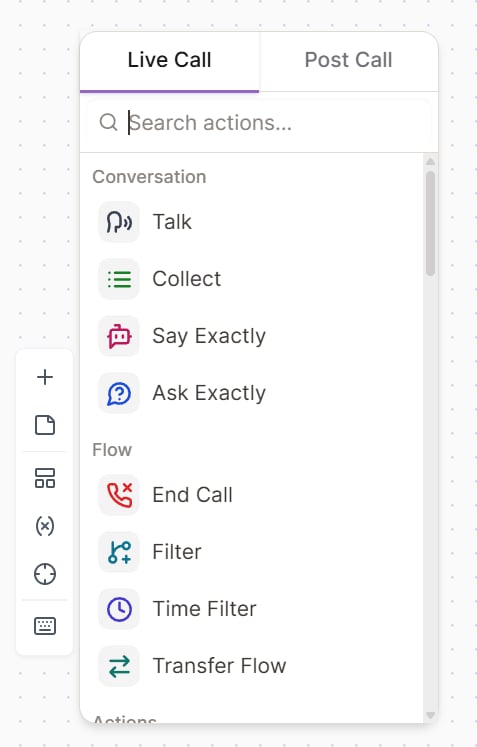
Select **Add block** to add an unconnected block to the canvas. The picker separates **Live Call** and **Post Call** blocks and only shows blocks supported by the flow's inbound or outbound direction.
To add a block already connected to a path, select an available connection handle on an existing block instead.
Add pre-call blocks from the pre-call connection above **Greeting** or **Make Call**. **Start Flow** does not support pre-call blocks.
### Add sticky notes
Select **Add Sticky Note** to document design intent, assumptions, ownership, or follow-up work directly on the canvas. You can format the note's content, change its color, and resize it.
Sticky notes do not connect to other blocks, run during a call, or provide instructions to the agent.
### Organize blocks
Select **Organize blocks** to reposition the current flow without changing block settings or connections. The new layout is recorded as one undoable edit.
Use it after adding or reconnecting several blocks. Review the result and select **Undo** if the previous layout was clearer.
### Replace invalid variables
For an isolated invalid reference, open the affected block, remove the reference, and select the intended variable again. Select **Replace Invalid Variables** when the same invalid reference appears in several fields or blocks and you want to update every affected use at once.
See [Resolve invalid variables](/flow-editor/variables#resolve-invalid-variables) for guidance on checking the cause and choosing a safe replacement.
### Focus blocks by call outcome
Select **Focus blocks by call outcome** to open **Outcome Focus**. Choose one or more call outcomes to highlight the blocks that use them and dim unrelated blocks. The number beside each outcome is the number of matching blocks in the current flow.
Outcome Focus only changes how the canvas is displayed. Clear the selection to return to the normal view.
### Keyboard shortcuts
Select **Keyboard shortcuts** in the canvas toolbar to see the shortcuts for your device.
| Task | Windows | macOS |
| :------------------------- | :---------------------- | :------------------------ |
| Undo | `Ctrl` + `Z` | `Command` + `Z` |
| Redo | `Ctrl` + `Shift` + `Z` | `Command` + `Shift` + `Z` |
| Copy selected blocks | `Ctrl` + `C` | `Command` + `C` |
| Paste blocks | `Ctrl` + `V` | `Command` + `V` |
| Delete selected blocks | `Delete` or `Backspace` | `Delete` or `Backspace` |
| Select more than one block | `Ctrl` + click | `Command` + click |
| Box select | `Shift` + drag | `Shift` + drag |
| Zoom | Mouse wheel | Mouse wheel |
| Pan | Drag the canvas | Drag the canvas |
Copying a selection preserves connections between the selected blocks. Connections to blocks outside the selection are not copied. You can paste copied blocks into another open Phonely flow, but review their variables and connections because the destination flow may provide different context.
When the cursor is in a text field, standard text-editing shortcuts take precedence over canvas shortcuts.
## Undo, redo, and Change History
Use **Undo** and **Redo** in the bottom-left of the editor to move through recent draft changes in the current editing session. **Change History** lists the changes recorded during that session.
Change History is not a durable flow checkpoint and does not restore an edit by itself. Use [Flow Versions](/flow-editor/versions) to save, review, or restore named versions over time.
Controls that modify the draft are unavailable when the current view is read-only.
### Add blocks
Select **Add block** to add an unconnected block to the canvas. The picker separates **Live Call** and **Post Call** blocks and only shows blocks supported by the flow's inbound or outbound direction.
To add a block already connected to a path, select an available connection handle on an existing block instead.
Add pre-call blocks from the pre-call connection above **Greeting** or **Make Call**. **Start Flow** does not support pre-call blocks.
### Add sticky notes
Select **Add Sticky Note** to document design intent, assumptions, ownership, or follow-up work directly on the canvas. You can format the note's content, change its color, and resize it.
Sticky notes do not connect to other blocks, run during a call, or provide instructions to the agent.
### Organize blocks
Select **Organize blocks** to reposition the current flow without changing block settings or connections. The new layout is recorded as one undoable edit.
Use it after adding or reconnecting several blocks. Review the result and select **Undo** if the previous layout was clearer.
### Replace invalid variables
For an isolated invalid reference, open the affected block, remove the reference, and select the intended variable again. Select **Replace Invalid Variables** when the same invalid reference appears in several fields or blocks and you want to update every affected use at once.
See [Resolve invalid variables](/flow-editor/variables#resolve-invalid-variables) for guidance on checking the cause and choosing a safe replacement.
### Focus blocks by call outcome
Select **Focus blocks by call outcome** to open **Outcome Focus**. Choose one or more call outcomes to highlight the blocks that use them and dim unrelated blocks. The number beside each outcome is the number of matching blocks in the current flow.
Outcome Focus only changes how the canvas is displayed. Clear the selection to return to the normal view.
### Keyboard shortcuts
Select **Keyboard shortcuts** in the canvas toolbar to see the shortcuts for your device.
| Task | Windows | macOS |
| :------------------------- | :---------------------- | :------------------------ |
| Undo | `Ctrl` + `Z` | `Command` + `Z` |
| Redo | `Ctrl` + `Shift` + `Z` | `Command` + `Shift` + `Z` |
| Copy selected blocks | `Ctrl` + `C` | `Command` + `C` |
| Paste blocks | `Ctrl` + `V` | `Command` + `V` |
| Delete selected blocks | `Delete` or `Backspace` | `Delete` or `Backspace` |
| Select more than one block | `Ctrl` + click | `Command` + click |
| Box select | `Shift` + drag | `Shift` + drag |
| Zoom | Mouse wheel | Mouse wheel |
| Pan | Drag the canvas | Drag the canvas |
Copying a selection preserves connections between the selected blocks. Connections to blocks outside the selection are not copied. You can paste copied blocks into another open Phonely flow, but review their variables and connections because the destination flow may provide different context.
When the cursor is in a text field, standard text-editing shortcuts take precedence over canvas shortcuts.
## Undo, redo, and Change History
Use **Undo** and **Redo** in the bottom-left of the editor to move through recent draft changes in the current editing session. **Change History** lists the changes recorded during that session.
Change History is not a durable flow checkpoint and does not restore an edit by itself. Use [Flow Versions](/flow-editor/versions) to save, review, or restore named versions over time.