> ## Documentation Index
> Fetch the complete documentation index at: https://docs.phonely.ai/llms.txt
> Use this file to discover all available pages before exploring further.
# Quick Start
> Build your first agent in 5 minutes
Want to jump right in? Try out Phonely for completely free [here](https://phonely.ai).
Phonely lets you design AI phone agents using visual workflows. Instead of writing scripts, you connect blocks that control what the agent says, what it listens for, what data it collects, and what actions it takes during and after every call.
## Building an AI Agent in Phonely
### Learn the concepts
Phonely combines three core systems that work together in every call.
1. Your agent configuration defines the voice, tone, and knowledge it uses.
2. Your workflow (flow) defines the conversation logic.
3. Your data and integrations turn calls into real business actions.
When a call comes in, Phonely follows your flow in real time, collecting variables, making decisions, calling APIs, transferring calls, scheduling appointments, or taking payments.
Create new agents to manage calls, collect data, and automate workflows for a specific team, service, business area, or campaign.
Select a voice, import voices from supported providers, or create custom clones that match your brand and customer experience.
Upload FAQs, SOPs, pricing details, and policy documents so Phonely can answer questions using your real business content during calls.
Build your workflows visually with blocks for speaking, asking questions, collecting data, filtering calls, calling APIs, routing, and ending calls.
Collect caller details such as name, phone number, email, or order number, then reuse them in logic, integrations, follow-ups, and reporting.
Send callers to the right path using routing, warm or cold transfers, escalation logic, and fallback handling to keep calls moving toward resolution
Trigger actions across calendars, APIs, sheets, webhooks, payments, email, and SMS using the same variables collected during the call.
Use analytics to monitor outcomes, trends, call paths, data tables, and workflow events so you can understand and improve agent behavior.
Validate your agents before going live. Test workflows, review outcomes and summaries, compare, and use insights to refine behavior and scale with confidence.
## Let's build your agent right now.
Building voice AI agents has never been easier. Get started in just a few simple steps to build the AI that can automate anything, repeatedly, every single time.
### Create an Agent
Agents are the core of your Phonely workspace. Each agent represents a virtual assistant that can manage calls, collect data, and automate workflows using custom call flows, knowledge sources, and integrations.
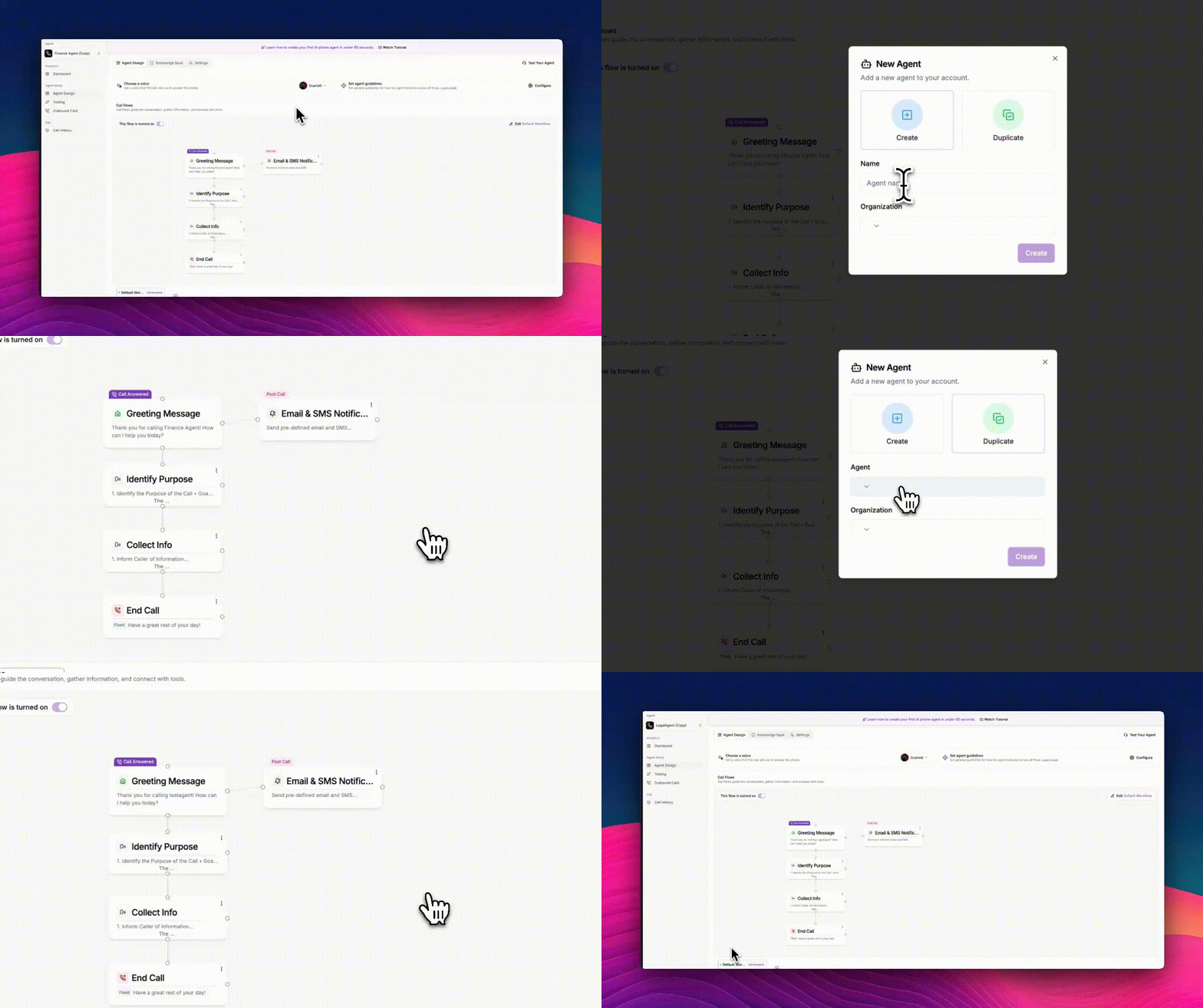
You can create a new agent from scratch to handle a specific business area or campaign. Navigate to the top of the main menu under the Agent section, click [Create Agent](/key-concepts/create-duplicate-agents). In the **New Agent** window, choose **Create**.
 ### Pick a voice
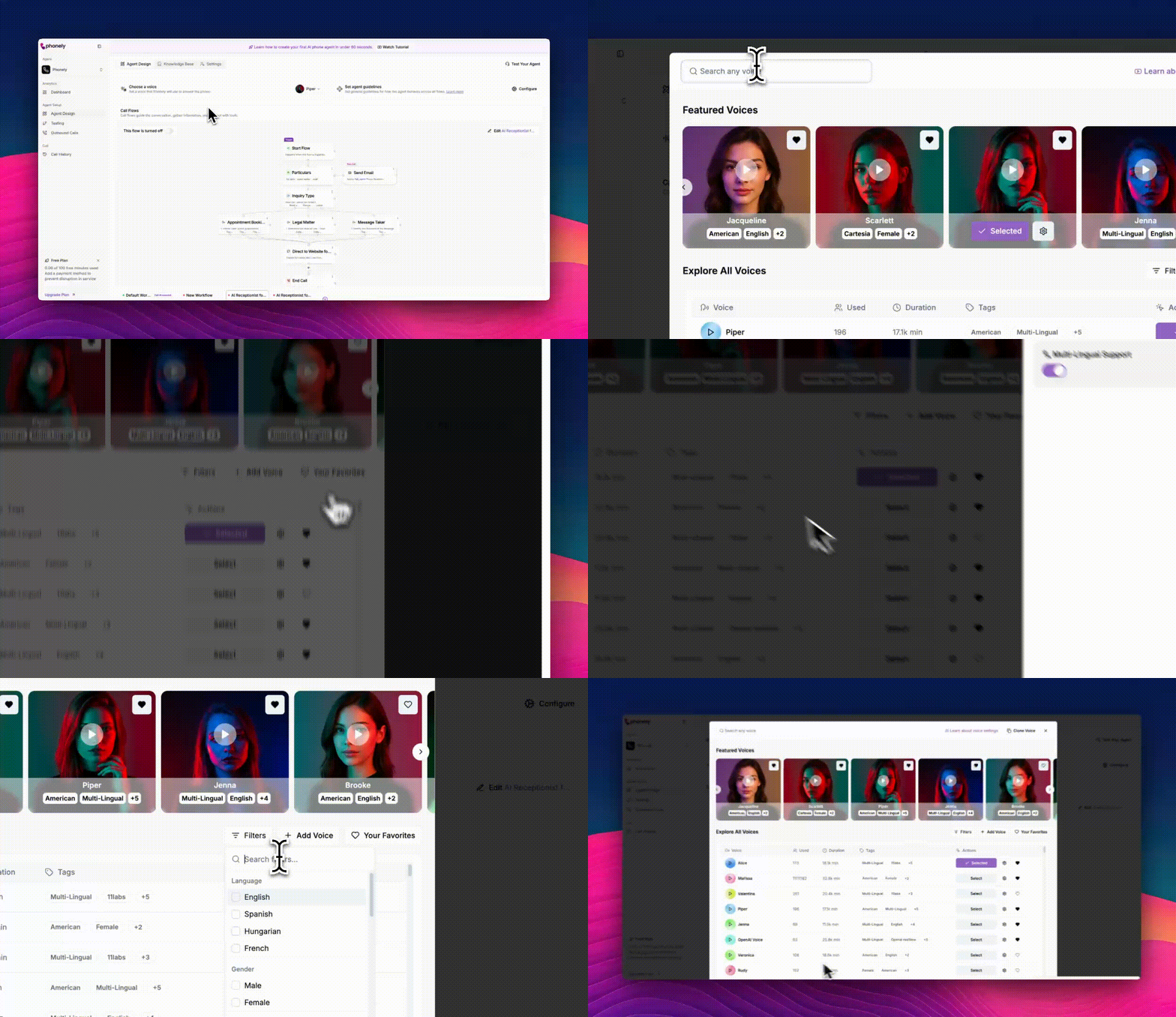
[Choose](/agent-design/voice/voice-selection) from thousands of pre-built voices, import from leading providers, or [clone](/agent-design/voice/clone-voice) a custom voice in minutes to match your brand.
### Pick a voice
[Choose](/agent-design/voice/voice-selection) from thousands of pre-built voices, import from leading providers, or [clone](/agent-design/voice/clone-voice) a custom voice in minutes to match your brand.
 ### Add your knowledge
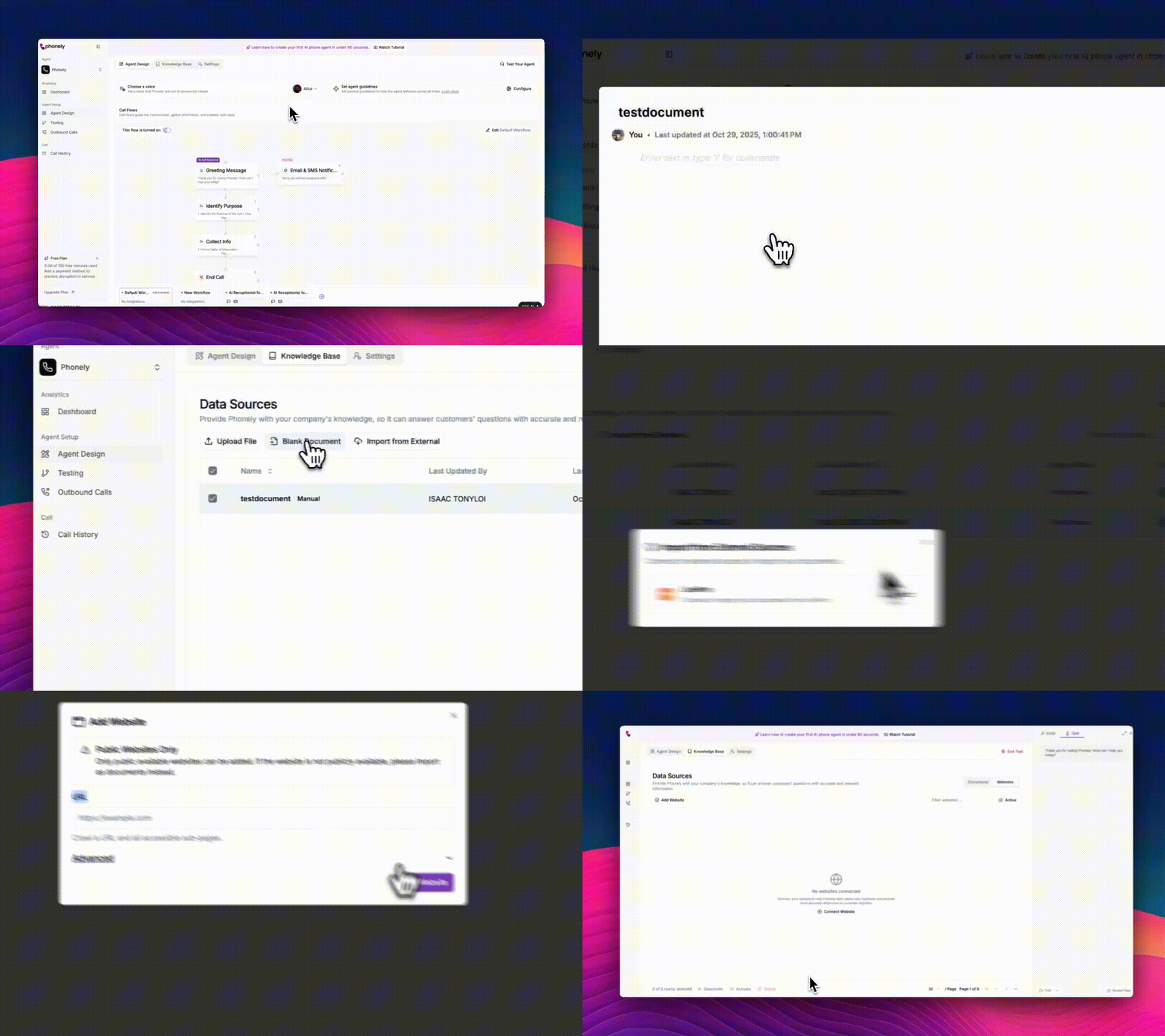
Upload FAQs, SOPs, pricing sheets, and policy documents into the [knowledge base](/agent-knowledge-base/). Phonely uses retrieval-augmented generation (RAG) to answer questions during the call using your actual content.
This allows your agent to respond accurately without hard-coding every answer into the workflow.
### Add your knowledge
Upload FAQs, SOPs, pricing sheets, and policy documents into the [knowledge base](/agent-knowledge-base/). Phonely uses retrieval-augmented generation (RAG) to answer questions during the call using your actual content.
This allows your agent to respond accurately without hard-coding every answer into the workflow.
 ### Design the Call Flow
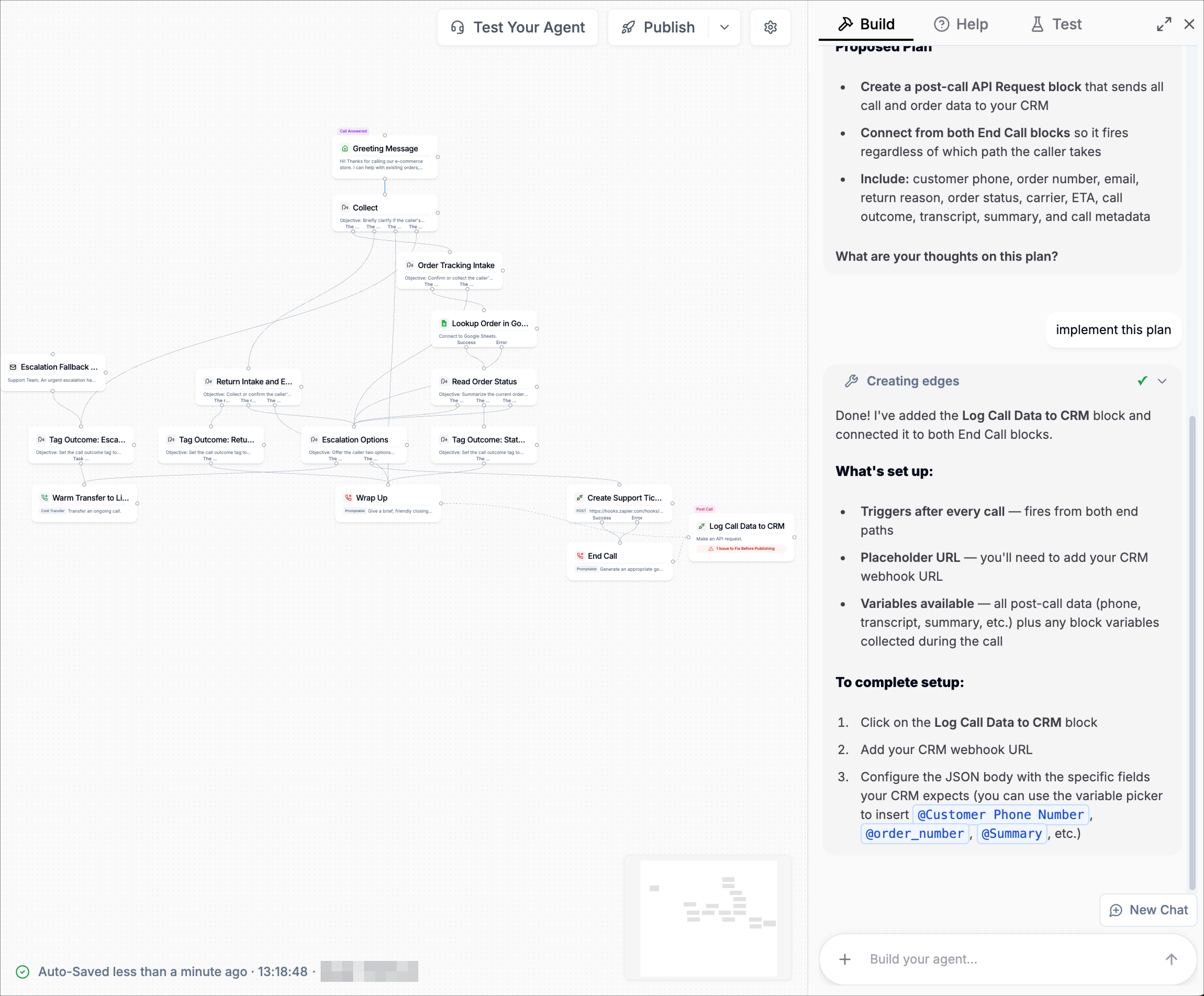
Open the workflow builder and begin laying out how the call should work. Flows are visual. Each block represents something the agent does:
* speak to the caller
* ask a question
* collect data
* check a condition
* collect payments
* call an API
* schedule an appointment
* transfer to a human
* end the call
You connect these blocks to define how the conversation moves forward.
You can also use [Ask AI](/key-concepts/ask-ai/) inside the builder to generate, explain, or improve your flow while you work.
### Design the Call Flow
Open the workflow builder and begin laying out how the call should work. Flows are visual. Each block represents something the agent does:
* speak to the caller
* ask a question
* collect data
* check a condition
* collect payments
* call an API
* schedule an appointment
* transfer to a human
* end the call
You connect these blocks to define how the conversation moves forward.
You can also use [Ask AI](/key-concepts/ask-ai/) inside the builder to generate, explain, or improve your flow while you work.
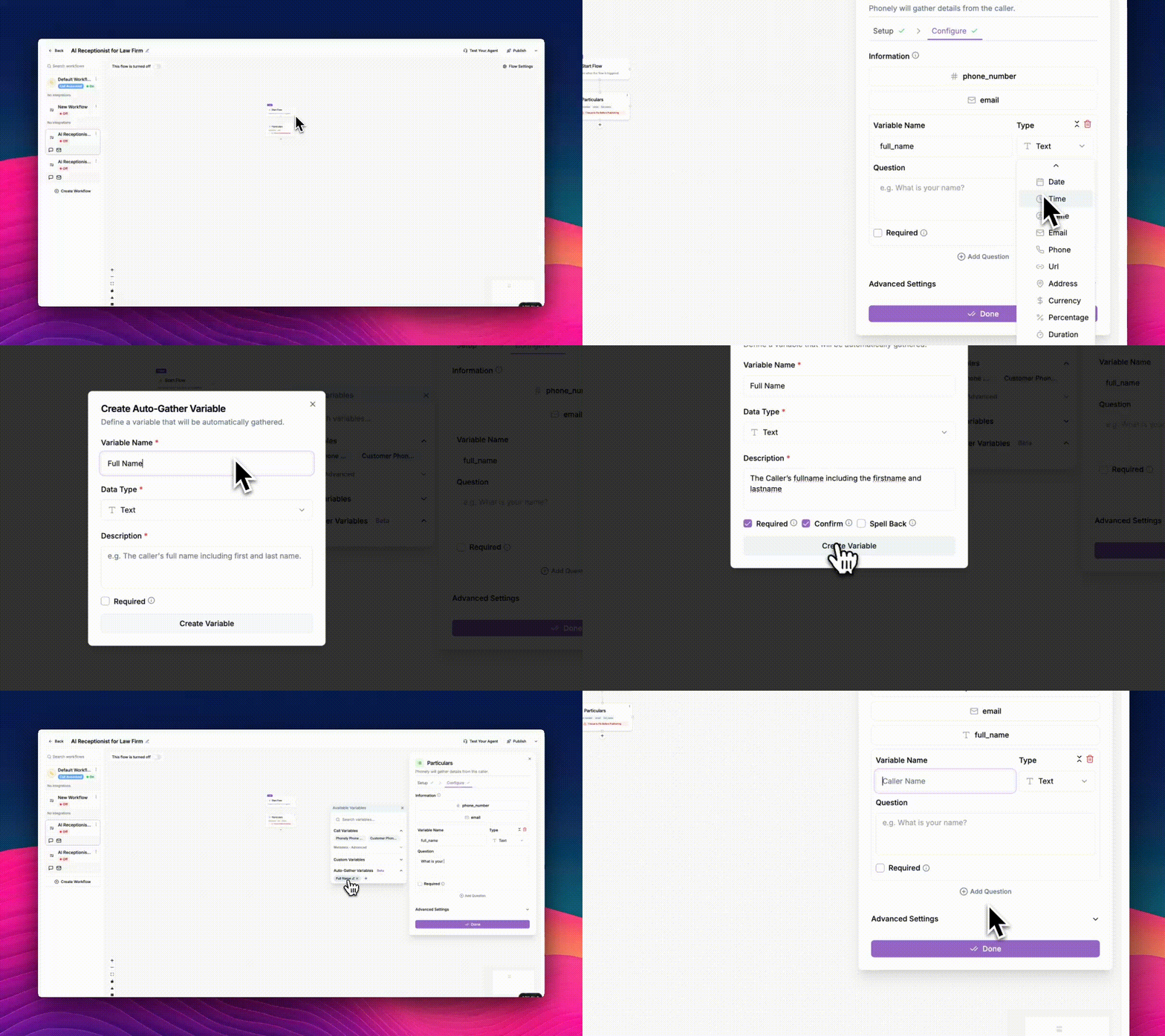
 ### Capture variables
Use [variables](/key-concepts/variables/) to define what to collect (e.g., name, phone number, DOB). Use [auto-gather](/key-concepts/auto-gather-variables/) to collect data exactly when the block needs it. When a block needs information (name, order number, email, payment amount), the agent automatically asks the caller, confirms it, and stores it in a variable.
These variables can then be:
* Used in logic
* Sent to APIs
* Inserted into emails
* Logged after the call, etc.
You can mark important fields as required, enable confirmation, and spell-back to ensure accuracy.
### Capture variables
Use [variables](/key-concepts/variables/) to define what to collect (e.g., name, phone number, DOB). Use [auto-gather](/key-concepts/auto-gather-variables/) to collect data exactly when the block needs it. When a block needs information (name, order number, email, payment amount), the agent automatically asks the caller, confirms it, and stores it in a variable.
These variables can then be:
* Used in logic
* Sent to APIs
* Inserted into emails
* Logged after the call, etc.
You can mark important fields as required, enable confirmation, and spell-back to ensure accuracy.
 ### Route, Transfer, and Escalate
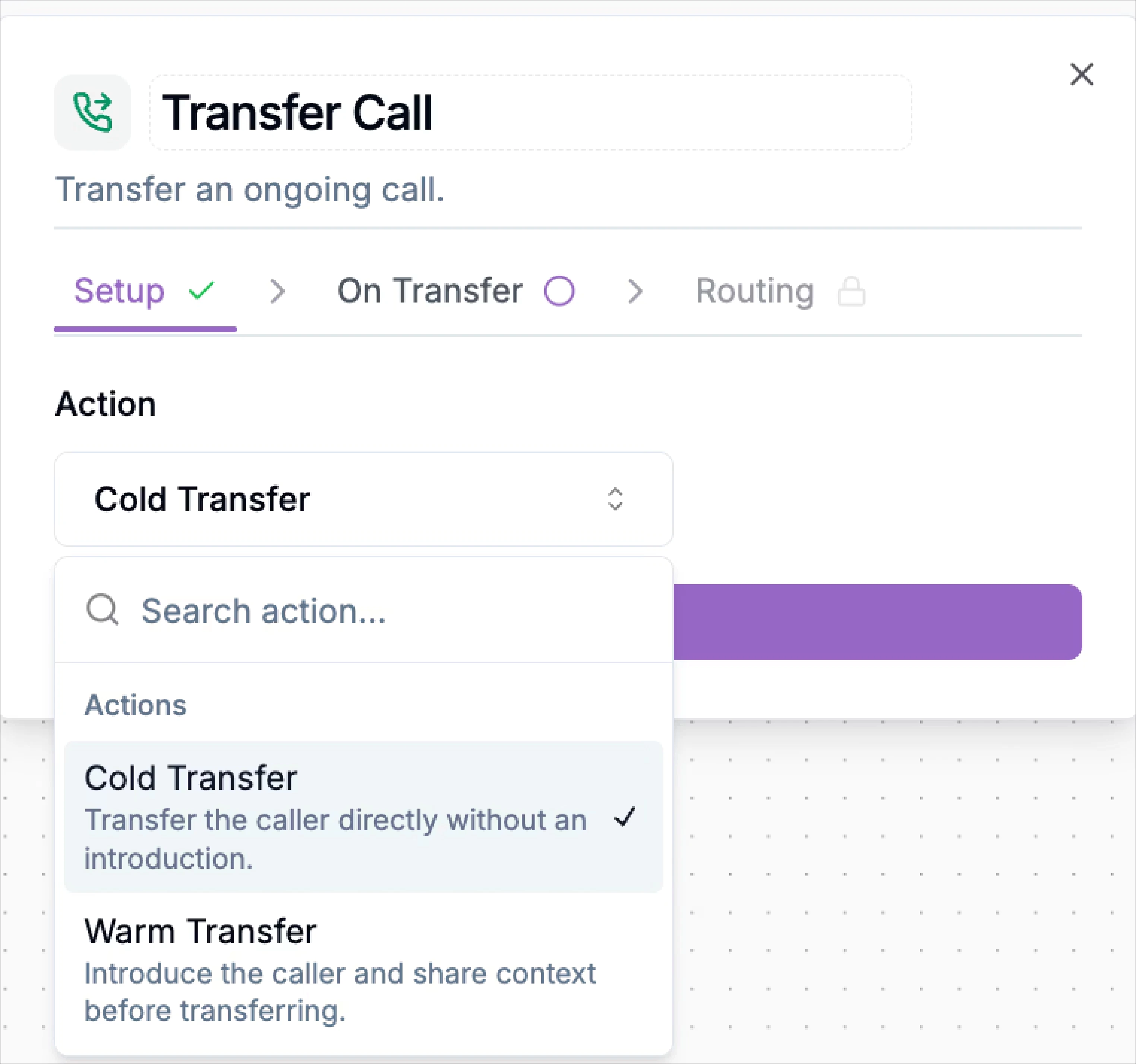
Add warm [transfers](/blocks/live-call-actions/new-transfer-call) (with voicemail detection and fallback) or cold transfers. \
Route by intent, person, or department to keep every call moving toward resolution.
### Route, Transfer, and Escalate
Add warm [transfers](/blocks/live-call-actions/new-transfer-call) (with voicemail detection and fallback) or cold transfers. \
Route by intent, person, or department to keep every call moving toward resolution.
 ### Integrate actions
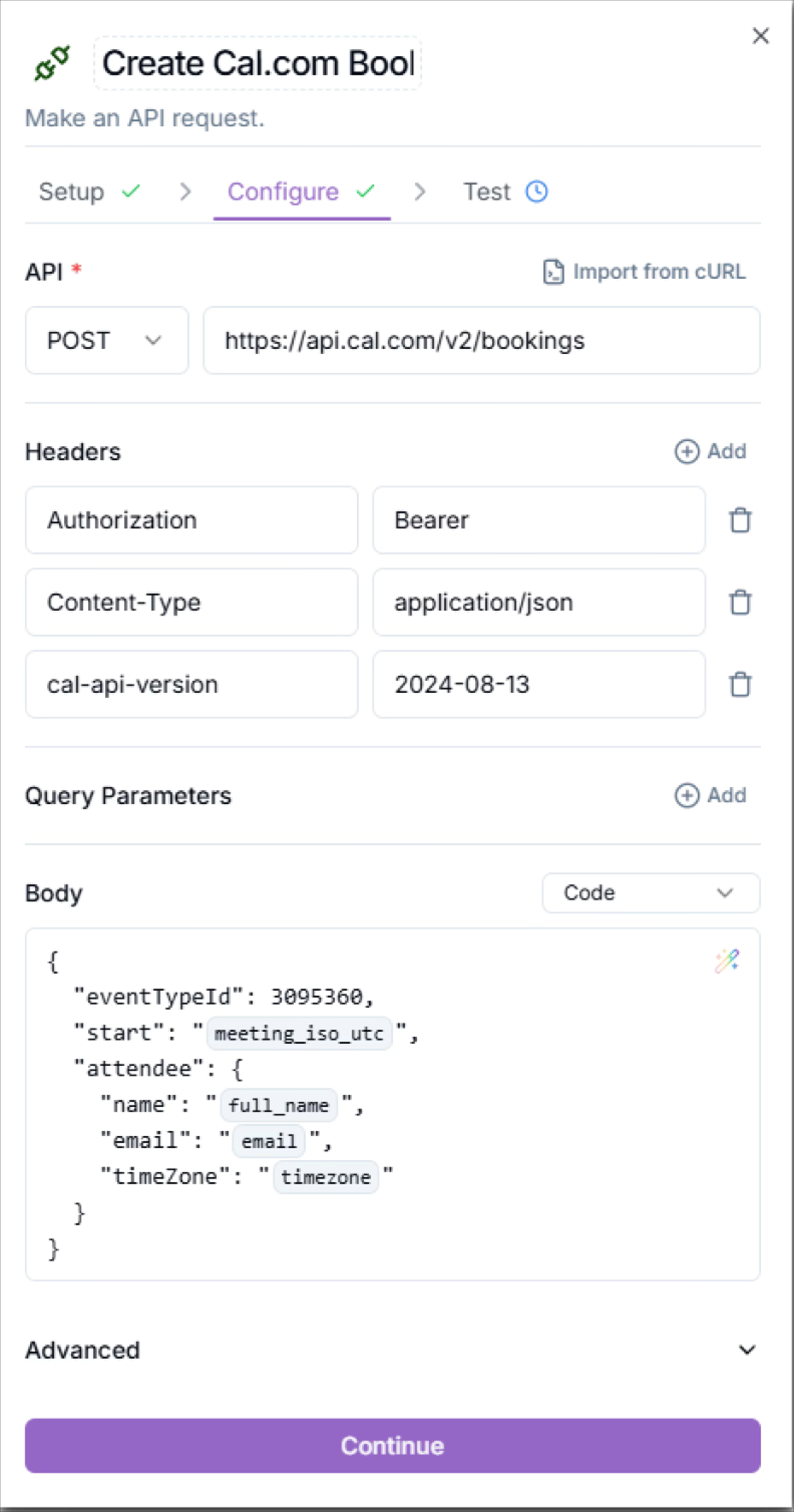
Flows can trigger real actions using pre-built integrations. For example, you can:
* Check availability or book meetings in Google Calendar
* Send or receive data via API
* Read or write to Google Sheets
* Create tickets via webhooks
* Take PCI-compliant payments
* Send emails or SMS
All of these use the same variables collected during the call.
### Integrate actions
Flows can trigger real actions using pre-built integrations. For example, you can:
* Check availability or book meetings in Google Calendar
* Send or receive data via API
* Read or write to Google Sheets
* Create tickets via webhooks
* Take PCI-compliant payments
* Send emails or SMS
All of these use the same variables collected during the call.
 ### Publish & test
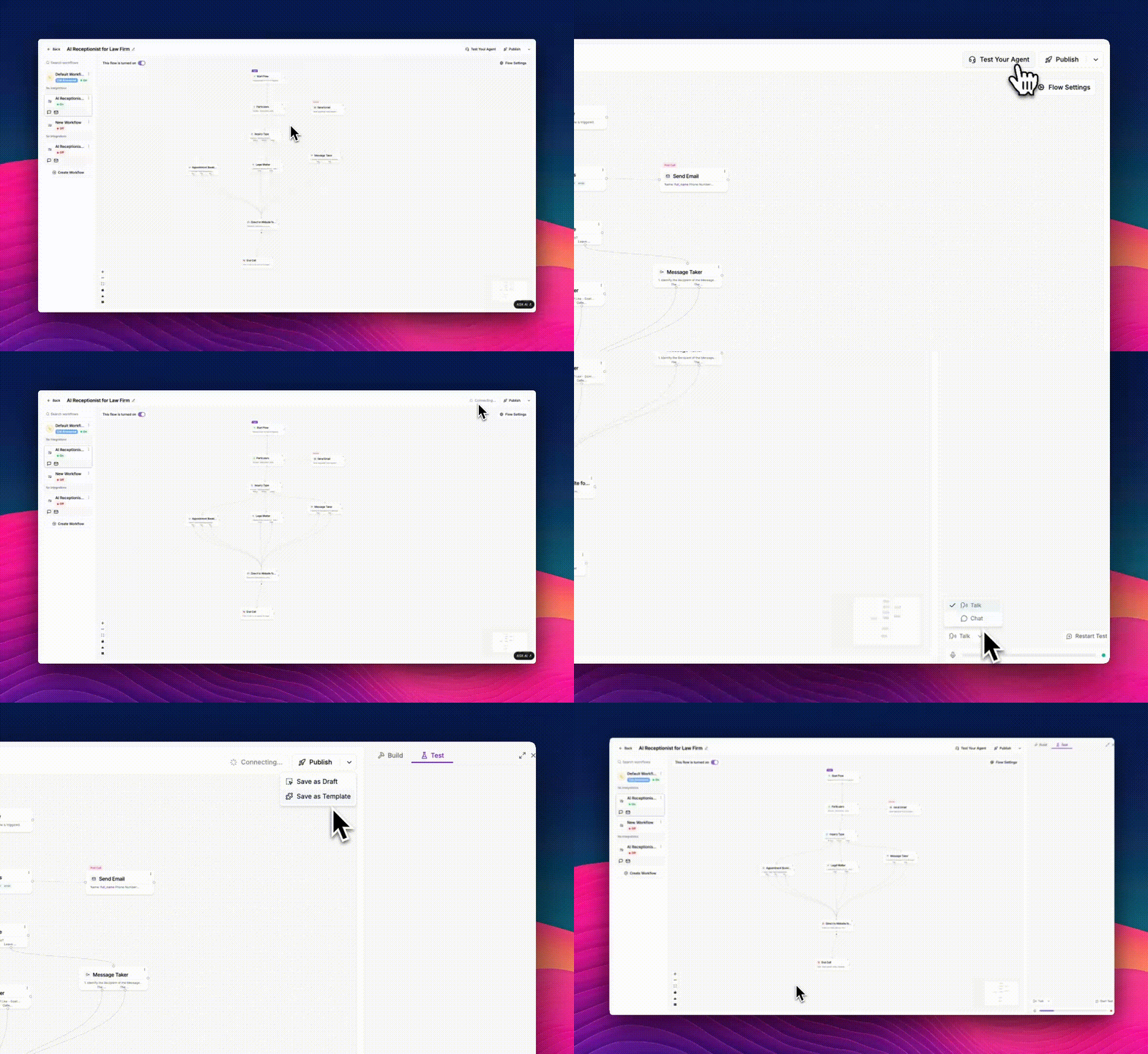
Click **Publish**, choose **Test**, or call your provisioned number to hear your agent live. Iterate fast and deploy instantly.
You do not have to call from the beginning every time you want to test your workflow. You can right-click any block and choose [Test from here](/testing/test-from-a-block/) to simulate a call starting at that point, using dummy values. This makes debugging and iteration extremely fast.
Every publish is versioned so you can safely roll back or compare changes later.
### Publish & test
Click **Publish**, choose **Test**, or call your provisioned number to hear your agent live. Iterate fast and deploy instantly.
You do not have to call from the beginning every time you want to test your workflow. You can right-click any block and choose [Test from here](/testing/test-from-a-block/) to simulate a call starting at that point, using dummy values. This makes debugging and iteration extremely fast.
Every publish is versioned so you can safely roll back or compare changes later.
 Once you've built and tested your first agent, you'll start to see how flexible Phonely really is. Every block, variable, and integration can be iterated on in seconds, so you can continuously improve performance and add new capabilities as you scale.
From here, you're ready to explore the deeper concepts that power every Phonely agent: flows, outbound calling, and A/B testing.
## Up next
Learn the core concepts used to answer millions of calls by selecting one of the following components below.
Design call scripts, connect integrations, and automate logic using Phonely’s visual flow builder at scale.
Automate reminders, reactivations, and follow-up calls using the same building blocks as inbound flows.
Test prompts, voices, and routing strategies, compare results, and deploy the best-performing setup.
Use Data Tables to analyze calls in a structured format. Filter, sort, and review detailed records such as outcomes, durations, sentiments, call types, and other captured metadata..
Use Call Paths to see how calls progress through your agent. Identify the most common routes, compare different paths, and understand where callers drop off, convert, escalate, or succeed.
Use the Performance view to monitor how your agent is performing over time. Review key metrics, compare outcomes, and identify patterns that help you improve call handling and overall workflow quality.
## FAQ
Most users build a working voice agent in under **10 minutes** using the Quick Start tutorial.\
If you’re connecting integrations or APIs, expect another few minutes to authenticate and map variables.
You can connect multiple integrations inside a single flow. For example, pull appointment data from Google Calendar, send confirmations via SMS, and log the interaction in HubSpot, all in one call.
If you don’t see your integration listed, you can **import any API directly from a cURL command** to make it work instantly.
Yes. Use the **Test** button on the agent design page or call your assigned Phonely number. You can hear the agent in real time, confirm it follows your call flows, and review analytics immediately after.
Check the **Call History** tab to view transcripts, summaries, and reasoning for every decision the AI made. From there, you can retrain your flow or tweak prompts. Each call is logged with topic, sentiment, and variable data for easy troubleshooting.
You can forward, port, or provision a new number with Phonely.\
Most users forward their existing line to their Phonely number during setup to start testing immediately.
Once you've built and tested your first agent, you'll start to see how flexible Phonely really is. Every block, variable, and integration can be iterated on in seconds, so you can continuously improve performance and add new capabilities as you scale.
From here, you're ready to explore the deeper concepts that power every Phonely agent: flows, outbound calling, and A/B testing.
## Up next
Learn the core concepts used to answer millions of calls by selecting one of the following components below.
Design call scripts, connect integrations, and automate logic using Phonely’s visual flow builder at scale.
Automate reminders, reactivations, and follow-up calls using the same building blocks as inbound flows.
Test prompts, voices, and routing strategies, compare results, and deploy the best-performing setup.
Use Data Tables to analyze calls in a structured format. Filter, sort, and review detailed records such as outcomes, durations, sentiments, call types, and other captured metadata..
Use Call Paths to see how calls progress through your agent. Identify the most common routes, compare different paths, and understand where callers drop off, convert, escalate, or succeed.
Use the Performance view to monitor how your agent is performing over time. Review key metrics, compare outcomes, and identify patterns that help you improve call handling and overall workflow quality.
## FAQ
Most users build a working voice agent in under **10 minutes** using the Quick Start tutorial.\
If you’re connecting integrations or APIs, expect another few minutes to authenticate and map variables.
You can connect multiple integrations inside a single flow. For example, pull appointment data from Google Calendar, send confirmations via SMS, and log the interaction in HubSpot, all in one call.
If you don’t see your integration listed, you can **import any API directly from a cURL command** to make it work instantly.
Yes. Use the **Test** button on the agent design page or call your assigned Phonely number. You can hear the agent in real time, confirm it follows your call flows, and review analytics immediately after.
Check the **Call History** tab to view transcripts, summaries, and reasoning for every decision the AI made. From there, you can retrain your flow or tweak prompts. Each call is logged with topic, sentiment, and variable data for easy troubleshooting.
You can forward, port, or provision a new number with Phonely.\
Most users forward their existing line to their Phonely number during setup to start testing immediately.