> ## Documentation Index
> Fetch the complete documentation index at: https://docs.phonely.ai/llms.txt
> Use this file to discover all available pages before exploring further.
# Connecting Slack
> Learn how you can connect you slack workspaces to phonely
The Slack integration allows your Phonely agent to send messages directly to your Slack workspace, automatically sharing call updates, summaries, or notifications in real time.\
This guide walks you through the full process, from connecting your Slack workspace to Phonely, configuring channels, and testing your setup.
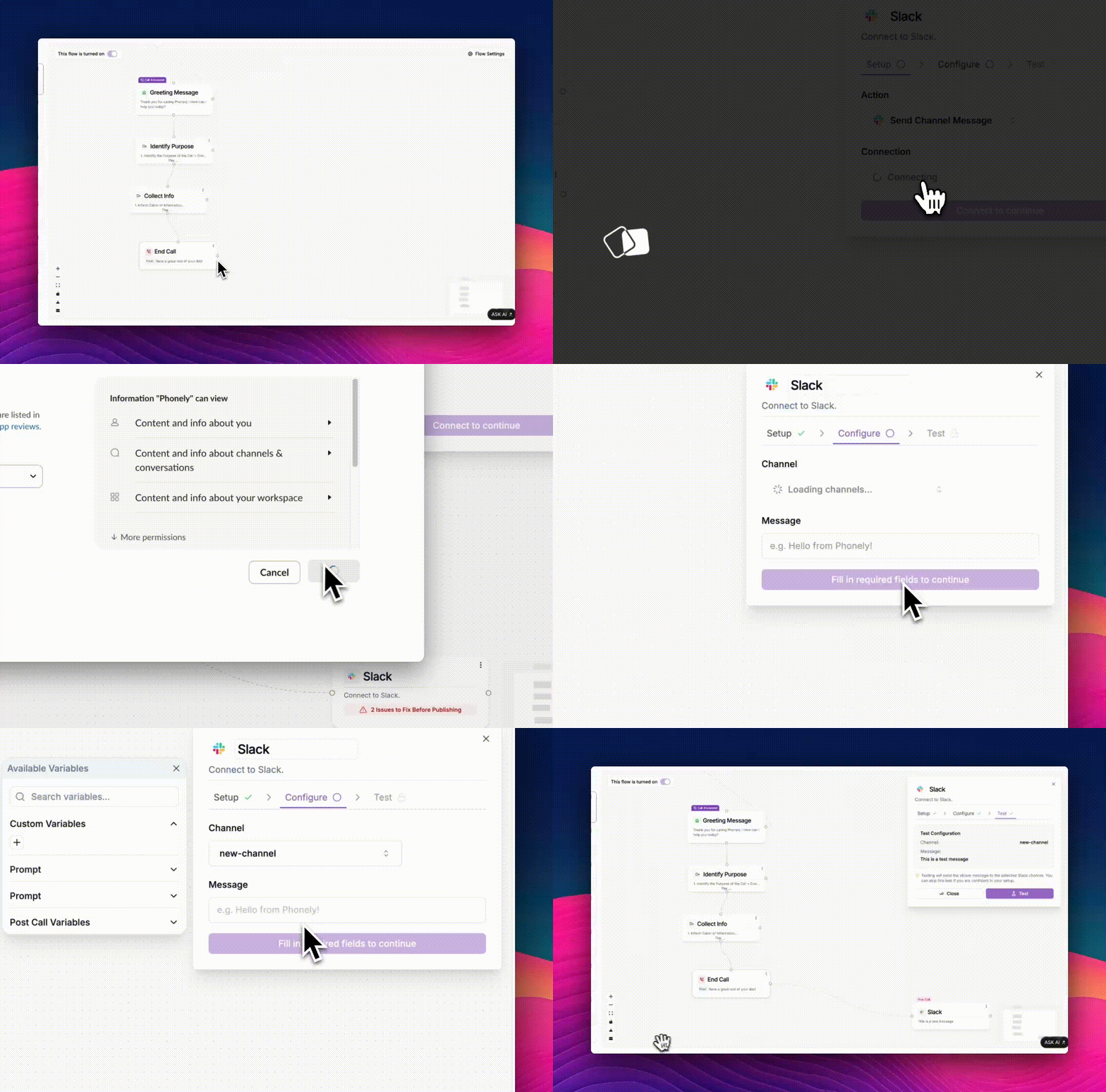 ## Access the Integration Panel
1. From your **Phonely Dashboard**, open the **Agent Design** section.
2. Select an existing **workflow** or click **Create New Flow**.
3. Click the **plus (+)** icon and choose **Slack** from the live call actions.
## Access the Integration Panel
1. From your **Phonely Dashboard**, open the **Agent Design** section.
2. Select an existing **workflow** or click **Create New Flow**.
3. Click the **plus (+)** icon and choose **Slack** from the live call actions.
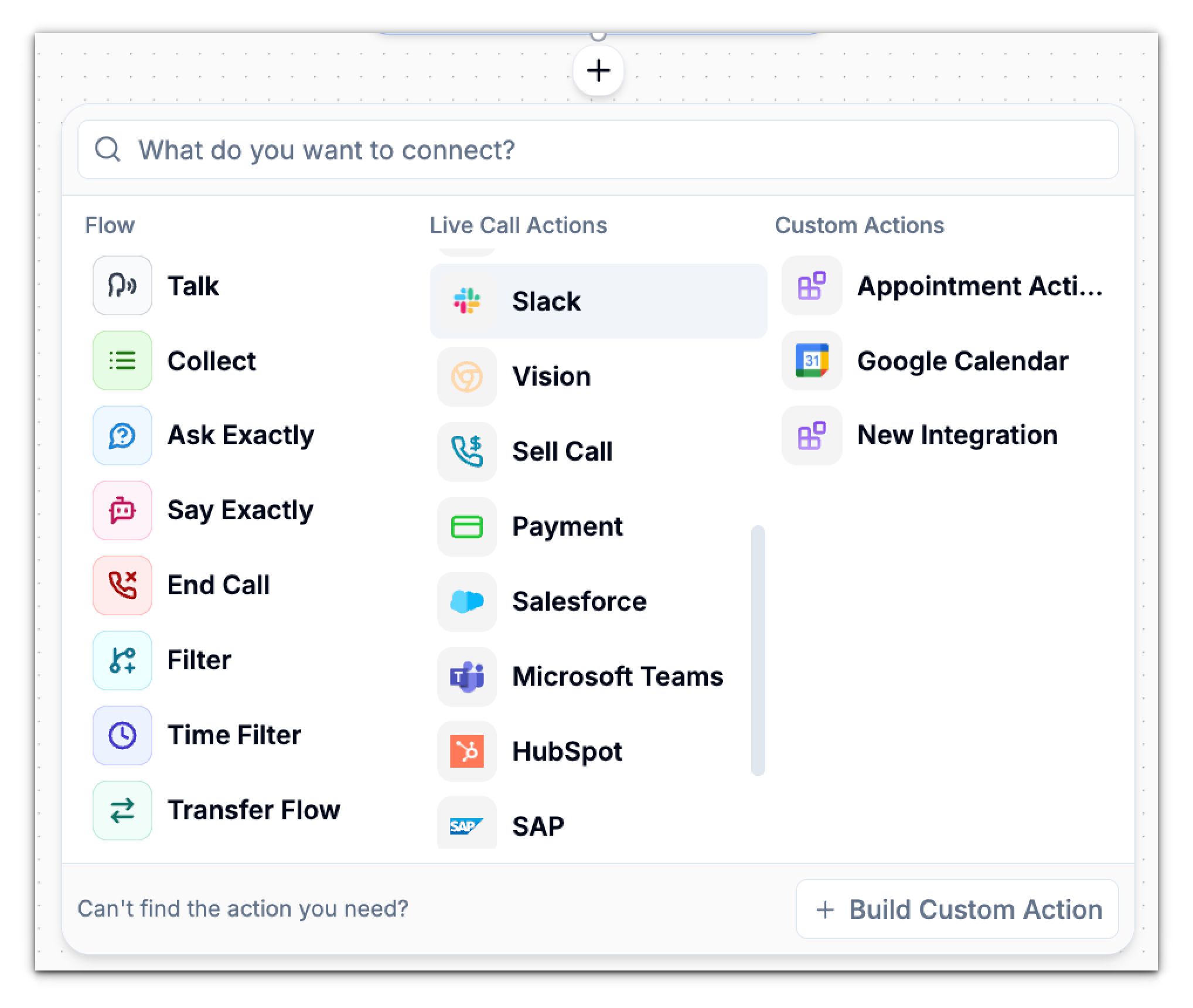 ## Choose an Action
In the **Setup** tab of the Slack integration panel:
1. Open the **Action** dropdown menu.
2. Select **Send Channel Message**, this tells Phonely to post a message to a chosen Slack channel.
3. Click **Connect to Slack** to start linking your workspace.
## Authorize the Connection
When you click **Connect to Slack**, you’ll be redirected to Slack’s authorization page to grant Phonely access.
### **Choose the Right Workspace**
Select the workspace where you want Phonely to send messages.
If your current workspace has reached the app limit (as shown in the screenshot), you’ll see a message like:
Workspaces on free plans can only install 10 apps. You can add Phonely if you upgrade your workspace or remove one of your existing apps.
If this appears:
* Either **remove one app** from your workspace, or
* **Switch to another workspace** from the dropdown list.
If you have multiple Slack workspaces, make sure you choose the one where your team manages calls or notifications.
### **Review Permissions**
Once you select a workspace, you’ll see a screen to **install the Phonely app**.\
Phonely will request the following permissions:
* Access to content and info about you
* Access to messages and channels where it posts
* Basic info about your workspace
Click **Install Phonely** to approve and complete the connection.\
You’ll automatically be redirected back to Phonely once authorization succeeds.
## Confirm the Connection
When connected successfully:
* The **Connection** field in the setup window will now show your Slack workspace.
* A green checkmark confirms that Phonely is linked to Slack.
* The **Continue** button activates, allowing you to proceed to configuration.
## Choose an Action
In the **Setup** tab of the Slack integration panel:
1. Open the **Action** dropdown menu.
2. Select **Send Channel Message**, this tells Phonely to post a message to a chosen Slack channel.
3. Click **Connect to Slack** to start linking your workspace.
## Authorize the Connection
When you click **Connect to Slack**, you’ll be redirected to Slack’s authorization page to grant Phonely access.
### **Choose the Right Workspace**
Select the workspace where you want Phonely to send messages.
If your current workspace has reached the app limit (as shown in the screenshot), you’ll see a message like:
Workspaces on free plans can only install 10 apps. You can add Phonely if you upgrade your workspace or remove one of your existing apps.
If this appears:
* Either **remove one app** from your workspace, or
* **Switch to another workspace** from the dropdown list.
If you have multiple Slack workspaces, make sure you choose the one where your team manages calls or notifications.
### **Review Permissions**
Once you select a workspace, you’ll see a screen to **install the Phonely app**.\
Phonely will request the following permissions:
* Access to content and info about you
* Access to messages and channels where it posts
* Basic info about your workspace
Click **Install Phonely** to approve and complete the connection.\
You’ll automatically be redirected back to Phonely once authorization succeeds.
## Confirm the Connection
When connected successfully:
* The **Connection** field in the setup window will now show your Slack workspace.
* A green checkmark confirms that Phonely is linked to Slack.
* The **Continue** button activates, allowing you to proceed to configuration.
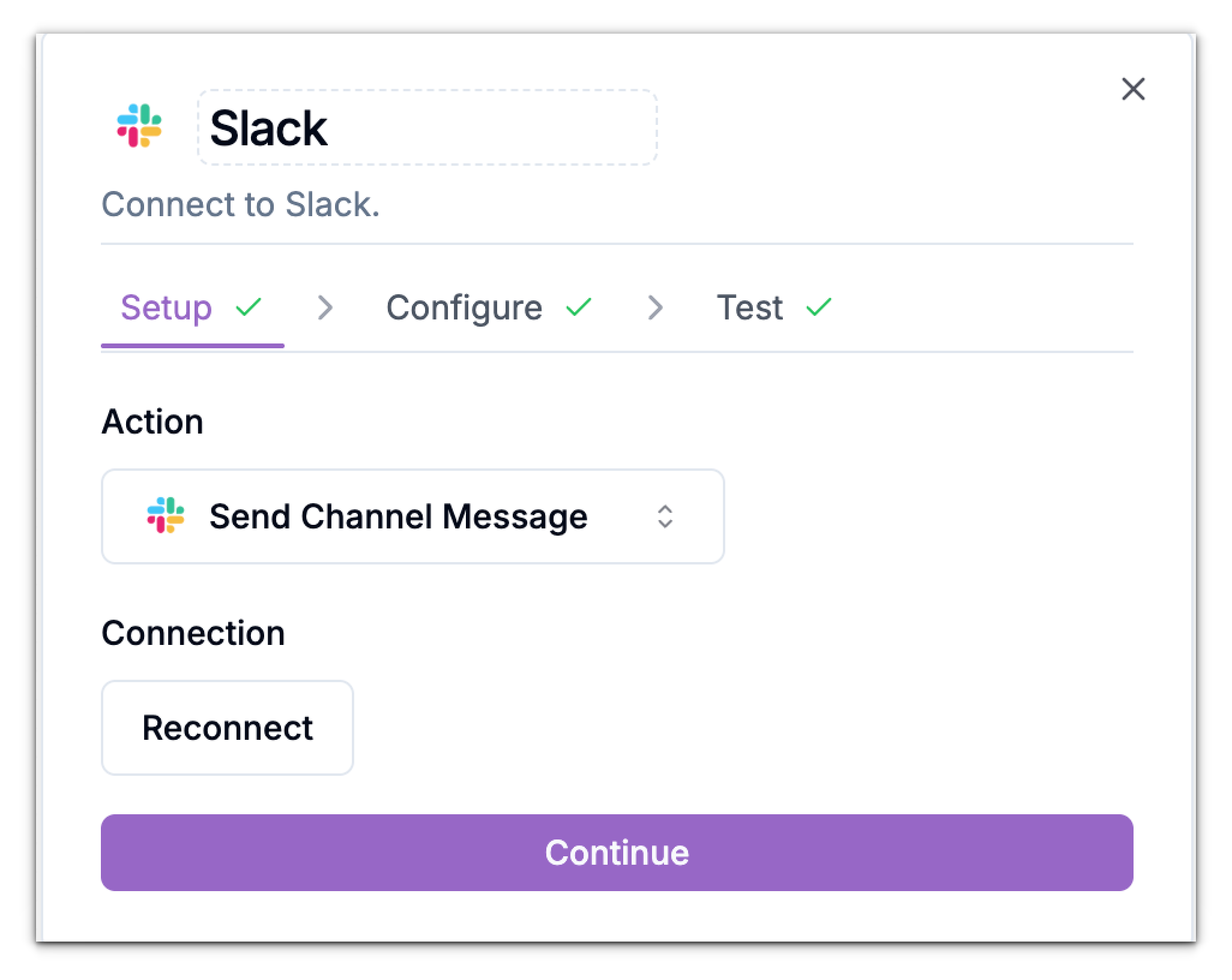 ## Configure Slack Message Settings
Once connected, move to the **Configure** tab.
### **Select a Channel**
Use the **Channel** dropdown to choose where Phonely will post messages.
You can search for any public or private channel your connected Slack account has access to.
If your desired channel doesn’t appear, create it in Slack first and then refresh your Phonely integration window.
## Configure Slack Message Settings
Once connected, move to the **Configure** tab.
### **Select a Channel**
Use the **Channel** dropdown to choose where Phonely will post messages.
You can search for any public or private channel your connected Slack account has access to.
If your desired channel doesn’t appear, create it in Slack first and then refresh your Phonely integration window.
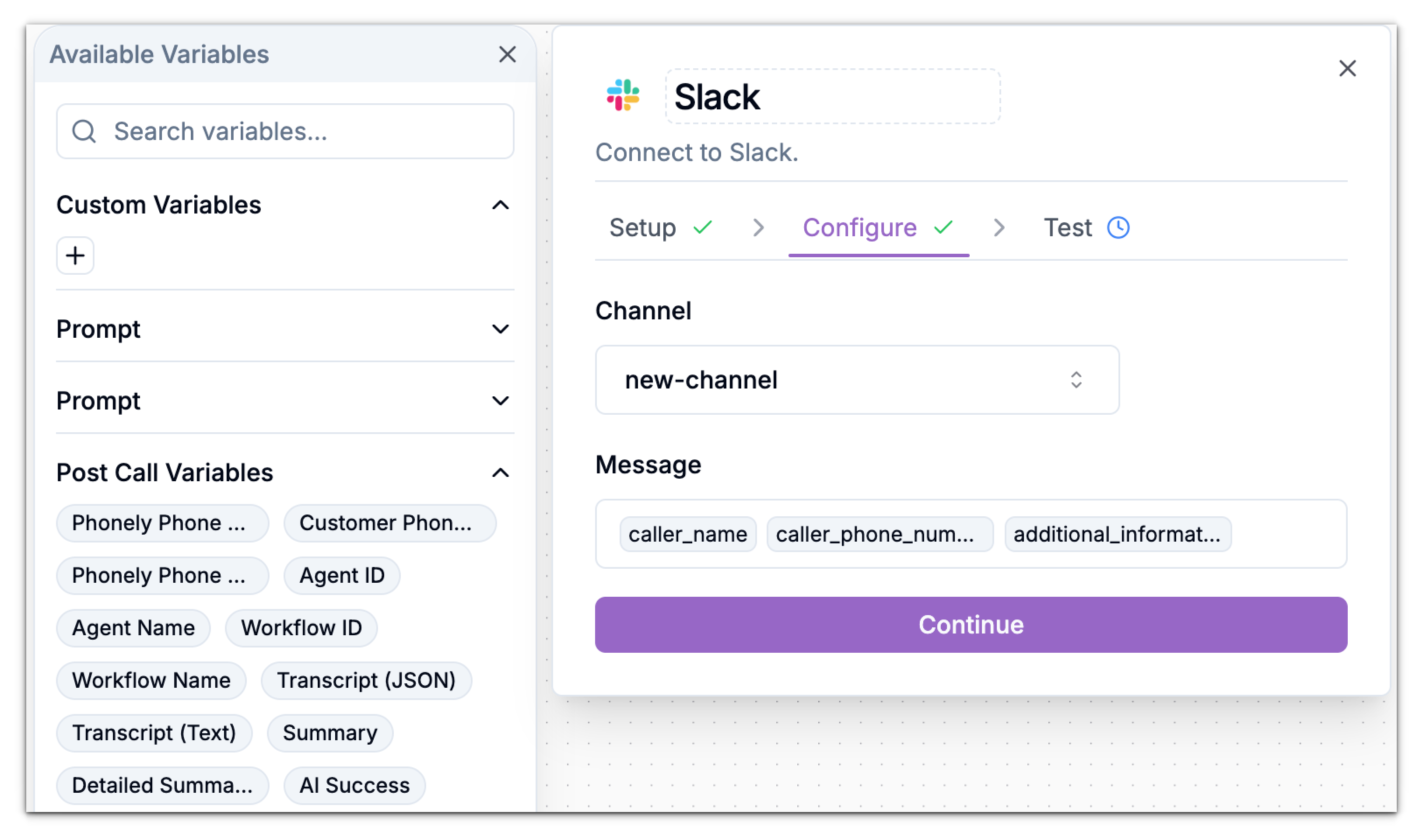 ### **Write the Message**
In the message field:
Enter the text you want Phonely to post to your Slack channel.
Use **variables** (e.g., `CallerName`, `Summary`, `AgentName`) to include dynamic call data.
Example message:
```
New call handled by AgentName
Caller: CallerName
Summary: Summary
Outcome: CallOutcome
```
## Test the Integration
Once your configuration is complete, open the **Test** tab.
Click **Test** to send the sample message to the selected Slack channel.
### **Write the Message**
In the message field:
Enter the text you want Phonely to post to your Slack channel.
Use **variables** (e.g., `CallerName`, `Summary`, `AgentName`) to include dynamic call data.
Example message:
```
New call handled by AgentName
Caller: CallerName
Summary: Summary
Outcome: CallOutcome
```
## Test the Integration
Once your configuration is complete, open the **Test** tab.
Click **Test** to send the sample message to the selected Slack channel.
 If the message appears in Slack, your connection and configuration are successful.
If you don’t see the message, verify that you’ve authorized the correct workspace and selected an accessible channel.
***
If the message appears in Slack, your connection and configuration are successful.
If you don’t see the message, verify that you’ve authorized the correct workspace and selected an accessible channel.
***