> ## Documentation Index
> Fetch the complete documentation index at: https://docs.phonely.ai/llms.txt
> Use this file to discover all available pages before exploring further.
# Microsoft Outlook
> Learn how to connect you Outlook account account and send emails during or after calls
Phonely’s Microsoft Outlook integration allows your AI agent to send automated emails directly from your Outlook account, either during a live call or after a call ends.\
This integration helps streamline communication by enabling your agent to send follow-ups, notifications, or real-time alerts without manual effort.\
This guide walks you through setting up the Outlook connection, authorizing your account, configuring your email details, and testing the workflow.
 ## Access the Integration Panel
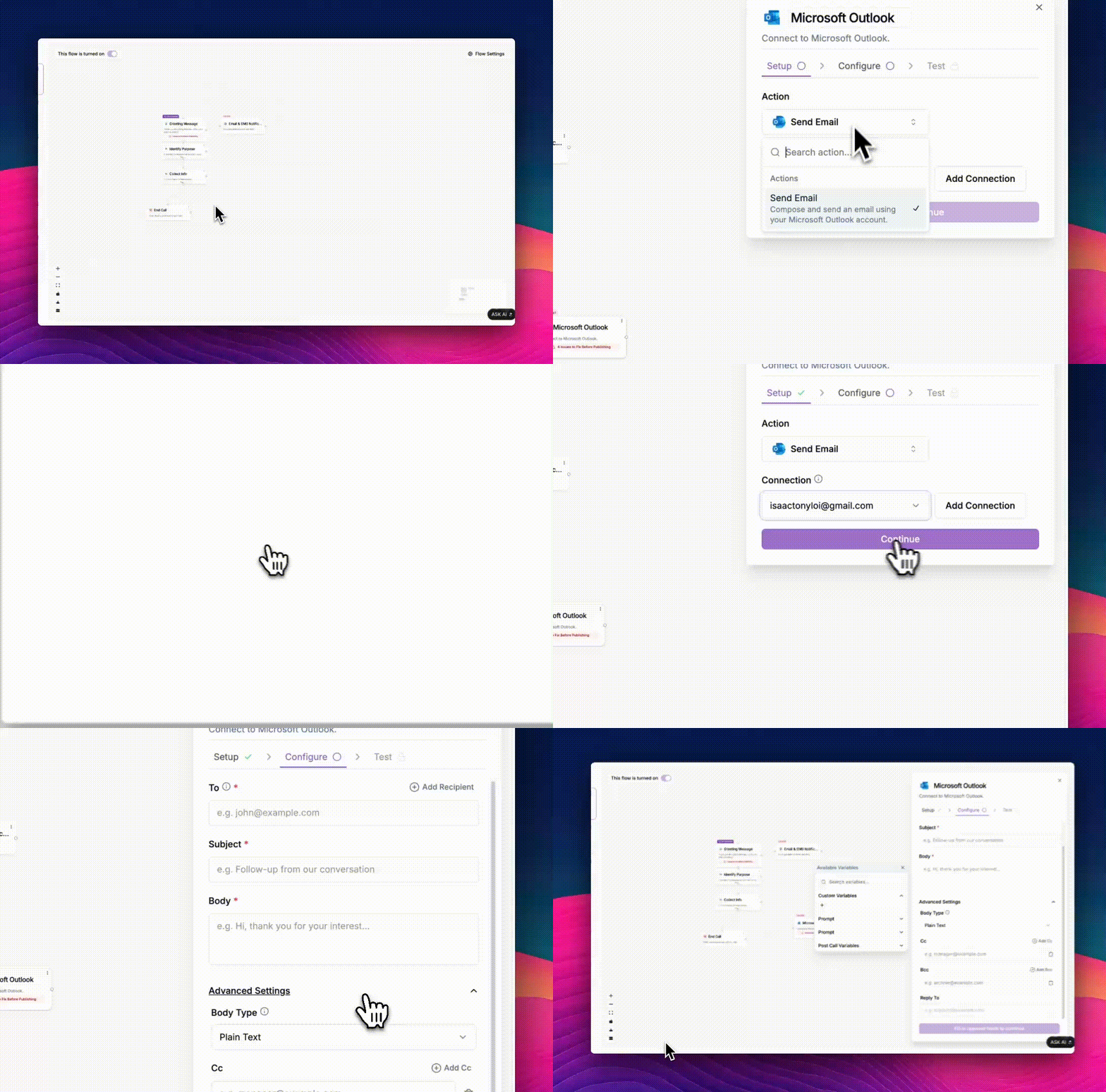
1. From your Phonely dashboard, click **Agent Design** on the left sidebar.
2. Open an existing **workflow** or click **Create New Flow** to start a new one.
3. Click the **plus (+)** icon on the right side of your selected block.
4. In the menu that appears, scroll down to Post Call Actions (or Live Call Actions) and select Microsoft Outlook.
Live Call Actions execute while the conversation is ongoing, while Post Call Actions trigger after the call has ended.
## Choose an Action
Once the Microsoft Outlook integration window opens, you’ll be guided through three stages: Setup, Configure, and Test.
1. Under the **Setup** tab, open the **Action** dropdown menu.
2. Choose **Send Email** - this action allows your Phonely agent to compose and send an email through your connected Outlook account.
3. Click **Add Connection** to begin linking your Microsoft Outlook account.
You only need to connect your Outlook account once. After authorization, it will be available for use in all your workflows.
## Link Your Microsoft Outlook Account
When you click **Add Connection**, A popup window appears asking you to **Connect**.
Once you click Connect, Phonely prompts you to authorize access to your Outlook account.
**If You Are Already Signed In**
* Phonely detects your existing Microsoft login automatically.
**If You Are Not Signed In**
1. Select your account or click **Add Account** to sign in.
2. Review the permissions requested by phonely-integrations:
* Send mail as you - Allows Phonely to send emails from your account.
* Read and write access to your mail - Lets Phonely create, update, and manage emails in your mailbox.
* Maintain access to data you have given Phonely access to - Keeps the integration active even when you’re offline.
* Read your profile - Enables Phonely to identify your account and link it correctly.
3. Click **Accept** to grant permissions.
Phonely uses secure OAuth authentication through Microsoft — your login credentials are never stored or shared.
Once you accept, the popup will close automatically, and Phonely will refresh to show your connected Outlook account.
## Confirm the Connection
When authorization is successful:
* The **Connection** dropdown will display your Outlook account.
* A green status indicator confirms the link is active.
* The **Continue** button becomes active, click it to move to the next step.
If you want to add multiple accounts, click Add Connection and repeat the steps above to add another Outlook account.
## Configure Email Settings
In the **Configure** step, define exactly how your agent should send the email during or after a call. This includes setting recipients, subject, body content, and fine-tuning behavior through **Advanced Settings**.
Enter one or more email addresses that should receive the message.
* Use Add Recipient to include multiple recipients.
* You can use dynamic variables (e.g., `caller_email`) to personalize who receives the message based on the call data.
* For live calls, this might be a teammate or support inbox; for post-call workflows, it’s often the customer or lead.
Write a clear, relevant subject line for your email.
Compose the message that will be sent to recipients.
* Use this section to share updates, summarize call details, or thank the customer for their time.
* You can insert dynamic variables captured during the call.
* The message can be written in Plain Text or HTML format, depending on your needs.
HTML mode allows for stylized layouts, signatures, links, or branded templates, while Plain Text is best for simple, system-generated messages.
## Advanced Settings
Click **Advanced Settings** to access additional configuration options that define how your email behaves.
Select how your email content should be formatted:
* **HTML** – Use this for formatted or branded emails.
* **Plain Text** – Use this for simpler, lightweight communication.
Add additional recipients who should receive a visible copy of the email.
* This is ideal for notifying supervisors or team members of customer interactions.
Add recipients who will receive a hidden copy of the email.
Specify an email address for responses if you don’t want replies sent to the sender’s account.
Enable this option to send a short, temporary message to the caller while the email is being processed during a live call.
* Check **Interim Message** to activate it.
* In the **Interim Message Prompt**, write or generate a friendly phrase such as:\
*“Please hold on while I send that for you.”*
This setting improves caller experience by confirming that the system is working on their request.
If selected, Phonely will wait a few seconds before sending the interim message — useful for smoothing timing between live agent responses.
Add one or more tags to categorize the result of the action or call.
* Example: \_“follow-up,” “lead,” “escalated”. \_
* These tags make it easier to filter and track calls in your reports or analytics dashboards.
Once all required fields (To, Subject, and Body) are filled in, the Continue button becomes active.\
Click Continue to move on to the Test step, where you can send a test email and verify that your configuration works as intended.
## Test the Integration
Before publishing, it’s important to confirm your Outlook connection is working.
1. Go to the **Test** tab in the setup panel.
2. Click **Send Test Email**.
3. Check your Outlook inbox for a confirmation email.
## Access the Integration Panel
1. From your Phonely dashboard, click **Agent Design** on the left sidebar.
2. Open an existing **workflow** or click **Create New Flow** to start a new one.
3. Click the **plus (+)** icon on the right side of your selected block.
4. In the menu that appears, scroll down to Post Call Actions (or Live Call Actions) and select Microsoft Outlook.
Live Call Actions execute while the conversation is ongoing, while Post Call Actions trigger after the call has ended.
## Choose an Action
Once the Microsoft Outlook integration window opens, you’ll be guided through three stages: Setup, Configure, and Test.
1. Under the **Setup** tab, open the **Action** dropdown menu.
2. Choose **Send Email** - this action allows your Phonely agent to compose and send an email through your connected Outlook account.
3. Click **Add Connection** to begin linking your Microsoft Outlook account.
You only need to connect your Outlook account once. After authorization, it will be available for use in all your workflows.
## Link Your Microsoft Outlook Account
When you click **Add Connection**, A popup window appears asking you to **Connect**.
Once you click Connect, Phonely prompts you to authorize access to your Outlook account.
**If You Are Already Signed In**
* Phonely detects your existing Microsoft login automatically.
**If You Are Not Signed In**
1. Select your account or click **Add Account** to sign in.
2. Review the permissions requested by phonely-integrations:
* Send mail as you - Allows Phonely to send emails from your account.
* Read and write access to your mail - Lets Phonely create, update, and manage emails in your mailbox.
* Maintain access to data you have given Phonely access to - Keeps the integration active even when you’re offline.
* Read your profile - Enables Phonely to identify your account and link it correctly.
3. Click **Accept** to grant permissions.
Phonely uses secure OAuth authentication through Microsoft — your login credentials are never stored or shared.
Once you accept, the popup will close automatically, and Phonely will refresh to show your connected Outlook account.
## Confirm the Connection
When authorization is successful:
* The **Connection** dropdown will display your Outlook account.
* A green status indicator confirms the link is active.
* The **Continue** button becomes active, click it to move to the next step.
If you want to add multiple accounts, click Add Connection and repeat the steps above to add another Outlook account.
## Configure Email Settings
In the **Configure** step, define exactly how your agent should send the email during or after a call. This includes setting recipients, subject, body content, and fine-tuning behavior through **Advanced Settings**.
Enter one or more email addresses that should receive the message.
* Use Add Recipient to include multiple recipients.
* You can use dynamic variables (e.g., `caller_email`) to personalize who receives the message based on the call data.
* For live calls, this might be a teammate or support inbox; for post-call workflows, it’s often the customer or lead.
Write a clear, relevant subject line for your email.
Compose the message that will be sent to recipients.
* Use this section to share updates, summarize call details, or thank the customer for their time.
* You can insert dynamic variables captured during the call.
* The message can be written in Plain Text or HTML format, depending on your needs.
HTML mode allows for stylized layouts, signatures, links, or branded templates, while Plain Text is best for simple, system-generated messages.
## Advanced Settings
Click **Advanced Settings** to access additional configuration options that define how your email behaves.
Select how your email content should be formatted:
* **HTML** – Use this for formatted or branded emails.
* **Plain Text** – Use this for simpler, lightweight communication.
Add additional recipients who should receive a visible copy of the email.
* This is ideal for notifying supervisors or team members of customer interactions.
Add recipients who will receive a hidden copy of the email.
Specify an email address for responses if you don’t want replies sent to the sender’s account.
Enable this option to send a short, temporary message to the caller while the email is being processed during a live call.
* Check **Interim Message** to activate it.
* In the **Interim Message Prompt**, write or generate a friendly phrase such as:\
*“Please hold on while I send that for you.”*
This setting improves caller experience by confirming that the system is working on their request.
If selected, Phonely will wait a few seconds before sending the interim message — useful for smoothing timing between live agent responses.
Add one or more tags to categorize the result of the action or call.
* Example: \_“follow-up,” “lead,” “escalated”. \_
* These tags make it easier to filter and track calls in your reports or analytics dashboards.
Once all required fields (To, Subject, and Body) are filled in, the Continue button becomes active.\
Click Continue to move on to the Test step, where you can send a test email and verify that your configuration works as intended.
## Test the Integration
Before publishing, it’s important to confirm your Outlook connection is working.
1. Go to the **Test** tab in the setup panel.
2. Click **Send Test Email**.
3. Check your Outlook inbox for a confirmation email.
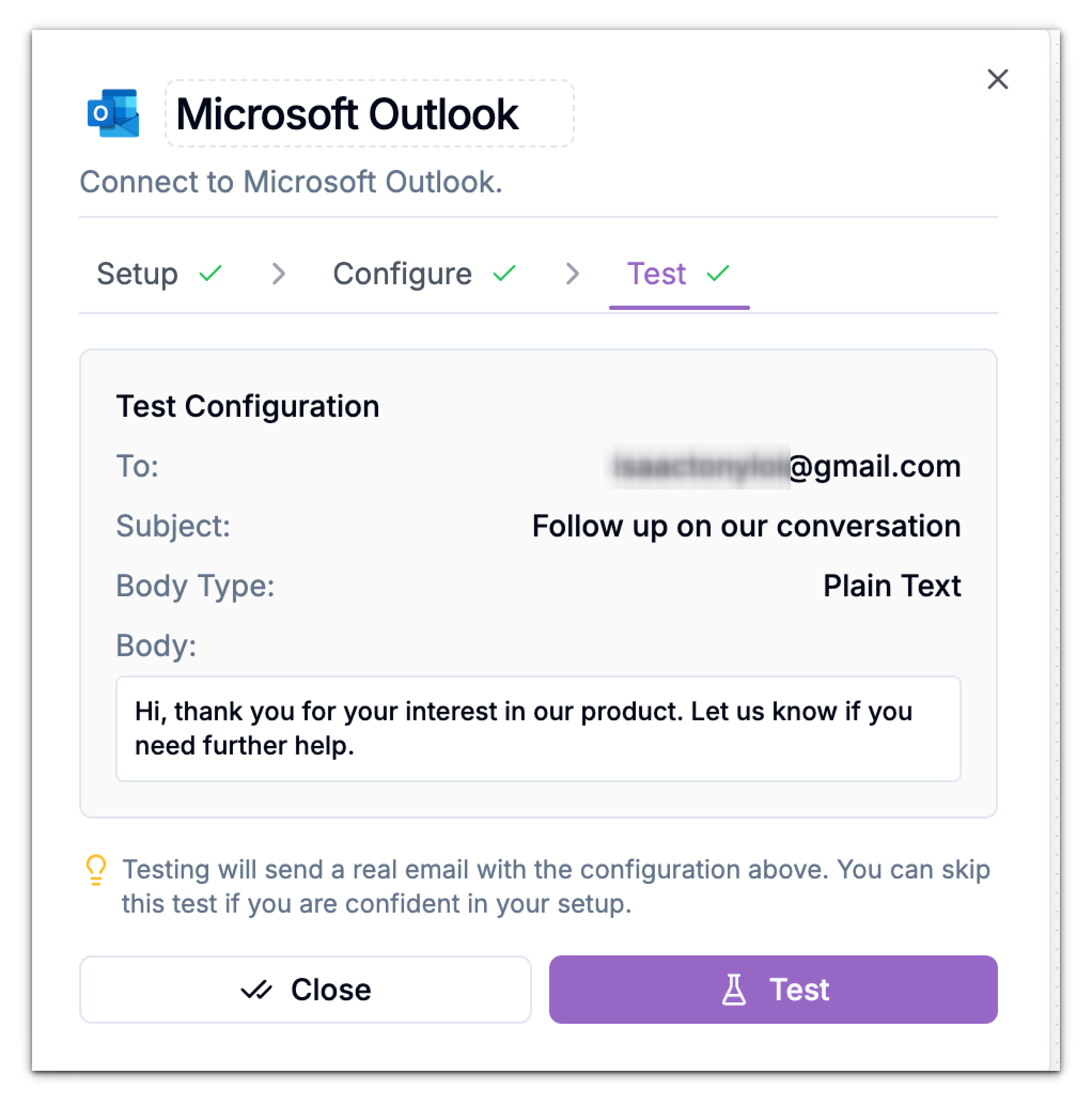 If the email appears successfully, your integration is fully functional. If not, double-check your permissions or reauthorize the connection.
***
If the email appears successfully, your integration is fully functional. If not, double-check your permissions or reauthorize the connection.
***