> ## Documentation Index
> Fetch the complete documentation index at: https://docs.phonely.ai/llms.txt
> Use this file to discover all available pages before exploring further.
# Google Sheets - Add a Row
> Learn how to set up google sheets and insert new records into a google sheet
Use the **Add a Row** action to automatically insert new data into a Google Sheet during a live call. Your agent can collect caller information—such as names, phone numbers, order IDs, survey results, or booking details - and instantly write that data to your spreadsheet.
This is useful for:
* Creating new support tickets
* Logging callback requests
* Saving survey responses
* Tracking new leads
* Recording appointment requests
* Storing customer details from a call
## Start a New Flow
1. Go to **Agent Design > Create Flow**.
2. Add a **Start Flow** trigger.
3. Add a **Collect**, **Ask Exactly**, or **Talk** block to gather information that you want to write into Google Sheets.
* Example variables you might collect: `caller_name, phone_number, order_number, email_address`
These variables will be available later in the Google Sheets configuration panel.
## Add the Google Sheets Action
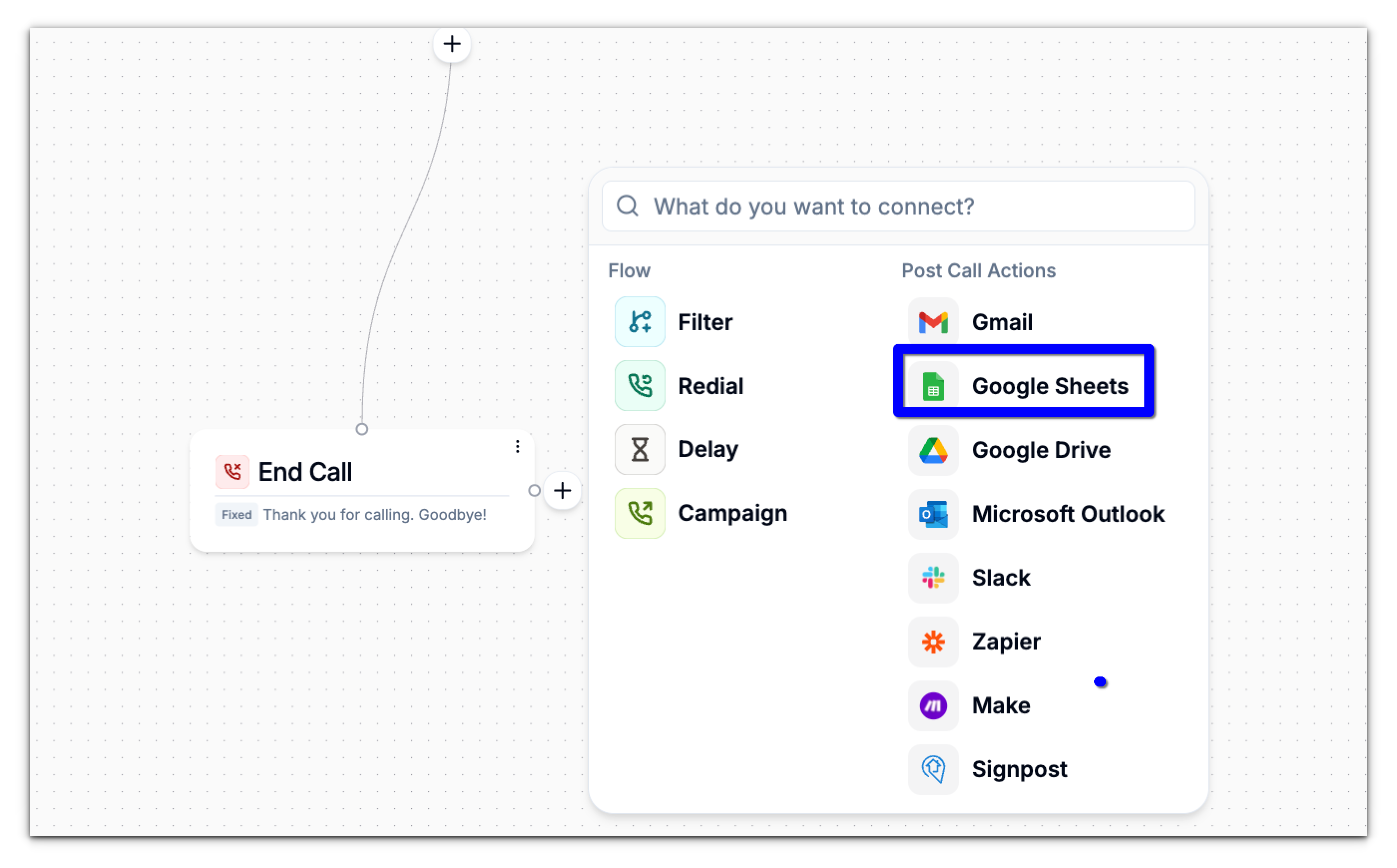
1. Click the **(+)** icon under the block where you want to write the data.
2. Under **Post Call Actions**, select **Google Sheets**.
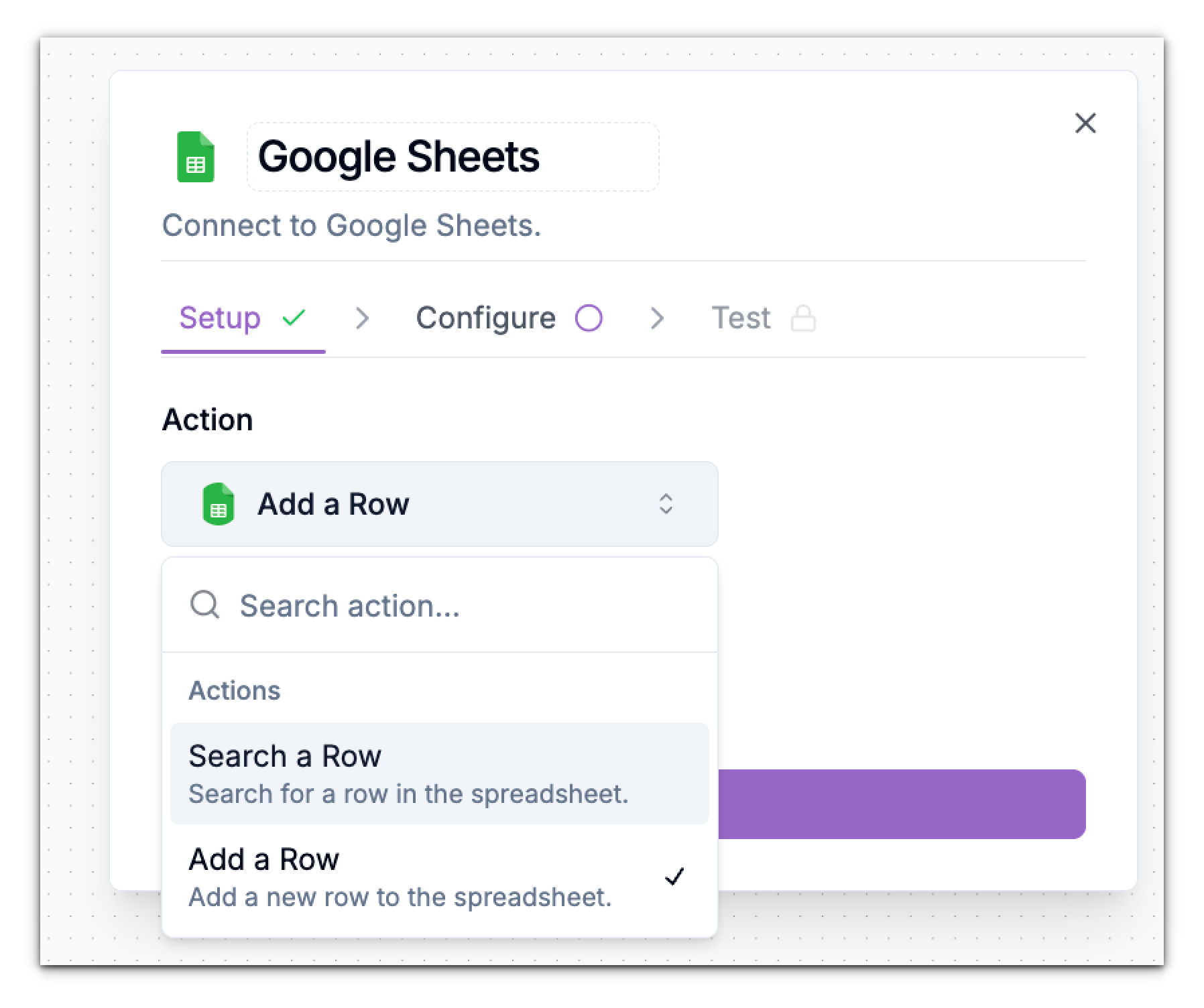
 3. In the **Action** dropdown, choose: **Add a Row**
This action inserts a new row into your selected spreadsheet.
3. In the **Action** dropdown, choose: **Add a Row**
This action inserts a new row into your selected spreadsheet.
 4. Click **Connect to Google Sheets**.
## Connect Your Google Account
When prompted:
1. A Google login window will appear.
2. Select the Google account you want to use.
3. If needed, click **Use another account**.
4. Review the permissions required:
* View Google Drive files
* Read/write to Google Sheets
5. Click **Continue**.
4. Click **Connect to Google Sheets**.
## Connect Your Google Account
When prompted:
1. A Google login window will appear.
2. Select the Google account you want to use.
3. If needed, click **Use another account**.
4. Review the permissions required:
* View Google Drive files
* Read/write to Google Sheets
5. Click **Continue**.
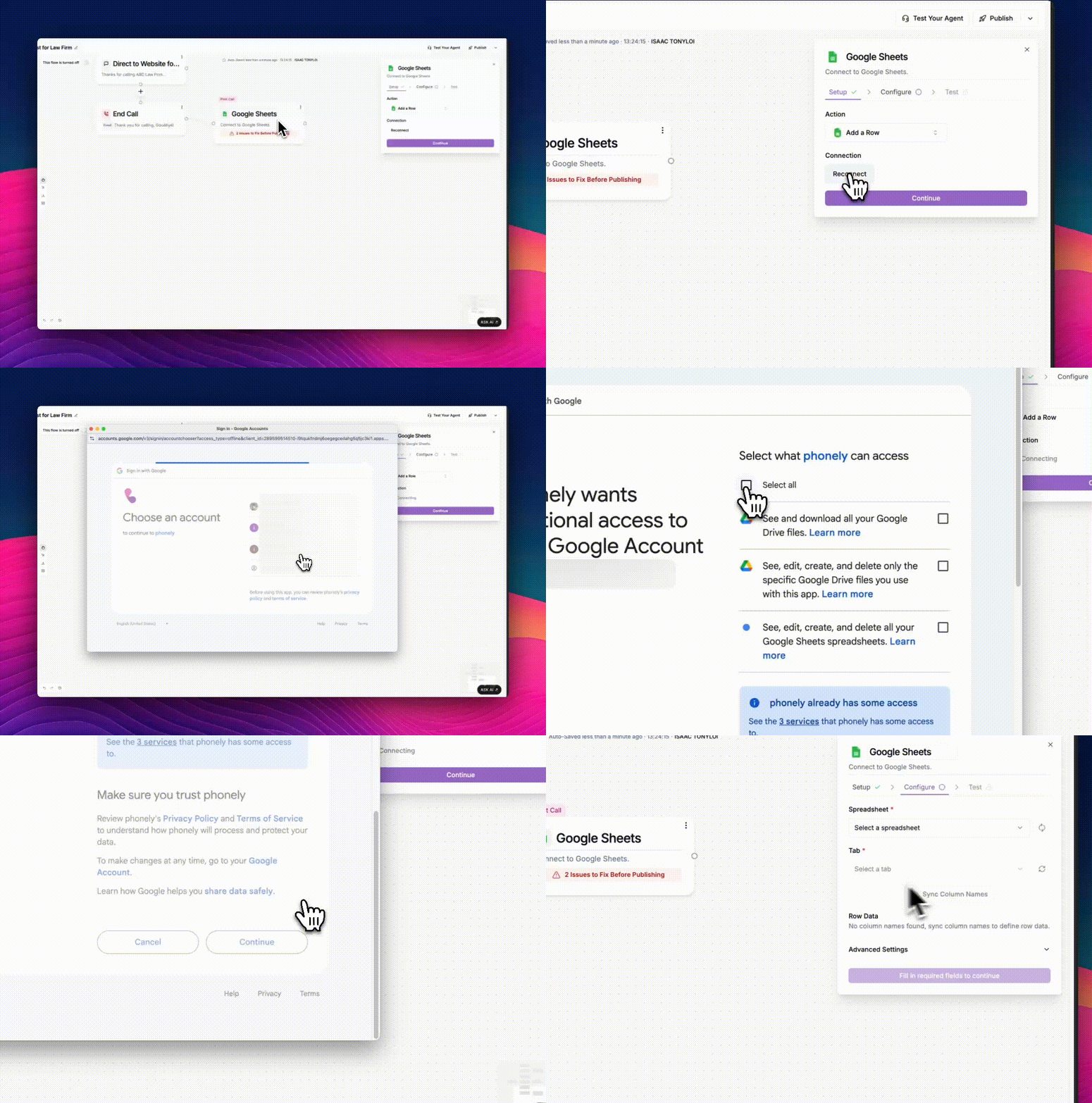 After successful authentication, the button updates to **Reconnected** or **Connected**, and the **Continue** button activates.
Click **Continue** to move to configuration.
## Configure the Row Data
The **Configure** panel allows you to define exactly where data should go in your sheet and which values should be written.
### **Spreadsheet**
Select the target spreadsheet from your Google Drive.\
Click the refresh icon if you just created or renamed a sheet.
### **Tab**
Choose the specific worksheet (tab) in the spreadsheet.\
Refresh the list if needed.
### Sync Column Names
Click **Sync Column Names** to automatically load all column headers from your sheet. This ensures your row data maps correctly to the right columns.
After successful authentication, the button updates to **Reconnected** or **Connected**, and the **Continue** button activates.
Click **Continue** to move to configuration.
## Configure the Row Data
The **Configure** panel allows you to define exactly where data should go in your sheet and which values should be written.
### **Spreadsheet**
Select the target spreadsheet from your Google Drive.\
Click the refresh icon if you just created or renamed a sheet.
### **Tab**
Choose the specific worksheet (tab) in the spreadsheet.\
Refresh the list if needed.
### Sync Column Names
Click **Sync Column Names** to automatically load all column headers from your sheet. This ensures your row data maps correctly to the right columns.
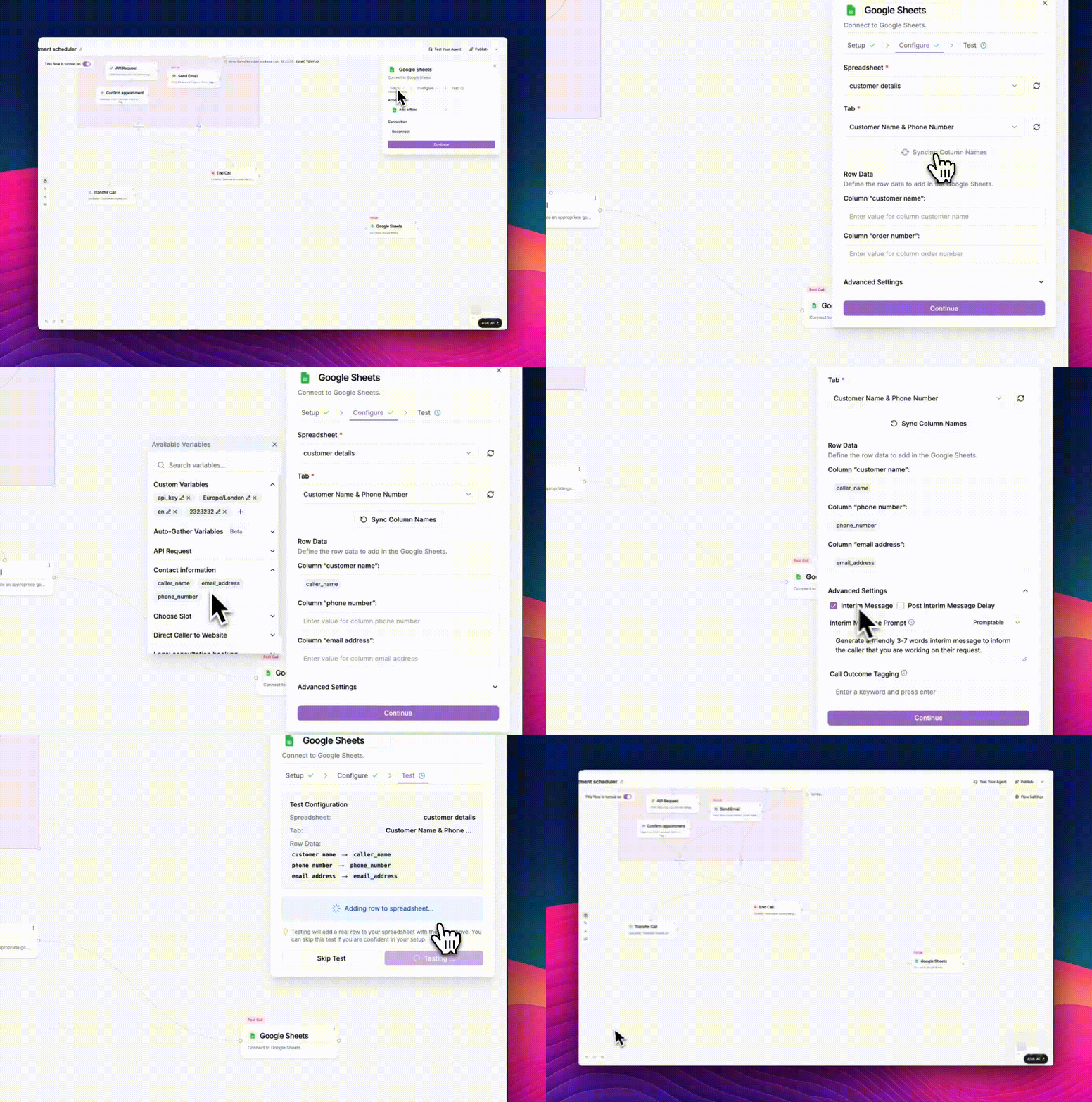 ## Map Columns to Flow Variables
Under **Row Data**, you will see a list of column names pulled from your sheet:
Example:
* **Column “customer name”**
* **Column “order number”**
* **Column “email”**
* **Column “timestamp”**
For each column:
1. Click the field.
2. Choose a variable from the left-side **Available Variables** panel.
Examples:`caller_name, phone_number, order_number, email_address`
**Example mapping**
| Spreadsheet Column | Value Written to Sheet |
| :----------------- | :--------------------- |
| customer name | `caller_name` |
| order number | `phone_number` |
| email | `email_address` |
| created\_at | `{{now}}` |
## Advanced Settings (Optional)
### **Interim Message**
If enabled, Phonely will speak a short message while writing to Google Sheets.\
Example: “Please hold while I save your details.”
### Post Interim Message Delay
Adds a brief pause after the interim message to avoid interrupting the API call.
### Interim Message Prompt
Choose:
* **Promptable** – LLM rewrites your message more naturally.
* **Fixed** – your exact text is used verbatim.
### Call Outcome Tagging
Add tags such as:`row_added, lead_saved, followup_logged, order_logged`
These appear in analytics and are useful for automation.
Click **Continue** when ready.
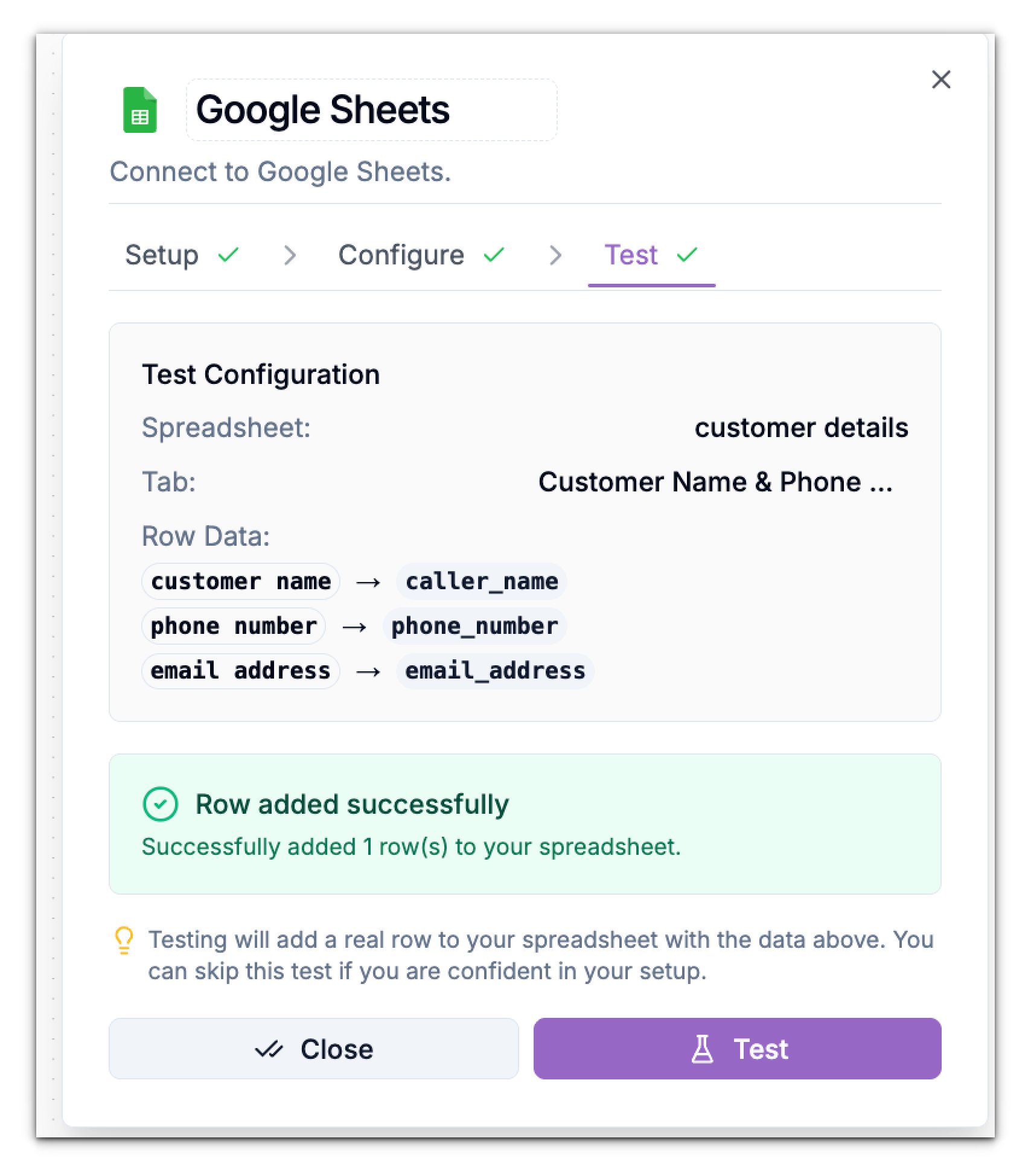
## Test the Google Sheets Write Action
In the **Test** tab:
1. Review the row data that will be created.
2. Click **Test**.
## Map Columns to Flow Variables
Under **Row Data**, you will see a list of column names pulled from your sheet:
Example:
* **Column “customer name”**
* **Column “order number”**
* **Column “email”**
* **Column “timestamp”**
For each column:
1. Click the field.
2. Choose a variable from the left-side **Available Variables** panel.
Examples:`caller_name, phone_number, order_number, email_address`
**Example mapping**
| Spreadsheet Column | Value Written to Sheet |
| :----------------- | :--------------------- |
| customer name | `caller_name` |
| order number | `phone_number` |
| email | `email_address` |
| created\_at | `{{now}}` |
## Advanced Settings (Optional)
### **Interim Message**
If enabled, Phonely will speak a short message while writing to Google Sheets.\
Example: “Please hold while I save your details.”
### Post Interim Message Delay
Adds a brief pause after the interim message to avoid interrupting the API call.
### Interim Message Prompt
Choose:
* **Promptable** – LLM rewrites your message more naturally.
* **Fixed** – your exact text is used verbatim.
### Call Outcome Tagging
Add tags such as:`row_added, lead_saved, followup_logged, order_logged`
These appear in analytics and are useful for automation.
Click **Continue** when ready.
## Test the Google Sheets Write Action
In the **Test** tab:
1. Review the row data that will be created.
2. Click **Test**.
 If something fails:
* Check permissions
* Verify the tab exists
* Ensure column names match exactly
* Re-sync column names
## Publish Your Workflow
Once everything works:
1. Click **Test Your Agent** to simulate a call.
2. Verify that the row is added correctly.
3. Click **Publish**.
Your agent will now write data to Google Sheets automatically during real calls.
## Success and Error Paths
After the Add Row action runs, two branches appear:
### Success
A row was successfully inserted.\
You can add blocks such as:
* **Say Exactly**\
“Thanks! I’ve saved your information.”
* **Send SMS / Send Email**\
Send the caller confirmation.
### Error
The sheet could not be accessed.
You can add blocks such as:
* **Say Exactly**\
“I wasn’t able to save your details. Let me try again.”
* **Collect**\
Ask for missing or corrected data.
If something fails:
* Check permissions
* Verify the tab exists
* Ensure column names match exactly
* Re-sync column names
## Publish Your Workflow
Once everything works:
1. Click **Test Your Agent** to simulate a call.
2. Verify that the row is added correctly.
3. Click **Publish**.
Your agent will now write data to Google Sheets automatically during real calls.
## Success and Error Paths
After the Add Row action runs, two branches appear:
### Success
A row was successfully inserted.\
You can add blocks such as:
* **Say Exactly**\
“Thanks! I’ve saved your information.”
* **Send SMS / Send Email**\
Send the caller confirmation.
### Error
The sheet could not be accessed.
You can add blocks such as:
* **Say Exactly**\
“I wasn’t able to save your details. Let me try again.”
* **Collect**\
Ask for missing or corrected data.