> ## Documentation Index
> Fetch the complete documentation index at: https://docs.phonely.ai/llms.txt
> Use this file to discover all available pages before exploring further.
# Connecting a Gmail Account to Phonely
Phonely’s Gmail integration allows your automated call flows to send emails directly from your Gmail account, perfect for follow-ups, confirmations, or notifications triggered during live calls.
This guide walks you through every step of connecting your Gmail account and testing the integration successfully.
## Add the Gmail Block to Your Flow
1. In your flow editor, locate the point where you want to send an email.
2. Click the **➕ (plus)** icon under the block.
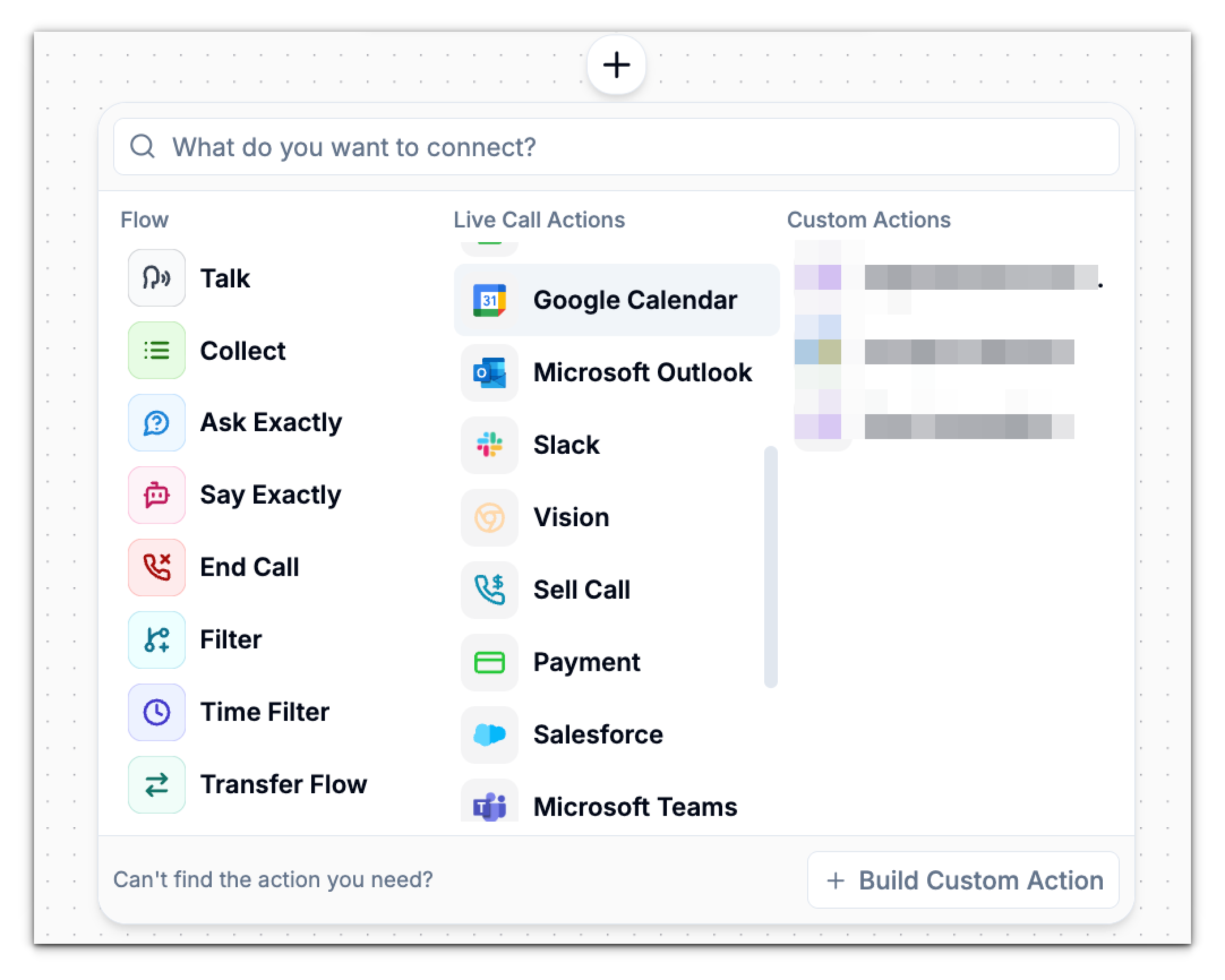 3. From **Live Call Actions**, select **Gmail**.
You’ll now see a new **Gmail** block added to your flow.
## Choose the Gmail Action
When the Gmail setup panel opens:
1. In the **Action** dropdown, choose **Send Email**.\
This is the default and only Gmail action currently supported, it lets your flow compose and send emails through your Gmail account.
2. Click **Continue** to move to the **Connection** setup.
## Connect Your Gmail Account
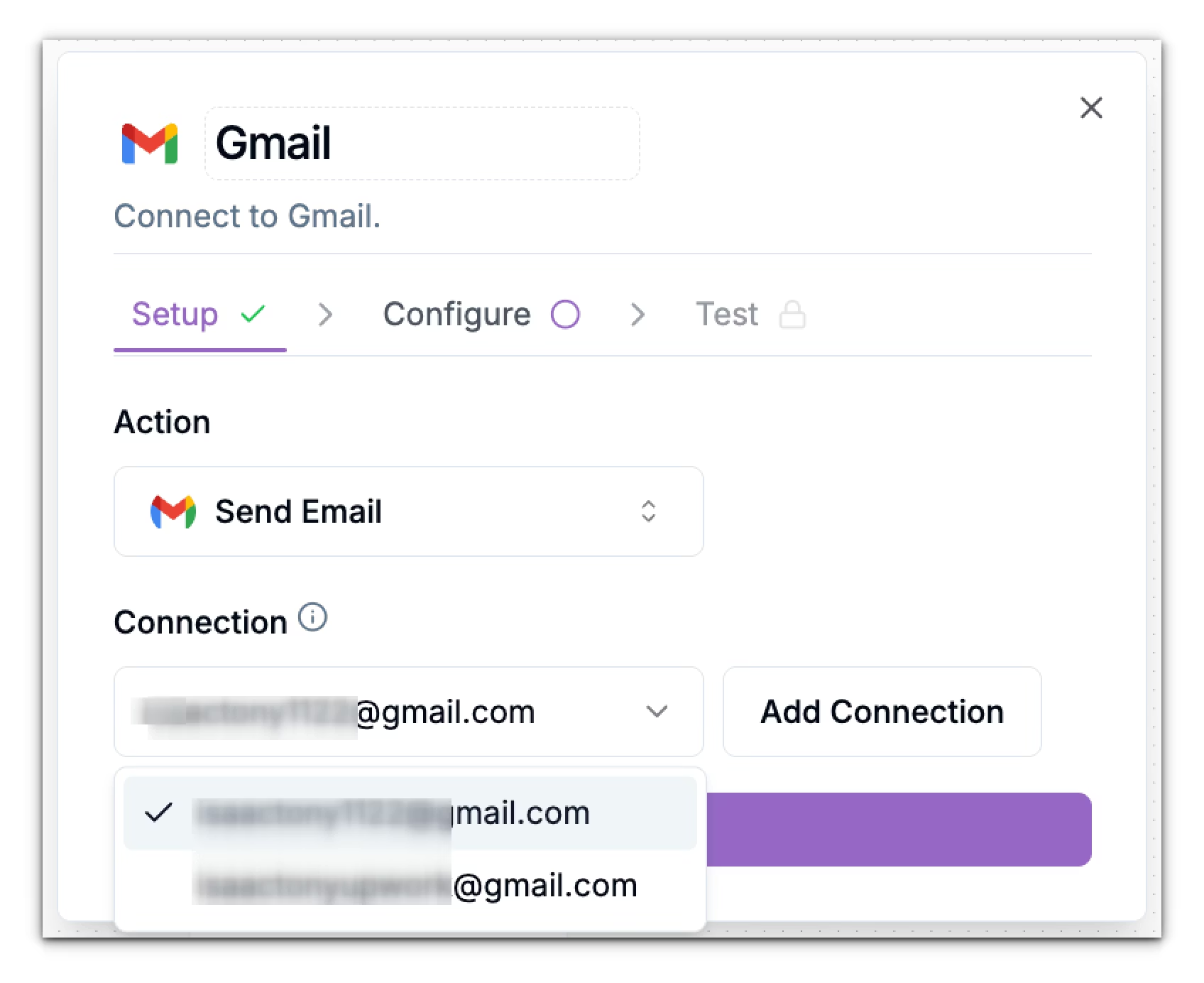
Before you can send emails, Phonely needs permission to access your Gmail account securely.
A “Linking your Gmail account” window will open.
You’ll be redirected to Google’s authentication page.
You can add multiple Gmail accounts if needed, simply click **Add Connection** again to link another account.
Once your account shows under **Connection**, the **Connect to continue** button turns purple, meaning you’re ready to proceed.
3. From **Live Call Actions**, select **Gmail**.
You’ll now see a new **Gmail** block added to your flow.
## Choose the Gmail Action
When the Gmail setup panel opens:
1. In the **Action** dropdown, choose **Send Email**.\
This is the default and only Gmail action currently supported, it lets your flow compose and send emails through your Gmail account.
2. Click **Continue** to move to the **Connection** setup.
## Connect Your Gmail Account
Before you can send emails, Phonely needs permission to access your Gmail account securely.
A “Linking your Gmail account” window will open.
You’ll be redirected to Google’s authentication page.
You can add multiple Gmail accounts if needed, simply click **Add Connection** again to link another account.
Once your account shows under **Connection**, the **Connect to continue** button turns purple, meaning you’re ready to proceed.
 ## Configure Your Email
Next, define what email should be sent.
### **Required Fields**
| Field | Description |
| :---------- | :------------------------------------------------------------------------ |
| **To** | The recipient’s email address. |
| **Subject** | The subject line of your email (e.g., *Follow-up from our conversation*). |
| **Body** | The main content of your email. You can include plain text or HTML. |
Once you fill these fields, the Fill in required fields to continue button becomes active.
### **Advanced Settings**
Expand **Advanced Settings** to customize your email further.
| Setting | Description |
| :----------------------------- | :---------------------------------------------------------------------------------------------------------------------------- |
| **Body Type** | Choose between `Plain Text` (default) or `HTML`. Select *HTML* if you want formatted emails (bold, links, etc.). |
| **Cc / Bcc** | Add carbon-copy or blind-copy recipients if you want to share the message with other team members. |
| **From Name** | Specify how your name appears in the recipient’s inbox (e.g., *John Doe*). |
| **Reply To** | Define an address for replies (useful if you want responses to go to a shared inbox). |
| **Interim Message** | Enable this to play a short spoken message to the caller (e.g., “Please hold while I send your email.”). |
| **Post Interim Message Delay** | Adds a small pause after the interim message before proceeding. |
| **Interim Message Prompt** | A 3–7 word phrase shown to your AI assistant to generate the caller message (e.g., “Hold on while we complete your request”). |
| **Call Outcome Tagging** | Add a tag to the call record for analytics, such as `email_sent` or `gmail_followup`. |
Choose between plain text or HTML formatting for your email body. HTML allows for rich formatting like bold, italic, links.
## Test the Gmail Action
The **Test** tab lets you verify your configuration by sending a real email.
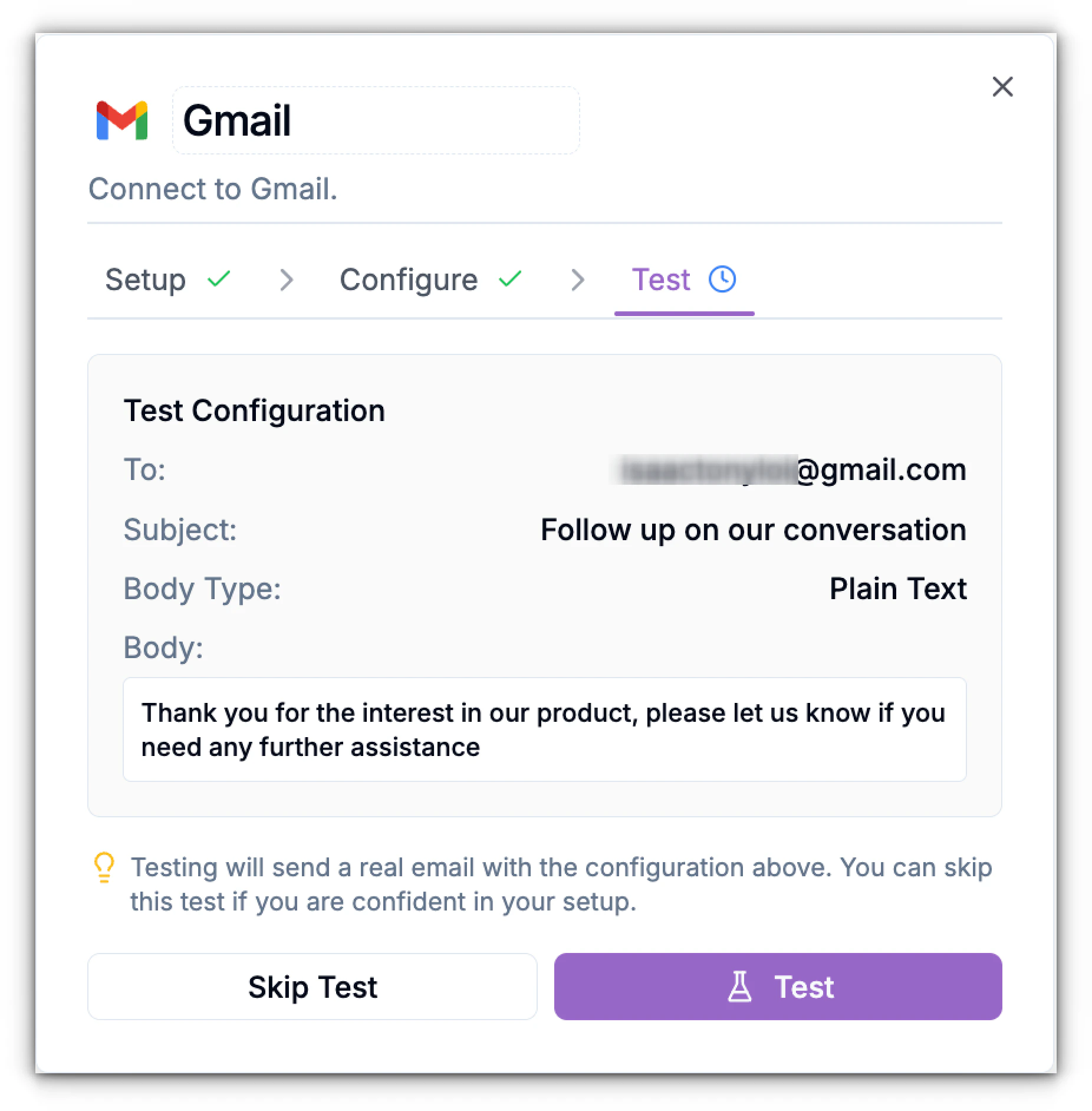
1. Review your test configuration.\
You’ll see all the details you set:
2. Click **Test**.
Phonely will send an actual email to the address provided with the details entered in the subject and body fields.
If you do not want to test this out skip test
## Configure Your Email
Next, define what email should be sent.
### **Required Fields**
| Field | Description |
| :---------- | :------------------------------------------------------------------------ |
| **To** | The recipient’s email address. |
| **Subject** | The subject line of your email (e.g., *Follow-up from our conversation*). |
| **Body** | The main content of your email. You can include plain text or HTML. |
Once you fill these fields, the Fill in required fields to continue button becomes active.
### **Advanced Settings**
Expand **Advanced Settings** to customize your email further.
| Setting | Description |
| :----------------------------- | :---------------------------------------------------------------------------------------------------------------------------- |
| **Body Type** | Choose between `Plain Text` (default) or `HTML`. Select *HTML* if you want formatted emails (bold, links, etc.). |
| **Cc / Bcc** | Add carbon-copy or blind-copy recipients if you want to share the message with other team members. |
| **From Name** | Specify how your name appears in the recipient’s inbox (e.g., *John Doe*). |
| **Reply To** | Define an address for replies (useful if you want responses to go to a shared inbox). |
| **Interim Message** | Enable this to play a short spoken message to the caller (e.g., “Please hold while I send your email.”). |
| **Post Interim Message Delay** | Adds a small pause after the interim message before proceeding. |
| **Interim Message Prompt** | A 3–7 word phrase shown to your AI assistant to generate the caller message (e.g., “Hold on while we complete your request”). |
| **Call Outcome Tagging** | Add a tag to the call record for analytics, such as `email_sent` or `gmail_followup`. |
Choose between plain text or HTML formatting for your email body. HTML allows for rich formatting like bold, italic, links.
## Test the Gmail Action
The **Test** tab lets you verify your configuration by sending a real email.
1. Review your test configuration.\
You’ll see all the details you set:
2. Click **Test**.
Phonely will send an actual email to the address provided with the details entered in the subject and body fields.
If you do not want to test this out skip test
 ## Save and Connect to the Next Block
Once the test succeeds:
* The Gmail block’s **Setup**, **Configure**, and **Test** steps all show green checkmarks (✓).
* You can now connect the next block in your flow.
## Save and Connect to the Next Block
Once the test succeeds:
* The Gmail block’s **Setup**, **Configure**, and **Test** steps all show green checkmarks (✓).
* You can now connect the next block in your flow.