> ## Documentation Index
> Fetch the complete documentation index at: https://docs.phonely.ai/llms.txt
> Use this file to discover all available pages before exploring further.
# Send SMS
> Send text messages to enhance customer interaction and streamline communication
The send text message block very simply allows Phonely to send a text message from its designated number (or your verified custom number) directly to your customer's phone number. This functionality is a powerful way to enhance customer interaction, streamline communication, and extend the automated conversation beyond the voice call.
## What the Send SMS Block Is Used For
The Send SMS block is most effective when you need to reinforce or extend a call interaction. Typical use cases include:
* Sending appointment confirmations or reminders
* Delivering links, reference numbers, or next steps
* Following up after a missed call or voicemail
* Notifying internal teams or clients after call completion
Because the block supports variables, every message can be personalized and dynamically generated based on what happened earlier in the call.
## Adding the Send SMS Block to a Flow
To add the block:
1. Open your agent in **Agent Design**.
2. Click the **➕** button where you want the message to be sent.
3. Select **Send SMS** from the available actions.
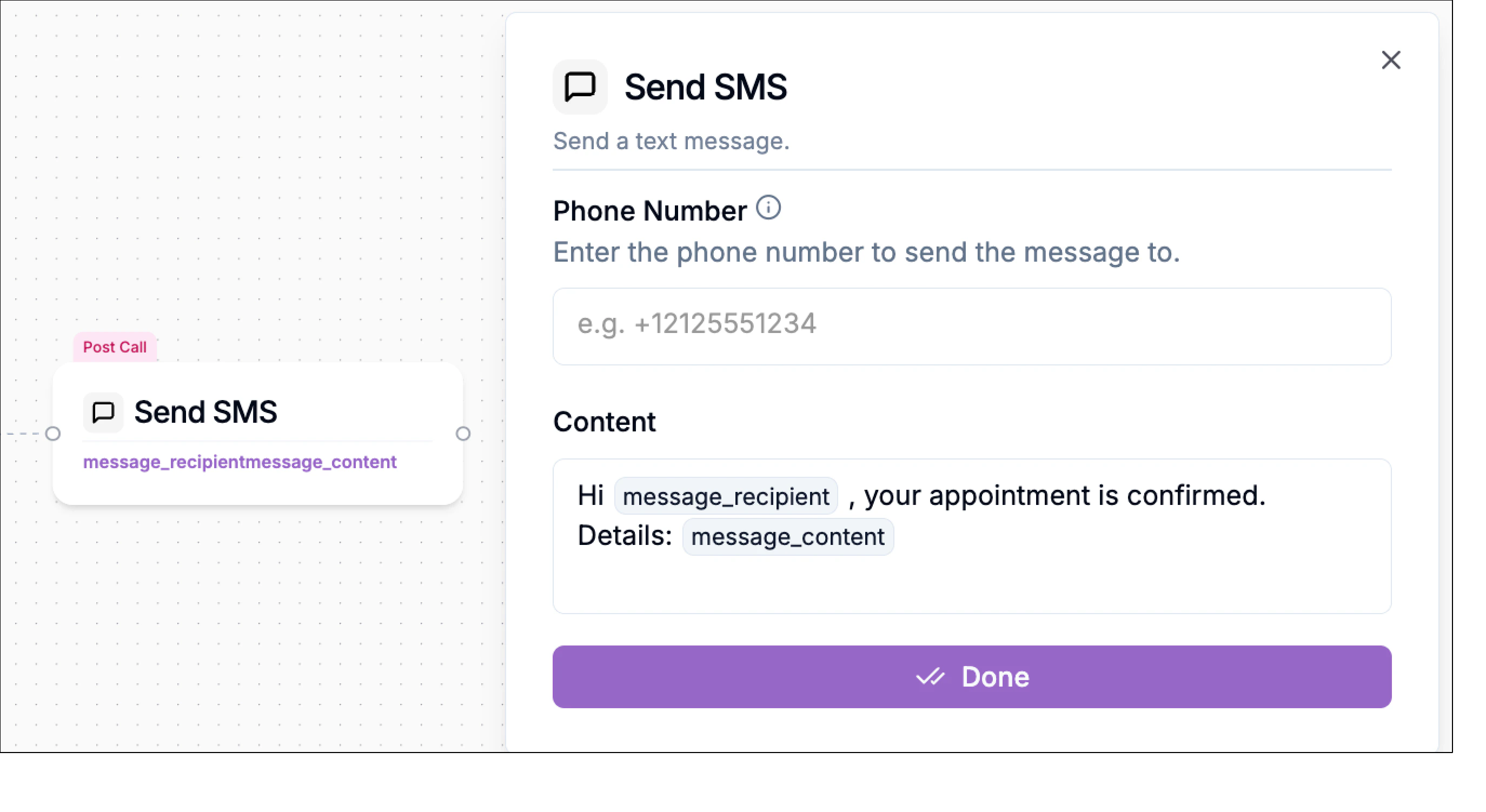
You’ll see the block appear on the canvas, labeled **Send SMS**, with a configuration panel opening on the right.
## Configuring the Send SMS Block
The Send SMS block has two required fields: **Phone Number** and **Content**.
### Phone Number
This field determines who receives the message.
You can enter:
* A fixed phone number (for example, a test or internal number), or
* A variable collected earlier in the flow, such as the caller’s phone number
In most cases, you’ll use a variable like `@phone_number`. You can insert this by typing `@` or selecting it from the available variables panel.
Using variables ensures the message is sent to the correct recipient automatically, without hard-coding numbers into your flow.
### Content
The **Content** field defines the body of the SMS message.
You can write plain text or build a dynamic message using variables. For example:
> “Hi @message\_recipient, your appointment is confirmed. Details: @message\_content”
Variables such as `@message_recipient`, `@appointment_time`, or `@case_number` allow the SMS to reflect the exact context of the call.
This makes messages feel personal and relevant, rather than generic or automated.
## Post-Call SMS Messages
Many teams use the Send SMS block as a post-call action.
For example:
* After an appointment is booked
* After a voicemail is recorded
* After a call is escalated or transferred
In these cases, the block runs after the voice interaction ends, allowing you to send confirmations, summaries, or follow-ups without keeping the caller on the line.
### Common Example
After an appointment booking flow completes successfully:
* Phone Number: `@phone_number`
* Content:
> “Thanks for calling! Your appointment is scheduled for @appointment\_date at @appointment\_time. Reply STOP to opt out.”
This message is sent automatically, using data already collected during the call.
If you are forwarding your main business phone number to Phonely's phone number, and you attempt to use the "customer's phone number they texted from" option directly with that forwarded number, the SMS might incorrectly be sent back to your forwarded number rather than the actual customer's original calling number.
**Workaround/Best Practice**: To ensure the SMS is always sent to the correct customer, it is highly recommended to add a step in your workflow to explicitly ask the customer for their phone number (using an Ask Exactly Block, for example) and then use that collected variable as the recipient for the Send Text Message Block. This also provides an opportunity for a verification step.
 ## Post-Call SMS Messages
Many teams use the Send SMS block as a post-call action.
For example:
* After an appointment is booked
* After a voicemail is recorded
* After a call is escalated or transferred
In these cases, the block runs after the voice interaction ends, allowing you to send confirmations, summaries, or follow-ups without keeping the caller on the line.
### Common Example
After an appointment booking flow completes successfully:
* Phone Number: `@phone_number`
* Content:
> “Thanks for calling! Your appointment is scheduled for @appointment\_date at @appointment\_time. Reply STOP to opt out.”
This message is sent automatically, using data already collected during the call.
## Post-Call SMS Messages
Many teams use the Send SMS block as a post-call action.
For example:
* After an appointment is booked
* After a voicemail is recorded
* After a call is escalated or transferred
In these cases, the block runs after the voice interaction ends, allowing you to send confirmations, summaries, or follow-ups without keeping the caller on the line.
### Common Example
After an appointment booking flow completes successfully:
* Phone Number: `@phone_number`
* Content:
> “Thanks for calling! Your appointment is scheduled for @appointment\_date at @appointment\_time. Reply STOP to opt out.”
This message is sent automatically, using data already collected during the call.