> ## Documentation Index
> Fetch the complete documentation index at: https://docs.phonely.ai/llms.txt
> Use this file to discover all available pages before exploring further.
# Collect Payments
> Learn how to configure and use the Payment block to securely collect and process payments during live phone calls
The Payment block enables your Phonely AI agent to securely collect and process payments during a live phone call. With this block, callers can complete a transaction without leaving the call, speaking to a human agent, or being redirected to an external checkout experience.
The result is a fast, natural, and fully automated payment flow that works seamlessly within your existing call logic.
The Payment block is available to admin users only. If you don’t see it listed, your account may not have the required permissions
Phonely’s payment handling is **fully PCI-compliant**. All sensitive card information is transferred into an isolated, secure environment and never stored or exposed inside your workflow.
## Where the Payment Block Fits in a Call Flow
The Payment block is typically used after the agent has identified a clear payment intent. This intent might be detected through a conversation, a condition block, or a structured intake step.
For example, a caller may indicate they want to make a donation, pay an invoice, or complete a purchase.
Once that intent is confirmed, the workflow routes the caller into the Payment block. At this point, the call temporarily transitions into a secure payment experience. The caller can enter card details using their phone keypad or speak them aloud, depending on how the block is configured.
After the payment attempt completes, successfully or not, the call automatically returns to your flow so the agent can continue, escalate, or end the conversation.
## Common Use Cases
Common scenarios include:
* Donations (political campaigns, nonprofits)
* Order or invoice payments
* Subscription sign-ups
* One-time service fees
* Balance collection before escalatio
## Adding the Payment Block to a Flow
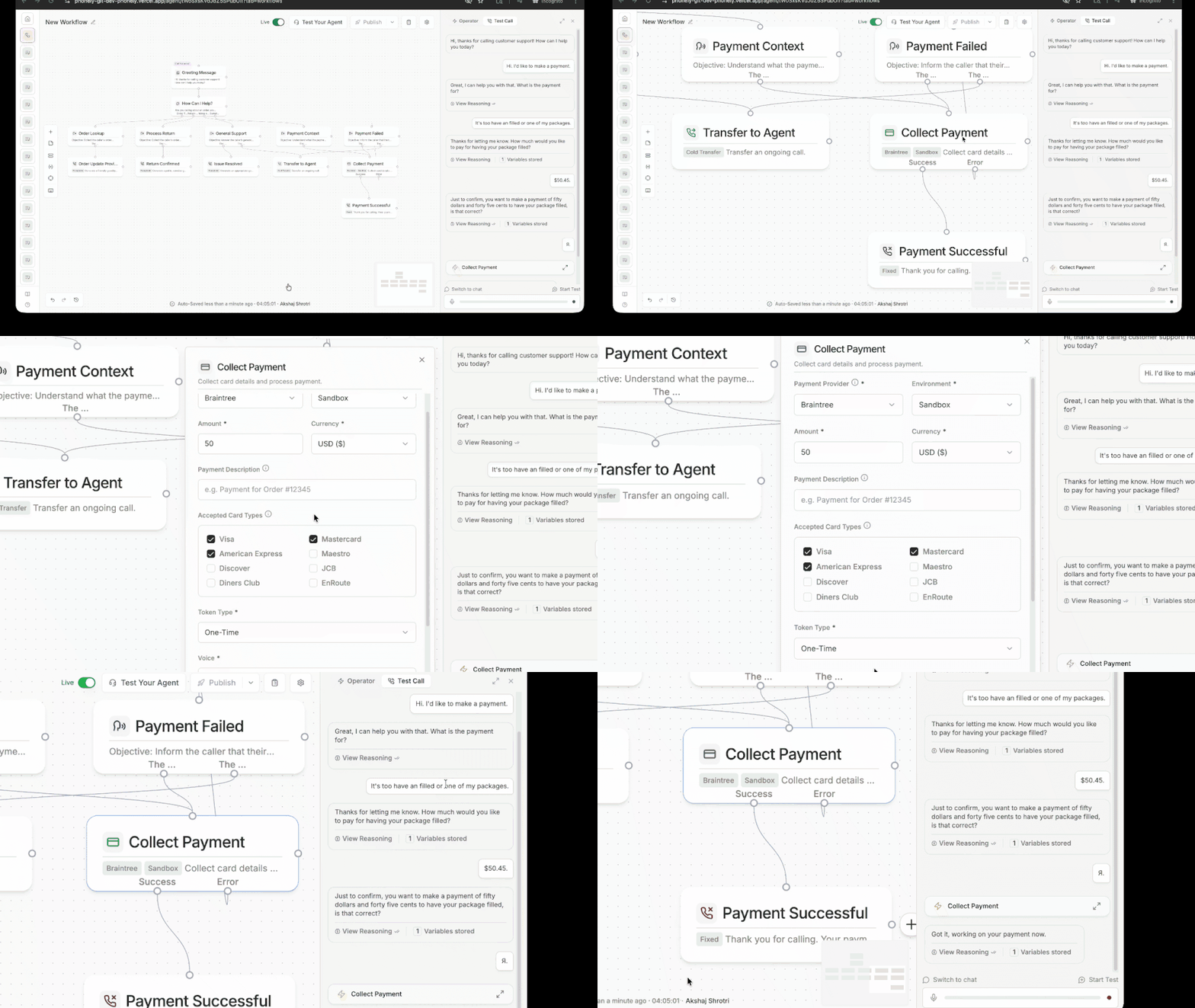
1. Open the **Flow Builder**.
2. Click **➕ Add Block**.
3. Select **Payment**.
4. Connect the block to the condition where payment should occur (for example: *”Caller wants to make a donation”*).
## Configuring the Payment Block
### Payment Provider
Choose how payments are processed:
* **Braintree** – Production-ready payment processing
* **Sandbox** – Test mode for validating your flow before going live
### Amount
Set how much the caller will pay.
You can:
* Enter a fixed amount, or
* Use an auto-gather variable to collect the amount at runtime
### Using Auto-Gather with Payments
The Payment block works seamlessly with Auto-Gather variables, allowing you to collect required information at the exact moment it’s needed.
Example setup:
* `payment_amount` → Number → Required → Confirm
* `donation_reason` → Text → Optional
This removes the need for extra Talk or Collect blocks and keeps your flow clean.
### Currency
Select the currency for the transaction.
### Payment Description
A short label shown in the transaction record, such as:
### Accepted Card Types
Choose which cards you want to allow:
* Visa
* Mastercard
* American Express
* Discover
* Diners Club
* Maestro
* JCB
* EnRoute
You can enable or disable cards based on your business requirements.
### Token Type
Defines how payment credentials are handled:
**One-Time** – Used for a single transaction (most common)
### Voice Selection
Choose the voice used during the secure payment step.
Because payment collection happens in an isolated environment, the voice may differ slightly from the rest of your agent.
### Optional Metadata & Parameters
You can pass additional metadata under the payment parameters field.
## Handling Success and Failure
After the Payment block runs, you can branch your workflow:
### On Success
* Thank the caller
* Confirm the payment
* End the call or offer additional help
### On Failure
* Retry the payment
* Transfer to a live agent
* Escalate to support
This makes it easy to design graceful recovery paths.
 ## Adding the Payment Block to a Flow
1. Open the **Flow Builder**.
2. Click **➕ Add Block**.
3. Select **Payment**.
4. Connect the block to the condition where payment should occur (for example: *”Caller wants to make a donation”*).
## Configuring the Payment Block
### Payment Provider
Choose how payments are processed:
* **Braintree** – Production-ready payment processing
* **Sandbox** – Test mode for validating your flow before going live
### Amount
Set how much the caller will pay.
You can:
* Enter a fixed amount, or
* Use an auto-gather variable to collect the amount at runtime
### Using Auto-Gather with Payments
The Payment block works seamlessly with Auto-Gather variables, allowing you to collect required information at the exact moment it’s needed.
Example setup:
* `payment_amount` → Number → Required → Confirm
* `donation_reason` → Text → Optional
This removes the need for extra Talk or Collect blocks and keeps your flow clean.
### Currency
Select the currency for the transaction.
### Payment Description
A short label shown in the transaction record, such as:
### Accepted Card Types
Choose which cards you want to allow:
* Visa
* Mastercard
* American Express
* Discover
* Diners Club
* Maestro
* JCB
* EnRoute
You can enable or disable cards based on your business requirements.
### Token Type
Defines how payment credentials are handled:
**One-Time** – Used for a single transaction (most common)
### Voice Selection
Choose the voice used during the secure payment step.
## Adding the Payment Block to a Flow
1. Open the **Flow Builder**.
2. Click **➕ Add Block**.
3. Select **Payment**.
4. Connect the block to the condition where payment should occur (for example: *”Caller wants to make a donation”*).
## Configuring the Payment Block
### Payment Provider
Choose how payments are processed:
* **Braintree** – Production-ready payment processing
* **Sandbox** – Test mode for validating your flow before going live
### Amount
Set how much the caller will pay.
You can:
* Enter a fixed amount, or
* Use an auto-gather variable to collect the amount at runtime
### Using Auto-Gather with Payments
The Payment block works seamlessly with Auto-Gather variables, allowing you to collect required information at the exact moment it’s needed.
Example setup:
* `payment_amount` → Number → Required → Confirm
* `donation_reason` → Text → Optional
This removes the need for extra Talk or Collect blocks and keeps your flow clean.
### Currency
Select the currency for the transaction.
### Payment Description
A short label shown in the transaction record, such as:
### Accepted Card Types
Choose which cards you want to allow:
* Visa
* Mastercard
* American Express
* Discover
* Diners Club
* Maestro
* JCB
* EnRoute
You can enable or disable cards based on your business requirements.
### Token Type
Defines how payment credentials are handled:
**One-Time** – Used for a single transaction (most common)
### Voice Selection
Choose the voice used during the secure payment step.