> ## Documentation Index
> Fetch the complete documentation index at: https://docs.phonely.ai/llms.txt
> Use this file to discover all available pages before exploring further.
# Transfer Calls
> Learn how to configure the Transfer Call block for warm transfers, cold transfers, and failover behavior.
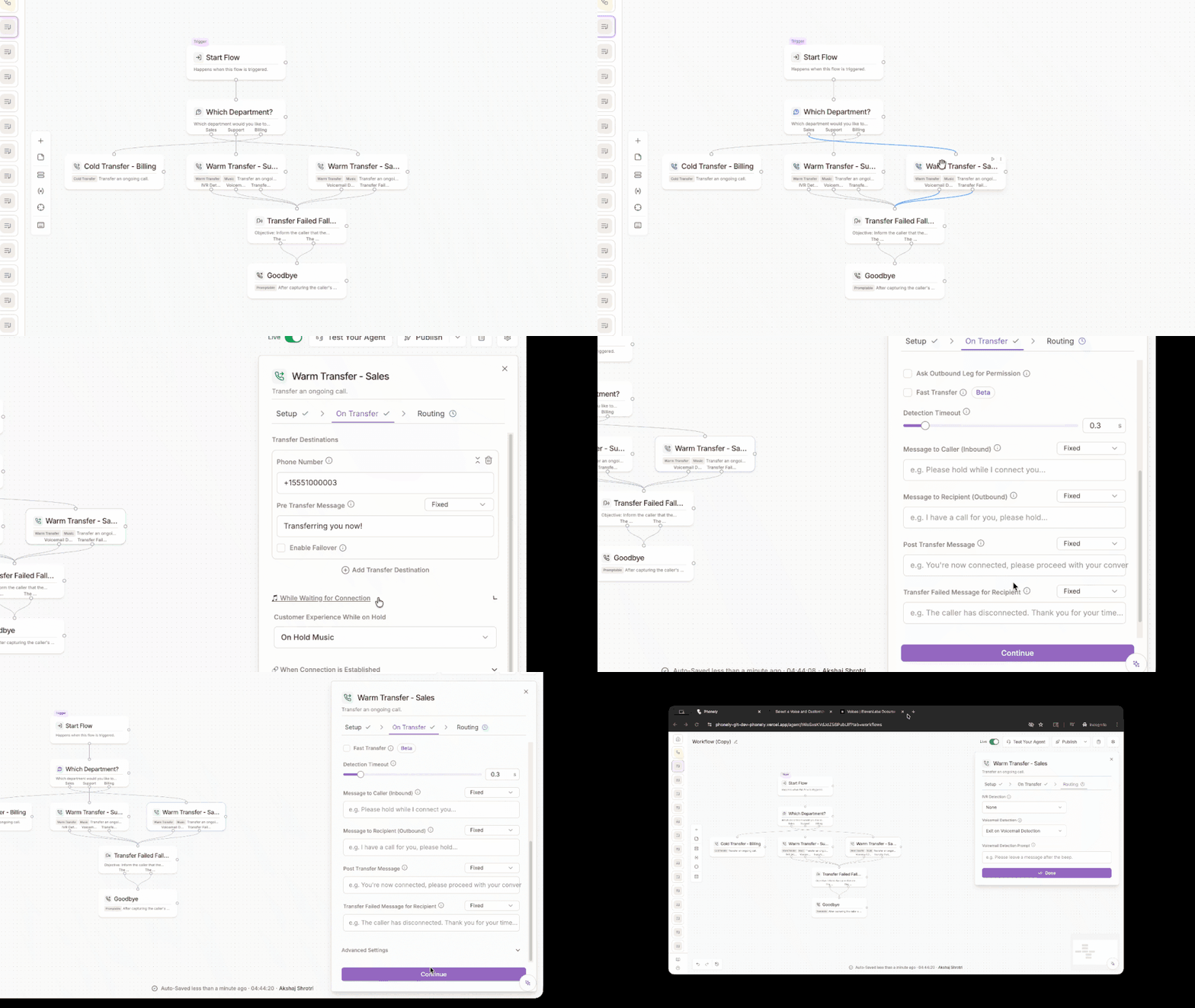 ## What is it?
The Transfer Call block lets your agent seamlessly hand off a live call to another person, department, or fallback destination. This dramatically simplifies call routing by replacing large, branching, hard-to-manage flows with a single intelligent block that can handle warm transfers, cold transfers, failover logic, caller triage, and on-hold experience, all in one place.
This guide walks through the current Transfer Call block, how it works, and how to set it up step by step.
## What the block can do
The Transfer Call block supports:
* Add multiple destiantions.
* Automatically triage callers with AI.
* Automatically retry alternative numbers if one doesn’t pick up.
* Choose warm transfer or cold transfer.
* Customize the caller’s hold experience.
* Set advanced rules like tagging, timeout durations, and human-answered outcomes.
## How it works
The Transfer Call block has three main sections:
Choose warm or cold transfer.
Add destinations, conditions, messages, and failover behavior
Customize what happens while the caller waits and after the call connects.
Let’s walk through each part in detail.
## Setup - Choose the Type of Transfer
At the setup step, you decide which transfer style your agent will perform.
### Cold Transfer
A cold transfer hands the caller off immediately to another phone number without an introduction. The agent does not brief the recipient, once the transfer begins, Phonely connects the caller to the destination directly.
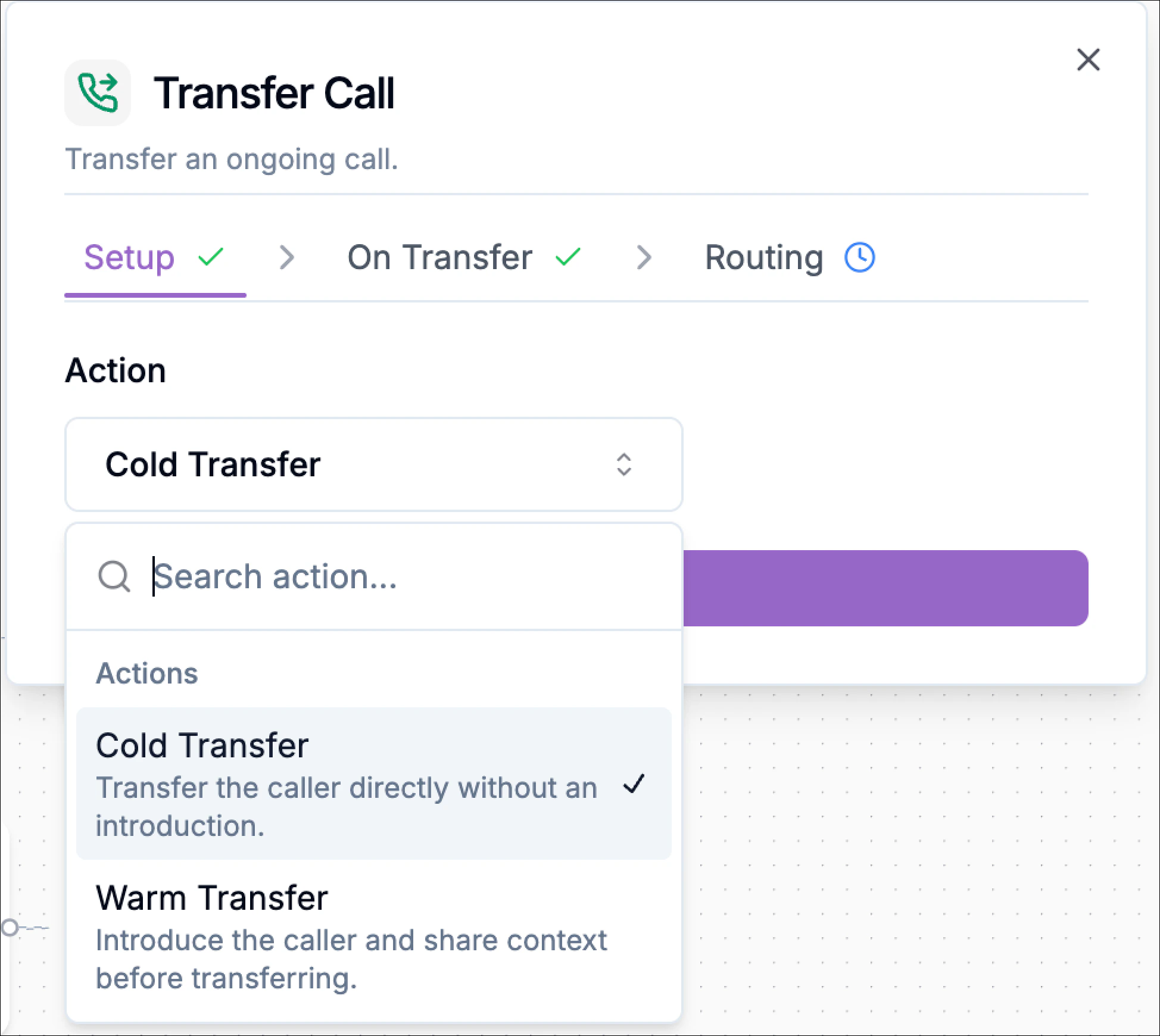
Cold transfers are best when you want fast routing and the receiving person or team does not need context from the agent (for example: reception, front-desk routing, “press 0” style handoffs, or sending callers to a shared support line).
Open the Transfer Call block.
In the Setup step, under Action, select Cold Transfer.
Click Continue.
In the on transfer step, you define where Phonely can transfer the caller.
## What is it?
The Transfer Call block lets your agent seamlessly hand off a live call to another person, department, or fallback destination. This dramatically simplifies call routing by replacing large, branching, hard-to-manage flows with a single intelligent block that can handle warm transfers, cold transfers, failover logic, caller triage, and on-hold experience, all in one place.
This guide walks through the current Transfer Call block, how it works, and how to set it up step by step.
## What the block can do
The Transfer Call block supports:
* Add multiple destiantions.
* Automatically triage callers with AI.
* Automatically retry alternative numbers if one doesn’t pick up.
* Choose warm transfer or cold transfer.
* Customize the caller’s hold experience.
* Set advanced rules like tagging, timeout durations, and human-answered outcomes.
## How it works
The Transfer Call block has three main sections:
Choose warm or cold transfer.
Add destinations, conditions, messages, and failover behavior
Customize what happens while the caller waits and after the call connects.
Let’s walk through each part in detail.
## Setup - Choose the Type of Transfer
At the setup step, you decide which transfer style your agent will perform.
### Cold Transfer
A cold transfer hands the caller off immediately to another phone number without an introduction. The agent does not brief the recipient, once the transfer begins, Phonely connects the caller to the destination directly.
Cold transfers are best when you want fast routing and the receiving person or team does not need context from the agent (for example: reception, front-desk routing, “press 0” style handoffs, or sending callers to a shared support line).
Open the Transfer Call block.
In the Setup step, under Action, select Cold Transfer.
Click Continue.
In the on transfer step, you define where Phonely can transfer the caller.
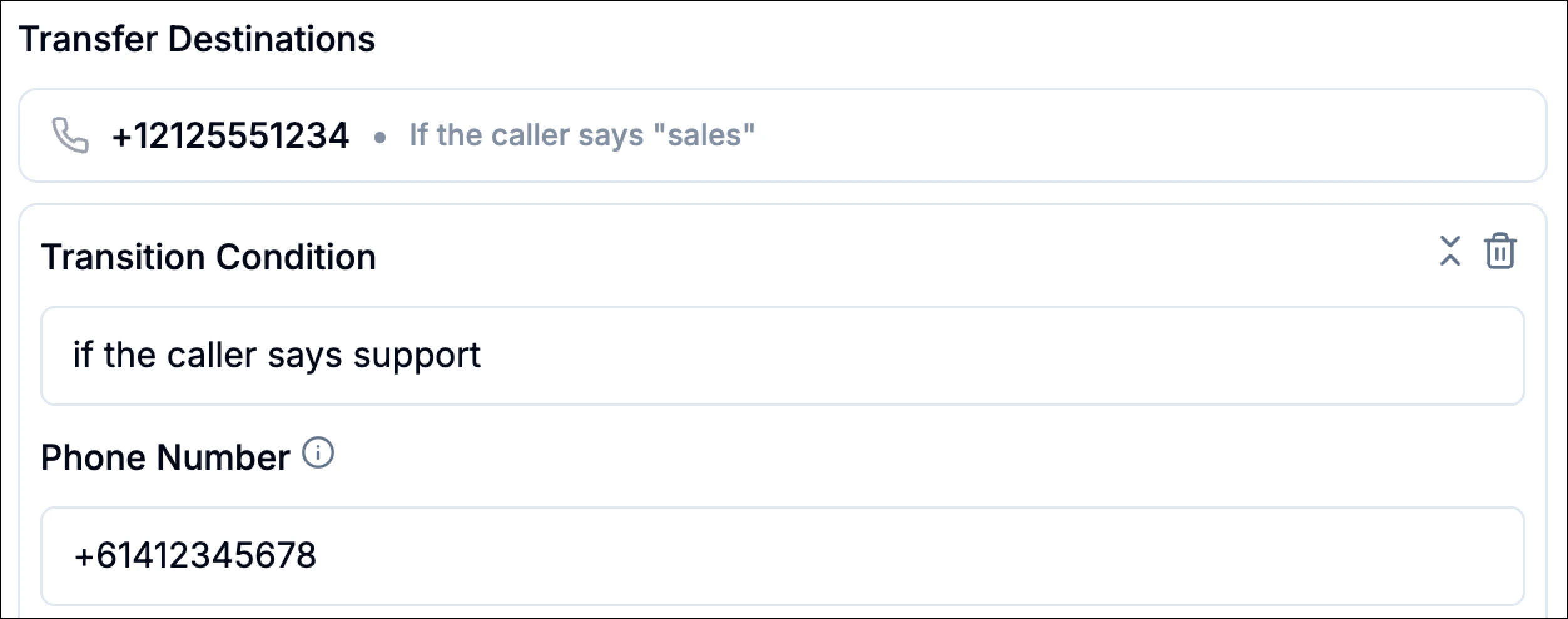
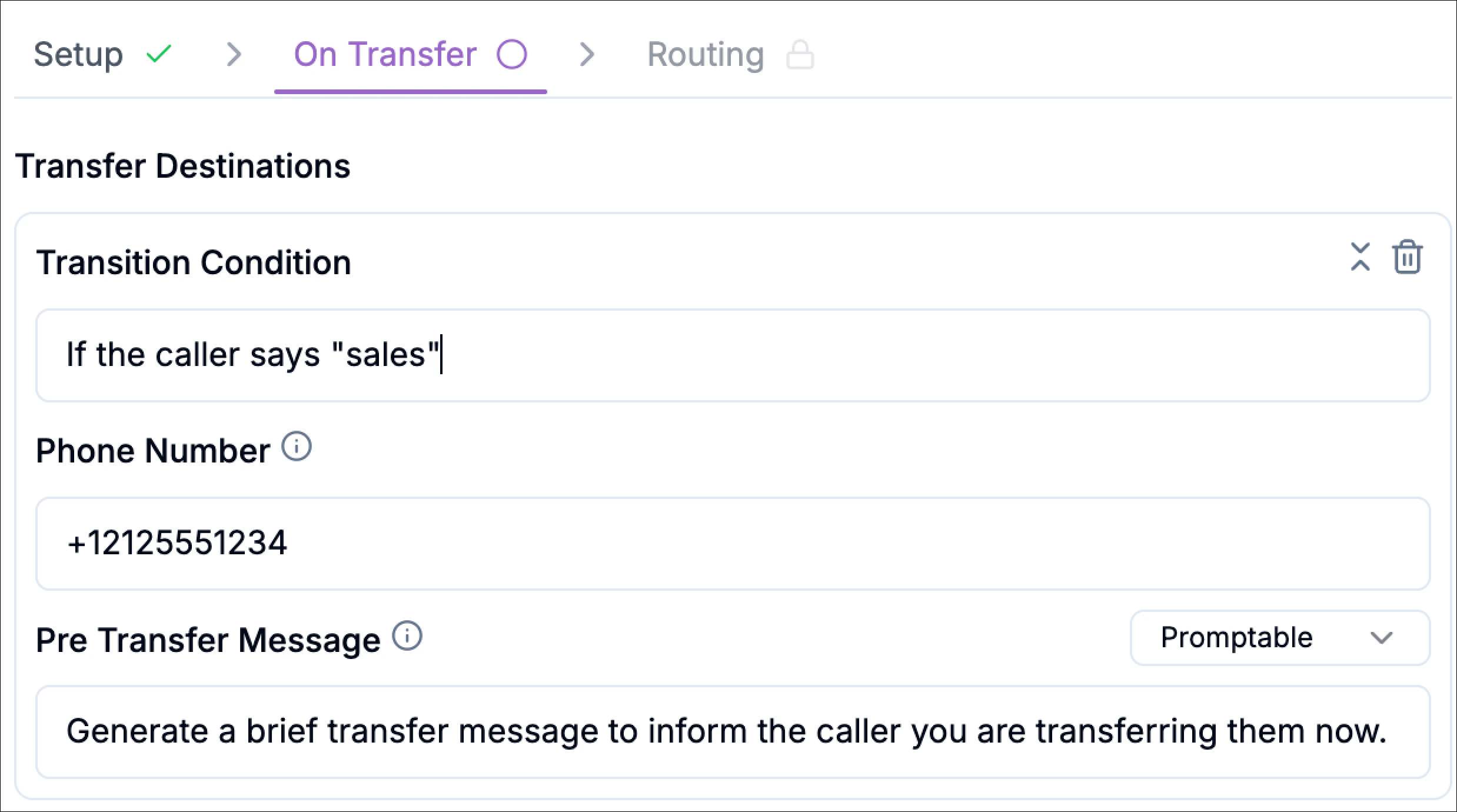 Each transfer destination can include:
#### **Transition Condition**
This is the rule that decides when this destination should be used. It’s typically written as a natural phrase that maps to caller intent.
Example conditions:
* “If the caller says sales”
* “If the caller asks for support”
* “If the caller mentions billing”
If you don’t set a condition, the destination shows as no condition set, which is a signal that routing logic hasn’t been defined for that destination yet.
#### **Phone Number**
Enter the destination number in **E.164 format**. Format: `+[country code][phone number]`
Examples:
* US: `+12125551234`
* Australia: `+61412345678`
This is the number Phonely will dial when that destination is selected.
#### **Pre Transfer Message**
This is the short message the caller hears right before the transfer starts (for example, “Please hold while I connect you.”).
You can configure it as:
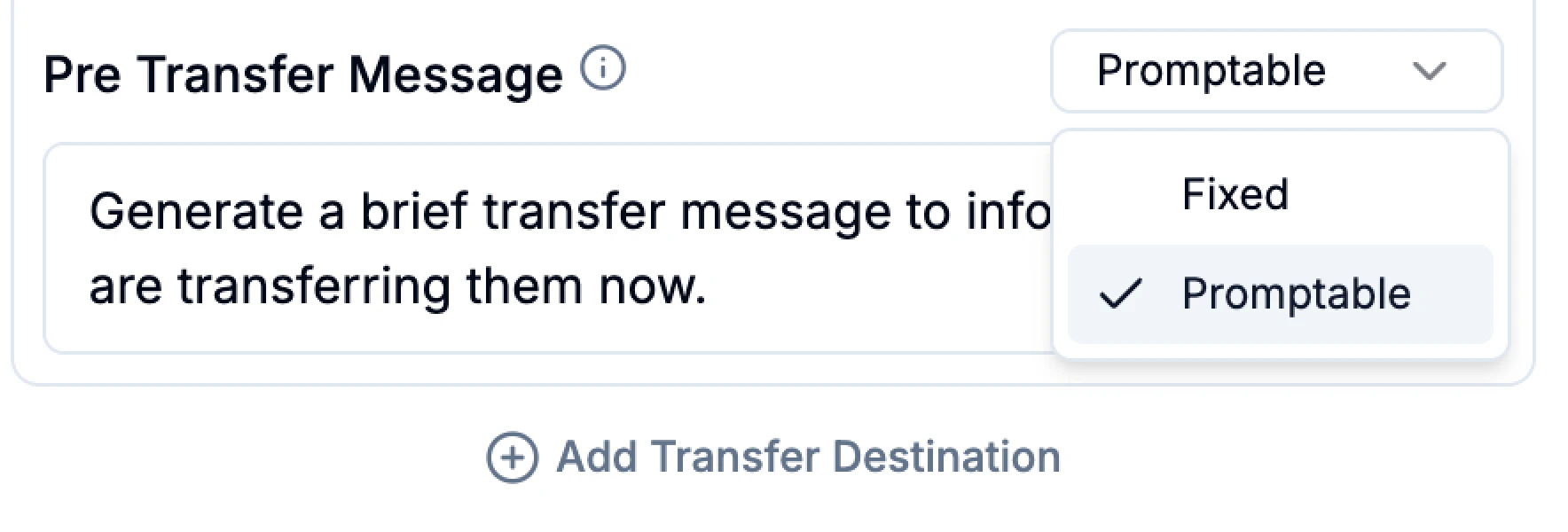
* **Fixed**: you write the exact message Phonely should say every time.\
Example: “Please hold while I connect you to the right person.”
* **Promptable**: you provide an instruction and Phonely generates a brief message.\
Example prompt: “Generate a brief transfer message to inform the caller you are transferring them now.”
This message is only for the caller experience, it does not introduce the caller to the recipient (that’s warm transfer behavior).
#### Add multiple destinations
Click **Add Transfer Destination** to include additional numbers. This lets you build practical routing like:
* Sales line (if caller says “sales”)
* Support line (if caller says “support”)
* Billing line (if caller says “billing”)
Each transfer destination can include:
#### **Transition Condition**
This is the rule that decides when this destination should be used. It’s typically written as a natural phrase that maps to caller intent.
Example conditions:
* “If the caller says sales”
* “If the caller asks for support”
* “If the caller mentions billing”
If you don’t set a condition, the destination shows as no condition set, which is a signal that routing logic hasn’t been defined for that destination yet.
#### **Phone Number**
Enter the destination number in **E.164 format**. Format: `+[country code][phone number]`
Examples:
* US: `+12125551234`
* Australia: `+61412345678`
This is the number Phonely will dial when that destination is selected.
#### **Pre Transfer Message**
This is the short message the caller hears right before the transfer starts (for example, “Please hold while I connect you.”).
You can configure it as:
* **Fixed**: you write the exact message Phonely should say every time.\
Example: “Please hold while I connect you to the right person.”
* **Promptable**: you provide an instruction and Phonely generates a brief message.\
Example prompt: “Generate a brief transfer message to inform the caller you are transferring them now.”
This message is only for the caller experience, it does not introduce the caller to the recipient (that’s warm transfer behavior).
#### Add multiple destinations
Click **Add Transfer Destination** to include additional numbers. This lets you build practical routing like:
* Sales line (if caller says “sales”)
* Support line (if caller says “support”)
* Billing line (if caller says “billing”)
 Use call outcome tagging to label the call when the transfer path is triggered. You can select an existing outcome or type a custom one.
Examples:
* `cold_transfer_sales`
* `cold_transfer_support`
* `cold_transfer_billing`
This is useful later for analytics because you can filter or group calls by transfer outcomes.
**No routing options available for cold transfer.**
That’s expected, cold transfers connect the caller directly, so there are no extra routing behaviors to configure in that step.
Click **Done** to finish.
## Warm Transfer
A warm transfer connects the caller to a human with context. Instead of transferring immediately, Phonely first reaches out to the recipient (the outbound leg), confirms the connection, and can deliver a short intro before bridging both parties together. This is ideal when the person receiving the call needs a quick handoff summary (for example: escalations, high-value leads, or complex support issues).
Warm transfer is best for:
* Support escalations where the agent should summarize the issue first
* Sales handoffs where the rep should know the caller’s intent before speaking
* VIP callers where you want a smoother, higher-touch experience
Open the Transfer Call block.
In the setup step, under Action, select warm transfer and click **Continue**.
Use call outcome tagging to label the call when the transfer path is triggered. You can select an existing outcome or type a custom one.
Examples:
* `cold_transfer_sales`
* `cold_transfer_support`
* `cold_transfer_billing`
This is useful later for analytics because you can filter or group calls by transfer outcomes.
**No routing options available for cold transfer.**
That’s expected, cold transfers connect the caller directly, so there are no extra routing behaviors to configure in that step.
Click **Done** to finish.
## Warm Transfer
A warm transfer connects the caller to a human with context. Instead of transferring immediately, Phonely first reaches out to the recipient (the outbound leg), confirms the connection, and can deliver a short intro before bridging both parties together. This is ideal when the person receiving the call needs a quick handoff summary (for example: escalations, high-value leads, or complex support issues).
Warm transfer is best for:
* Support escalations where the agent should summarize the issue first
* Sales handoffs where the rep should know the caller’s intent before speaking
* VIP callers where you want a smoother, higher-touch experience
Open the Transfer Call block.
In the setup step, under Action, select warm transfer and click **Continue**.
 In the **on transfer** step, you define who the call can be transferred to and how Phonely should introduce the transfer.
Each **Transfer Destination** includes:
**Transition Condition**
This tells Phonely when to use this destination.
Examples:
* “if the caller says sales”
* “if the caller says support”
* “if the caller asks for billing”
You can add multiple destinations so Phonely can route to the right number based on what the caller says.
**Phone Number**
Enter the destination number in **E.164 format**:
* Format: `+[country code][phone number]`
* Examples:
* US: `+12125551234`
* Australia: `+61412345678`
In the **on transfer** step, you define who the call can be transferred to and how Phonely should introduce the transfer.
Each **Transfer Destination** includes:
**Transition Condition**
This tells Phonely when to use this destination.
Examples:
* “if the caller says sales”
* “if the caller says support”
* “if the caller asks for billing”
You can add multiple destinations so Phonely can route to the right number based on what the caller says.
**Phone Number**
Enter the destination number in **E.164 format**:
* Format: `+[country code][phone number]`
* Examples:
* US: `+12125551234`
* Australia: `+61412345678`
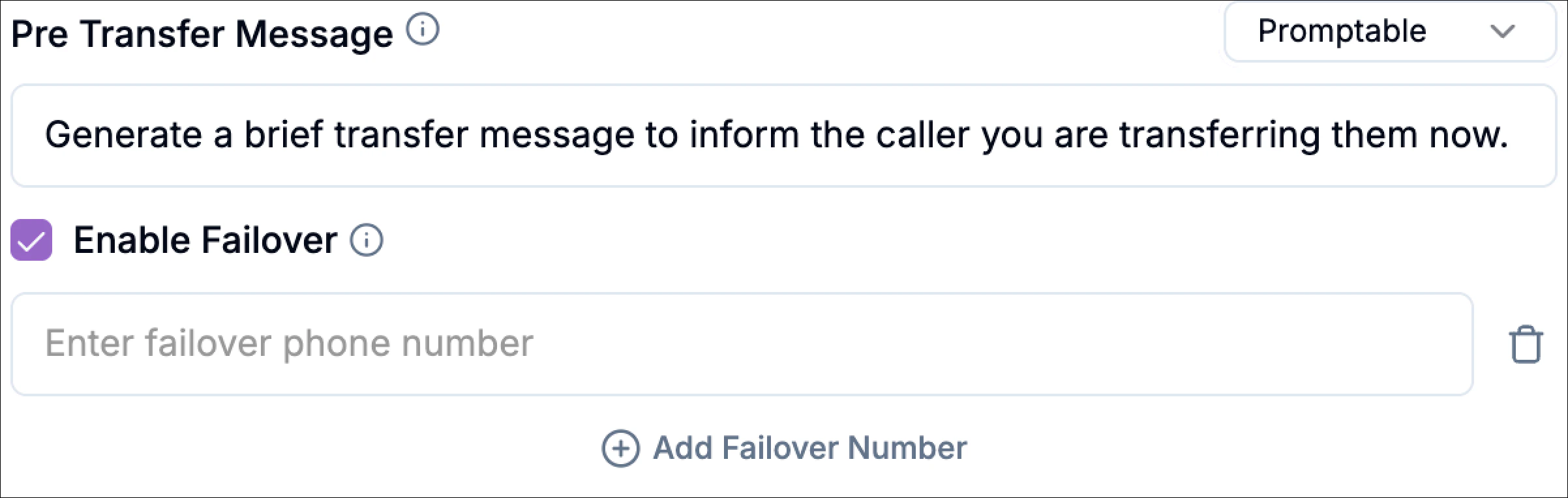
 **Pre Transfer Message (Inbound)**
This is the message spoken to the **caller** before the transfer starts.
You can set it to:
* **Fixed** (consistent wording every time)\
Example: “Please hold while I connect you to support.”
* **Promptable** (Phonely generates a brief message from your prompt)\
Example prompt: “Generate a brief transfer message to inform the caller you are transferring them now.”
**Enable Failover (Optional)**
Enable **Failover** if you want automatic retries when the primary number fails.
When enabled:
* If the first number doesn’t answer, the system will try the failover numbers in order until one succeeds.
Use this when you don’t want callers to hit dead ends during escalation (for example, route to another rep, then a manager, then a shared line).
To add backup numbers, enable **Enable Failover**, then click **Add Failover Number**.
**Pre Transfer Message (Inbound)**
This is the message spoken to the **caller** before the transfer starts.
You can set it to:
* **Fixed** (consistent wording every time)\
Example: “Please hold while I connect you to support.”
* **Promptable** (Phonely generates a brief message from your prompt)\
Example prompt: “Generate a brief transfer message to inform the caller you are transferring them now.”
**Enable Failover (Optional)**
Enable **Failover** if you want automatic retries when the primary number fails.
When enabled:
* If the first number doesn’t answer, the system will try the failover numbers in order until one succeeds.
Use this when you don’t want callers to hit dead ends during escalation (for example, route to another rep, then a manager, then a shared line).
To add backup numbers, enable **Enable Failover**, then click **Add Failover Number**.
 **Add Transfer Destination**
Click **Add Transfer Destination** to define additional departments/people (for example Sales + Support), each with its own condition, number, and message.
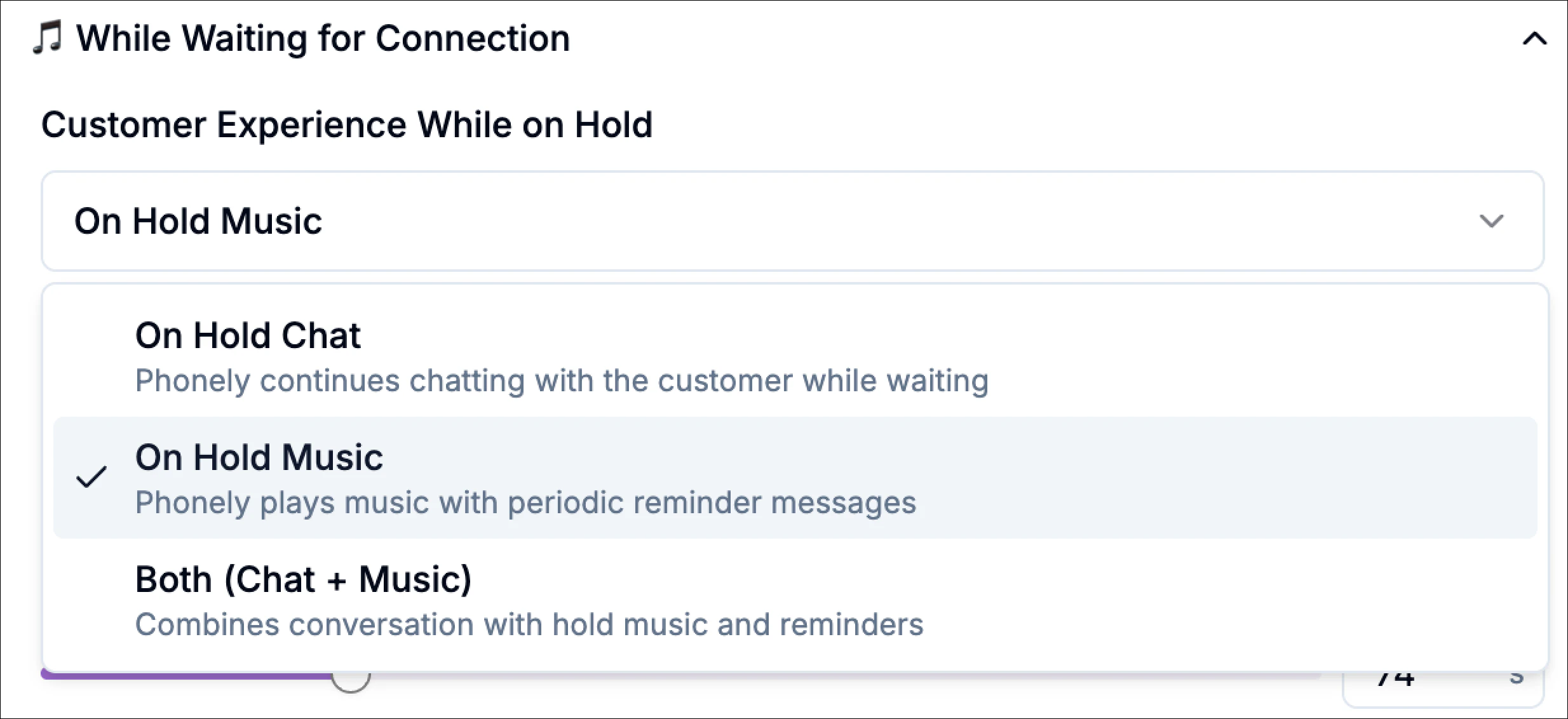
Warm transfers often require a few seconds while Phonely connects to the recipient. The **While Waiting for Connection** section controls what the caller experiences during that wait.
Under **Customer Experience While on Hold**, choose one option:
* **On** **Hold** **Chat**: Phonely continues chatting with the caller while waiting.
* **On** **Hold** **Music**: Phonely plays hold music with periodic reminder messages.
* **Both** (**Chat + Music**): Combines conversation with hold music and reminders.
If you choose **On Hold Music**, configure:
**Add Transfer Destination**
Click **Add Transfer Destination** to define additional departments/people (for example Sales + Support), each with its own condition, number, and message.
Warm transfers often require a few seconds while Phonely connects to the recipient. The **While Waiting for Connection** section controls what the caller experiences during that wait.
Under **Customer Experience While on Hold**, choose one option:
* **On** **Hold** **Chat**: Phonely continues chatting with the caller while waiting.
* **On** **Hold** **Music**: Phonely plays hold music with periodic reminder messages.
* **Both** (**Chat + Music**): Combines conversation with hold music and reminders.
If you choose **On Hold Music**, configure:
 **Reminder Message**
This is the message played periodically to remind the caller they’re still being connected.
You can set it to:
Fixed example:“Thanks for holding. We’re still connecting you.”
Promptable example prompt: “Generate a brief 3–5 words reminder message to let the caller know you are still working on connecting them.”
**Reminder Frequency**
Controls how often the reminder message plays (in seconds).
Example: every **20 seconds**.
This section controls how Phonely behaves once the outbound destination picks up, this is the “warm” part of the warm transfer.
#### **Ask Outbound Leg for Permission (Optional)**
Enable this if you want the recipient to explicitly accept the transfer before the caller is bridged in.
When enabled, your outbound prompt should be a clear yes/no request, for example:\
“Say **yes** if you can take this call now.”
This is useful when you want to avoid dumping calls onto a busy rep.
**Reminder Message**
This is the message played periodically to remind the caller they’re still being connected.
You can set it to:
Fixed example:“Thanks for holding. We’re still connecting you.”
Promptable example prompt: “Generate a brief 3–5 words reminder message to let the caller know you are still working on connecting them.”
**Reminder Frequency**
Controls how often the reminder message plays (in seconds).
Example: every **20 seconds**.
This section controls how Phonely behaves once the outbound destination picks up, this is the “warm” part of the warm transfer.
#### **Ask Outbound Leg for Permission (Optional)**
Enable this if you want the recipient to explicitly accept the transfer before the caller is bridged in.
When enabled, your outbound prompt should be a clear yes/no request, for example:\
“Say **yes** if you can take this call now.”
This is useful when you want to avoid dumping calls onto a busy rep.
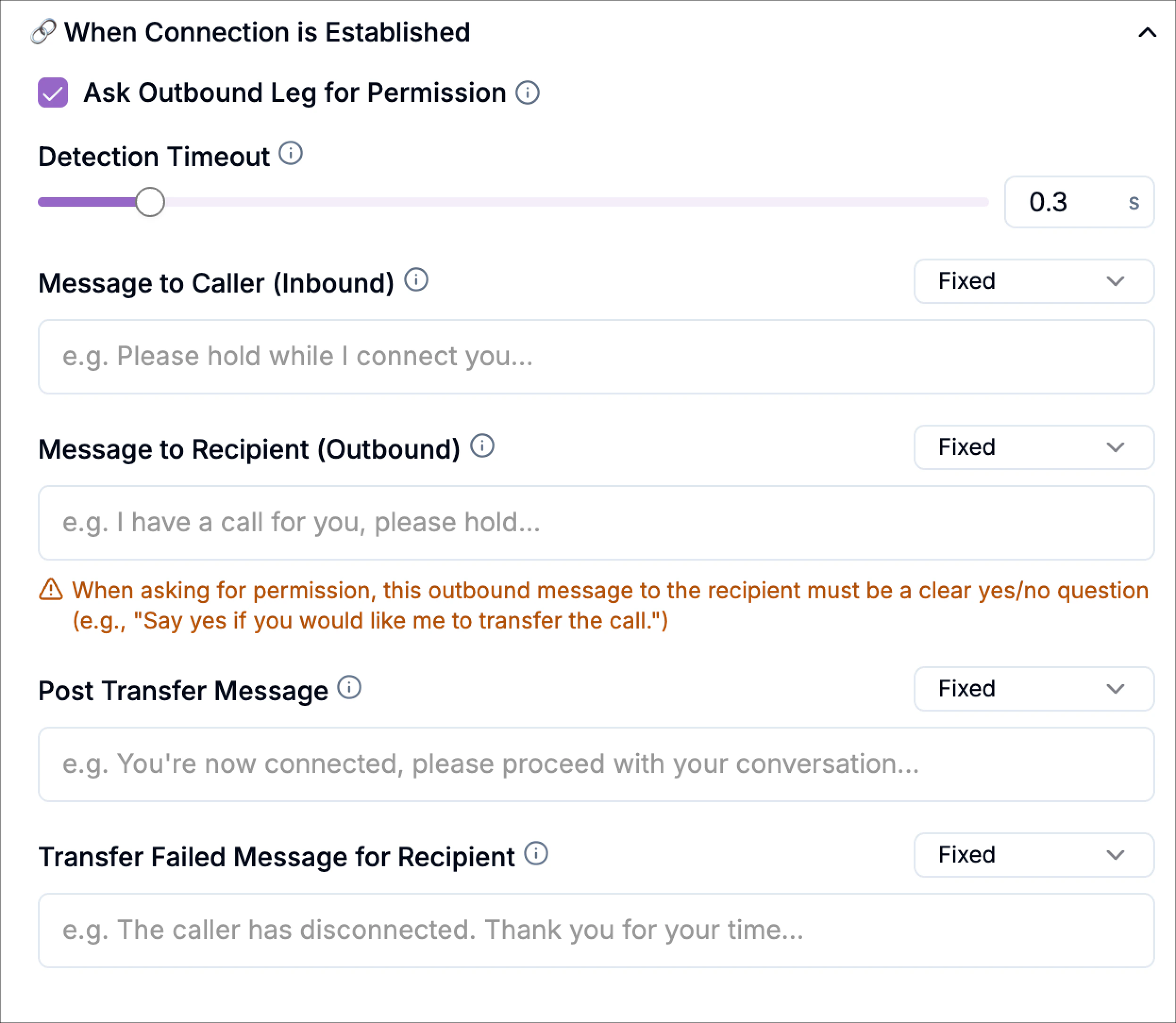 #### **Detection Timeout**
Controls how long Phonely waits to detect what answered on the outbound side (human, voicemail, or IVR). Lower values detect faster; higher values may be more reliable in noisy environments.
#### **Message to Caller (Inbound)**
Message played to the caller once a human is detected (before the bridge happens).\
Example: “Great, I’ve reached someone, connecting you now.”
#### **Message to Recipient (Outbound)**
Message played to the recipient after a human is detected, typically a short handoff summary.\
Example: “I have a customer asking for support with their account. I’m connecting them now.”
#### **Post Transfer Message**
Message played to both parties right after the bridge (before Phonely disconnects).\
Example: “You’re both connected now. I’ll drop off.”
#### **Warm Transfer Attempt Duration**
This controls the maximum time (in seconds) Phonely will attempt to complete the warm transfer before it times out.
Use a shorter duration when you want fast routing; use a longer duration when your recipients often take time to answer.
#### **Detection Timeout**
Controls how long Phonely waits to detect what answered on the outbound side (human, voicemail, or IVR). Lower values detect faster; higher values may be more reliable in noisy environments.
#### **Message to Caller (Inbound)**
Message played to the caller once a human is detected (before the bridge happens).\
Example: “Great, I’ve reached someone, connecting you now.”
#### **Message to Recipient (Outbound)**
Message played to the recipient after a human is detected, typically a short handoff summary.\
Example: “I have a customer asking for support with their account. I’m connecting them now.”
#### **Post Transfer Message**
Message played to both parties right after the bridge (before Phonely disconnects).\
Example: “You’re both connected now. I’ll drop off.”
#### **Warm Transfer Attempt Duration**
This controls the maximum time (in seconds) Phonely will attempt to complete the warm transfer before it times out.
Use a shorter duration when you want fast routing; use a longer duration when your recipients often take time to answer.
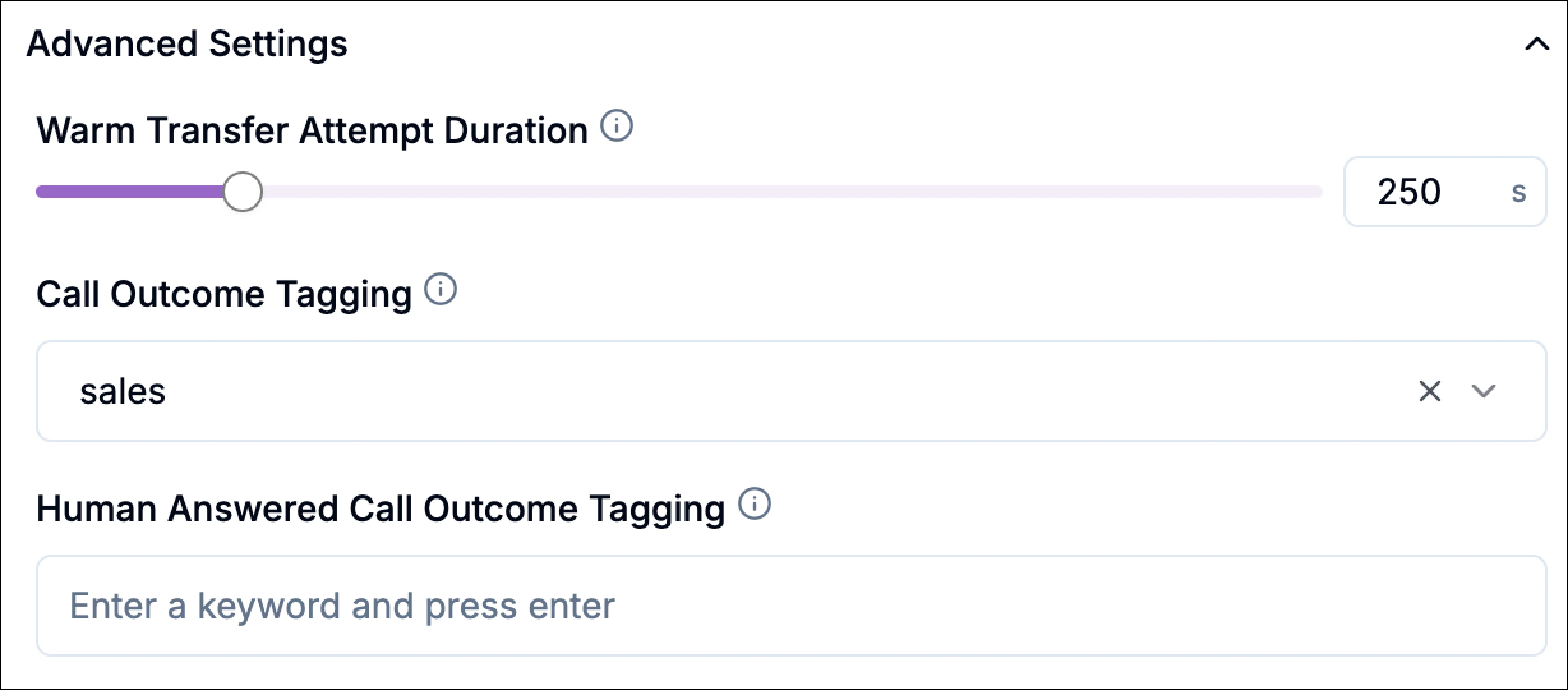 #### **Call Outcome Tagging**
Select an existing outcome or type a custom one to categorize the transfer for analytics.
Examples:
* `warm_transfer_support`
* `warm_transfer_sales`
* `warm_transfer_escalation`
#### **Human Answered Call Outcome Tagging**
Add tags specifically when a human answers.
* `human_answered_support`
* `human_answered_sales`
* `handoff_success`
This helps you distinguish “transfer attempted” from “transfer successfully connected to a person.”
After you finish setup and on transfer, the final step is routing.
This section controls what Phonely should do when the outbound number does not connect cleanly to a human, especially when the destination is an IVR menu or voicemail.
In short, routing defines how Phonely behaves when it reaches the destination phone system.
In the **Routing** tab for warm transfer, you can configure:
* IVR Detection
* IVR Detection Prompt
* Voicemail Detection
These settings help you decide whether Phonely should continue the transfer attempt, interact with an IVR, or exit when voicemail/IVR is detected.
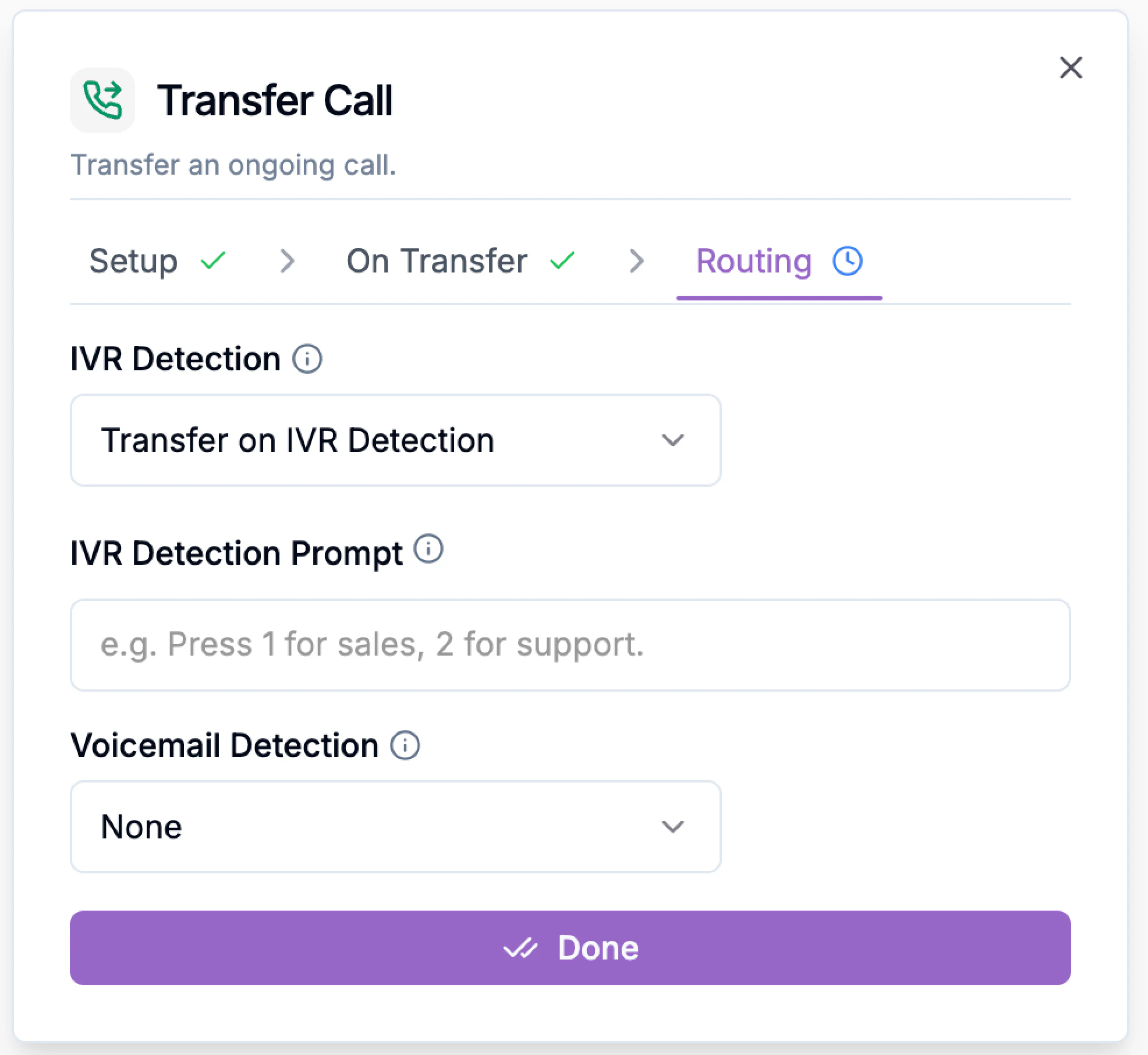
### **1) IVR Detection**
IVR Detection tells Phonely what to do if the transfer destination answers with an automated phone menu (Interactive Voice Response), such as:
* “Press 1 for Sales”
Available options
* None
* Transfer on IVR Detection
* Exit on IVR Detection
#### **Call Outcome Tagging**
Select an existing outcome or type a custom one to categorize the transfer for analytics.
Examples:
* `warm_transfer_support`
* `warm_transfer_sales`
* `warm_transfer_escalation`
#### **Human Answered Call Outcome Tagging**
Add tags specifically when a human answers.
* `human_answered_support`
* `human_answered_sales`
* `handoff_success`
This helps you distinguish “transfer attempted” from “transfer successfully connected to a person.”
After you finish setup and on transfer, the final step is routing.
This section controls what Phonely should do when the outbound number does not connect cleanly to a human, especially when the destination is an IVR menu or voicemail.
In short, routing defines how Phonely behaves when it reaches the destination phone system.
In the **Routing** tab for warm transfer, you can configure:
* IVR Detection
* IVR Detection Prompt
* Voicemail Detection
These settings help you decide whether Phonely should continue the transfer attempt, interact with an IVR, or exit when voicemail/IVR is detected.
### **1) IVR Detection**
IVR Detection tells Phonely what to do if the transfer destination answers with an automated phone menu (Interactive Voice Response), such as:
* “Press 1 for Sales”
Available options
* None
* Transfer on IVR Detection
* Exit on IVR Detection
 **None**
Phonely does not apply a special IVR handling behavior.
Use this when:
* you expect a direct human answer,
* or the destination line is a direct extension/cell phone.
**Transfer on IVR Detection**
Phonely proceeds when an IVR is detected (used with an IVR prompt so it can navigate the menu).
Use this when:
* the destination number is a company line with a menu,
* and you want Phonely to handle that menu instead of failing the transfer.
You set:
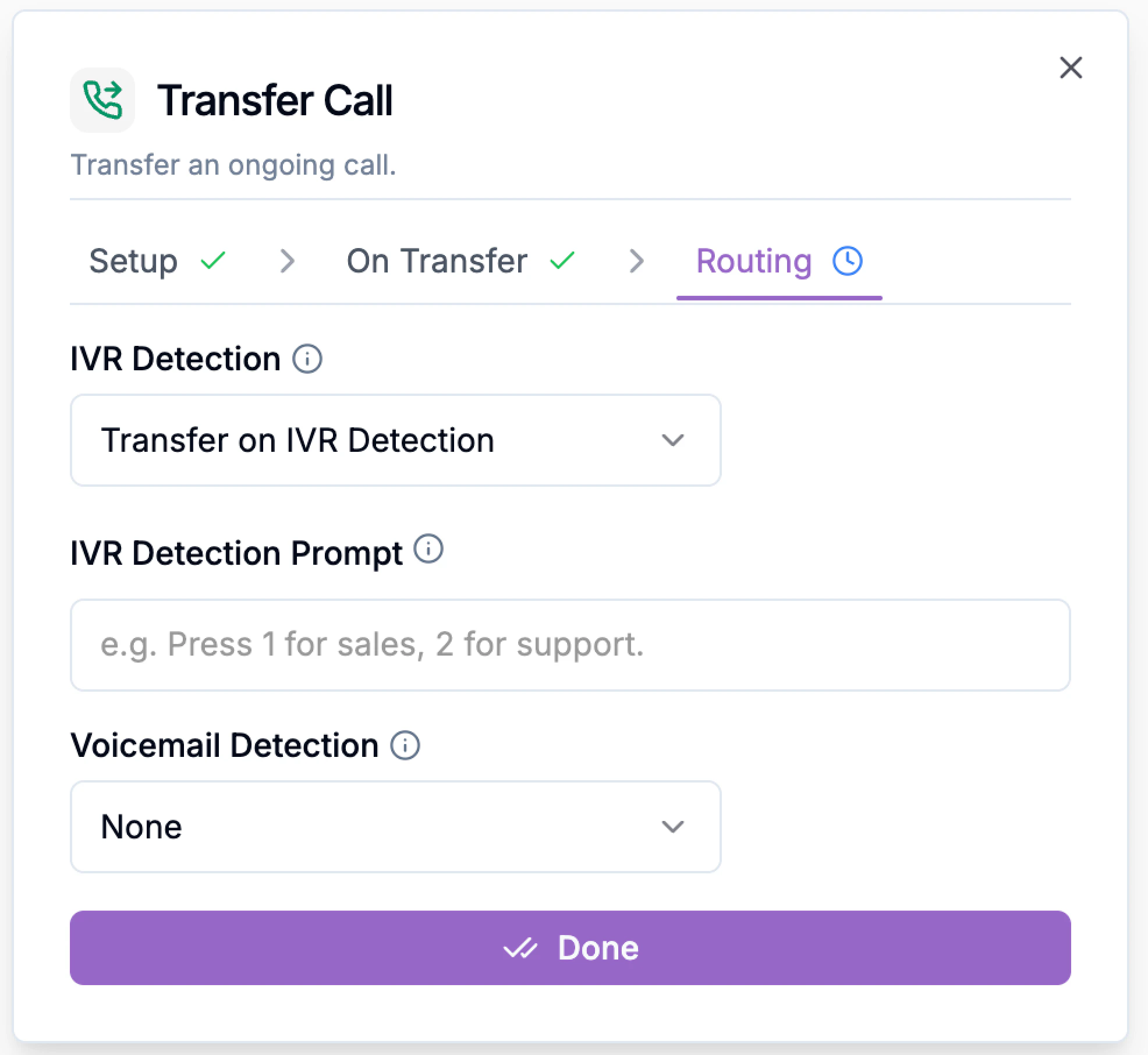
* **IVR Detection:** Transfer on IVR Detection
* **IVR Detection Prompt:** `Press 2 for technical support`
This allows Phonely to continue the transfer flow through the IVR.
When IVR handling is enabled, you can provide an IVR Detection Prompt.
This field tells Phonely how to navigate the menu it hears. Use a short instruction that matches the destination’s menu path.
Without a clear IVR prompt, Phonely may detect an IVR but not know how to proceed to the correct destination.
**None**
Phonely does not apply a special IVR handling behavior.
Use this when:
* you expect a direct human answer,
* or the destination line is a direct extension/cell phone.
**Transfer on IVR Detection**
Phonely proceeds when an IVR is detected (used with an IVR prompt so it can navigate the menu).
Use this when:
* the destination number is a company line with a menu,
* and you want Phonely to handle that menu instead of failing the transfer.
You set:
* **IVR Detection:** Transfer on IVR Detection
* **IVR Detection Prompt:** `Press 2 for technical support`
This allows Phonely to continue the transfer flow through the IVR.
When IVR handling is enabled, you can provide an IVR Detection Prompt.
This field tells Phonely how to navigate the menu it hears. Use a short instruction that matches the destination’s menu path.
Without a clear IVR prompt, Phonely may detect an IVR but not know how to proceed to the correct destination.
 This is especially useful when:
* you are transferring to a shared business line,
* the menu is predictable,
* and you want the warm transfer to still reach the intended team.
**Exit on IVR Detection**
Phonely stops the transfer attempt when an IVR is detected.
Use this when:
* you only want to transfer to a live person directly,
* and automated menus are considered a failed transfer path.
**Example:**\
You are routing VIP calls to an account manager’s direct line. If that line forwards to a company IVR after hours, you may not want the caller trapped in a phone tree.\
Set **Exit on IVR Detection** so the flow can return and handle the caller with a fallback message.
### 2) Voicemail Detection
Voicemail Detection tells Phonely what to do if the destination line reaches voicemail instead of a person.
Options include:
* **None**
* **Exit on Voicemail Detection**
This is especially useful when:
* you are transferring to a shared business line,
* the menu is predictable,
* and you want the warm transfer to still reach the intended team.
**Exit on IVR Detection**
Phonely stops the transfer attempt when an IVR is detected.
Use this when:
* you only want to transfer to a live person directly,
* and automated menus are considered a failed transfer path.
**Example:**\
You are routing VIP calls to an account manager’s direct line. If that line forwards to a company IVR after hours, you may not want the caller trapped in a phone tree.\
Set **Exit on IVR Detection** so the flow can return and handle the caller with a fallback message.
### 2) Voicemail Detection
Voicemail Detection tells Phonely what to do if the destination line reaches voicemail instead of a person.
Options include:
* **None**
* **Exit on Voicemail Detection**
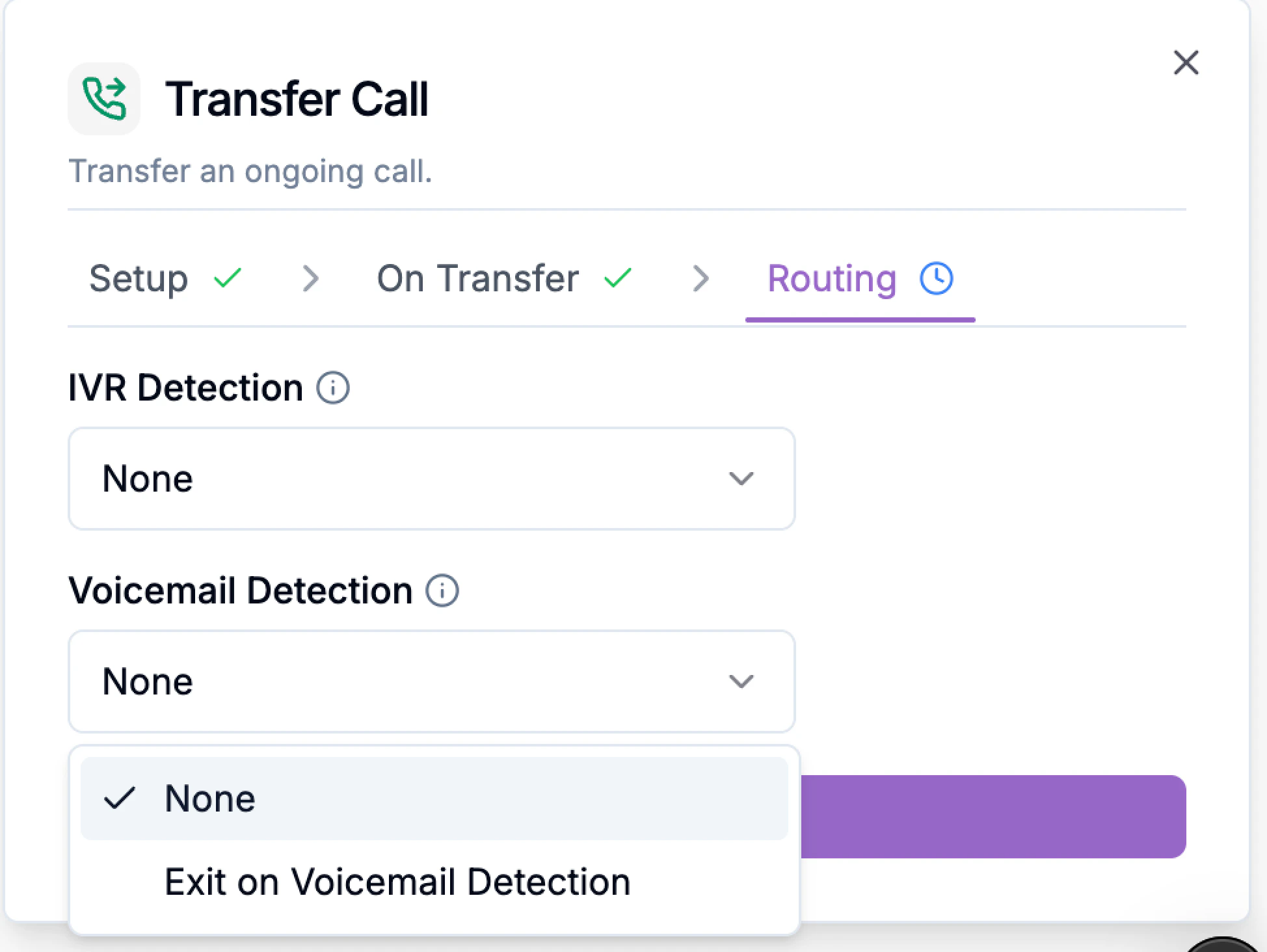 **None**
Phonely does not apply a special voicemail exit behavior.
**Exit on Voicemail Detection**
Phonely exits the transfer attempt when voicemail is detected.
Use this when you do **not** want callers sent to voicemail.\
For urgent support calls, you may want:
* **Voicemail Detection:** Exit on Voicemail Detection\
So the caller is not dropped into a mailbox. Instead, Phonely can continue with a fallback path like:
> “No one is available right now. I can schedule a callback or take a message.”
Click **Done** to finish your setup.
**None**
Phonely does not apply a special voicemail exit behavior.
**Exit on Voicemail Detection**
Phonely exits the transfer attempt when voicemail is detected.
Use this when you do **not** want callers sent to voicemail.\
For urgent support calls, you may want:
* **Voicemail Detection:** Exit on Voicemail Detection\
So the caller is not dropped into a mailbox. Instead, Phonely can continue with a fallback path like:
> “No one is available right now. I can schedule a callback or take a message.”
Click **Done** to finish your setup.