> ## Documentation Index
> Fetch the complete documentation index at: https://docs.phonely.ai/llms.txt
> Use this file to discover all available pages before exploring further.
# API Request
> Make HTTP requests to external services and integrate with your existing systems
The API Request block allows your Phonely agent to communicate with external systems in real time. It enables your AI agent to send data to, or retrieve data from, third-party services while a call is in progress.
This is commonly used for tasks such as creating CRM records, checking availability, triggering webhooks, sending notifications, or syncing call data with internal systems.
 ## How it Works
The API Request block acts as a bridge between Phonely and external applications.
You can use it to:
* Send caller data such as names, phone numbers, emails, or custom variables to another system
* Retrieve information like order status, appointment availability, or account details
* Trigger automations in tools like Zapier, Make, Slack, or internal APIs
* Execute webhooks during or after a call
Phonely supports standard REST APIs and allows you to configure requests either by importing a cURL command or building the request manually.
## How to Use it
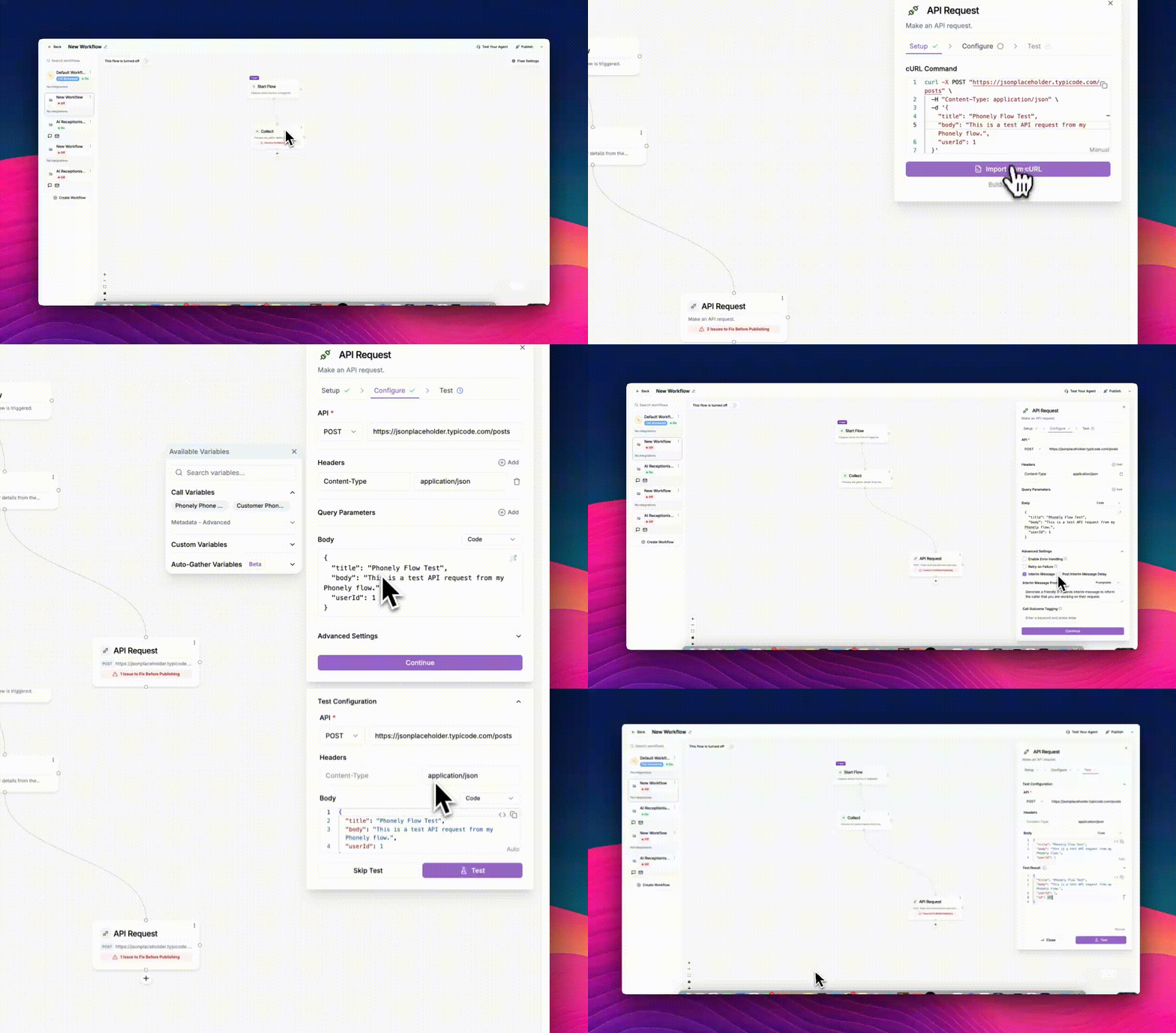
In your Flow Editor, locate the block where the API call should occur, then click the ➕ (plus) icon.
To add an API Request block:
1. Open your Flow Editor.
2. Locate the point in the flow where the API interaction should occur.
3. Click the **➕ (plus)** icon beneath or beside an existing block.
4. Under **Actions**, select **API Request**.
A new block labeled **API Request** will appear on your canvas.
## How it Works
The API Request block acts as a bridge between Phonely and external applications.
You can use it to:
* Send caller data such as names, phone numbers, emails, or custom variables to another system
* Retrieve information like order status, appointment availability, or account details
* Trigger automations in tools like Zapier, Make, Slack, or internal APIs
* Execute webhooks during or after a call
Phonely supports standard REST APIs and allows you to configure requests either by importing a cURL command or building the request manually.
## How to Use it
In your Flow Editor, locate the block where the API call should occur, then click the ➕ (plus) icon.
To add an API Request block:
1. Open your Flow Editor.
2. Locate the point in the flow where the API interaction should occur.
3. Click the **➕ (plus)** icon beneath or beside an existing block.
4. Under **Actions**, select **API Request**.
A new block labeled **API Request** will appear on your canvas.
 ## Setup
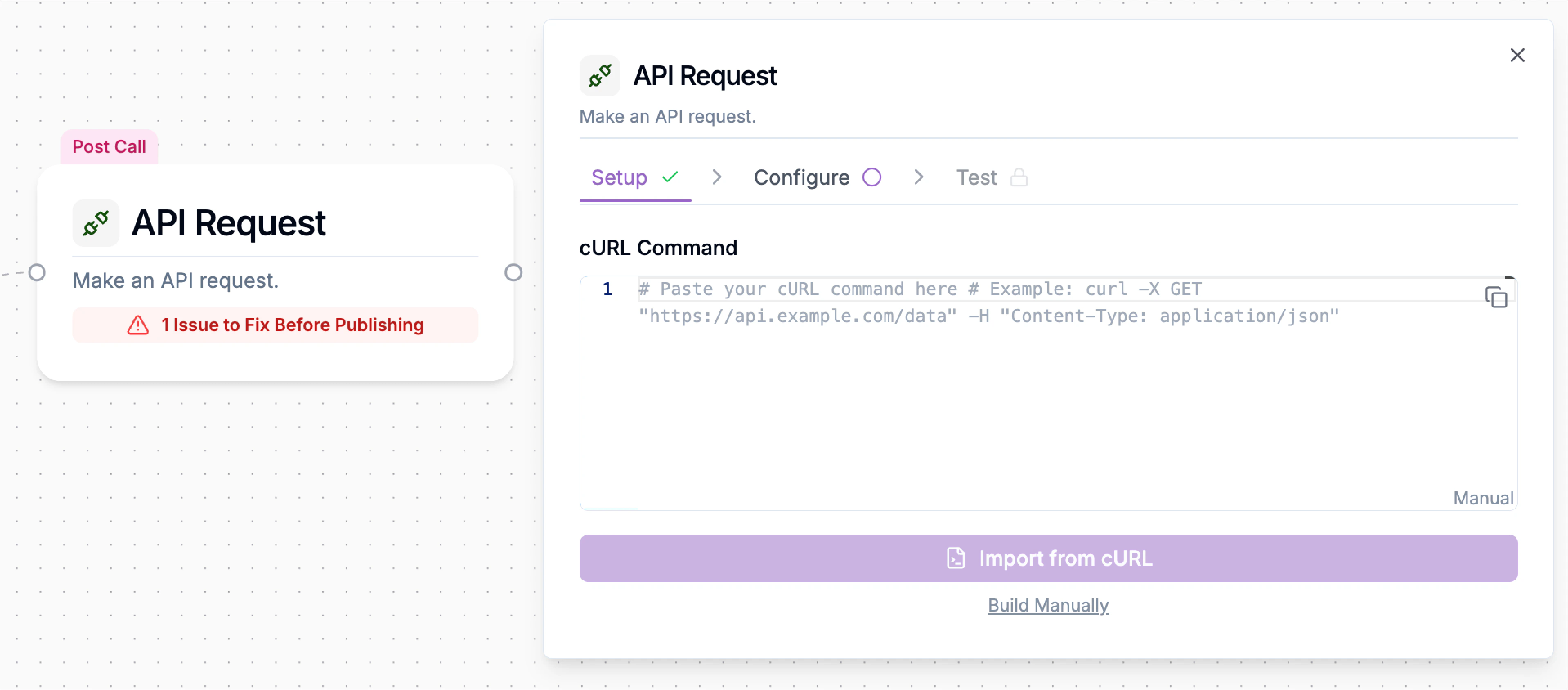
When you open the block, you’ll see two ways to define your API request:
### Option 1: Import from cURL
If you already have a cURL command (for example, from Postman or API documentation):
1. Paste the full cURL command into the **cURL Command** field.
2. Click **Import from cURL**. Phonely automatically extracts the method, endpoint, headers, and body.
Example:
```text theme={null}
curl -X POST "https://jsonplaceholder.typicode.com/posts" \
-H "Content-Type: application/json" \
-d '{
"title": "Phonely Flow Test",
"body": "This is a test API request from my Phonely flow.",
"userId": 1
}'
```
After import, Phonely converts this into structured fields in the configuration tab.
### Option 2: Build Manually
If you don’t have a cURL command, click **Build Manually**. You’ll then define all settings step by step in the **Configure** tab.
## Setup
When you open the block, you’ll see two ways to define your API request:
### Option 1: Import from cURL
If you already have a cURL command (for example, from Postman or API documentation):
1. Paste the full cURL command into the **cURL Command** field.
2. Click **Import from cURL**. Phonely automatically extracts the method, endpoint, headers, and body.
Example:
```text theme={null}
curl -X POST "https://jsonplaceholder.typicode.com/posts" \
-H "Content-Type: application/json" \
-d '{
"title": "Phonely Flow Test",
"body": "This is a test API request from my Phonely flow.",
"userId": 1
}'
```
After import, Phonely converts this into structured fields in the configuration tab.
### Option 2: Build Manually
If you don’t have a cURL command, click **Build Manually**. You’ll then define all settings step by step in the **Configure** tab.
 ## Configuration
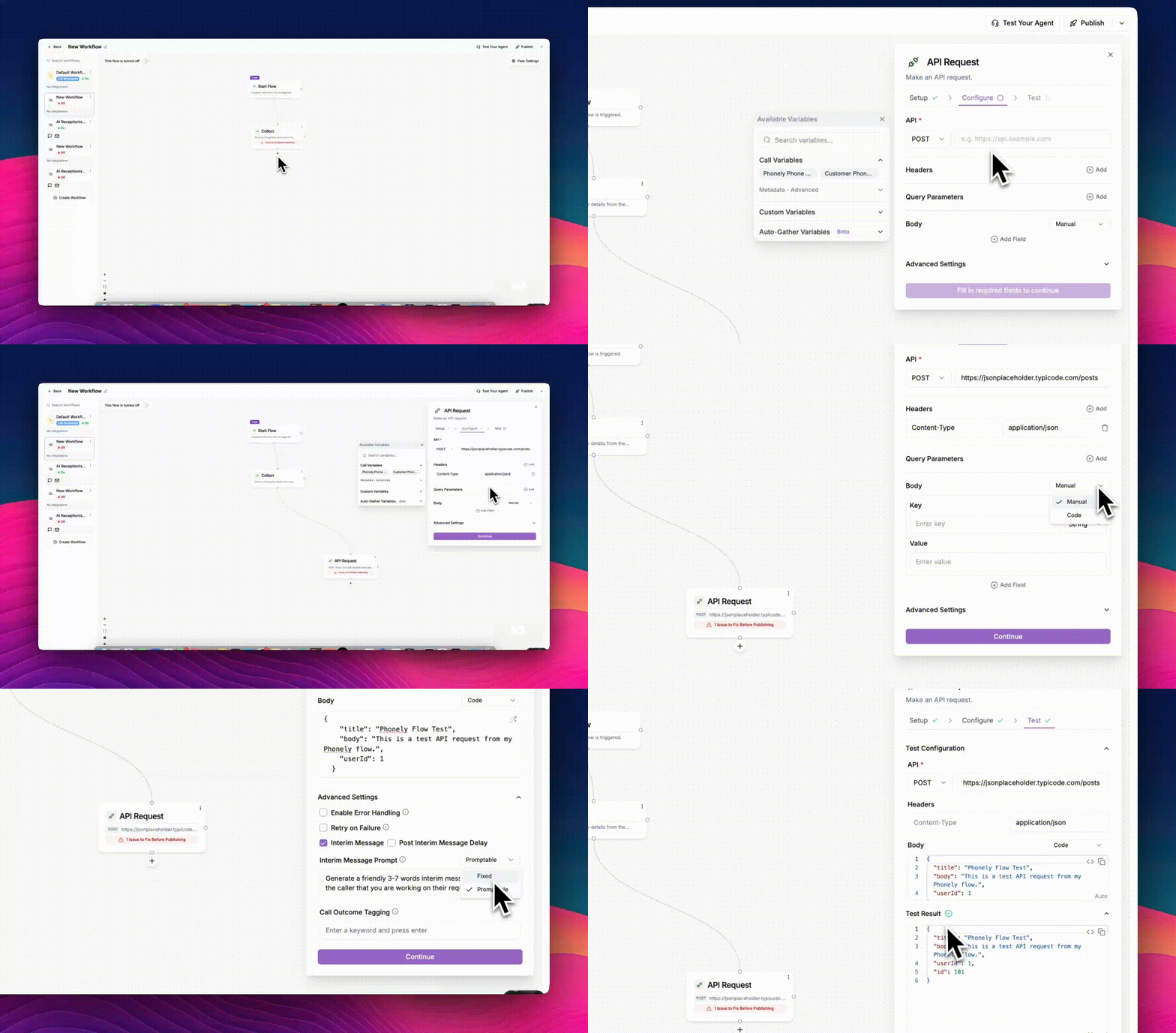
The **Configure** tab is where you define what your API request should do.
## Configuration
The **Configure** tab is where you define what your API request should do.
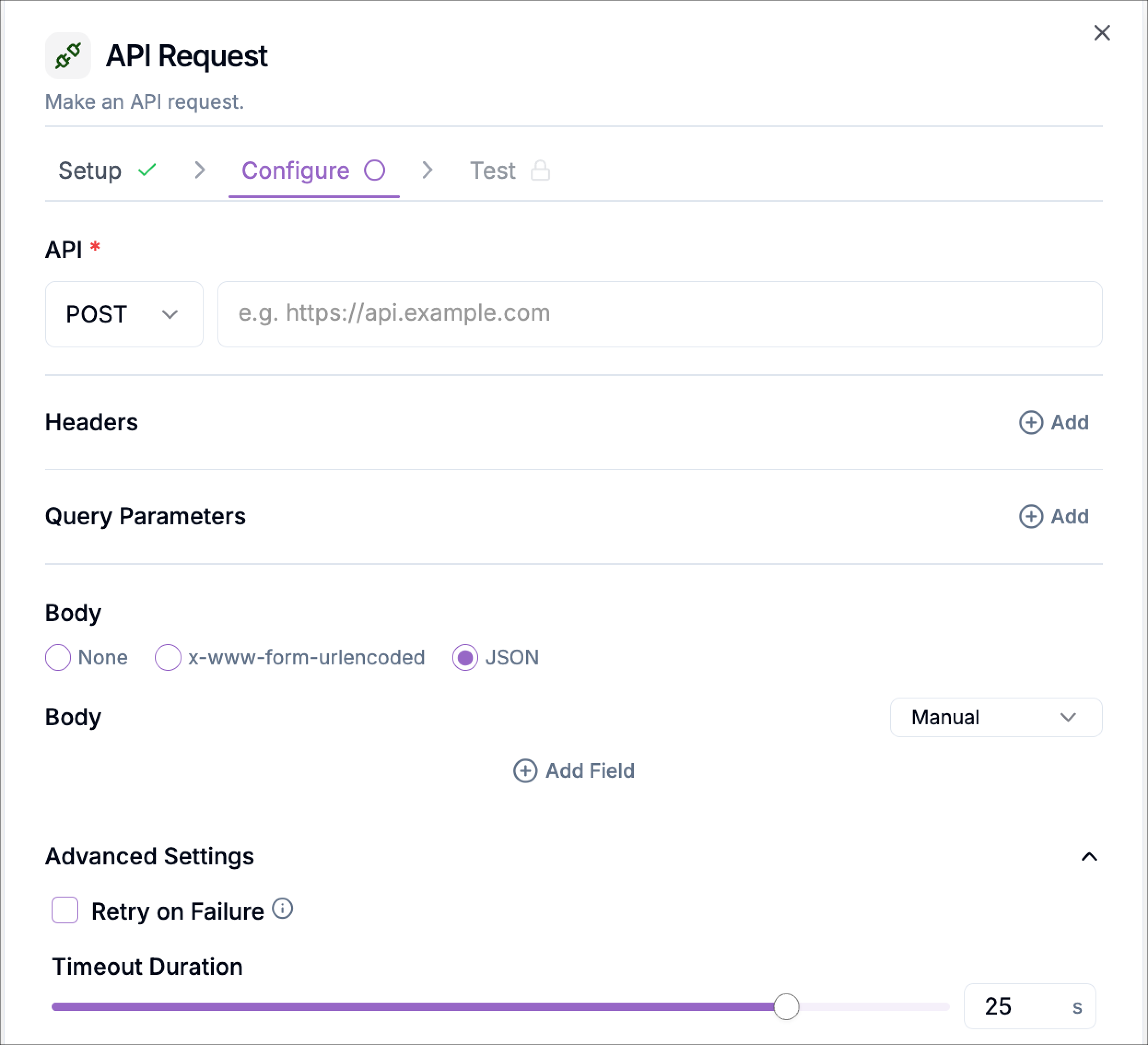 Select the type of request from the dropdown:
* `GET` – Retrieve data from a system.
* `POST` – Send new data.
* `PUT` or `PATCH`– Update an existing record.
* `DELETE` – Remove a resource.
> Example: Choose **POST** when sending call data to an external app.
Enter the endpoint where the request should go. This is the destination for your data.
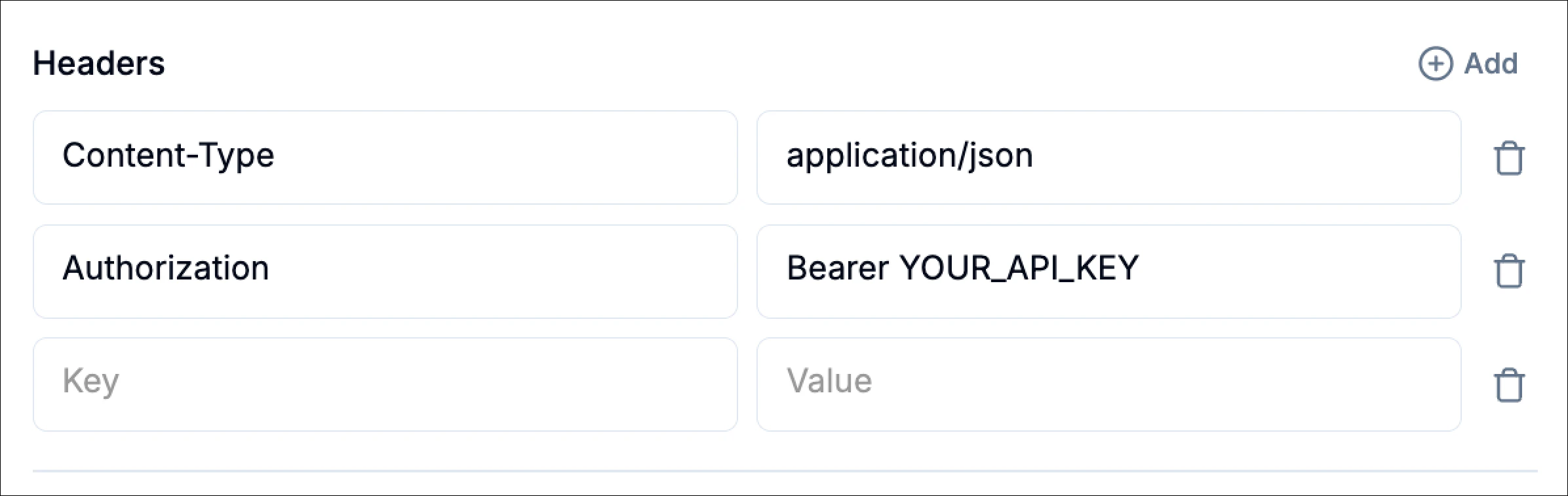
Headers define metadata or authentication details for your API call. Click **+ Add** to add key-value pairs such as:
Select the type of request from the dropdown:
* `GET` – Retrieve data from a system.
* `POST` – Send new data.
* `PUT` or `PATCH`– Update an existing record.
* `DELETE` – Remove a resource.
> Example: Choose **POST** when sending call data to an external app.
Enter the endpoint where the request should go. This is the destination for your data.
Headers define metadata or authentication details for your API call. Click **+ Add** to add key-value pairs such as:
 Select the type of request from the dropdown:
* `GET` – Retrieve data from a system.
* `POST` – Send new data (most common).
* `PUT` or `PATCH` – Update an existing record.
* `DELETE` – Remove a resource.
> Example: Choose **POST** when sending call data to an external app.
Always include `Content-Type: application/json` for JSON-based APIs.
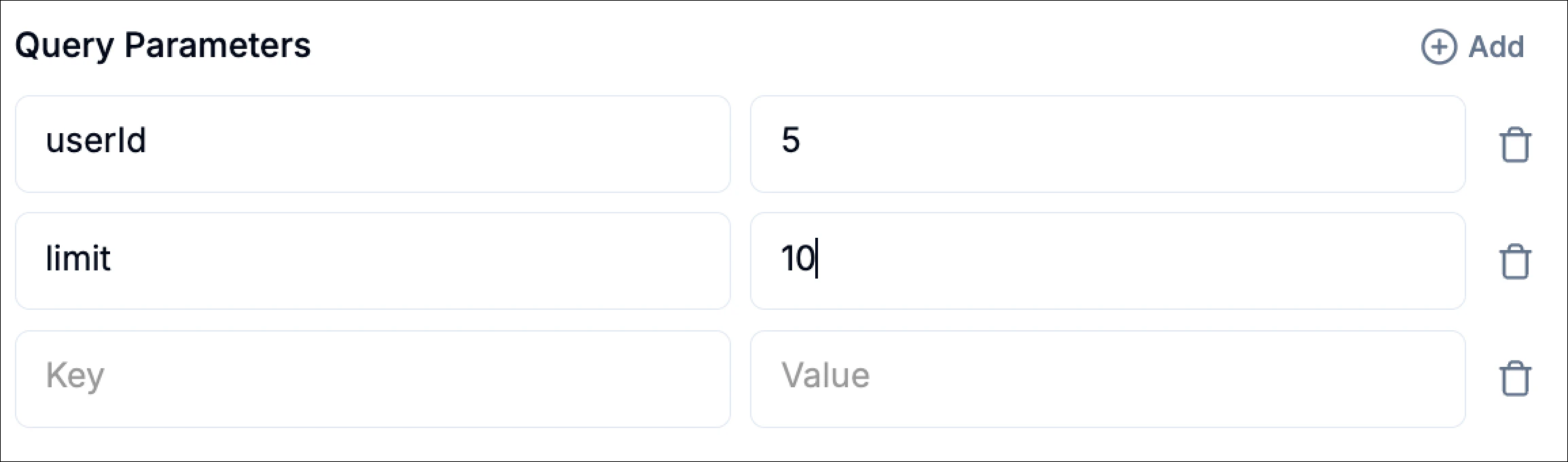
Use this if your API uses query strings in the URL (e.g., filtering or pagination).
Select the type of request from the dropdown:
* `GET` – Retrieve data from a system.
* `POST` – Send new data (most common).
* `PUT` or `PATCH` – Update an existing record.
* `DELETE` – Remove a resource.
> Example: Choose **POST** when sending call data to an external app.
Always include `Content-Type: application/json` for JSON-based APIs.
Use this if your API uses query strings in the URL (e.g., filtering or pagination).
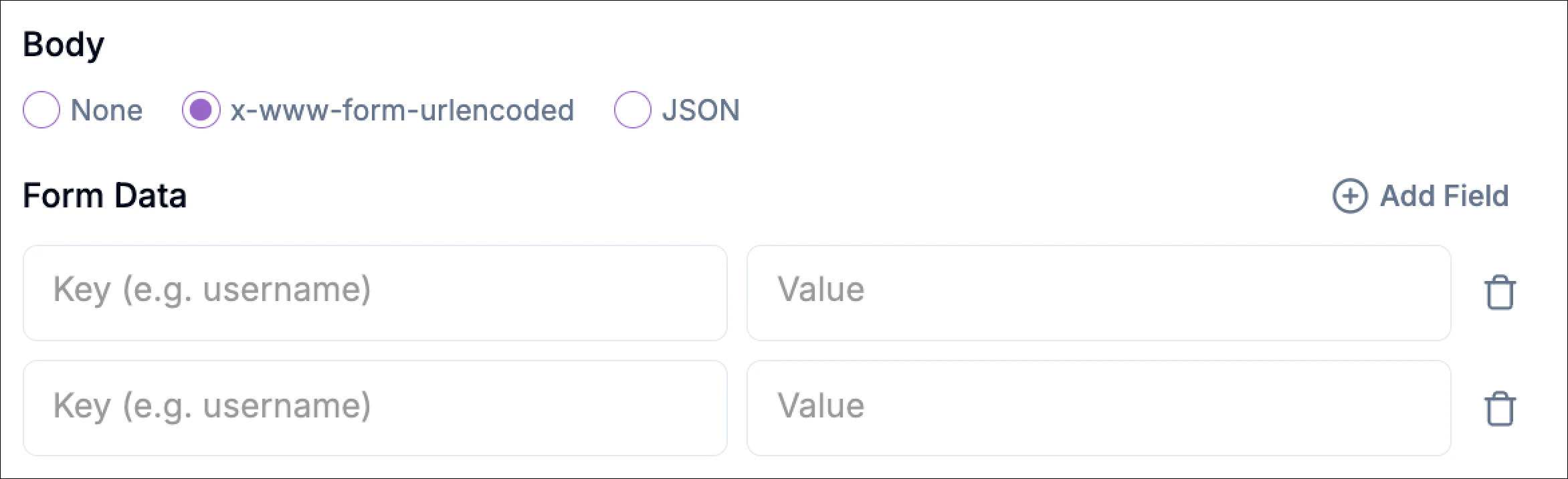
 For **POST**, **PUT**, or **PATCH** requests, you can define a request body. Phonely supports multiple body types, selectable directly in the UI.
Enter the endpoint where the request should go. This is the destination for your data.
#### Supported Body Types
**None**\
Use this when the request does not require a body.
Headers define metadata or authentication details for your API call. Click **+ Add** to add key-value pairs such as:
**x-www-form-urlencoded**\
Use this when the API expects traditional form data. Each key-value pair is sent as form data, commonly required by legacy systems or OAuth flows.
For **POST**, **PUT**, or **PATCH** requests, you can define a request body. Phonely supports multiple body types, selectable directly in the UI.
Enter the endpoint where the request should go. This is the destination for your data.
#### Supported Body Types
**None**\
Use this when the request does not require a body.
Headers define metadata or authentication details for your API call. Click **+ Add** to add key-value pairs such as:
**x-www-form-urlencoded**\
Use this when the API expects traditional form data. Each key-value pair is sent as form data, commonly required by legacy systems or OAuth flows.
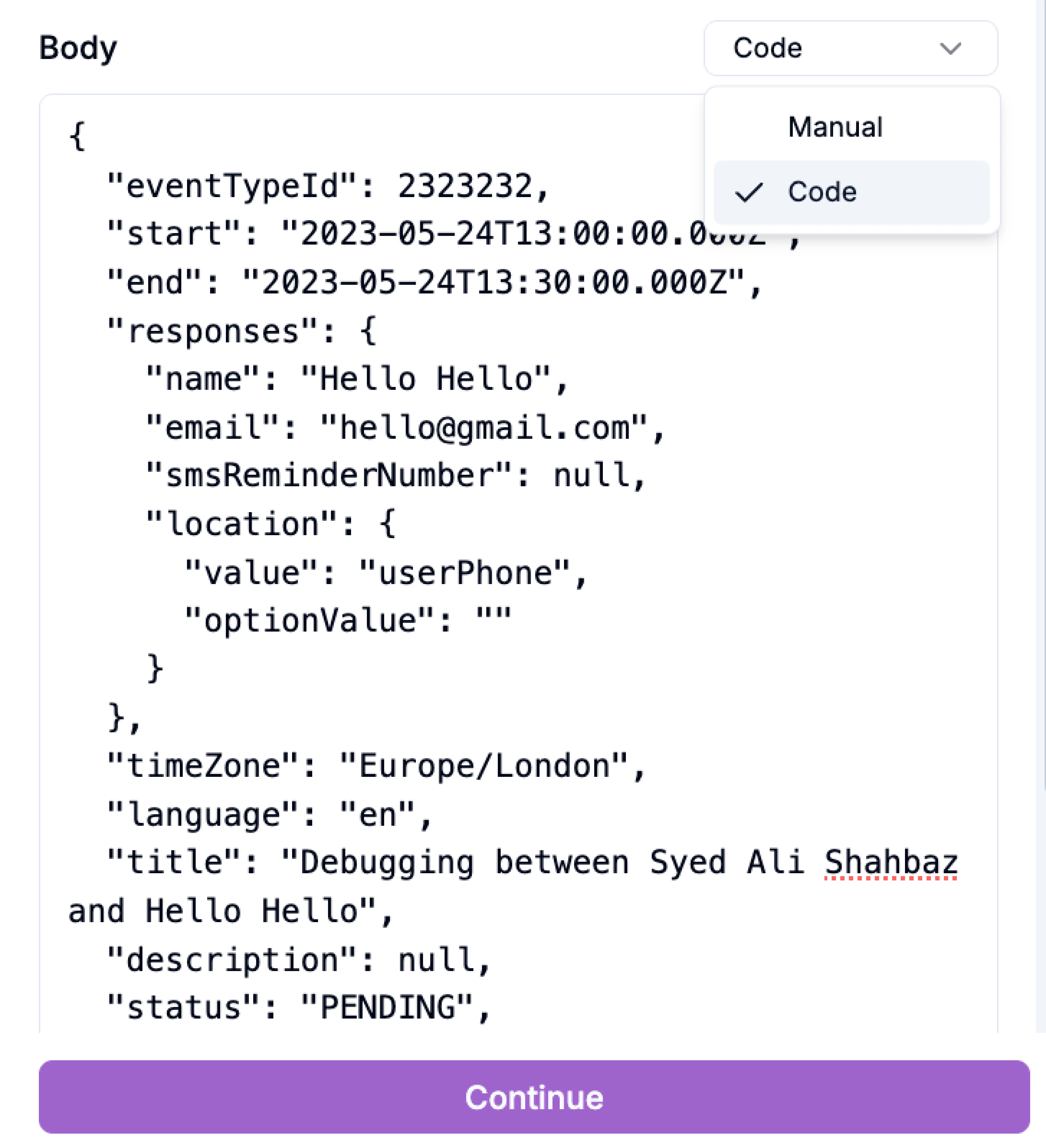
 **JSON**\
Use this when sending structured data in JSON format (most modern APIs).\
You can switch the editor to **Code** mode to write raw JSON directly.
**JSON**\
Use this when sending structured data in JSON format (most modern APIs).\
You can switch the editor to **Code** mode to write raw JSON directly.
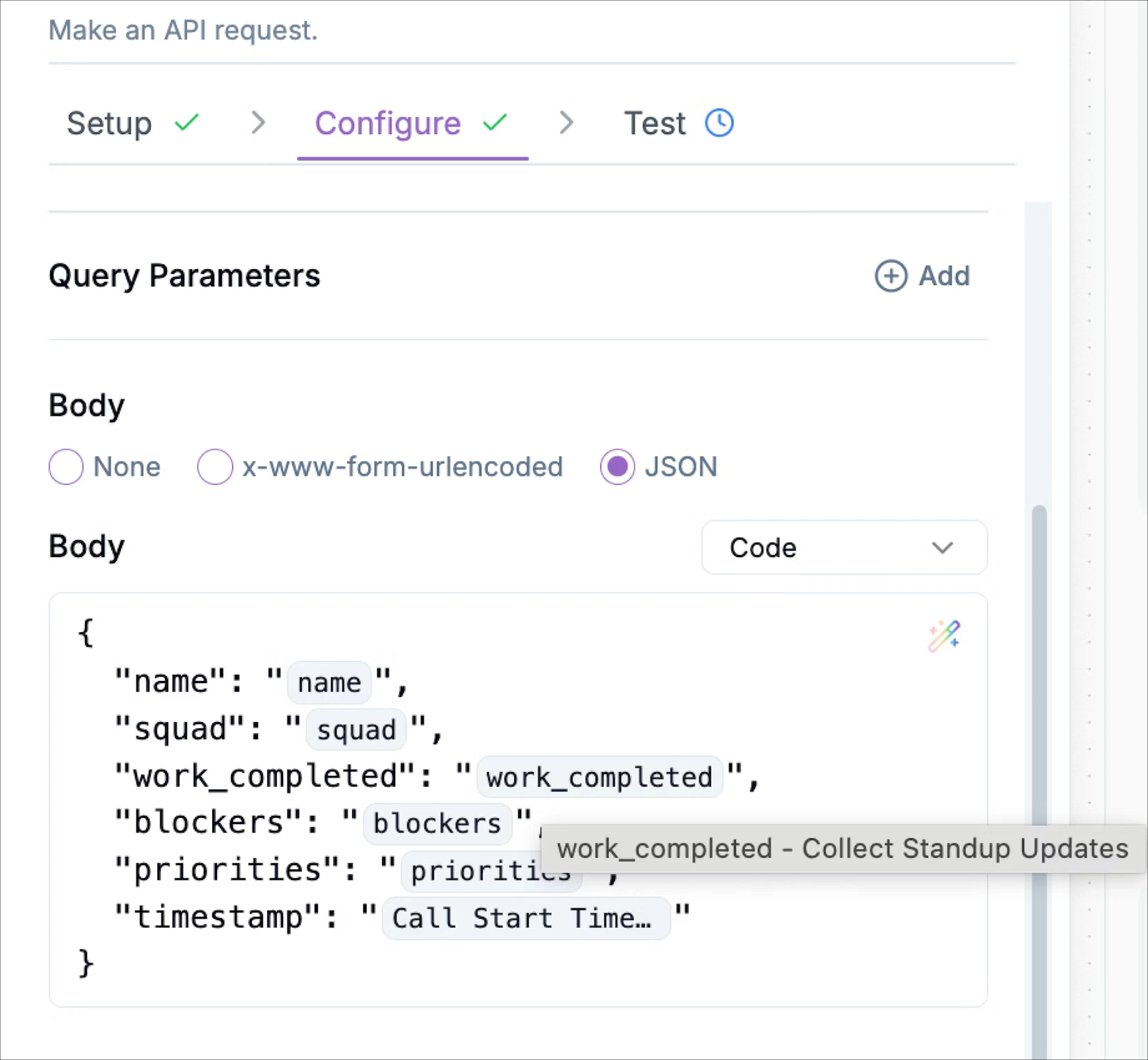
 You can make your API requests dynamic by inserting variables captured earlier in your flow. Type `@`to open the variable picker or select from available variables or auto-gather variables to include dynamic data in your request.
Click to expand this section. These options help control the flow behavior during API communication.
Example:
You can make your API requests dynamic by inserting variables captured earlier in your flow. Type `@`to open the variable picker or select from available variables or auto-gather variables to include dynamic data in your request.
Click to expand this section. These options help control the flow behavior during API communication.
Example:
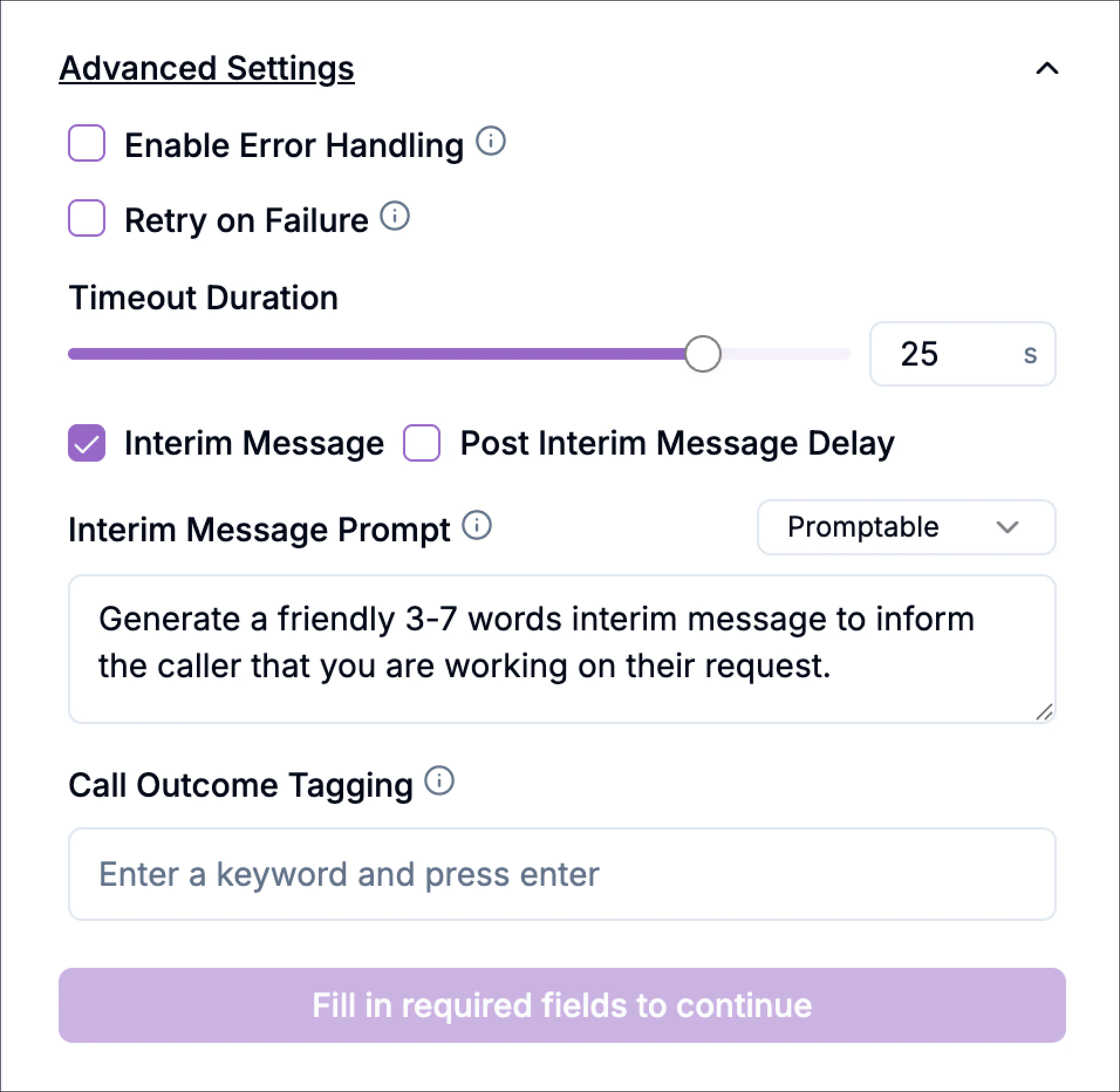 | **Setting** | **Description** |
| :----------------------------- | :------------------------------------------------------------------------------------ |
| **Enable Error Handling** | Lets you catch failed API calls and redirect the flow. |
| **Retry on Failure** | Retries automatically if the server doesn’t respond. |
| **Interim Message** | Sends a short message to the caller (e.g., “Please hold while I send your request.”). |
| **Post Interim Message Delay** | Adds a short pause after the interim message. |
| **Call Outcome Tagging** | Add labels for analytics or call reports (e.g., “api\_success” or “crm\_update”). |
Click **Continue** to save and move on to the **Test** step.
## Test Stage
Testing ensures your configuration works before you publish your flow.
1. Click **Test**.\
Phonely will send the request exactly as you configured.
2. The response will display instantly, showing whether it succeeded or failed.
If successful, you’ll see:
```text theme={null}
Status: 201 Created
```
If failed, you’ll get an error message explaining what went wrong (e.g., invalid URL, authentication error, or timeout).
When building workflows, you can now hover over API request and code block variables to instantly preview test data. This reduces debugging time and improves confidence before publishing flows
| **Setting** | **Description** |
| :----------------------------- | :------------------------------------------------------------------------------------ |
| **Enable Error Handling** | Lets you catch failed API calls and redirect the flow. |
| **Retry on Failure** | Retries automatically if the server doesn’t respond. |
| **Interim Message** | Sends a short message to the caller (e.g., “Please hold while I send your request.”). |
| **Post Interim Message Delay** | Adds a short pause after the interim message. |
| **Call Outcome Tagging** | Add labels for analytics or call reports (e.g., “api\_success” or “crm\_update”). |
Click **Continue** to save and move on to the **Test** step.
## Test Stage
Testing ensures your configuration works before you publish your flow.
1. Click **Test**.\
Phonely will send the request exactly as you configured.
2. The response will display instantly, showing whether it succeeded or failed.
If successful, you’ll see:
```text theme={null}
Status: 201 Created
```
If failed, you’ll get an error message explaining what went wrong (e.g., invalid URL, authentication error, or timeout).
When building workflows, you can now hover over API request and code block variables to instantly preview test data. This reduces debugging time and improves confidence before publishing flows
 ## Use cases for API Requests
| **Scenario** | **Action** | **Example Use Case** |
| :-------------- | :--------- | :---------------------------------------------- |
| CRM integration | POST | Send collected lead data to HubSpot or Zoho CRM |
| SMS gateway | POST | Send a text message via Twilio |
| Data lookup | GET | Fetch an order status or product info |
| Notification | POST | Trigger a Slack or Discord webhook |
| Ticket creation | POST | Create a support ticket in Zendesk or Freshdesk |
## Use cases for API Requests
| **Scenario** | **Action** | **Example Use Case** |
| :-------------- | :--------- | :---------------------------------------------- |
| CRM integration | POST | Send collected lead data to HubSpot or Zoho CRM |
| SMS gateway | POST | Send a text message via Twilio |
| Data lookup | GET | Fetch an order status or product info |
| Notification | POST | Trigger a Slack or Discord webhook |
| Ticket creation | POST | Create a support ticket in Zendesk or Freshdesk |