> ## Documentation Index
> Fetch the complete documentation index at: https://docs.phonely.ai/llms.txt
> Use this file to discover all available pages before exploring further.
# Talk
> Guide to creating and configuring Talk in Phonely workflows
Think of talk blocks as prompt blocks. Prompts are essentially a set of instructions or questions you give to an AI. Think of them as your AI's to-do list! The prompt tells the AI what to do and what information to gather. They provide a structured way to interact with AI models, enabling fine-grained control over conversational flow within the platform.
There are **two ways** to configure a Talk Block:
* **Generate with AI** – Phonely automatically generates the prompt, variables, and exit conditions for the block.
* **Build Manually** – You configure the Talk Block yourself by defining the prompt, exit conditions, and variables.
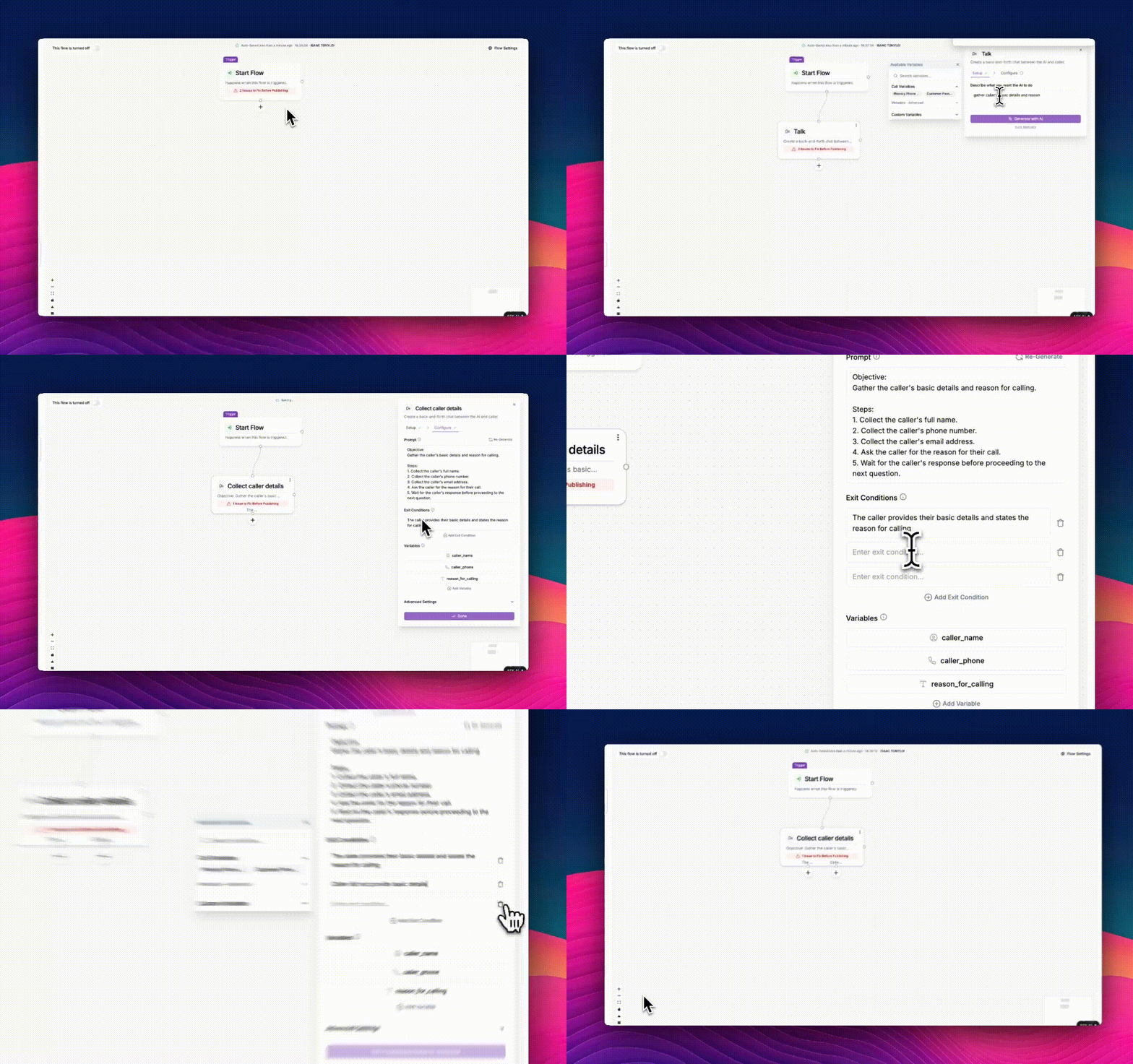
## Generate with AI
In the setup step, describe in plain language what you want the AI to do during this part of the conversation.
**Example:**
> “Greet the caller and ask for their name and phone number.”
When you generate the block with AI, Phonely automatically creates the prompt, exit conditions, and variables for you. After this, move to Configure to review the generated setup and make any adjustments if needed.
## Configure Manually
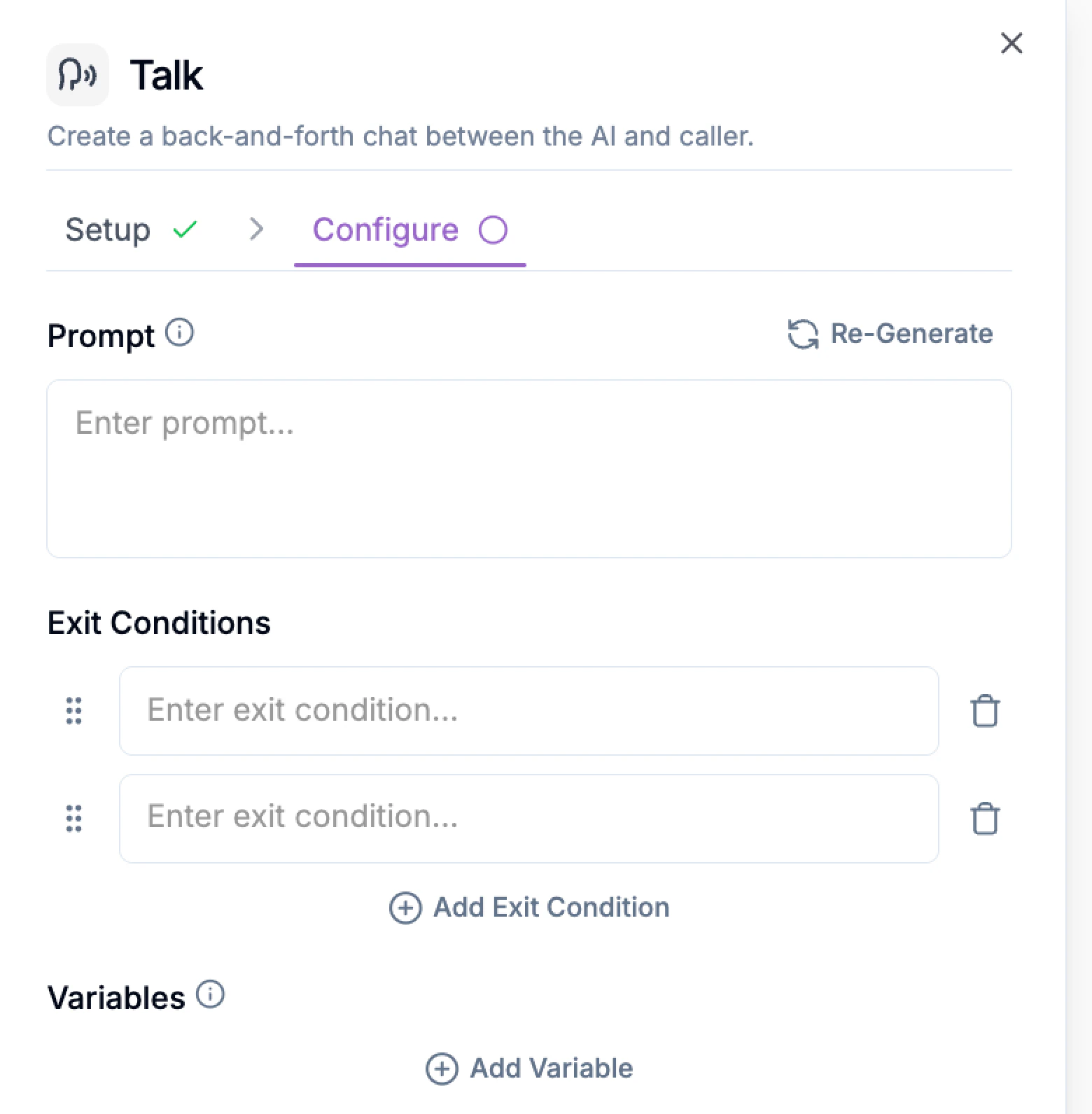
The configure tab gives you full control over how the Talk Block behaves. Here, you can **manually** adjust or define:
* The prompt the AI uses
* Exit conditions that determine when to move to the next block
* Variables used to capture and reuse information
### Prompt
The Prompt defines the AI’s objective. Write simple directions for the AI to follow in this step. Example: “Greet the caller and ask for their name and reason for calling.”
* Write your prompt directly, or click **Re-Generate** to refine it automatically using AI.
This prompt guides the AI throughout the interaction until an exit conditions are met.
### Exit Conditions
Exit conditions are the rules that determine when a caller should be moved out of a specific Talk Block and progress to the next block in your workflow.
Think of them as the criteria Phonely uses to decide, "Okay, the AI has done what it needs to do in this step, let's move on to the next."
Here's a breakdown of why Exit Conditions are important and how they work:
**Guiding the Conversation Flow** - Exit conditions are crucial for creating dynamic and logical call flows. They ensure the conversation doesn't get stuck in one step and moves towards the desired outcome (e.g., scheduling an appointment, gathering information, transferring to a human).
**Triggering the Next Action** - When an exit condition is met, it signals to Phonely to activate the connected block in your workflow. This could be another Talk Block, a Transfer Call block, an End Call block, or any other available block.
**Based on Caller Input or AI Actions** - Exit conditions can be based on various factors, such as:
* **Keywords or Phrases**: The caller says a specific word or phrase (e.g., "Yes, schedule it," "I need support").
* **Confirmation**: The AI asks a question and the caller provides a confirming answer.
* **No Match/Fallback**: The caller's response doesn't match any expected input within a certain number of attempts.
* **Timeouts**: A certain amount of time passes without any input from the caller.
* **Variable Values**: A specific piece of information (a variable) has been successfully captured (e.g., the caller's email address).
You have the flexibility to define and adjust exit conditions within each Talk Block to precisely control how your AI agent interacts with callers and progresses through the workflow.
### Variables
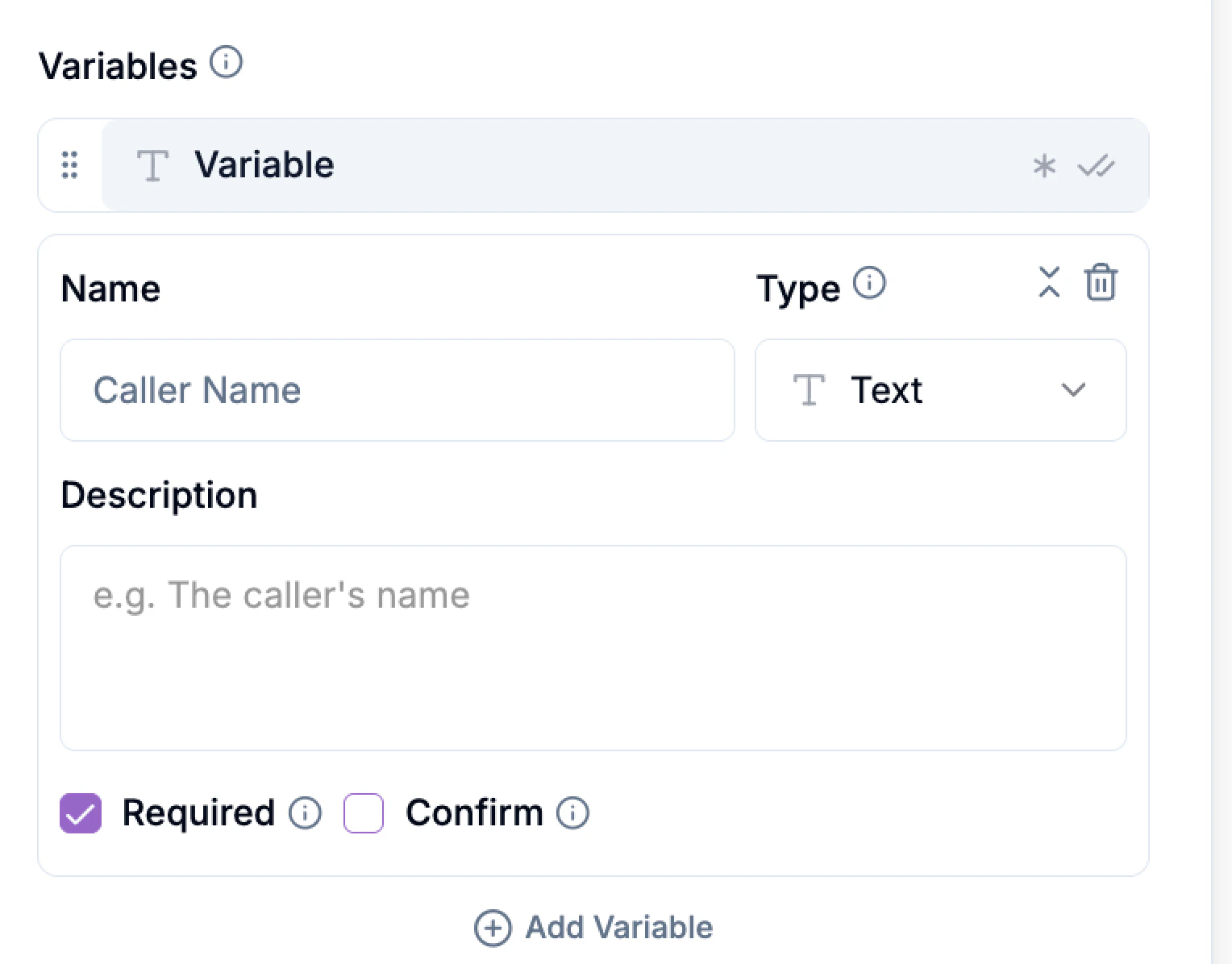
Variables in Phonely are like containers that store information during a phone call. Think of them as temporary digital sticky notes that your Phonely agent can write on, read, and update as the conversation progresses. This allows you to capture and reuse important details throughout the call flow, making your automated conversations more dynamic and personalized.
Variables allow you to:
* Capture caller information (name, reason for calling, preferences)
* Personalize the conversation
* Pass information between blocks
* Maintain context throughout the call
To add a variable:
1. Click Add Variable.
2. Enter a Name (e.g. Caller Name).
3. Select a Type (Text, Number, etc.)
4. (Optional) Add a Description.
**Examples of Variable Use:**
* Storing the caller's name in a variable called caller\_name so your agent can say, "Hello, @caller\_name!".
* Capturing the reason for the call in a variable called reason\_for\_call and using it to route the call appropriately.
* Saving the selected appointment date and time in variables like appointment\_date and appointment\_time for confirmation.
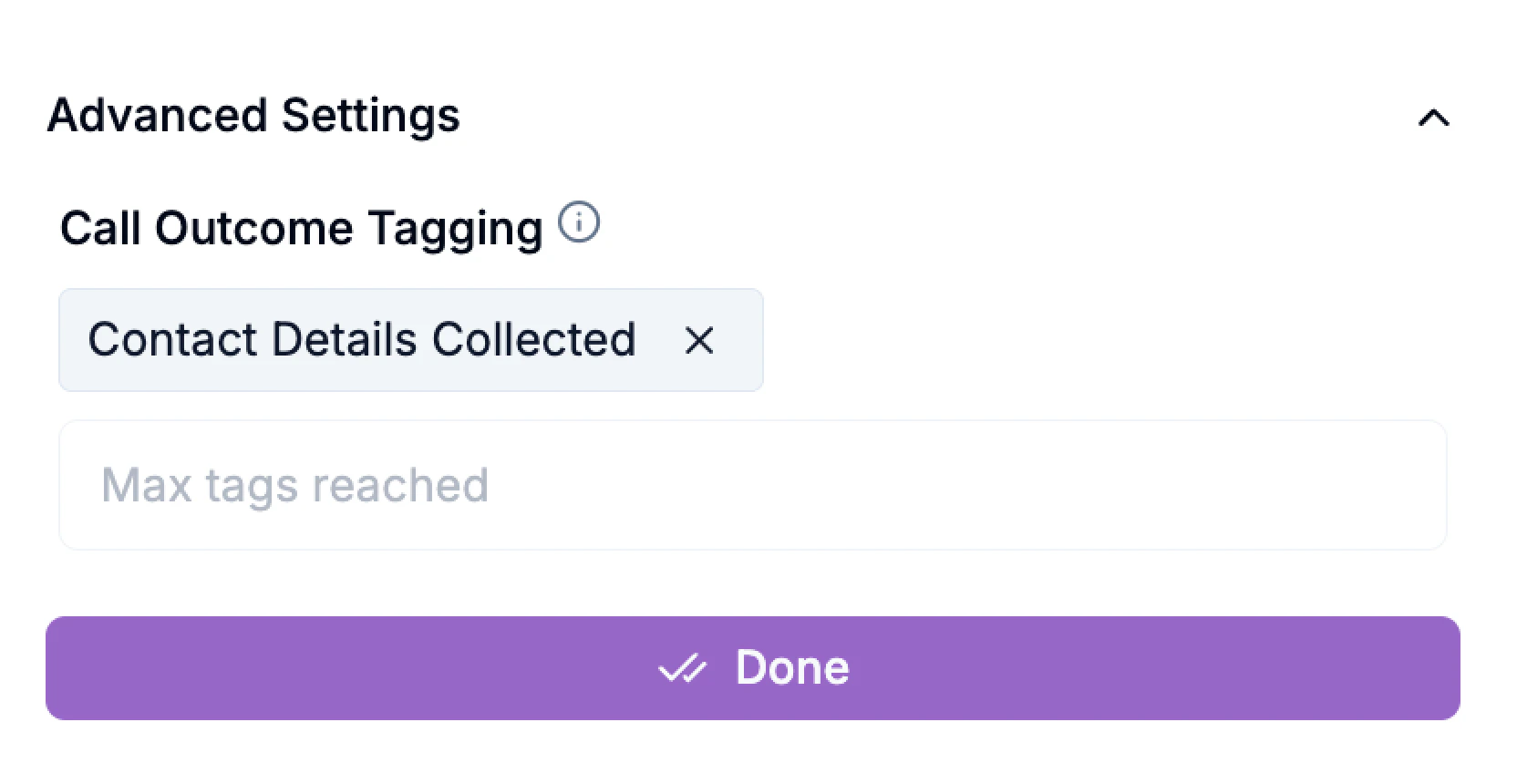
## Advanced Settings - Call Outcome Tagging
Call outcome tags let you label how the conversation ended.
* Enter one or more keywords
* Press Enter after each tag
These tags are useful for:
* Reporting
* Analytics
* Understanding call outcomes at scale
 ### Exit Conditions
Exit conditions are the rules that determine when a caller should be moved out of a specific Talk Block and progress to the next block in your workflow.
Think of them as the criteria Phonely uses to decide, "Okay, the AI has done what it needs to do in this step, let's move on to the next."
Here's a breakdown of why Exit Conditions are important and how they work:
**Guiding the Conversation Flow** - Exit conditions are crucial for creating dynamic and logical call flows. They ensure the conversation doesn't get stuck in one step and moves towards the desired outcome (e.g., scheduling an appointment, gathering information, transferring to a human).
**Triggering the Next Action** - When an exit condition is met, it signals to Phonely to activate the connected block in your workflow. This could be another Talk Block, a Transfer Call block, an End Call block, or any other available block.
### Exit Conditions
Exit conditions are the rules that determine when a caller should be moved out of a specific Talk Block and progress to the next block in your workflow.
Think of them as the criteria Phonely uses to decide, "Okay, the AI has done what it needs to do in this step, let's move on to the next."
Here's a breakdown of why Exit Conditions are important and how they work:
**Guiding the Conversation Flow** - Exit conditions are crucial for creating dynamic and logical call flows. They ensure the conversation doesn't get stuck in one step and moves towards the desired outcome (e.g., scheduling an appointment, gathering information, transferring to a human).
**Triggering the Next Action** - When an exit condition is met, it signals to Phonely to activate the connected block in your workflow. This could be another Talk Block, a Transfer Call block, an End Call block, or any other available block.
 **Based on Caller Input or AI Actions** - Exit conditions can be based on various factors, such as:
* **Keywords or Phrases**: The caller says a specific word or phrase (e.g., "Yes, schedule it," "I need support").
* **Confirmation**: The AI asks a question and the caller provides a confirming answer.
* **No Match/Fallback**: The caller's response doesn't match any expected input within a certain number of attempts.
* **Timeouts**: A certain amount of time passes without any input from the caller.
* **Variable Values**: A specific piece of information (a variable) has been successfully captured (e.g., the caller's email address).
You have the flexibility to define and adjust exit conditions within each Talk Block to precisely control how your AI agent interacts with callers and progresses through the workflow.
### Variables
Variables in Phonely are like containers that store information during a phone call. Think of them as temporary digital sticky notes that your Phonely agent can write on, read, and update as the conversation progresses. This allows you to capture and reuse important details throughout the call flow, making your automated conversations more dynamic and personalized.
Variables allow you to:
* Capture caller information (name, reason for calling, preferences)
* Personalize the conversation
* Pass information between blocks
* Maintain context throughout the call
To add a variable:
1. Click Add Variable.
2. Enter a Name (e.g. Caller Name).
3. Select a Type (Text, Number, etc.)
4. (Optional) Add a Description.
**Based on Caller Input or AI Actions** - Exit conditions can be based on various factors, such as:
* **Keywords or Phrases**: The caller says a specific word or phrase (e.g., "Yes, schedule it," "I need support").
* **Confirmation**: The AI asks a question and the caller provides a confirming answer.
* **No Match/Fallback**: The caller's response doesn't match any expected input within a certain number of attempts.
* **Timeouts**: A certain amount of time passes without any input from the caller.
* **Variable Values**: A specific piece of information (a variable) has been successfully captured (e.g., the caller's email address).
You have the flexibility to define and adjust exit conditions within each Talk Block to precisely control how your AI agent interacts with callers and progresses through the workflow.
### Variables
Variables in Phonely are like containers that store information during a phone call. Think of them as temporary digital sticky notes that your Phonely agent can write on, read, and update as the conversation progresses. This allows you to capture and reuse important details throughout the call flow, making your automated conversations more dynamic and personalized.
Variables allow you to:
* Capture caller information (name, reason for calling, preferences)
* Personalize the conversation
* Pass information between blocks
* Maintain context throughout the call
To add a variable:
1. Click Add Variable.
2. Enter a Name (e.g. Caller Name).
3. Select a Type (Text, Number, etc.)
4. (Optional) Add a Description.
 These tags are useful for:
* Reporting
* Analytics
* Understanding call outcomes at scale
These tags are useful for:
* Reporting
* Analytics
* Understanding call outcomes at scale