> ## Documentation Index
> Fetch the complete documentation index at: https://docs.phonely.ai/llms.txt
> Use this file to discover all available pages before exploring further.
# Collect
> Efficiently gather multiple pieces of information from callers in a natural, conversational manner
The collect block lets your agent gather multiple pieces of information back-to-back, like name, phone number, email, order number, etc. Think of it as a mini-form inside a conversation. The agent asks each question, stores the answers as variables, and only moves forward once all required details are captured.
## When to Use it
Use it when you need to gather several related inputs in a sequence, such as:
* Customer contact details (name, phone, email)
* Appointment information (date, time, location)
* Intake forms (lead qualification, support triage, signup flow)
Instead of stacking multiple Ask Blocks, Collect handles them in one step, creating cleaner flows, fewer branches, and more natural speech.
## How it Works
* You define the fields you want to collect.
* Phonely automatically asks the questions conversationally.
* If the caller already gave the info earlier, the agent confirms instead of repeating.
* Once completed, each answer becomes a variable you can use anywhere in the workflow.
## How to Set it Up
### Generate with AI
1. Add a **Collect** block to your flow.
2. In the text box, simply describe what you want collected:
```text theme={null}
Gather the caller's name, email, and phone number.
```
 3. Click **Generate with AI**.
4. Review the generated questions → edit if needed.
5. Click **Done**.
Great for quick intake flows or prototyping.
### Build Manually
1. Add a **Collect** block
2. Click **Build Manually**
3. For each item you want to collect:
| Field | What you enter |
| :---------------- | :------------------------------------------------------------------------------------------ |
| **Variable Name** | The variable name used later (e.g., `customer_name`) |
| **Type** | Text, Phone, Email, Number, Date, URL, Regular expression, Enum, etc. |
| **Question** | The instruction for the AI (e.g., "Ask the caller for their name") |
| **Required** | When enabled, AI will ensure this information is collected before moving to the next block. |
| **Confirm** | When enabled, the AI will confirm the variable with the caller before proceeding. |
| **Spell Back** | When enabled, the AI will spell out the confirmed information letter by letter. |
3. Click **Generate with AI**.
4. Review the generated questions → edit if needed.
5. Click **Done**.
Great for quick intake flows or prototyping.
### Build Manually
1. Add a **Collect** block
2. Click **Build Manually**
3. For each item you want to collect:
| Field | What you enter |
| :---------------- | :------------------------------------------------------------------------------------------ |
| **Variable Name** | The variable name used later (e.g., `customer_name`) |
| **Type** | Text, Phone, Email, Number, Date, URL, Regular expression, Enum, etc. |
| **Question** | The instruction for the AI (e.g., "Ask the caller for their name") |
| **Required** | When enabled, AI will ensure this information is collected before moving to the next block. |
| **Confirm** | When enabled, the AI will confirm the variable with the caller before proceeding. |
| **Spell Back** | When enabled, the AI will spell out the confirmed information letter by letter. |
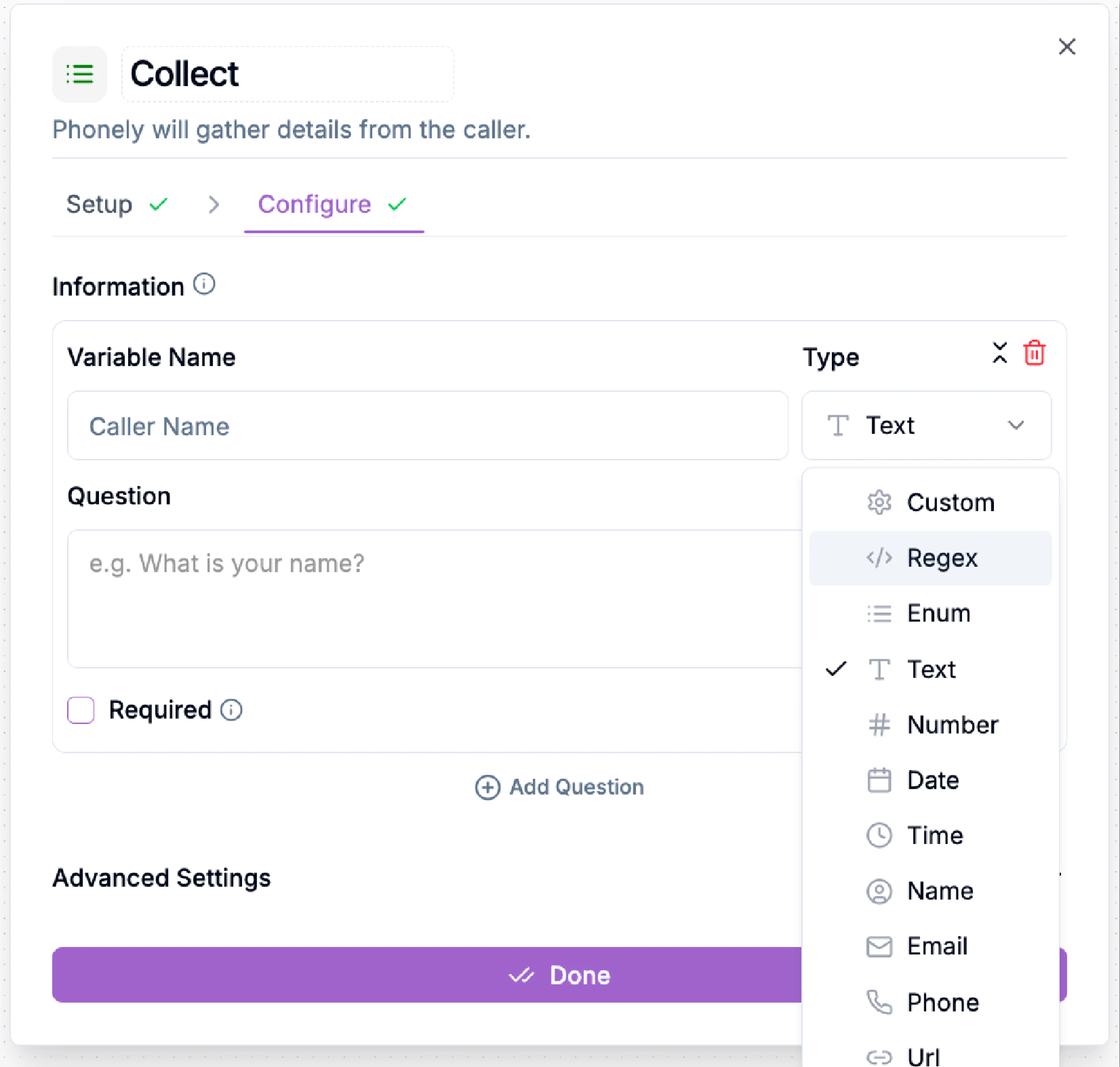 4. Click **Add Question** for more fields.
5. Save > **Done**.
Manual mode is ideal if you want strict formatting, specific wording, or typed inputs.
**Examples**
| Variable Name | Type | Question |
| :------------ | :---- | :----------------------------- |
| name | Text | Ask the caller for their name |
| phone | Phone | Request contact phone number |
| reason | Text | Ask why they are calling today |
Use them to personalize responses, perform lookups, send follow-ups, or pass into APIs.
## Using Collected Data
You can reference collected values anywhere using **@variable\_name**. [Learn more about variables here](/key-concepts/variables).
Examples:
* Talk block → `Nice to meet you, @name!`
* API request → Send payload containing @phone
* CRM logging → Store @reason for support ticket routing
## Advanced Options
* **Validation & Format Control**\
Regex & custom types allow enforcing patterns (emails, numbers, state codes).
* **Call Outcome Tagging**\
Add tags for reporting, funnels, A/B testing, analytics.
4. Click **Add Question** for more fields.
5. Save > **Done**.
Manual mode is ideal if you want strict formatting, specific wording, or typed inputs.
**Examples**
| Variable Name | Type | Question |
| :------------ | :---- | :----------------------------- |
| name | Text | Ask the caller for their name |
| phone | Phone | Request contact phone number |
| reason | Text | Ask why they are calling today |
Use them to personalize responses, perform lookups, send follow-ups, or pass into APIs.
## Using Collected Data
You can reference collected values anywhere using **@variable\_name**. [Learn more about variables here](/key-concepts/variables).
Examples:
* Talk block → `Nice to meet you, @name!`
* API request → Send payload containing @phone
* CRM logging → Store @reason for support ticket routing
## Advanced Options
* **Validation & Format Control**\
Regex & custom types allow enforcing patterns (emails, numbers, state codes).
* **Call Outcome Tagging**\
Add tags for reporting, funnels, A/B testing, analytics.