> ## Documentation Index
> Fetch the complete documentation index at: https://docs.phonely.ai/llms.txt
> Use this file to discover all available pages before exploring further.
# Run Code Workflow
> Learn how to execute custom code blocks directly inside your workflows
## Overview
Code is a powerful new workflow block that allows you to execute Python code directly within your Phonely workflows.
It acts as a dynamic logic layer between conversational steps, giving you the ability to compute values and make conditional decisions through your own scripts.
When a Code Block runs, it:
* Receives workflow variables as input (through an input dictionary).
* Executes your defined Python logic.
* Returns any new or modified values as output (through an output dictionary).
Currently, Code Blocks only support Python
## When to Use
Understanding when to use a Code Block helps you unlock its full potential in building smart, adaptive flows:
* Custom Logic Execution – Use it to calculate, compare, or transform varaibles dynamically.
* Conditional Workflows – When decisions depend on complex logic that goes beyond standard Flow conditions.
## Setup
In this example, we will demonstrate how the Code Block is used inside a workflow for a fictitious store. The goal is to automatically transfer customers to their nearest store based on the ZIP code provided during a call.
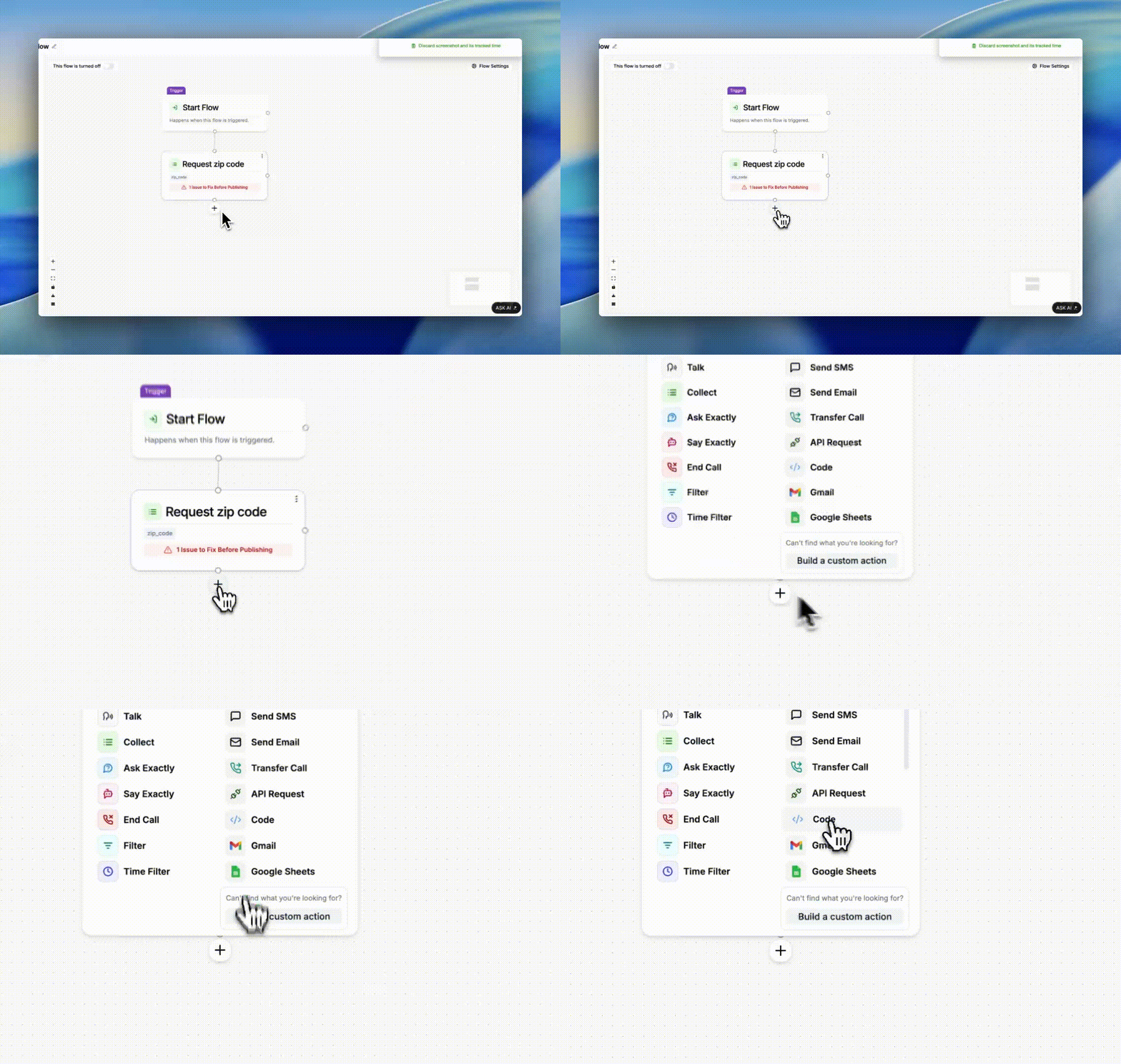
From your workflow canvas, click the + icon and select Code from the list of available blocks.
The block will appear in your flow, ready for configuration.
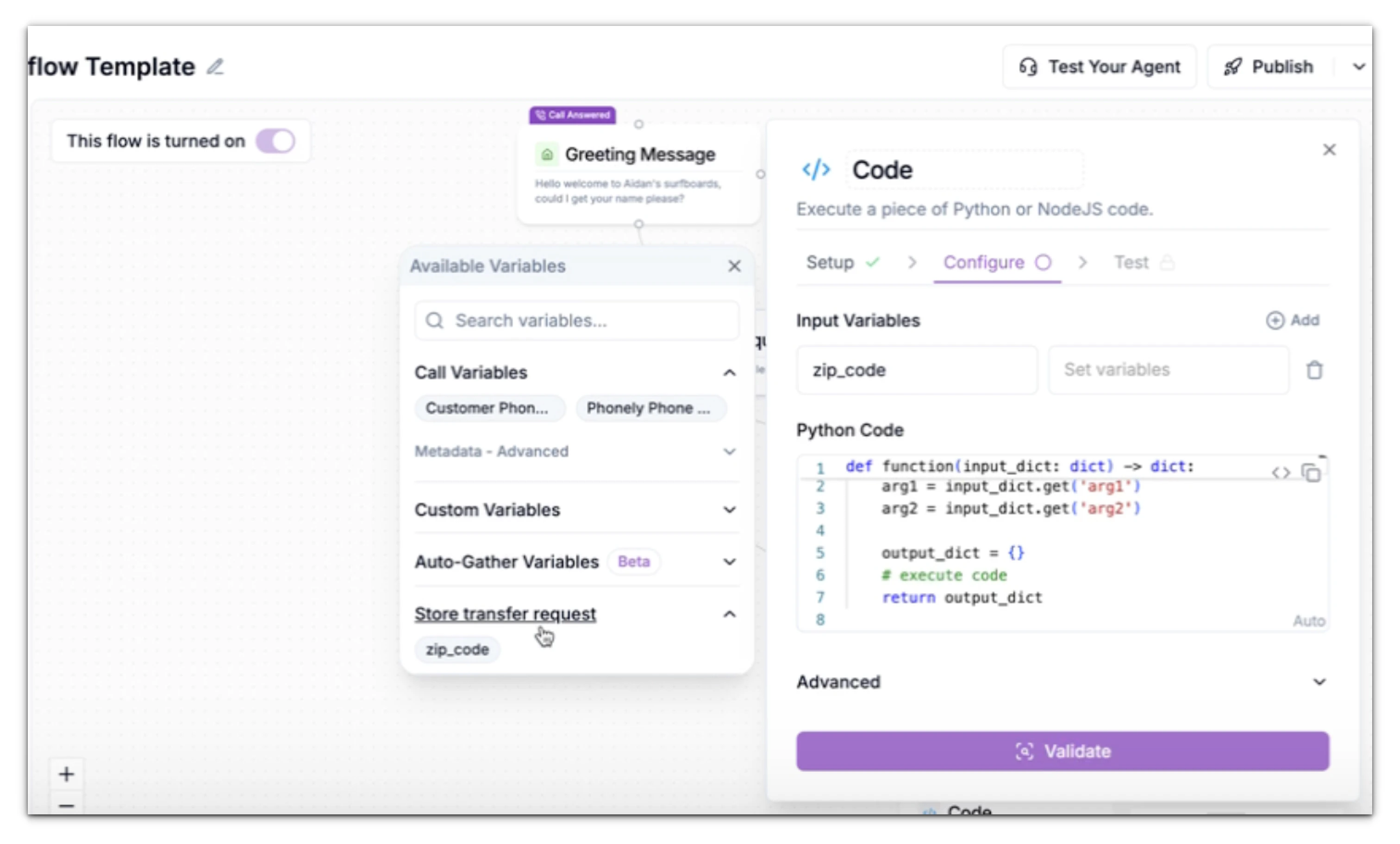
 Each Code Block begins with one or more input variables, these are values passed into your script from previous blocks.
Enter the name of the variable. This is the name that you will use to refer to the variable in your code.
You’ll notice default variables like `arg1` and `arg2` when adding a Code Block. Feel free to rename or remove them to match your workflow’s actual input variables.
Each Code Block begins with one or more input variables, these are values passed into your script from previous blocks.
Enter the name of the variable. This is the name that you will use to refer to the variable in your code.
You’ll notice default variables like `arg1` and `arg2` when adding a Code Block. Feel free to rename or remove them to match your workflow’s actual input variables.
 Once you have entered the variable name set the variable itself. There are two of ways to do this:
#### Auto-gather
Automatically prompt the caller when a block needs specific information (e.g., name, email, or date). Phonely collects this input in real time no extra Talk block required.
#### Variables from Previous Blocks
Use information already gathered earlier in other flows.
For example, in this workflow, the AI first asks the caller why they’re calling. If the caller requests a store transfer, they’ll be prompted to provide their zip\_code. This value can then be used as an input variable within the Code Bloc
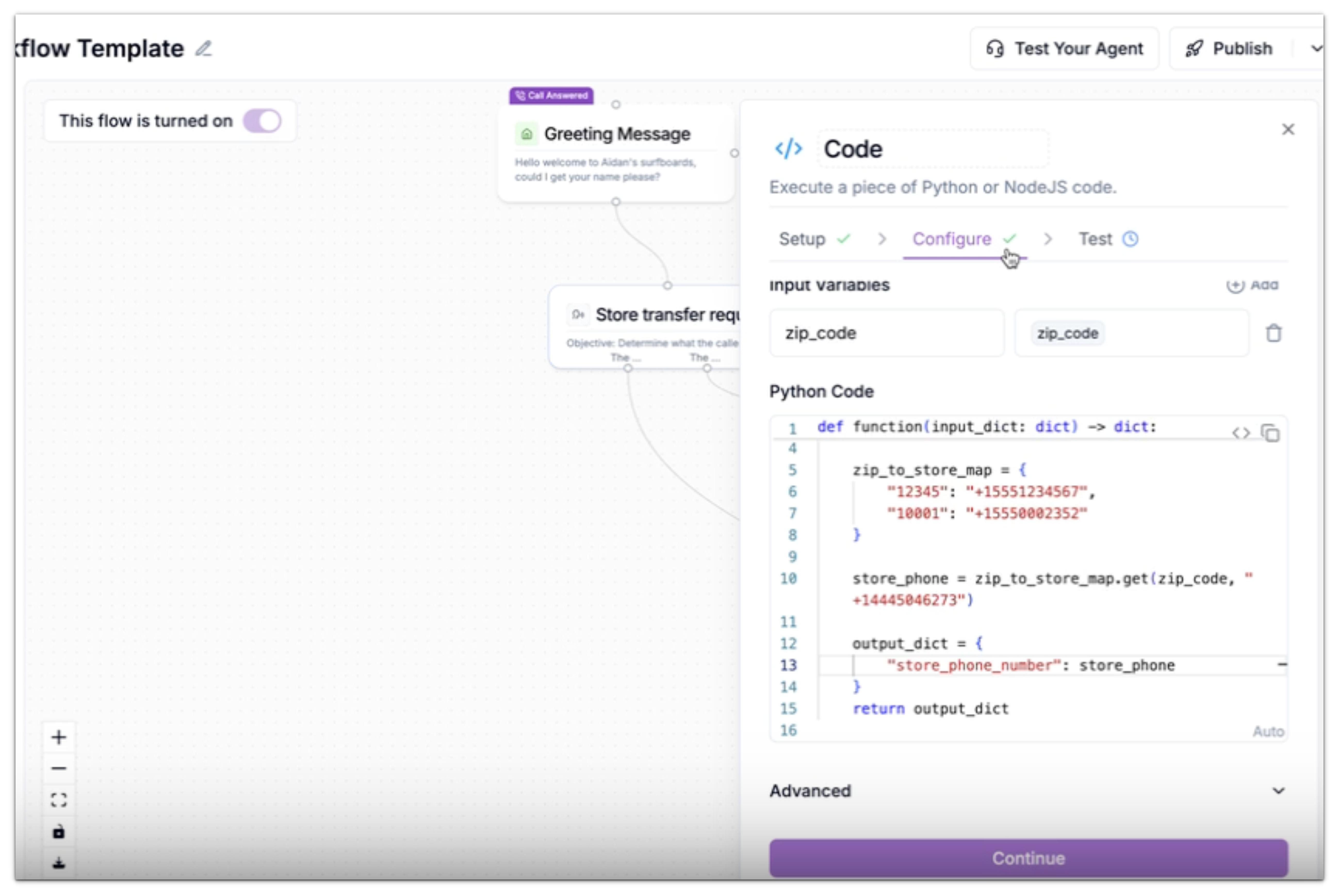
Do not alter the main function definition — it must always accept and return dictionaries named input and output.
```
def function(input_dict: dict) -> dict:
zip_to_store_map = {
"12345": "+15551234567",
"10001": "+1555002352"
}
store_phone = zip_to_store_map.get(zip_code, "+14445046273")
output_dict = {
"store_phone_number": store_phone
}
return output_dict
```
Now, let’s break this down step-by-step to understand exactly what happens when this block runs inside your workflow.
**Function Definition**
```
def function(input_dict: dict) -> dict:
```
Every Code Block in Phonely starts with a function definition like this.
* input\_dict represents all variables passed into this block from earlier steps in the workflow.
* The function returns another dictionary that becomes the **output**, feeding data to the next blocks.
* The -> dict type hint simply means the function returns a dictionary.
**ZIP-to-Store Map**
```
zip_to_store_map = {
"12345": "+15551234567",
"10001": "+1555002352"
}
```
\
This is a lookup table that links each ZIP code to the corresponding store’s phone number.
* If a customer provides ZIP code 12345, the workflow will know to call **+1-555-123-4567**.
* If the ZIP code is 10001, it will return **+1-555-002-352** instead.
You can add as many ZIP-store pairs as needed here to cover all your service areas.
**Finding the Store Phone Number**
```
store_phone = zip_to_store_map.get(zip_code, "+14445046273")
```
This line performs the lookup.
* It searches the dictionary for the customer’s zip\_code value (captured earlier in the workflow).
* If it finds a match, it retrieves the store’s phone number.
* If the ZIP code isn’t recognized, it falls back to a default number — in this case, **+1-444-504-6273**, which might be your main support or general customer service line.
This ensures there’s always a valid number to dial, even for unrecognized ZIP codes.
**Preparing the Output**
```
output_dict = {
"store_phone_number": store_phone
}
```
Here, the result is stored in a dictionary with a key name, "store\_phone\_number".\
This key becomes the variable name that other workflow blocks can reference later.\
For example, in a Transfer Block, you could select **store\_phone\_number** to automatically route the caller to the correct store.
**Returning the Result**
```
return output_dict
```
Finally, the function returns the dictionary to Phonely. From this point, the output variable store\_phone\_number becomes available to all downstream blocks
After entering your Python code, click Validate Code to ensure it’s syntactically correct.\
If validation passes, a green checkmark appears next to the Cofigure tab name, and the **Continue** button activates. Click **Continue** to proceed to the testing step.
Once you have entered the variable name set the variable itself. There are two of ways to do this:
#### Auto-gather
Automatically prompt the caller when a block needs specific information (e.g., name, email, or date). Phonely collects this input in real time no extra Talk block required.
#### Variables from Previous Blocks
Use information already gathered earlier in other flows.
For example, in this workflow, the AI first asks the caller why they’re calling. If the caller requests a store transfer, they’ll be prompted to provide their zip\_code. This value can then be used as an input variable within the Code Bloc
Do not alter the main function definition — it must always accept and return dictionaries named input and output.
```
def function(input_dict: dict) -> dict:
zip_to_store_map = {
"12345": "+15551234567",
"10001": "+1555002352"
}
store_phone = zip_to_store_map.get(zip_code, "+14445046273")
output_dict = {
"store_phone_number": store_phone
}
return output_dict
```
Now, let’s break this down step-by-step to understand exactly what happens when this block runs inside your workflow.
**Function Definition**
```
def function(input_dict: dict) -> dict:
```
Every Code Block in Phonely starts with a function definition like this.
* input\_dict represents all variables passed into this block from earlier steps in the workflow.
* The function returns another dictionary that becomes the **output**, feeding data to the next blocks.
* The -> dict type hint simply means the function returns a dictionary.
**ZIP-to-Store Map**
```
zip_to_store_map = {
"12345": "+15551234567",
"10001": "+1555002352"
}
```
\
This is a lookup table that links each ZIP code to the corresponding store’s phone number.
* If a customer provides ZIP code 12345, the workflow will know to call **+1-555-123-4567**.
* If the ZIP code is 10001, it will return **+1-555-002-352** instead.
You can add as many ZIP-store pairs as needed here to cover all your service areas.
**Finding the Store Phone Number**
```
store_phone = zip_to_store_map.get(zip_code, "+14445046273")
```
This line performs the lookup.
* It searches the dictionary for the customer’s zip\_code value (captured earlier in the workflow).
* If it finds a match, it retrieves the store’s phone number.
* If the ZIP code isn’t recognized, it falls back to a default number — in this case, **+1-444-504-6273**, which might be your main support or general customer service line.
This ensures there’s always a valid number to dial, even for unrecognized ZIP codes.
**Preparing the Output**
```
output_dict = {
"store_phone_number": store_phone
}
```
Here, the result is stored in a dictionary with a key name, "store\_phone\_number".\
This key becomes the variable name that other workflow blocks can reference later.\
For example, in a Transfer Block, you could select **store\_phone\_number** to automatically route the caller to the correct store.
**Returning the Result**
```
return output_dict
```
Finally, the function returns the dictionary to Phonely. From this point, the output variable store\_phone\_number becomes available to all downstream blocks
After entering your Python code, click Validate Code to ensure it’s syntactically correct.\
If validation passes, a green checkmark appears next to the Cofigure tab name, and the **Continue** button activates. Click **Continue** to proceed to the testing step.
 Once you’ve written and validated your Python function, you can test it directly from the Test tab. This step allows you to make sure the logic behaves exactly as you expect before you connect it to other workflow components.
To do this, simply enter the respective values of the input variables into the test input field and observe the results when you click the **Test** button.
In the store example:
* If you enter **12345**, the block returns **+1-555-123-4567** (a the mapped store number).
* If you enter **10001**, it returns **+1-555-002-352**.
* If you enter **99999**, it returns the default number **+1-444-504-6273**.
After the Code Block has been validated and tested to produce the expected results, you can connect other flows to it.
Each time the code flow runs, all returned data is automatically made available as variables for the subsequent flows.
These variables can then be referenced in later blocks - such as Transfer, Send SMS, or Email etc.
In the above example we can:
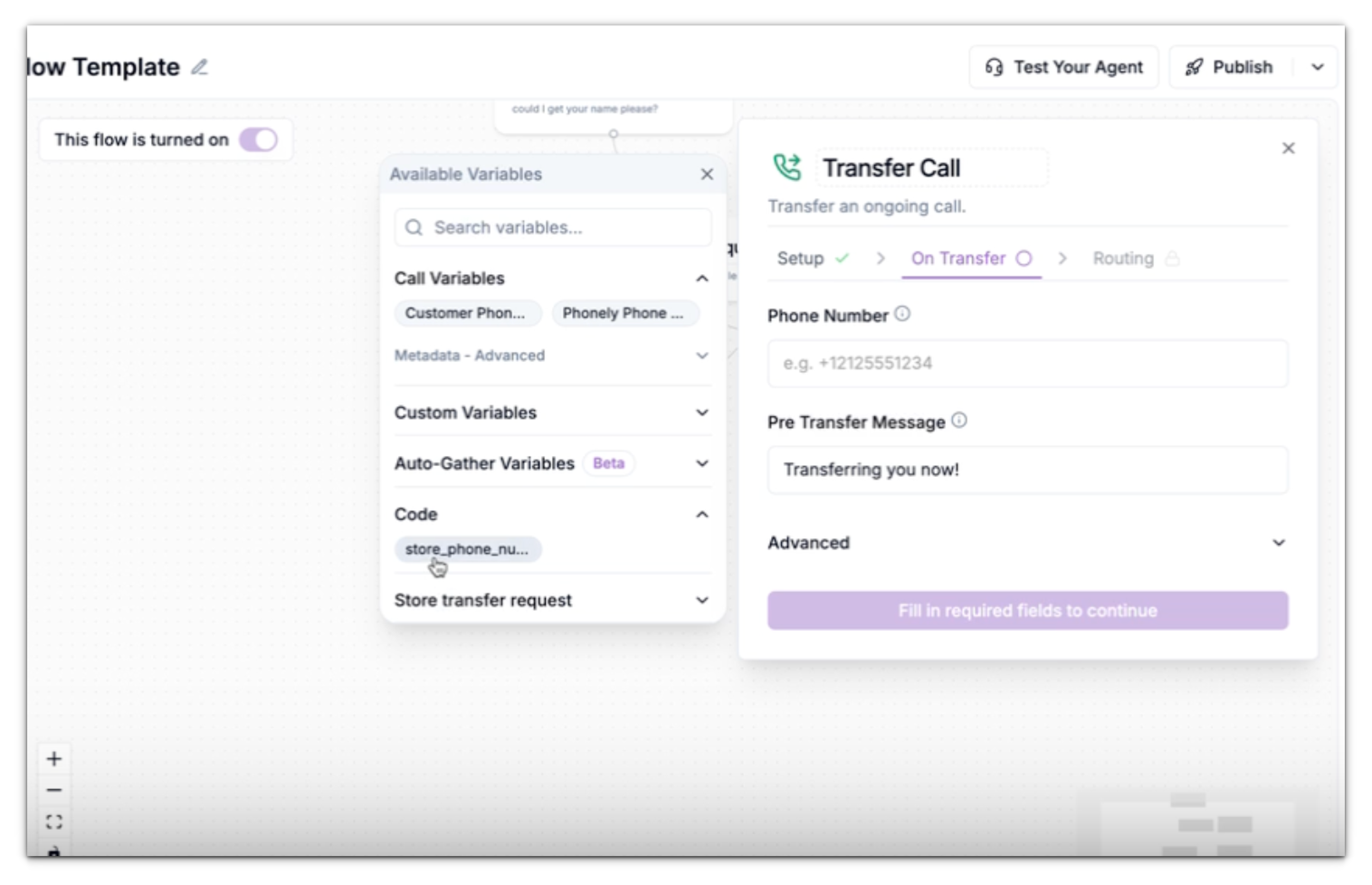
* Add a **Transfer Block**.
* Set the **Phone Number** field to the variable store\_phone.
* Such that when triggered, the agent automatically transfers the caller to the correct store.
Once you’ve written and validated your Python function, you can test it directly from the Test tab. This step allows you to make sure the logic behaves exactly as you expect before you connect it to other workflow components.
To do this, simply enter the respective values of the input variables into the test input field and observe the results when you click the **Test** button.
In the store example:
* If you enter **12345**, the block returns **+1-555-123-4567** (a the mapped store number).
* If you enter **10001**, it returns **+1-555-002-352**.
* If you enter **99999**, it returns the default number **+1-444-504-6273**.
After the Code Block has been validated and tested to produce the expected results, you can connect other flows to it.
Each time the code flow runs, all returned data is automatically made available as variables for the subsequent flows.
These variables can then be referenced in later blocks - such as Transfer, Send SMS, or Email etc.
In the above example we can:
* Add a **Transfer Block**.
* Set the **Phone Number** field to the variable store\_phone.
* Such that when triggered, the agent automatically transfers the caller to the correct store.