> ## Documentation Index
> Fetch the complete documentation index at: https://docs.phonely.ai/llms.txt
> Use this file to discover all available pages before exploring further.
# Plans and Billing
> Learn how to manage your plan and access billing history
The plan & billing page allows you to view your current subscription, track your usage, manage plan upgrades or downgrades, and review billing history. This page ensures you have full visibility into your organization’s call time, overage costs, and invoices.
 ### Managing Your Plans
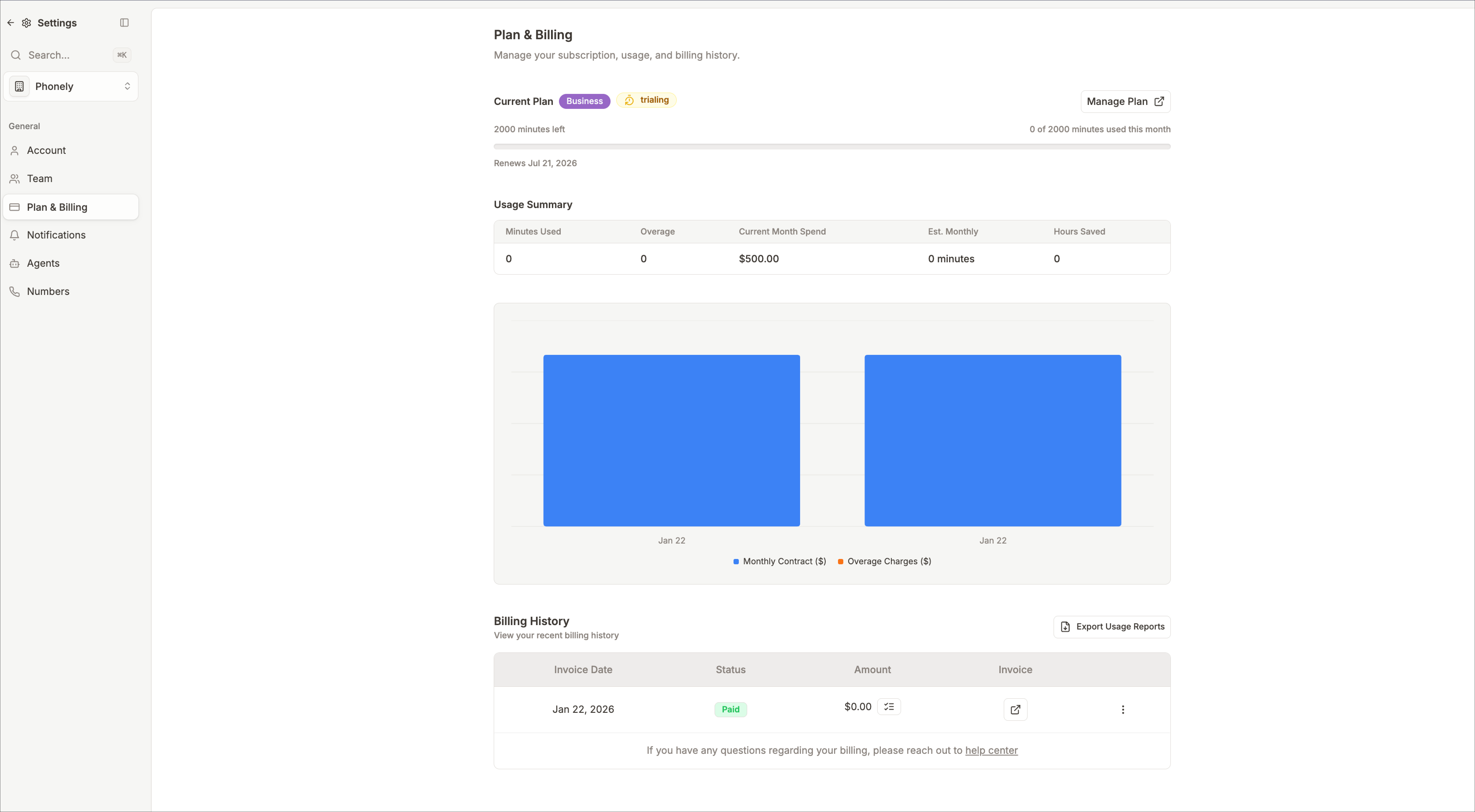
From the sidebar click the plan and billing.
* **Plan Type:** Indicates your current subscription tier (e.g., Free, Starter, Professional, Business, or Enterprise).
* **Status:** Shows whether your plan is *active*, *incomplete*, or *expired*.
* **Usage Summary Bar:** Displays the total minutes used out of your included monthly allowance.
* **Renewal Date:** The date when your plan will automatically renew.
* **Manage Plan:** Click this button to view or modify your subscription.
### Total Usage Summary
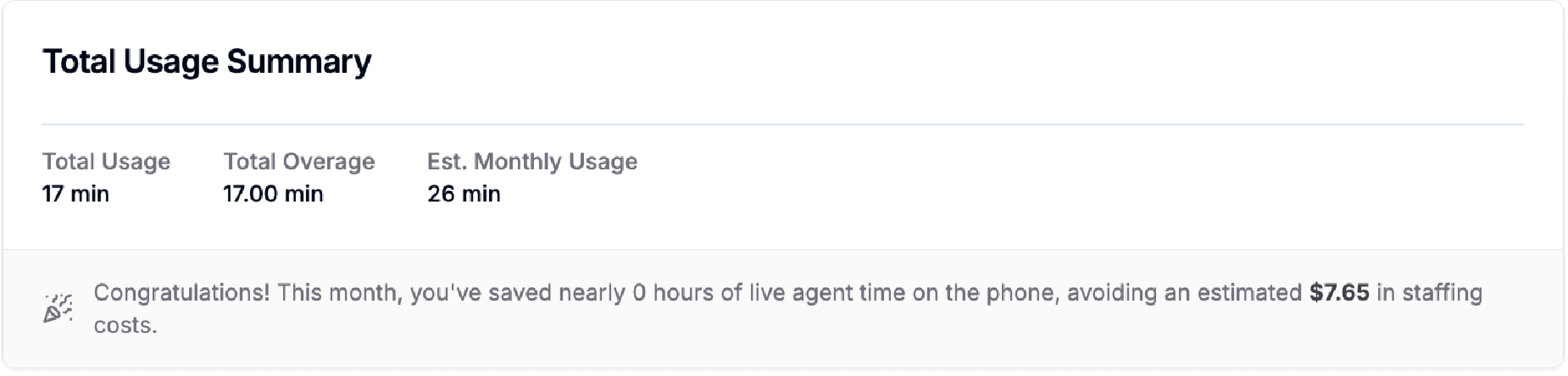
This section provides a breakdown of how your organization is using its minutes and estimated call time savings.
It includes:
* **Total Usage:** Total number of minutes used during the current billing period.
* **Total Overage:** The number of minutes used beyond your plan’s included quota.
* **Estimated Monthly Usage:** A projection of your monthly call activity based on current patterns.
* **Cost Savings Insight:** Displays how much agent time (and equivalent cost) your AI agents have saved.
### Managing Your Plans
From the sidebar click the plan and billing.
* **Plan Type:** Indicates your current subscription tier (e.g., Free, Starter, Professional, Business, or Enterprise).
* **Status:** Shows whether your plan is *active*, *incomplete*, or *expired*.
* **Usage Summary Bar:** Displays the total minutes used out of your included monthly allowance.
* **Renewal Date:** The date when your plan will automatically renew.
* **Manage Plan:** Click this button to view or modify your subscription.
### Total Usage Summary
This section provides a breakdown of how your organization is using its minutes and estimated call time savings.
It includes:
* **Total Usage:** Total number of minutes used during the current billing period.
* **Total Overage:** The number of minutes used beyond your plan’s included quota.
* **Estimated Monthly Usage:** A projection of your monthly call activity based on current patterns.
* **Cost Savings Insight:** Displays how much agent time (and equivalent cost) your AI agents have saved.
 Monitoring this section helps you predict when you may need to upgrade your plan to avoid overage charges.
### **Billing History**
The billing history section shows a record of your invoices and payments.
You’ll see:
* **Invoice Date:** The date the invoice was issued.
* **Status:** Indicates whether an invoice is paid or pending.
* **Amount:** The total billed amount for that period.
* **Invoice:** Opens a detailed invoice document in a new window.
* **Usage Report:** Provides a breakdown of how minutes were consumed across agents and call types.
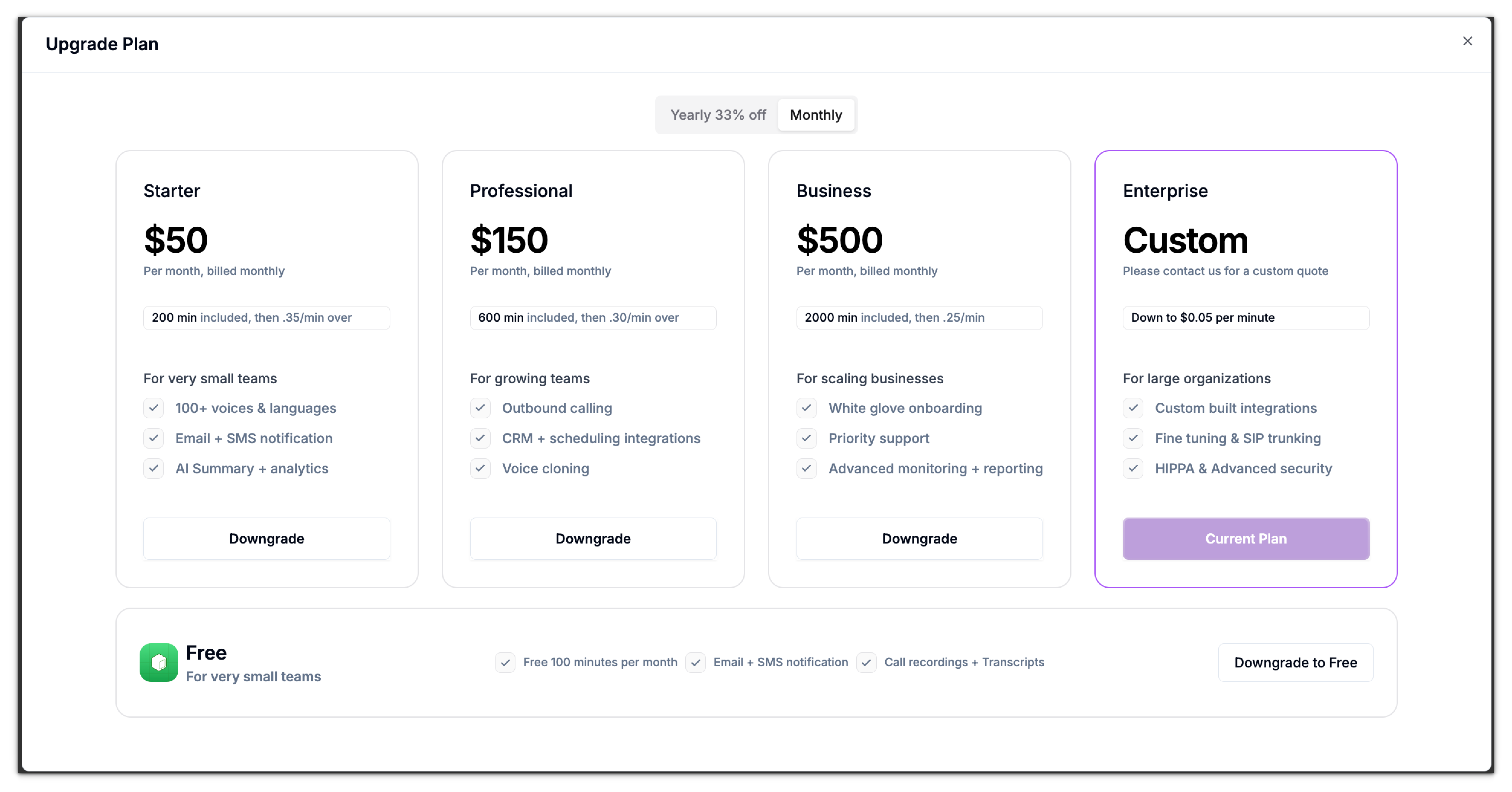
### **Upgrade or Downgrade Your Plan**
To modify your plan:
Monitoring this section helps you predict when you may need to upgrade your plan to avoid overage charges.
### **Billing History**
The billing history section shows a record of your invoices and payments.
You’ll see:
* **Invoice Date:** The date the invoice was issued.
* **Status:** Indicates whether an invoice is paid or pending.
* **Amount:** The total billed amount for that period.
* **Invoice:** Opens a detailed invoice document in a new window.
* **Usage Report:** Provides a breakdown of how minutes were consumed across agents and call types.
### **Upgrade or Downgrade Your Plan**
To modify your plan: