> ## Documentation Index
> Fetch the complete documentation index at: https://docs.phonely.ai/llms.txt
> Use this file to discover all available pages before exploring further.
# Agent Usage Data
> Learn how to access agents usage data and how to delete agents
The Agents page provides a centralized overview of all AI agents under your organization.\
From here, you can monitor call activity, download usage data, and manage agents.
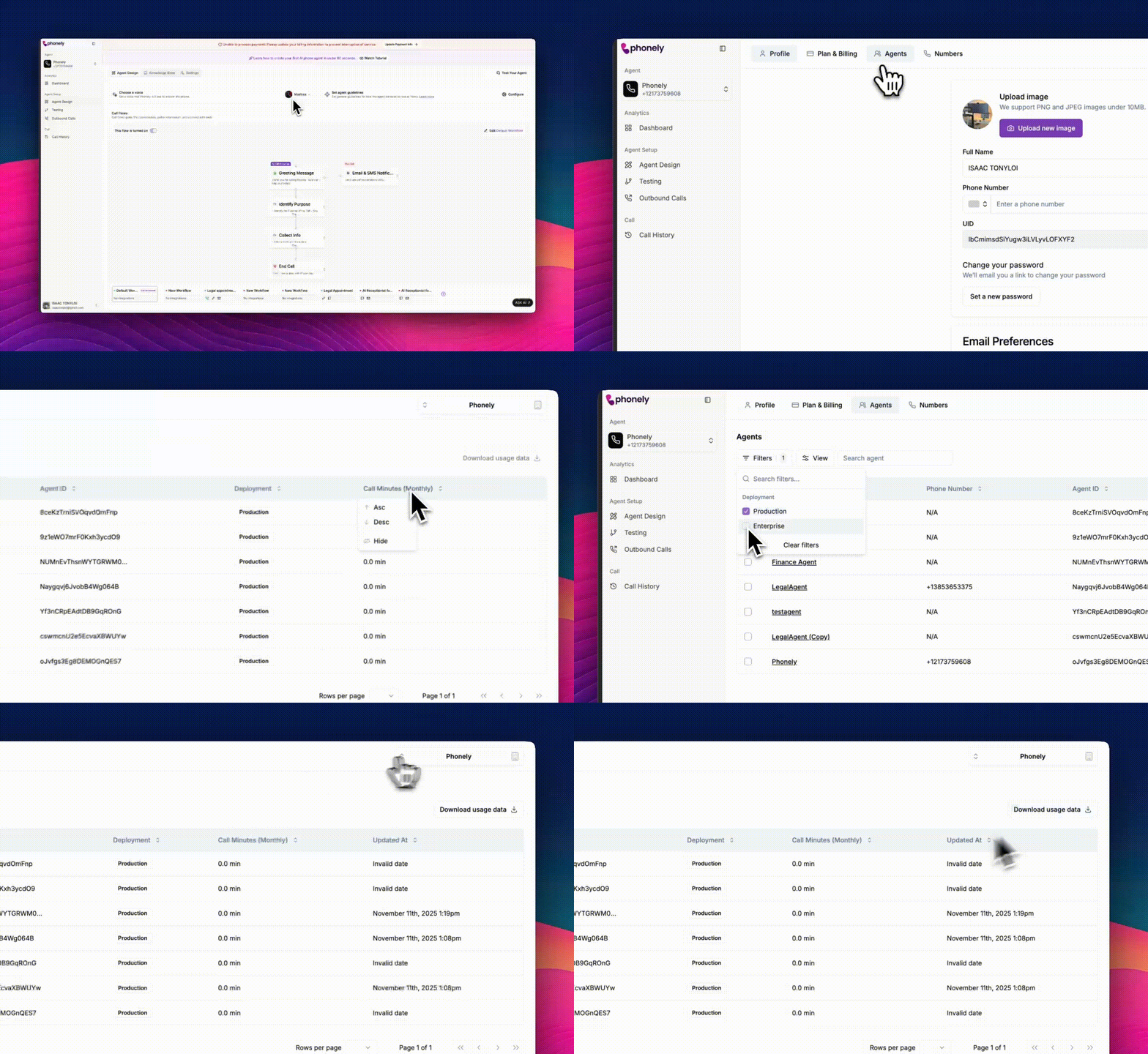 * **Name**: The agent's display name.
* **Phone Number:** The number assigned to the agent (if any).
* **Agent ID:** A unique identifier.
* **Deployment:** Indicates whether the agent is live in Production or Enterprise.
* **Call Minutes (Monthly):** Total minutes the agent has used this month.
* **Updated At:** Shows when the agent was last modified or deployed.
### Agent Usage Data
Each agent’s monthly activity is automatically logged and displayed in this table. You can also export this data reporting or analysis.
* Click the **Download usage data** button (top right of the table).
* The data file will include each agent's total usage time, deployment details, and activity timestamps.
* **Name**: The agent's display name.
* **Phone Number:** The number assigned to the agent (if any).
* **Agent ID:** A unique identifier.
* **Deployment:** Indicates whether the agent is live in Production or Enterprise.
* **Call Minutes (Monthly):** Total minutes the agent has used this month.
* **Updated At:** Shows when the agent was last modified or deployed.
### Agent Usage Data
Each agent’s monthly activity is automatically logged and displayed in this table. You can also export this data reporting or analysis.
* Click the **Download usage data** button (top right of the table).
* The data file will include each agent's total usage time, deployment details, and activity timestamps.
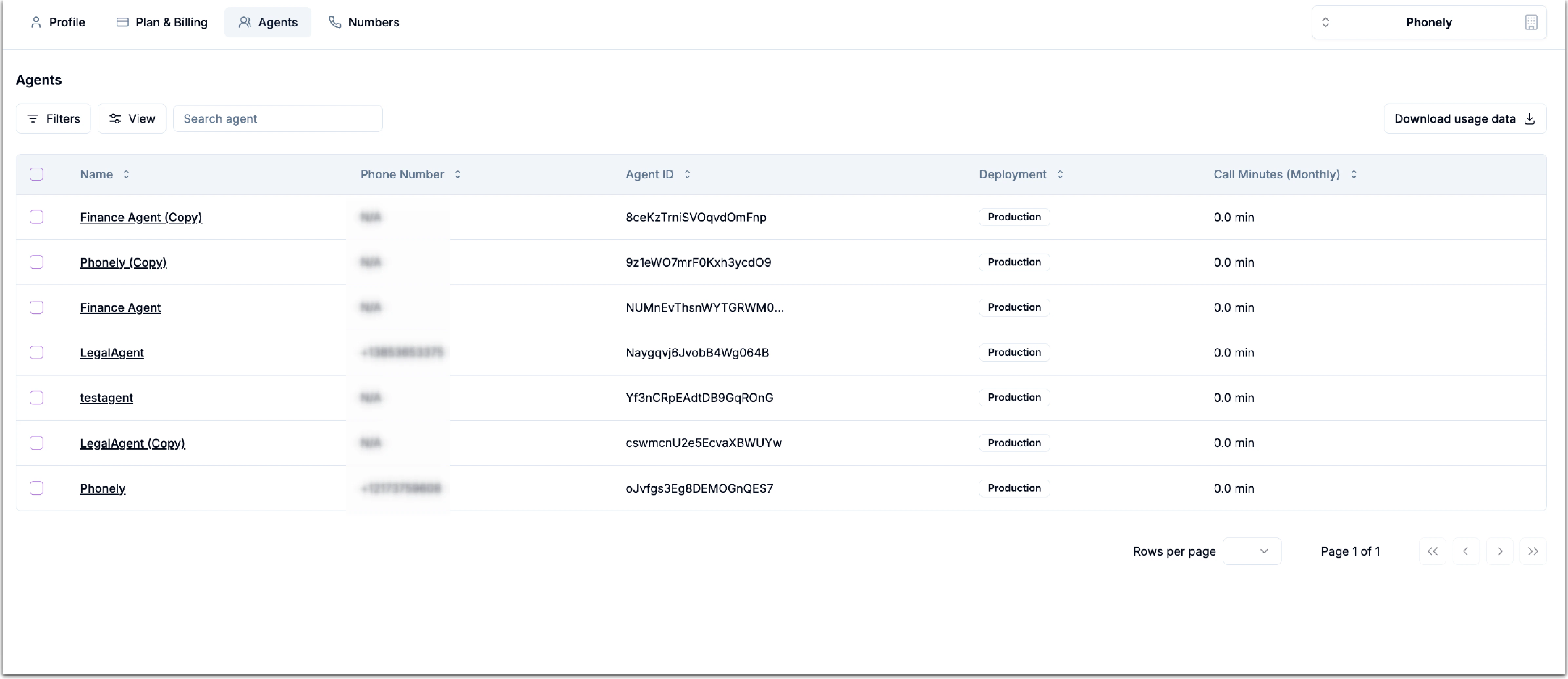 Usage data helps you track which agents handle the most calls, making it easier to allocate minutes or identify agents that may need scaling adjustments.