> ## Documentation Index
> Fetch the complete documentation index at: https://docs.phonely.ai/llms.txt
> Use this file to discover all available pages before exploring further.
# Upload Files
> Upload and manage knowledge documents in Phonely by importing files such as PDFs, DOCX, or TXT to train your AI agent with accurate and up-to-date information.
Phonely allows you to upload files that your AI agent can reference when answering customer questions. This helps ensure your agent provides accurate and context-aware responses.
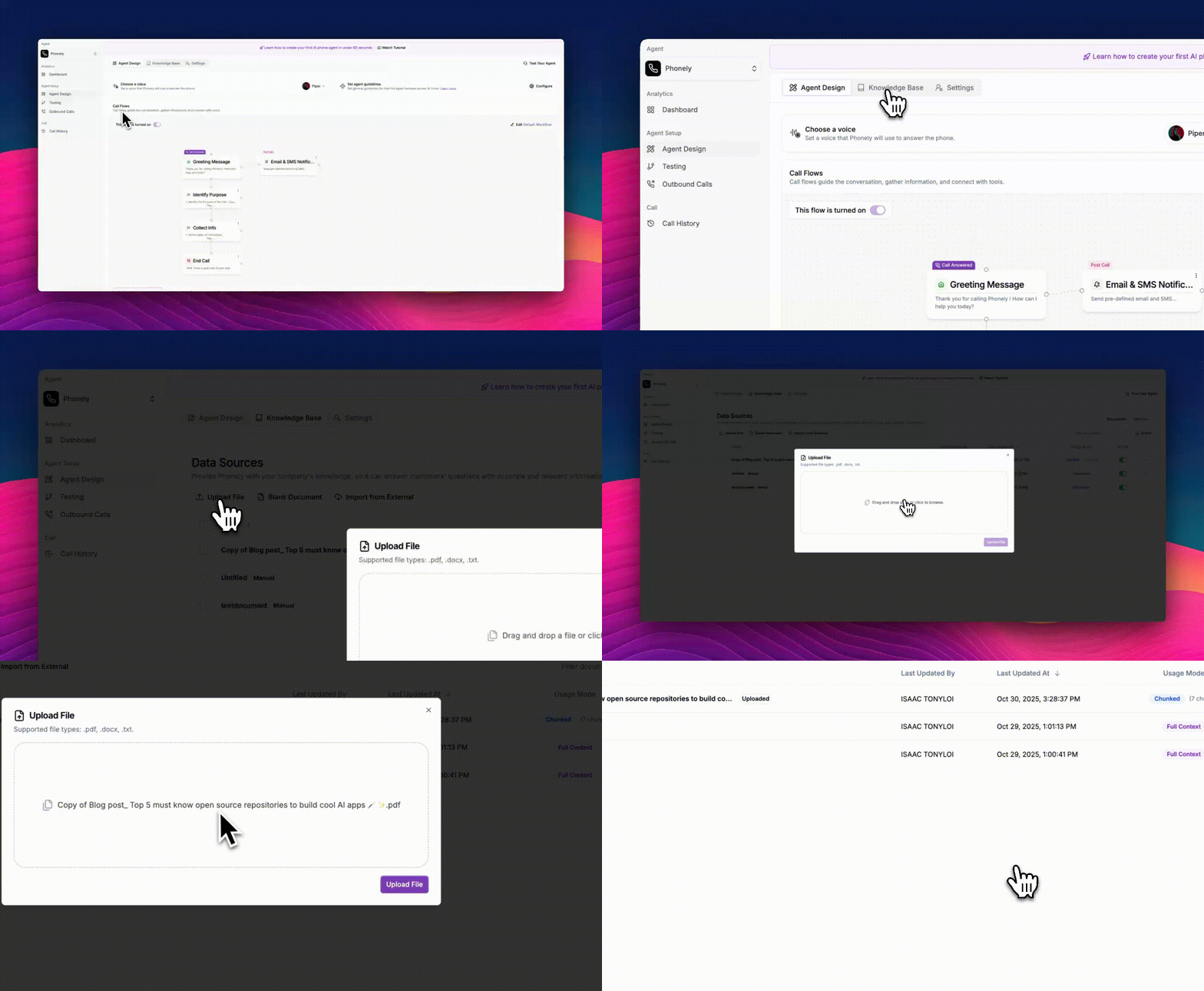 From the left sidebar, go to **Agent Design** > **Knowledge Base**, then switch to the **Knowledge Base** tab. Here, you’ll find different options under Data Sources, including Upload File, Blank Document, and Import from External.
At the top of the page, click **Upload File**. A file upload window will appear, showing supported formats.
> **Supported file types:** `.pdf`, `.docx`, `.txt`
Drag and drop your document into the upload area or click to browse your local files.\
Once the files is selected, click **Upload File**.
After uploading, your file will appear in the Data Sources list. Make sure the Active toggle is turned on so your agent can access this document.
Use relevant documents for best results, avoid uploading files that include unnecessary or outdated information.
From the left sidebar, go to **Agent Design** > **Knowledge Base**, then switch to the **Knowledge Base** tab. Here, you’ll find different options under Data Sources, including Upload File, Blank Document, and Import from External.
At the top of the page, click **Upload File**. A file upload window will appear, showing supported formats.
> **Supported file types:** `.pdf`, `.docx`, `.txt`
Drag and drop your document into the upload area or click to browse your local files.\
Once the files is selected, click **Upload File**.
After uploading, your file will appear in the Data Sources list. Make sure the Active toggle is turned on so your agent can access this document.
Use relevant documents for best results, avoid uploading files that include unnecessary or outdated information.