> ## Documentation Index
> Fetch the complete documentation index at: https://docs.phonely.ai/llms.txt
> Use this file to discover all available pages before exploring further.
# Blank Document
> Create a new knowledge base document from scratch and structure it with headings, lists, and other content blocks to organize your company’s information effectively.
You can create and manage internal knowledge directly within Phonely using Blank Documents. These are great for adding custom FAQs, scripts, or policies that help your AI agent answer customer questions accurately.
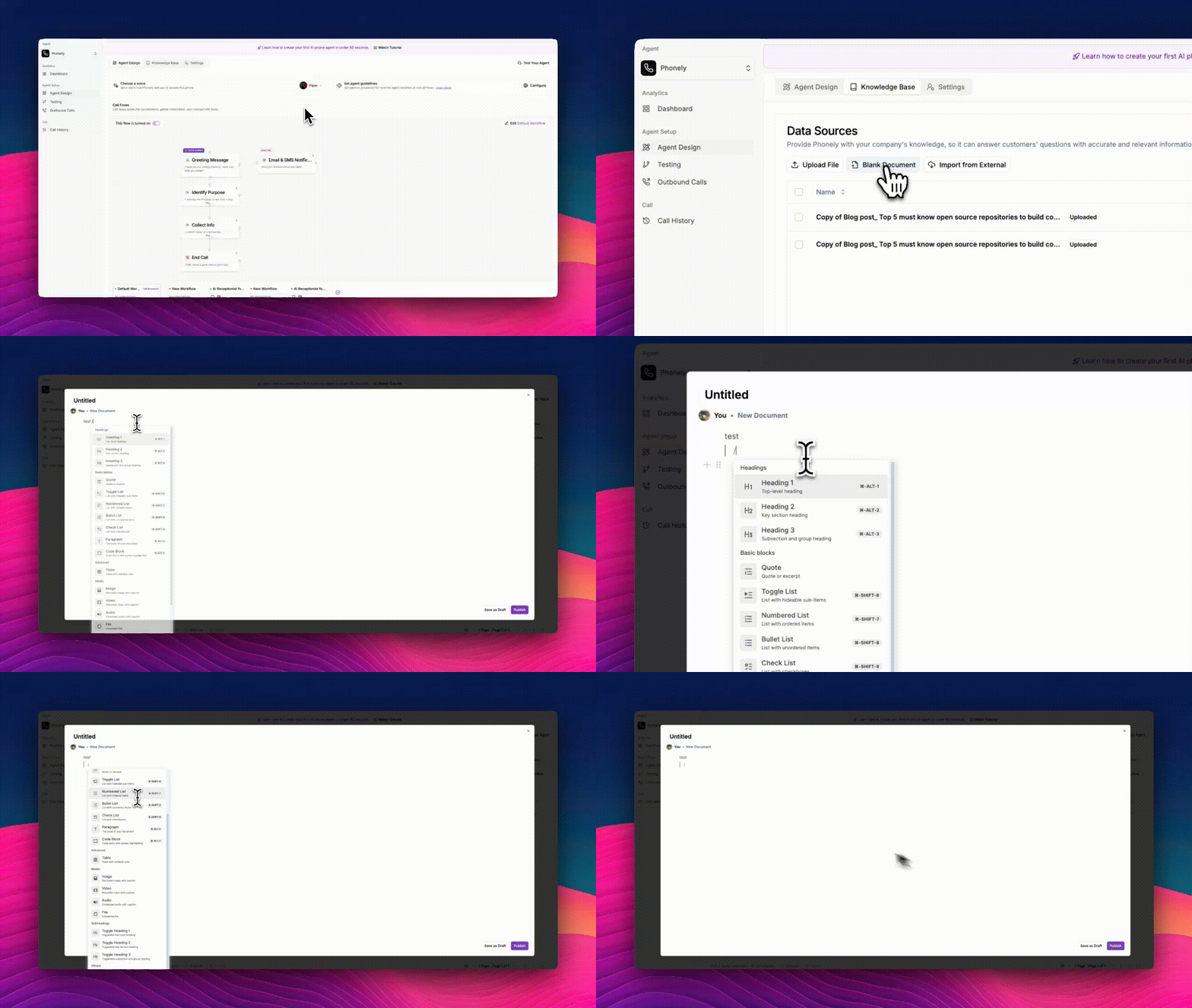 From the left sidebar, go to **Agent Design > Knowledge Base**, then switch to the Knowledge Base tab. Here, you’ll see a list of your existing documents under Data Sources.
At the top of the page, select **Blank Document**. \
A new editor window will open where you can create your document from scratch.
Give your document a title and start typing or use the **“/” command** to insert different content blocks, such as:
* Headings (H1–H3) for section titles.
* Lists (numbered, bullet, or checklist).
* Quotes or paragraphs for standard text.
* Tables, code blocks, or media (images, videos, audio).
You can use this editor to organize information clearly and make it easy for your agent to reference.
When done, choose:
* **Save as Draft:** to continue editing later.
* **Publish:** to make the document active and accessible to your AI agent.
Your new document will appear in the data sources list, ready to be used in conversations.
From the left sidebar, go to **Agent Design > Knowledge Base**, then switch to the Knowledge Base tab. Here, you’ll see a list of your existing documents under Data Sources.
At the top of the page, select **Blank Document**. \
A new editor window will open where you can create your document from scratch.
Give your document a title and start typing or use the **“/” command** to insert different content blocks, such as:
* Headings (H1–H3) for section titles.
* Lists (numbered, bullet, or checklist).
* Quotes or paragraphs for standard text.
* Tables, code blocks, or media (images, videos, audio).
You can use this editor to organize information clearly and make it easy for your agent to reference.
When done, choose:
* **Save as Draft:** to continue editing later.
* **Publish:** to make the document active and accessible to your AI agent.
Your new document will appear in the data sources list, ready to be used in conversations.