> ## Documentation Index
> Fetch the complete documentation index at: https://docs.phonely.ai/llms.txt
> Use this file to discover all available pages before exploring further.
# Add a Website
> Connect public websites to your Phonely knowledgebase
You can connect public websites to your agent Knowledge Base, allowing your AI agent to reference and retrieve information directly from online resources. This is useful for linking public documentation, blogs, or FAQs that are regularly updated.
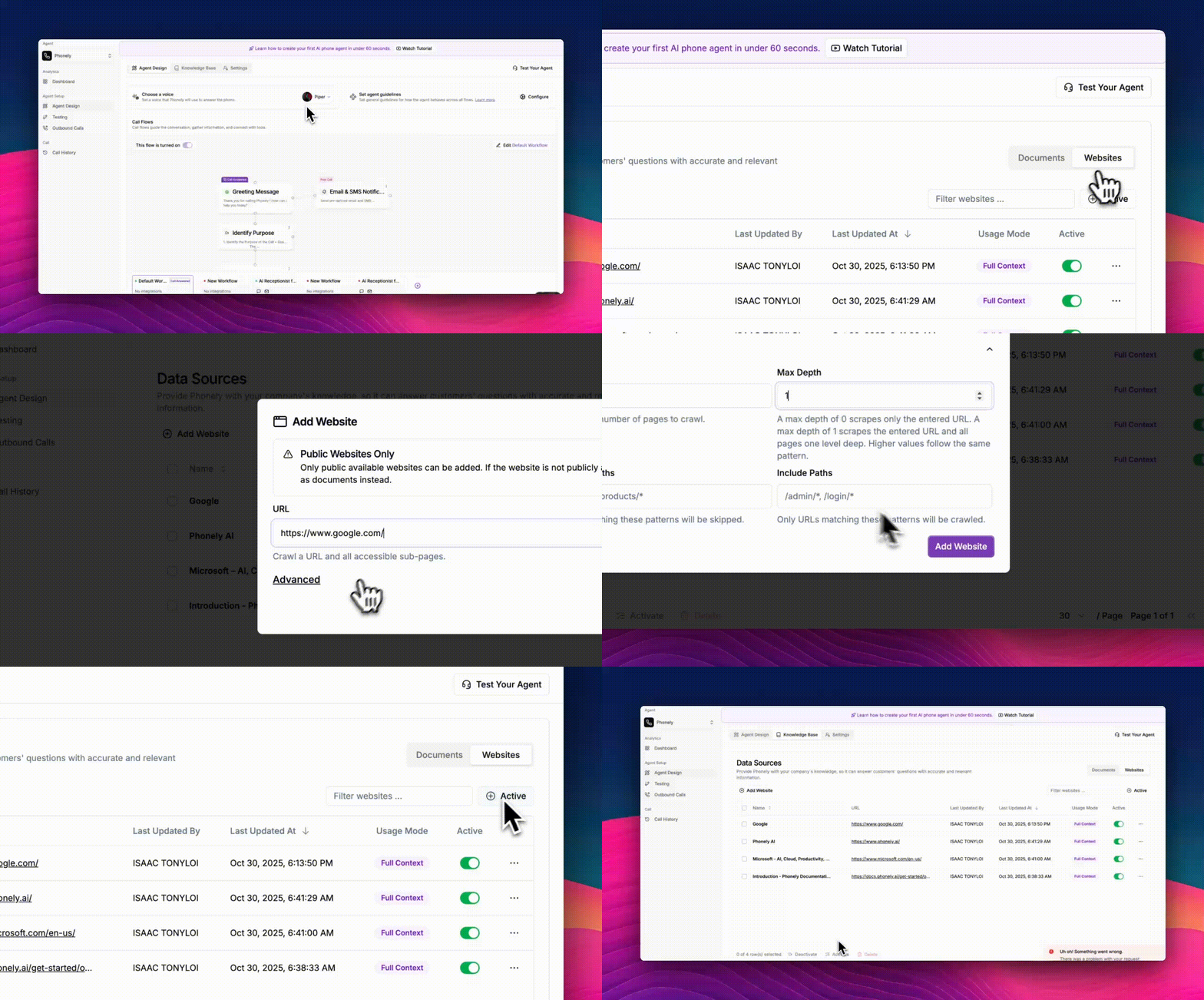 From the left sidebar, go to **Agent Design > Knowledge Base**, then switch to the **Websites** tab. This section lists all websites currently connected to your knowledge base.
At the top left of the Websites tab, click **Add Website**. A dialog box will appear where you can add a new website source.
In the URL field, type the full website address (e.g.,`https://example.com`).\
Phonely will automatically crawl this URL and all accessible sub-pages.
Only public websites can be added. If the site requires authentication or is not publicly available, consider uploading its documentation as a file instead.
Click **Advanced** to expand additional settings. These allow you to fine-tune how Phonely crawls the website.
* **Limit:** Define the maximum number of pages to crawl.
* **Max Depth:** Control how deep the crawler goes into sub-pages (e.g., a depth of 1 includes linked pages directly under the main URL).
* **Exclude Paths:** Add URL patterns to skip specific sections (e.g.**, /blog/\*, /products/\***).
* **Include Paths:** Specify URL patterns you want the crawler to include (e.g., **/docs/\*, /support/\***).
Once all fields are set, click **Add Website**. \
The website will appear under your **Data Sources > Websites** list, showing details such as:
* Name and URL.
* Last Updated By / Last Updated At.
* Usage Mode (Full Context or Chunked).
* Active Status.
From the left sidebar, go to **Agent Design > Knowledge Base**, then switch to the **Websites** tab. This section lists all websites currently connected to your knowledge base.
At the top left of the Websites tab, click **Add Website**. A dialog box will appear where you can add a new website source.
In the URL field, type the full website address (e.g.,`https://example.com`).\
Phonely will automatically crawl this URL and all accessible sub-pages.
Only public websites can be added. If the site requires authentication or is not publicly available, consider uploading its documentation as a file instead.
Click **Advanced** to expand additional settings. These allow you to fine-tune how Phonely crawls the website.
* **Limit:** Define the maximum number of pages to crawl.
* **Max Depth:** Control how deep the crawler goes into sub-pages (e.g., a depth of 1 includes linked pages directly under the main URL).
* **Exclude Paths:** Add URL patterns to skip specific sections (e.g.**, /blog/\*, /products/\***).
* **Include Paths:** Specify URL patterns you want the crawler to include (e.g., **/docs/\*, /support/\***).
Once all fields are set, click **Add Website**. \
The website will appear under your **Data Sources > Websites** list, showing details such as:
* Name and URL.
* Last Updated By / Last Updated At.
* Usage Mode (Full Context or Chunked).
* Active Status.
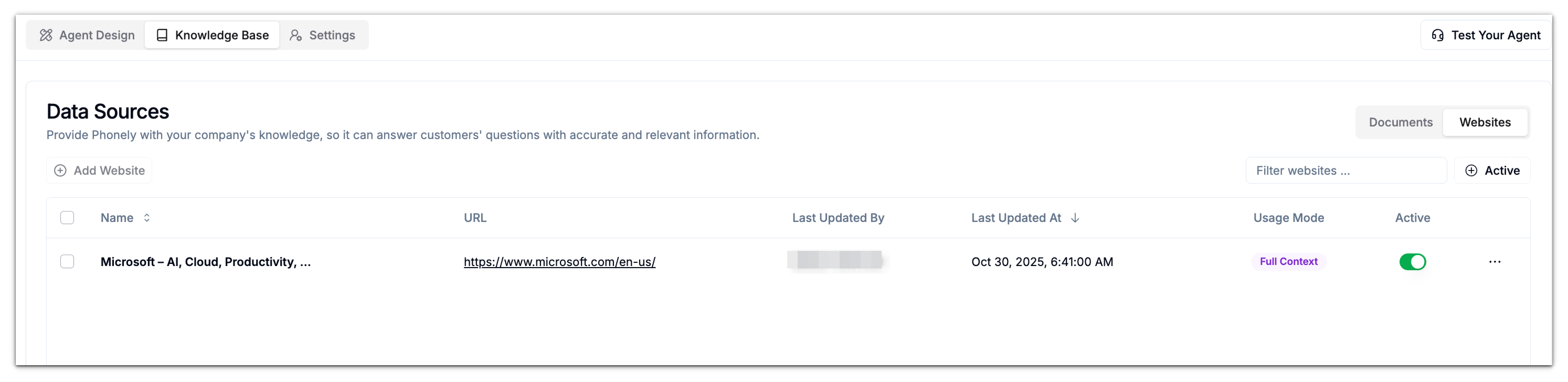 Make sure the toggle next to the website is enabled (green) to allow your AI agent to use it as a knowledge source.