> ## Documentation Index
> Fetch the complete documentation index at: https://docs.phonely.ai/llms.txt
> Use this file to discover all available pages before exploring further.
# Select a Voice and Customize
> Learn how to select and customize your agent voice
Phonely lets you select, test, and personalize the voice your AI agent uses during calls. You can choose from a library of professionally designed voices, filter them by language, gender, or accent, and even fine-tune their delivery for your use case.
Phonely allows you to clone a custom voice so your AI agent can sound more personalized or closely match your brand’s tone. More details on [how you can clone your voice here](/agent-design/voice/clone-voice).
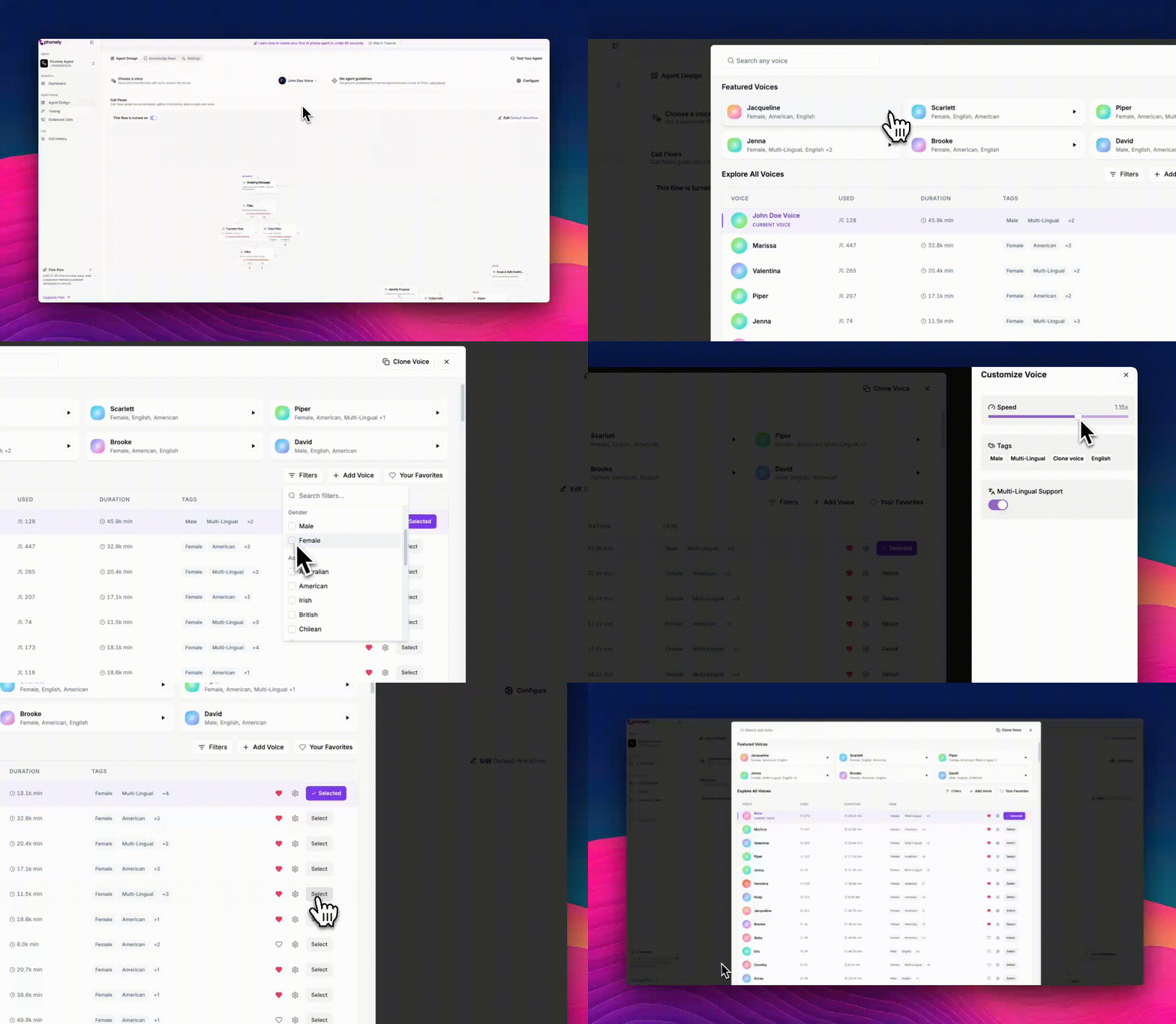 From the agent design page, locate the choose a voice section. Click the voice button to open the Voice Library.
This brings up two main sections:
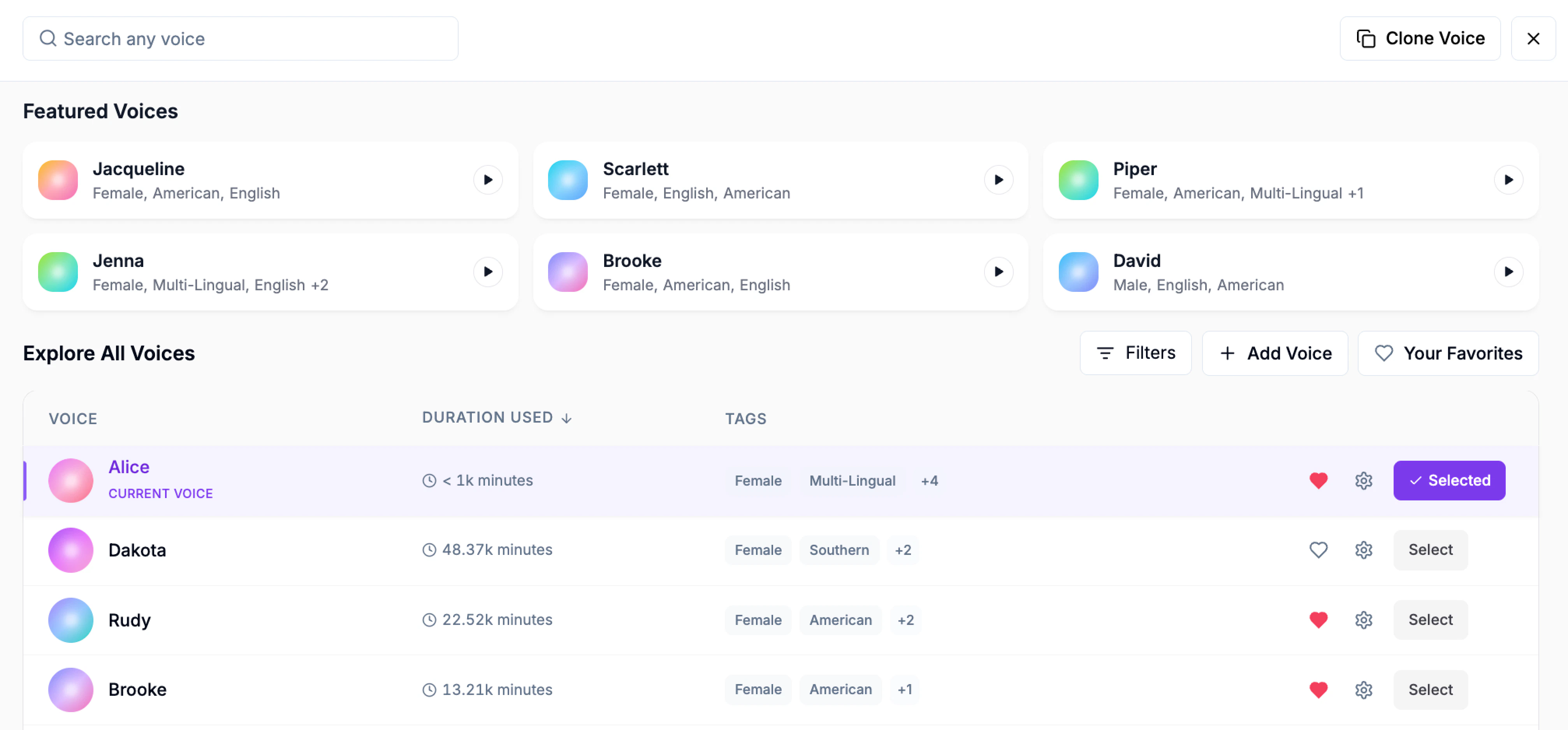
* **Featured Voices:** Curated, popular voices that showcase different styles and accents.
* **Explore All Voices:** A searchable, filterable list of every available voice.
Each voice card includes:
* A Play button to preview how it sounds.
* Tags showing its accent, gender, and supported languages.
* A heart icon to mark it as a favorite for quick access later.
Click **Select** to assign the voice to your AI agent. The selected voice will show a “Selected” badge under actions.
From the agent design page, locate the choose a voice section. Click the voice button to open the Voice Library.
This brings up two main sections:
* **Featured Voices:** Curated, popular voices that showcase different styles and accents.
* **Explore All Voices:** A searchable, filterable list of every available voice.
Each voice card includes:
* A Play button to preview how it sounds.
* Tags showing its accent, gender, and supported languages.
* A heart icon to mark it as a favorite for quick access later.
Click **Select** to assign the voice to your AI agent. The selected voice will show a “Selected” badge under actions.
 Searching and Filtering Voices To find the perfect match for your AI agent:
**Search any voice:** Use the search bar at the top to quickly locate a specific voice by name.
**Filters:** Click Filters to narrow results.
* Language: e.g., English, Spanish, French, Hungarian.
* Gender: Male or Female.
* Accent: e.g., American, Australian, British.
* Provider Tags: Such as 11Labs, OpenAI Realtime, or \_Multi-Lingual. \_
You can combine filters to fine-tune your search (for example, *Female* + *English* + *11Labs*).
## Customize a Voice
Once a voice is selected, click the **Settings** cogwheel next to it to open voice customization.
Here, you can fine-tune how the AI sounds during calls:
* **Speed:** Adjust the speaking pace using a slider.
* **Tags Overview:** Review key traits such as language, provider, or model type.
* **Multi-Lingual Support:** Toggle this settings on to enable the AI to speak and understand multiple languages seamlessy.
When done, click **Save Settings** to apply your customizations.
## Manage Voices
You can:
* [**Add New Voices**](/agent-design/voice/add-a-voice)**:** Use the **+ Add Voice** button to upload or import new voices from providers such as 11 Labs.
* **Mark Favorites:** Click the heart icon to save preferred voices.
* **View Usage Metrics:** Review voice usage metrics to understand call volume, duration, and overall AI voice consumption.
After customizing, your chosen voice appears at the top of the **Agent Design** screen as the active voice. This voice will be used for all calls made by your agent.
For best results, test multiple voices to find one that fits your brand personality and communication tone.
To learn more about setting up agent behavior and guidelines, see the related guide: \
[Configuring Agent Guidelines and Behavior Settings](/agent-design/set-agent-guidelines).
Searching and Filtering Voices To find the perfect match for your AI agent:
**Search any voice:** Use the search bar at the top to quickly locate a specific voice by name.
**Filters:** Click Filters to narrow results.
* Language: e.g., English, Spanish, French, Hungarian.
* Gender: Male or Female.
* Accent: e.g., American, Australian, British.
* Provider Tags: Such as 11Labs, OpenAI Realtime, or \_Multi-Lingual. \_
You can combine filters to fine-tune your search (for example, *Female* + *English* + *11Labs*).
## Customize a Voice
Once a voice is selected, click the **Settings** cogwheel next to it to open voice customization.
Here, you can fine-tune how the AI sounds during calls:
* **Speed:** Adjust the speaking pace using a slider.
* **Tags Overview:** Review key traits such as language, provider, or model type.
* **Multi-Lingual Support:** Toggle this settings on to enable the AI to speak and understand multiple languages seamlessy.
When done, click **Save Settings** to apply your customizations.
## Manage Voices
You can:
* [**Add New Voices**](/agent-design/voice/add-a-voice)**:** Use the **+ Add Voice** button to upload or import new voices from providers such as 11 Labs.
* **Mark Favorites:** Click the heart icon to save preferred voices.
* **View Usage Metrics:** Review voice usage metrics to understand call volume, duration, and overall AI voice consumption.
After customizing, your chosen voice appears at the top of the **Agent Design** screen as the active voice. This voice will be used for all calls made by your agent.
For best results, test multiple voices to find one that fits your brand personality and communication tone.
To learn more about setting up agent behavior and guidelines, see the related guide: \
[Configuring Agent Guidelines and Behavior Settings](/agent-design/set-agent-guidelines).