> ## Documentation Index
> Fetch the complete documentation index at: https://docs.phonely.ai/llms.txt
> Use this file to discover all available pages before exploring further.
# Voice
> Choose, configure, and test how your agent sounds during calls.
Voice controls the speech callers hear during phone conversations. The selected voice and its settings belong to the agent and apply across its inbound and outbound flows.
Use [Guidelines](/agent-design/guidelines) to control the agent's personality, tone, and response style. Voice controls how those responses sound when spoken.
## Choose a voice
Open **Agent Design**, then select **Voice**.
1. Play a voice to preview it with the sample text in the test card.
2. Search by voice name or filter the library by language, gender, accent, or other available traits.
3. Select the voice you want the agent to use.
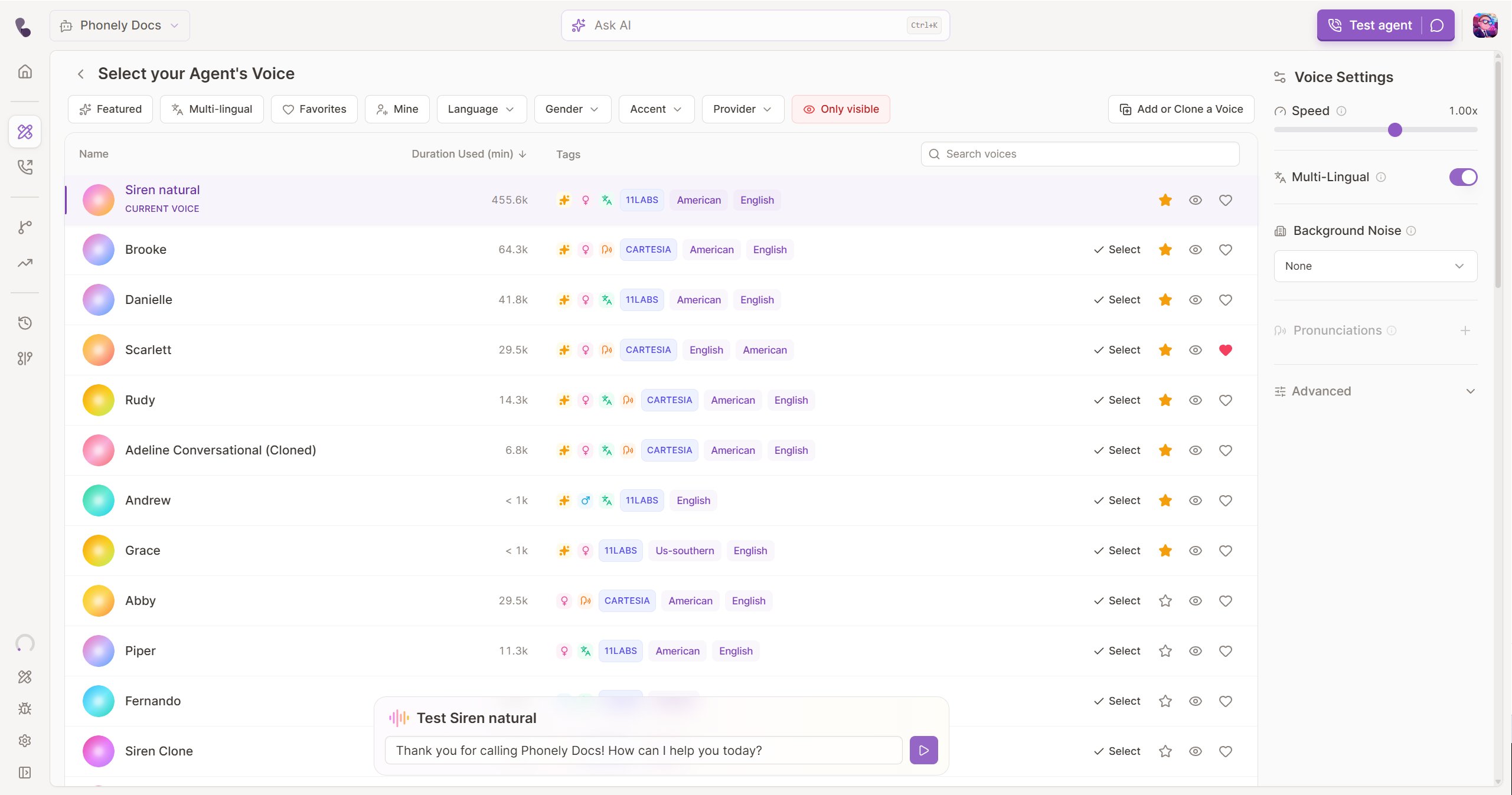 The selected voice appears first in the library. Use the heart control to save favorites, and use **Mine** to view voices owned by you or your organization.
Choose a voice that remains clear at phone-call audio quality and fits the conversations the agent handles. Accent, pacing, and pronunciation are usually more important than how expressive a voice sounds in a short sample.
## Customize the voice
Use **Voice Settings** to adjust the selected voice. Changes save automatically.
| Setting | What it controls |
| :------------------- | :---------------------------------------------------------- |
| **Speed** | How quickly the agent speaks; range varies by provider |
| **Multi-Lingual** | Whether a supported voice can respond in multiple languages |
| **Background Noise** | Optional office ambience and its volume |
| **Pronunciations** | How Cartesia voices pronounce specific names or terms |
Changing to a voice without multi-lingual support turns **Multi-Lingual** off. Re-enable it after selecting a voice that supports it.
### Add pronunciations
**Pronunciations** is available for Cartesia voices. Add an entry when the agent needs to say a name, brand, acronym, or specialized term consistently.
Enter the written word and its pronunciation, then play the entry before saving it. Expand **Phonemes** only when the generated pronunciation needs a precise adjustment.
### Configure transcription
Expand **Advanced** only when the default speech recognition needs adjustment:
* **Transcriber** selects the service that converts caller speech into text.
* **Transcriber Languages** prepares supported transcribers to recognize selected languages. This setting is available for Gladia and Soniox.
* **Transcription Keywords** help the transcriber recognize uncommon names, product terms, or identifiers.
Keep the default unless testing shows that another transcriber better fits the language or audio conditions of your calls.
## Test the voice
Enter a representative sentence in the test card. Include names, numbers, or specialized terms the agent will commonly say.
1. Preview several voices with the same text so the comparison is meaningful.
2. Select a voice, adjust its settings, and preview it again.
3. Confirm the pronunciation, pace, and background sound before testing the complete agent.
4. Use **Web Call** to hear the voice in a real conversation and check turn-taking, interruptions, and phone-call audio quality.
A voice preview tests synthesized speech, not the complete call experience. Always complete a Web Call before relying on a new voice or major setting change.
## Add or clone a voice
Select **Add or Clone a Voice** when the built-in library does not contain the voice you need.
Choose **Add a voice**, then select the provider and model. Enter the voice ID from the provider and select its language. Adding the voice also selects it for the current agent, so test it before using the agent for live calls.
Choose **Clone a voice**, then upload or record a clear 1–2 minute sample. Enter a unique name, gender, and language, and confirm that you have permission to clone and use the recording. Compare the generated samples before saving one. The saved voice becomes the current agent's selected voice.
## Troubleshooting
The selected voice does not support multi-lingual responses. Select a voice marked as multi-lingual, then enable the setting again in Voice Settings.
If the selected voice supports **Pronunciations**, add the word and test a clearer pronunciation. If the setting is unavailable, select a Cartesia voice or another voice that already pronounces the term correctly.
Confirm that the intended voice is still selected and rerun the preview after changing Speed, Background Noise, or Pronunciations. Then use Web Call: phone audio, caller interruptions, and the surrounding conversation are not represented by an isolated voice preview.
The selected voice appears first in the library. Use the heart control to save favorites, and use **Mine** to view voices owned by you or your organization.
Choose a voice that remains clear at phone-call audio quality and fits the conversations the agent handles. Accent, pacing, and pronunciation are usually more important than how expressive a voice sounds in a short sample.
## Customize the voice
Use **Voice Settings** to adjust the selected voice. Changes save automatically.
| Setting | What it controls |
| :------------------- | :---------------------------------------------------------- |
| **Speed** | How quickly the agent speaks; range varies by provider |
| **Multi-Lingual** | Whether a supported voice can respond in multiple languages |
| **Background Noise** | Optional office ambience and its volume |
| **Pronunciations** | How Cartesia voices pronounce specific names or terms |
Changing to a voice without multi-lingual support turns **Multi-Lingual** off. Re-enable it after selecting a voice that supports it.
### Add pronunciations
**Pronunciations** is available for Cartesia voices. Add an entry when the agent needs to say a name, brand, acronym, or specialized term consistently.
Enter the written word and its pronunciation, then play the entry before saving it. Expand **Phonemes** only when the generated pronunciation needs a precise adjustment.
### Configure transcription
Expand **Advanced** only when the default speech recognition needs adjustment:
* **Transcriber** selects the service that converts caller speech into text.
* **Transcriber Languages** prepares supported transcribers to recognize selected languages. This setting is available for Gladia and Soniox.
* **Transcription Keywords** help the transcriber recognize uncommon names, product terms, or identifiers.
Keep the default unless testing shows that another transcriber better fits the language or audio conditions of your calls.
## Test the voice
Enter a representative sentence in the test card. Include names, numbers, or specialized terms the agent will commonly say.
1. Preview several voices with the same text so the comparison is meaningful.
2. Select a voice, adjust its settings, and preview it again.
3. Confirm the pronunciation, pace, and background sound before testing the complete agent.
4. Use **Web Call** to hear the voice in a real conversation and check turn-taking, interruptions, and phone-call audio quality.
A voice preview tests synthesized speech, not the complete call experience. Always complete a Web Call before relying on a new voice or major setting change.
## Add or clone a voice
Select **Add or Clone a Voice** when the built-in library does not contain the voice you need.
Choose **Add a voice**, then select the provider and model. Enter the voice ID from the provider and select its language. Adding the voice also selects it for the current agent, so test it before using the agent for live calls.
Choose **Clone a voice**, then upload or record a clear 1–2 minute sample. Enter a unique name, gender, and language, and confirm that you have permission to clone and use the recording. Compare the generated samples before saving one. The saved voice becomes the current agent's selected voice.
## Troubleshooting
The selected voice does not support multi-lingual responses. Select a voice marked as multi-lingual, then enable the setting again in Voice Settings.
If the selected voice supports **Pronunciations**, add the word and test a clearer pronunciation. If the setting is unavailable, select a Cartesia voice or another voice that already pronounces the term correctly.
Confirm that the intended voice is still selected and rerun the preview after changing Speed, Background Noise, or Pronunciations. Then use Web Call: phone audio, caller interruptions, and the surrounding conversation are not represented by an isolated voice preview.