> ## Documentation Index
> Fetch the complete documentation index at: https://docs.phonely.ai/llms.txt
> Use this file to discover all available pages before exploring further.
# Agent Interruption Settings
> Learn how to configure settings that dictate how your AI agent listens, responds, and reacts when a user speaks.
The **Interruption** tab controls how your Phonely AI agent listens, responds, and reacts when a user speaks.\
These settings are designed to fine-tune conversational flow — ensuring your agent feels natural, patient, and responsive without cutting off the user or leaving long pauses.
Whether you want your agent to sound calm and thoughtful or quick and snappy, this section helps you balance responsiveness, patience, and listening accuracy.
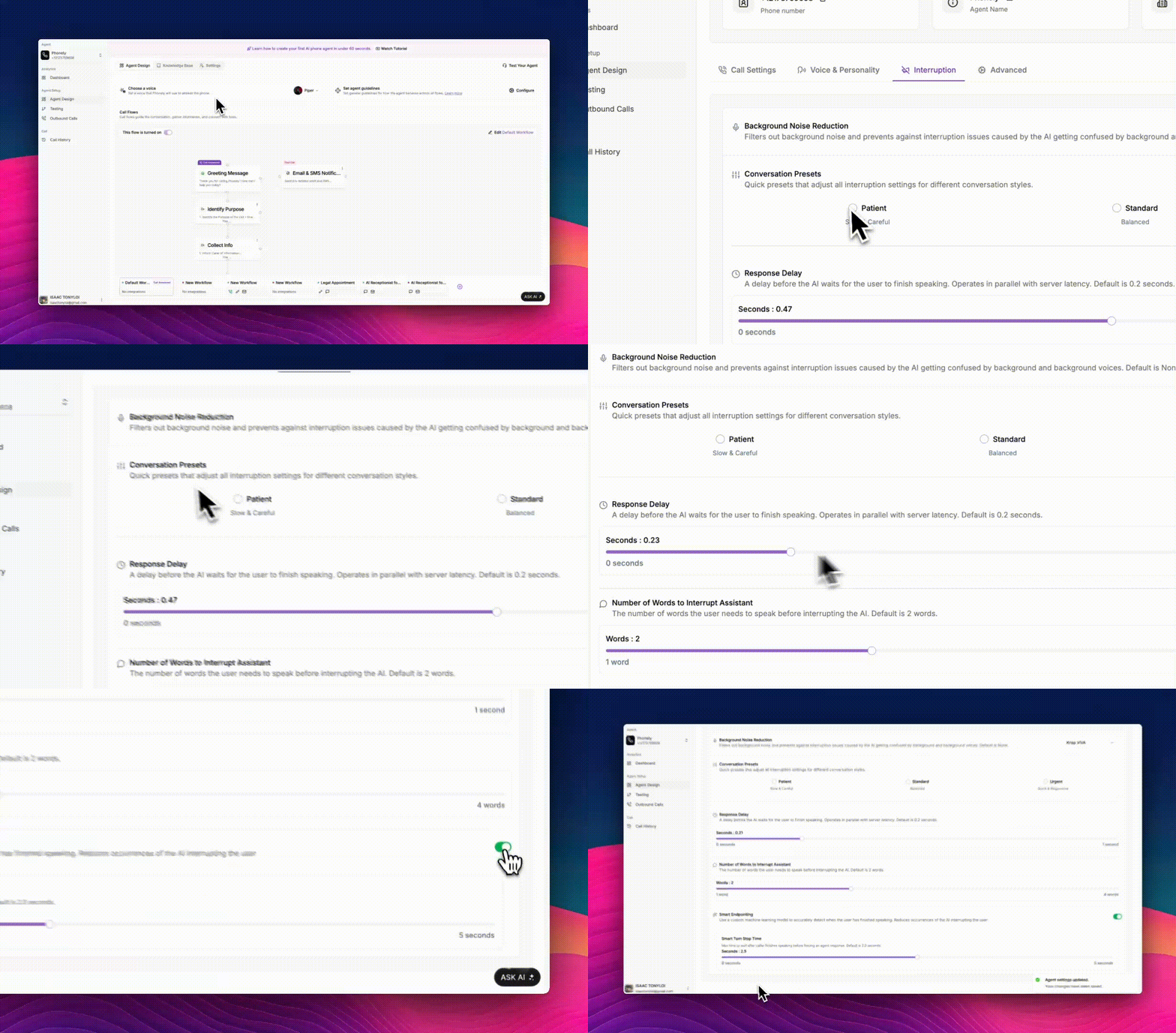 ## Background Noise Reduction
Background noise can cause confusion when both the agent and caller speak simultaneously.\
This feature helps your agent filter out unwanted environmental sounds, such as chatter or static, preventing the AI from misinterpreting then as speech.
### **How to Configure**
1. Go to **Interruption Settings**.
2. Open the **Background Noise Reduction** dropdown.
3. Choose from **Phonely (Default)**, **None**, **Krisp**, **AI Coustics**, or **Krisp VIVA** — each offering varying levels of AI-powered background noise filtering, response delays, and number of words to interrupt.
## Conversation Presets
Conversation presets let you quickly adjust multiple interruption parameters to match the desired communication style of your agent.
They’re great for aligning tone and response timing without manually tweaking each control.
## Background Noise Reduction
Background noise can cause confusion when both the agent and caller speak simultaneously.\
This feature helps your agent filter out unwanted environmental sounds, such as chatter or static, preventing the AI from misinterpreting then as speech.
### **How to Configure**
1. Go to **Interruption Settings**.
2. Open the **Background Noise Reduction** dropdown.
3. Choose from **Phonely (Default)**, **None**, **Krisp**, **AI Coustics**, or **Krisp VIVA** — each offering varying levels of AI-powered background noise filtering, response delays, and number of words to interrupt.
## Conversation Presets
Conversation presets let you quickly adjust multiple interruption parameters to match the desired communication style of your agent.
They’re great for aligning tone and response timing without manually tweaking each control.
 ### **Available Presets**
| **Preset** | **Style** | **Behavior** | **Best For** |
| :----------- | :----------------- | :------------------------------------------------------------------------------ | :---------------------------------------------------------- |
| **Patient** | Slow & Careful | Waits longer before responding, allowing users to fully finish their sentences. | Complex conversations, elderly callers, or formal contexts. |
| **Standard** | Balanced | Moderate interruption sensitivity and response delay. | Default for most support or business workflows. |
| **Urgent** | Quick & Responsive | Responds faster, ideal for concise, fast-paced exchanges. | Emergency hotlines, internal team calls, or status updates. |
1. Under **Conversation Presets**, choose the tone that best fits your workflow.
2. Adjust individual settings below if you want finer control.
## Response Delay
Defines how long the agent waits after a user finishes speaking before responding.\
This helps avoid awkward overlaps or overly long pauses between sentences.
1. Use the **Response Delay** slider to set the desired wait time in seconds.
2. You can also choose from the presents above to adjust this.
## Number of Words to Interrupt Assistant
This determines how many words the caller must speak before interrupting the AI mid-response.\
It helps balance between letting the agent finish its thoughts and ensuring users can easily interject when needed.
## Smart Endpointing
Smart Endpointing uses machine learning to detect when the caller has truly finished speaking — not just paused momentarily.\
This helps prevent the AI from interrupting too early and creates smoother turn-taking between the agent and the user.
1. Make sure **Smart Endpointing** is enabled.
2. Adjust the Smart Turn Stop Time slider to control how long the AI waits before speaking again.
### **Available Presets**
| **Preset** | **Style** | **Behavior** | **Best For** |
| :----------- | :----------------- | :------------------------------------------------------------------------------ | :---------------------------------------------------------- |
| **Patient** | Slow & Careful | Waits longer before responding, allowing users to fully finish their sentences. | Complex conversations, elderly callers, or formal contexts. |
| **Standard** | Balanced | Moderate interruption sensitivity and response delay. | Default for most support or business workflows. |
| **Urgent** | Quick & Responsive | Responds faster, ideal for concise, fast-paced exchanges. | Emergency hotlines, internal team calls, or status updates. |
1. Under **Conversation Presets**, choose the tone that best fits your workflow.
2. Adjust individual settings below if you want finer control.
## Response Delay
Defines how long the agent waits after a user finishes speaking before responding.\
This helps avoid awkward overlaps or overly long pauses between sentences.
1. Use the **Response Delay** slider to set the desired wait time in seconds.
2. You can also choose from the presents above to adjust this.
## Number of Words to Interrupt Assistant
This determines how many words the caller must speak before interrupting the AI mid-response.\
It helps balance between letting the agent finish its thoughts and ensuring users can easily interject when needed.
## Smart Endpointing
Smart Endpointing uses machine learning to detect when the caller has truly finished speaking — not just paused momentarily.\
This helps prevent the AI from interrupting too early and creates smoother turn-taking between the agent and the user.
1. Make sure **Smart Endpointing** is enabled.
2. Adjust the Smart Turn Stop Time slider to control how long the AI waits before speaking again.
