> ## Documentation Index
> Fetch the complete documentation index at: https://docs.phonely.ai/llms.txt
> Use this file to discover all available pages before exploring further.
# Clone a Voice
> Learn how to create a custom voice so your AI agent can sound more personalized or closely match your brand’s tone
Phonely allows you to clone a custom voice so your AI agent can sound more personalized or closely match your brand’s tone. This process involves uploading or recording a short audio sample, selecting voice parameters, and finalizing the cloned voice for use.
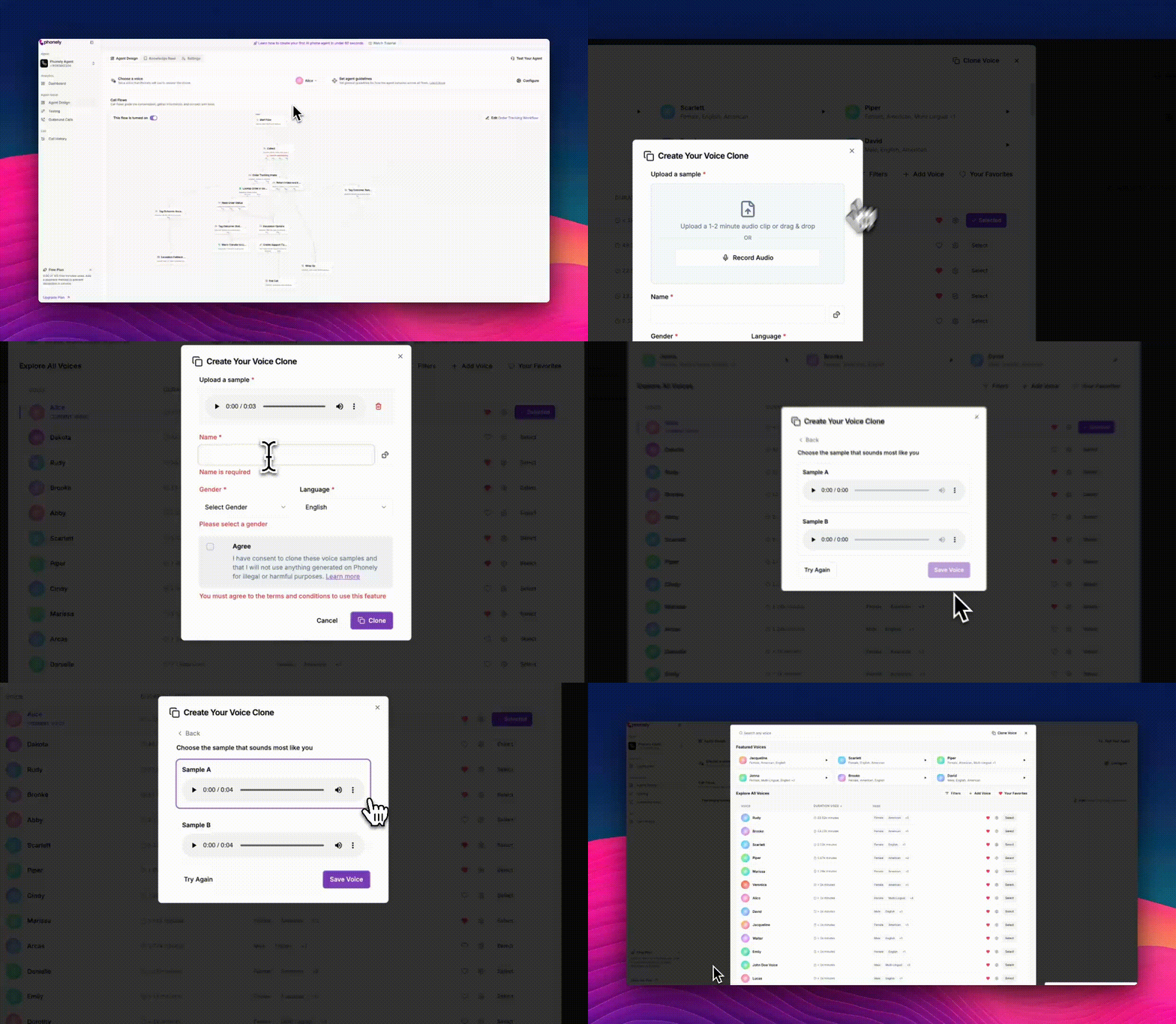 From the **Agent Design** page, click on the **Choose a Voice** section. Once the **Voice Library** opens, click **Clone Voice** at the top-right corner of the window.
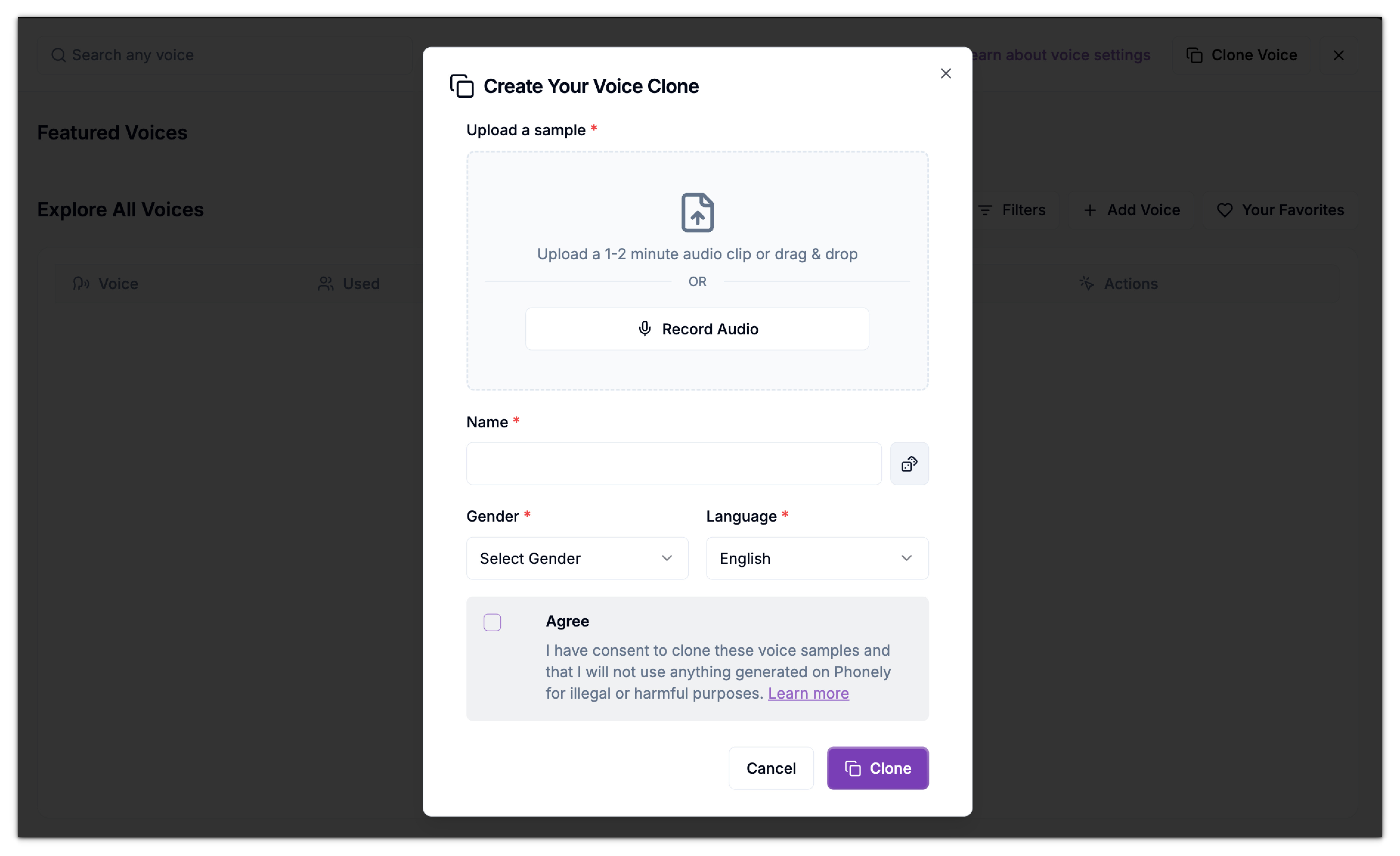
This opens the Create Your Voice Clone window, where you’ll provide and audio sample and define key voice settings.
The audio sample should contain clear speech in a quiet environment. Avoid background noise, distortion, or overlapping voices to ensure accurate cloning results.
You can add a voice sample in one of two ways:
* **Upload a Sample:** Drag and drop or click to upload a 1–2 minute audio clip in a supported format.
* **Record Audio:** Click **Record Audio** to capture your sample directly within Phonely.
The audio sample should contain clear speech in a quiet environment. Avoid background noise, distortion, or overlapping voices to ensure accurate cloning results.
Next, fill in the required details to define your voice profile:
* **Name:** Give your cloned voice a name.
* **Gender:** Select the gender that best represents the voice (e.g., Male, Female).
* **Language**: Choose the language the voice will primarily speak. Supported languages include English, Spanish, French, German, Italian, Portuguese, Russian, Hindi, Dutch, Swedish, and Danish.
Check the **Agree** box to confirm that you have permission to use and clone the provided voice sample and that it will not be used for illegal or harmful purposes.
From the **Agent Design** page, click on the **Choose a Voice** section. Once the **Voice Library** opens, click **Clone Voice** at the top-right corner of the window.
This opens the Create Your Voice Clone window, where you’ll provide and audio sample and define key voice settings.
The audio sample should contain clear speech in a quiet environment. Avoid background noise, distortion, or overlapping voices to ensure accurate cloning results.
You can add a voice sample in one of two ways:
* **Upload a Sample:** Drag and drop or click to upload a 1–2 minute audio clip in a supported format.
* **Record Audio:** Click **Record Audio** to capture your sample directly within Phonely.
The audio sample should contain clear speech in a quiet environment. Avoid background noise, distortion, or overlapping voices to ensure accurate cloning results.
Next, fill in the required details to define your voice profile:
* **Name:** Give your cloned voice a name.
* **Gender:** Select the gender that best represents the voice (e.g., Male, Female).
* **Language**: Choose the language the voice will primarily speak. Supported languages include English, Spanish, French, German, Italian, Portuguese, Russian, Hindi, Dutch, Swedish, and Danish.
Check the **Agree** box to confirm that you have permission to use and clone the provided voice sample and that it will not be used for illegal or harmful purposes.
 Once all fields are complete, click **Clone** to begin the voice generation process.
After the system processes your submission, Phonely generates one or more sample variations of your clones voice.
You’ll be prompted to choose a sample that sounds most like you:
* Each sample is displayed with a playback bar (e.g., *Sample A* or *Sample B*).
* Click the **Play** button to listen to each one.
* If none sound right, click **Try Again** to re-upload or record a new sample.
Once all fields are complete, click **Clone** to begin the voice generation process.
After the system processes your submission, Phonely generates one or more sample variations of your clones voice.
You’ll be prompted to choose a sample that sounds most like you:
* Each sample is displayed with a playback bar (e.g., *Sample A* or *Sample B*).
* Click the **Play** button to listen to each one.
* If none sound right, click **Try Again** to re-upload or record a new sample.
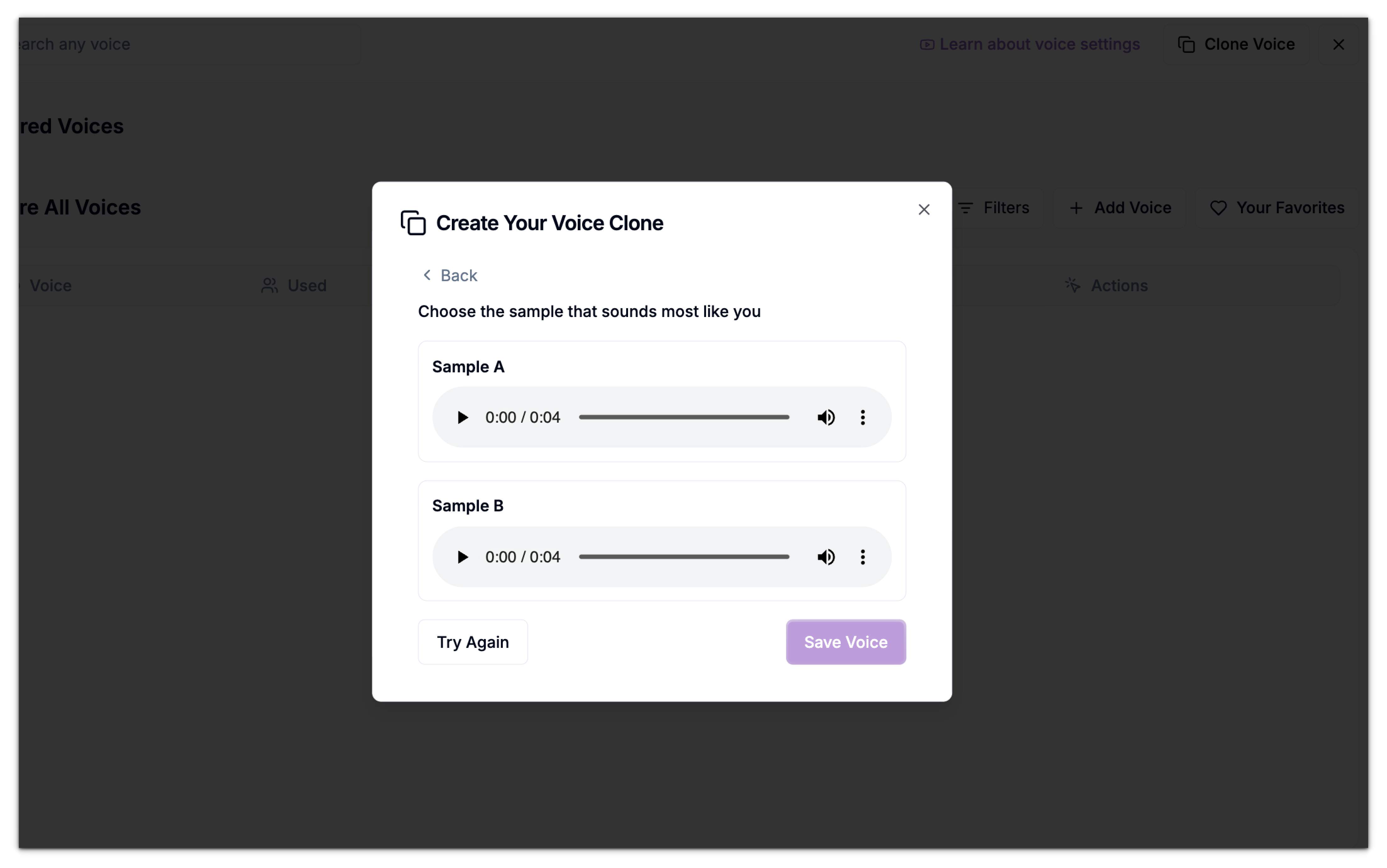 When you find a sample that best represents your desired tone, select it and click **Save Voice**.
Once saved, the new cloned voice is automatically added to your **Voice Library** under the **Explore All Voices** section. You’ll see it listed alongside other available voices, compete with usage stats, tags, and actions.
You can then:
* **Preview** it by clicking the **Play** button.
* Set it as your active agent voice by clicking **Select** under the **Actions** column.
* Further customize it by clicking the Settings icon to adjust speed or multilingual options.
Once completed, your custom cloned voice is ready for deployment in outbound and inbound call flows. It will behave like any other voice in the Phonely system and can be reused across multiple agents and projects.
When you find a sample that best represents your desired tone, select it and click **Save Voice**.
Once saved, the new cloned voice is automatically added to your **Voice Library** under the **Explore All Voices** section. You’ll see it listed alongside other available voices, compete with usage stats, tags, and actions.
You can then:
* **Preview** it by clicking the **Play** button.
* Set it as your active agent voice by clicking **Select** under the **Actions** column.
* Further customize it by clicking the Settings icon to adjust speed or multilingual options.
Once completed, your custom cloned voice is ready for deployment in outbound and inbound call flows. It will behave like any other voice in the Phonely system and can be reused across multiple agents and projects.