> ## Documentation Index
> Fetch the complete documentation index at: https://docs.phonely.ai/llms.txt
> Use this file to discover all available pages before exploring further.
# Agent Advanced Settings
> Learn how to configure settings that dictate how your AI agent listens, responds, and reacts when a user speaks.
The advanced settings tab provides fine-grained control over how your Phonely AI agent listens, understands, and responds during calls. These settings allow you to optimize transcription accuracy, response timing, interruption behavior, model performance, and knowledge retrieval.
Use this section when you want to customize your agent’s behavior beyond the default configuration. For example, you can choose different transcription providers, adjust how quickly the agent responds, select the language model powering conversations, or control how the agent retrieves information from your knowledge base.
To access the advanced settings:
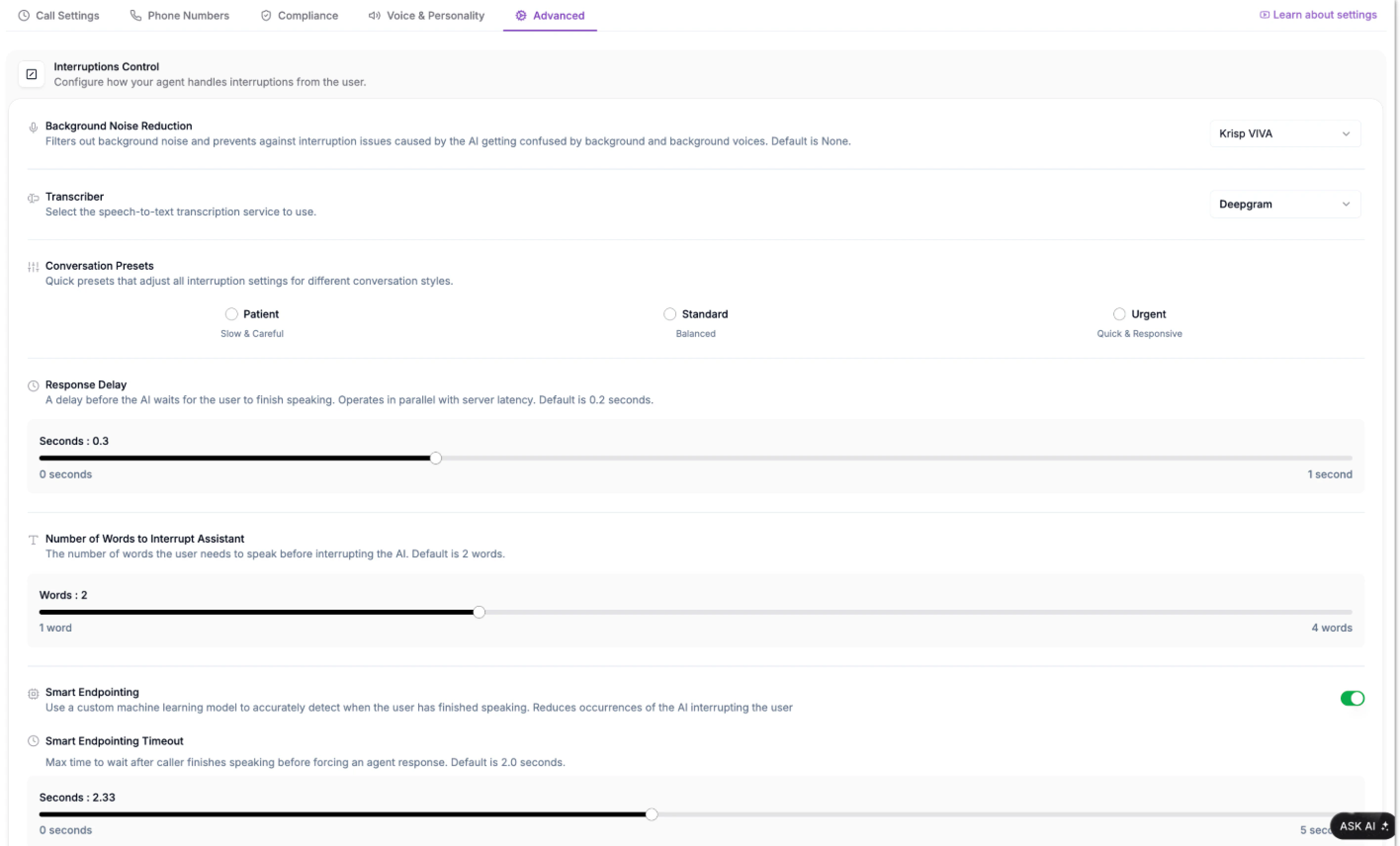 ## Background Noise Reduction
Background noise can cause confusion when both the agent and caller speak simultaneously.\
This feature helps your agent filter out unwanted environmental sounds, such as chatter or static, preventing the AI from misinterpreting them as speech.
Choose from **Phonely (Default)**, **None**, **Krisp**, **AI Coustics**, or **Krisp VIVA**, each offering varying levels of AI-powered background noise filtering, response delays, and number of words to interrupt.
## Background Noise Reduction
Background noise can cause confusion when both the agent and caller speak simultaneously.\
This feature helps your agent filter out unwanted environmental sounds, such as chatter or static, preventing the AI from misinterpreting them as speech.
Choose from **Phonely (Default)**, **None**, **Krisp**, **AI Coustics**, or **Krisp VIVA**, each offering varying levels of AI-powered background noise filtering, response delays, and number of words to interrupt.
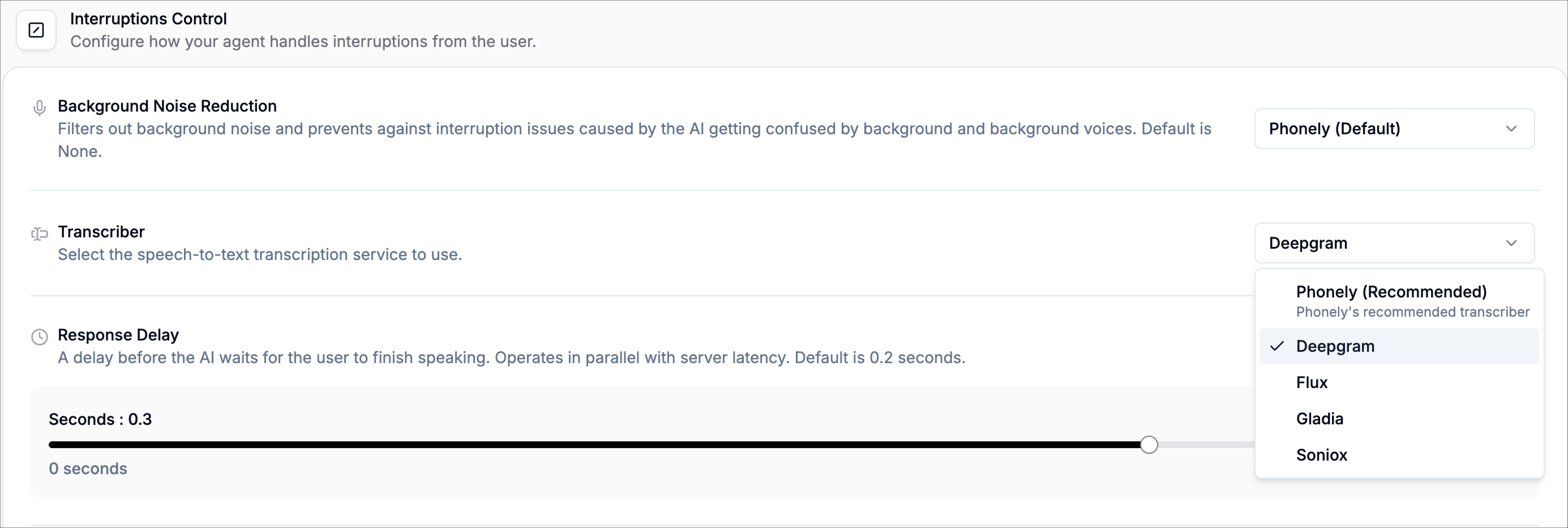 ## Transcriber
The transcriber setting allows you to choose which speech-to-text service Phonely uses to convert caller audio into text in real time. This transcription powers the agent’s understanding of the conversation and directly impacts accuracy, speed, and overall call performance.
From the dropdown, you can select your preferred transcription provider (e.g., Phonely (Recommended), Deepgram, Flux, Gladia, Soniox). Each provider may differ slightly in latency, accuracy, and language handling.
## Response Delay
Defines how long the agent waits after the agent waits after a user finishes speaking before responding. This helps avoid awkward overlaps or overly long pauses between sentences.
1. Use the **Response Delay** slider to set the desired wait time in seconds.
2. You can also choose from the presents above to adjust this.
## Transcriber
The transcriber setting allows you to choose which speech-to-text service Phonely uses to convert caller audio into text in real time. This transcription powers the agent’s understanding of the conversation and directly impacts accuracy, speed, and overall call performance.
From the dropdown, you can select your preferred transcription provider (e.g., Phonely (Recommended), Deepgram, Flux, Gladia, Soniox). Each provider may differ slightly in latency, accuracy, and language handling.
## Response Delay
Defines how long the agent waits after the agent waits after a user finishes speaking before responding. This helps avoid awkward overlaps or overly long pauses between sentences.
1. Use the **Response Delay** slider to set the desired wait time in seconds.
2. You can also choose from the presents above to adjust this.
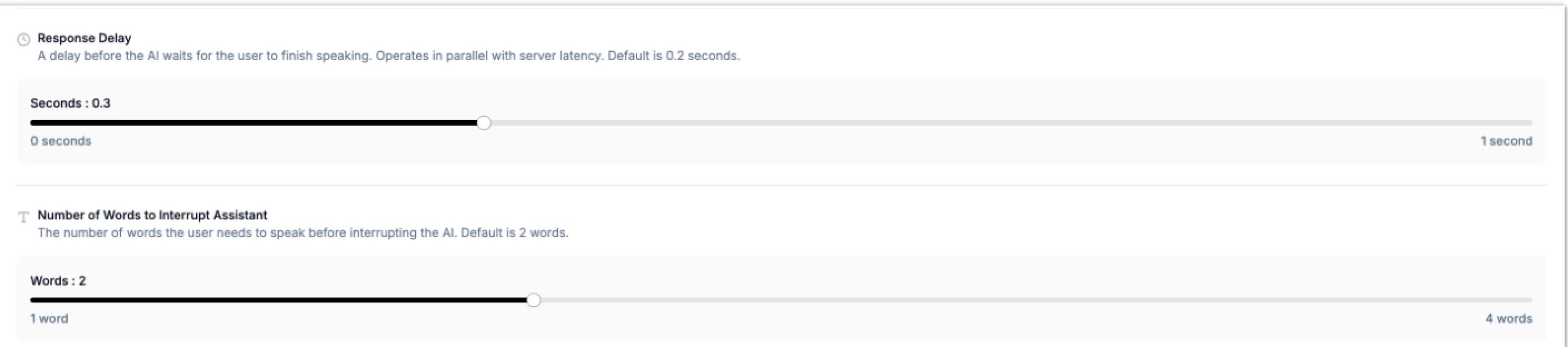 ## Number of Words to Interrupt Assistant
This determines how many words the caller must speak before interrupting the AI mid-response. It helps balance between letting the agent finish its thoughts and ensuring users can easily interject when needed.
## Smart Endpointing
Smart Endpointing uses machine learning to detect when the caller has truly finished speaking not just paused momentarily. This helps prevent the AI from interrupting too early and creates smoother turn-taking between the agent and the user.
1. Make sure **Smart Endpointing** is enabled.
2. Adjust the smart turn stop time slider to control how long the AI waits before speaking again.
## Number of Words to Interrupt Assistant
This determines how many words the caller must speak before interrupting the AI mid-response. It helps balance between letting the agent finish its thoughts and ensuring users can easily interject when needed.
## Smart Endpointing
Smart Endpointing uses machine learning to detect when the caller has truly finished speaking not just paused momentarily. This helps prevent the AI from interrupting too early and creates smoother turn-taking between the agent and the user.
1. Make sure **Smart Endpointing** is enabled.
2. Adjust the smart turn stop time slider to control how long the AI waits before speaking again.
 ## Model Providers
The model providers section controls the large language models that power your Phonely agent. These settings influence how your agent sounds, how quickly it responds, how well it reasons, and how reliably it handles calls.
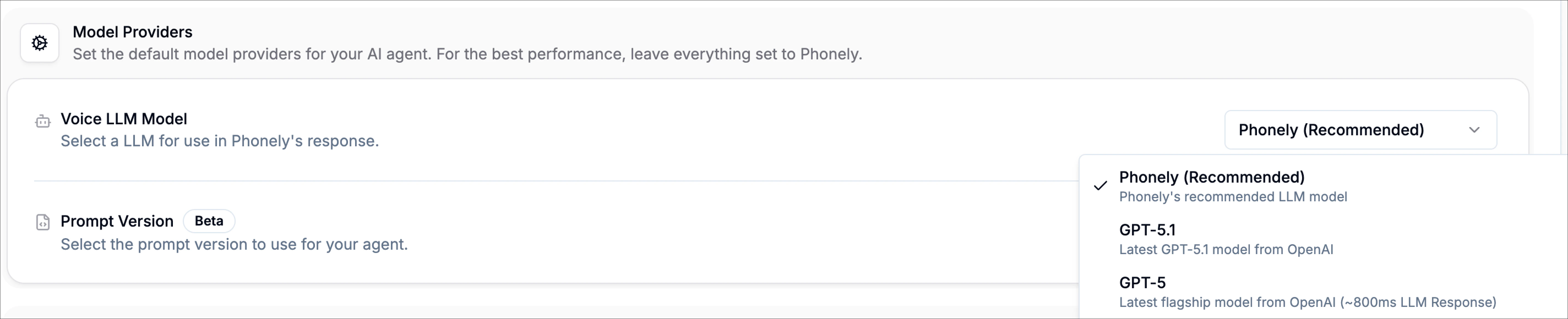
## Voice LLM Model
This setting determines which Large Language Model your agent uses when speaking to callers. Different models offer different balances of speed, reasoning quality, and cost.
You can choose from several OpenAI-powered models, along with Phonely’s optimized default:
* **Phonely (Default):** A pre-optimized model configuration designed specifically for live phone conversations. It provides the best mix of speed, reliability, and stable conversational tone.
* **GPT-5.1:** OpenAI’s latest high-reasoning model. Excellent for complex or technical. conversations, though slightly slower.
* **GPT-5:** Strong reasoning with \~800ms response time.
* **GPT-5 Mini**: A faster, more lightweight GPT-5 variant with \~600ms response time.
* **GPT-4.1:** Balanced performance, stable and predictable.
* **GPT-4o:** Azure-powered with very fast \~450ms responses.
## Model Providers
The model providers section controls the large language models that power your Phonely agent. These settings influence how your agent sounds, how quickly it responds, how well it reasons, and how reliably it handles calls.
## Voice LLM Model
This setting determines which Large Language Model your agent uses when speaking to callers. Different models offer different balances of speed, reasoning quality, and cost.
You can choose from several OpenAI-powered models, along with Phonely’s optimized default:
* **Phonely (Default):** A pre-optimized model configuration designed specifically for live phone conversations. It provides the best mix of speed, reliability, and stable conversational tone.
* **GPT-5.1:** OpenAI’s latest high-reasoning model. Excellent for complex or technical. conversations, though slightly slower.
* **GPT-5:** Strong reasoning with \~800ms response time.
* **GPT-5 Mini**: A faster, more lightweight GPT-5 variant with \~600ms response time.
* **GPT-4.1:** Balanced performance, stable and predictable.
* **GPT-4o:** Azure-powered with very fast \~450ms responses.
 ## Prompt Version
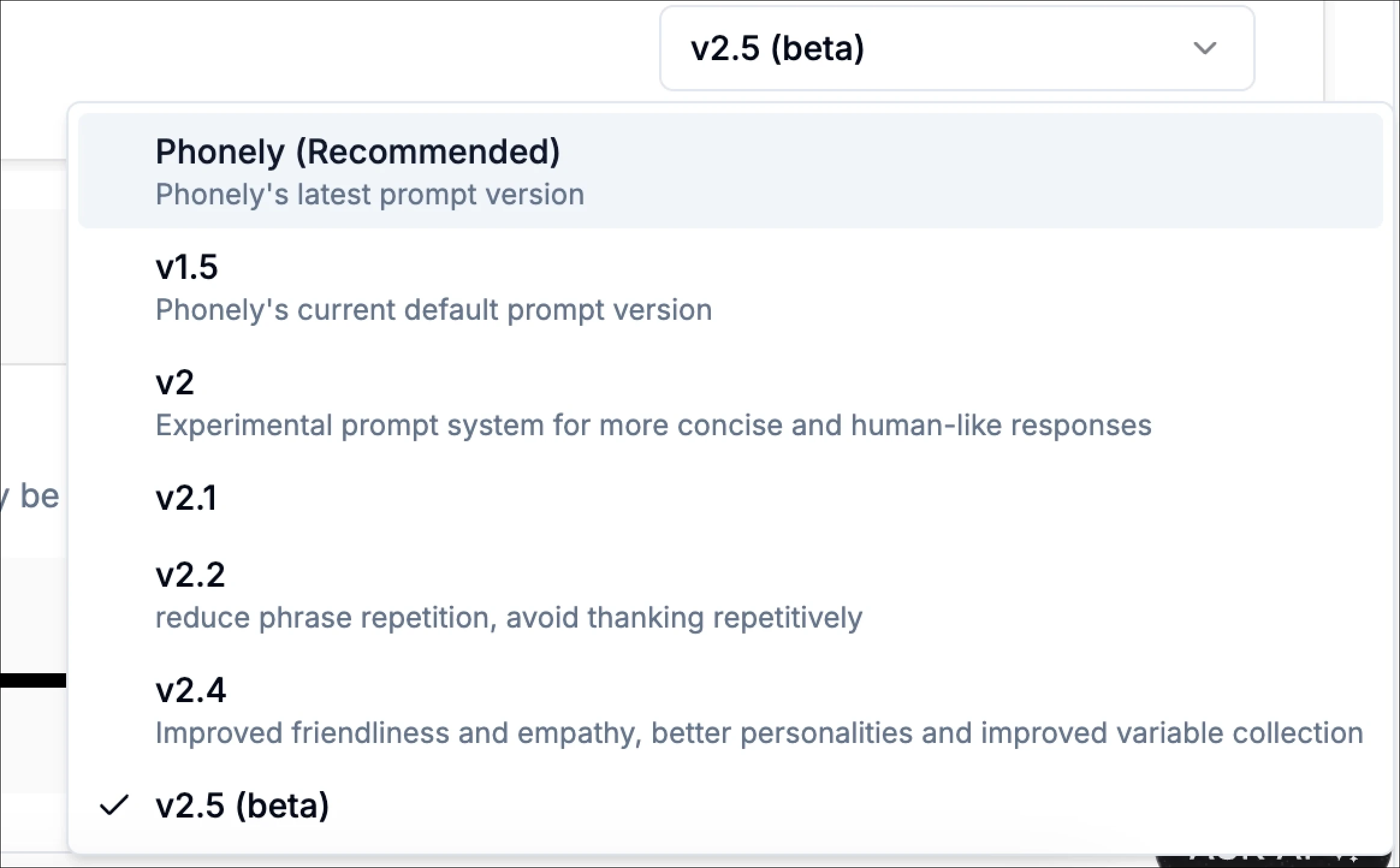
Prompt versions control the instructions and reasoning style your AI agent uses internally. Each version can change how the agent interprets instructions and responds during calls.
Available versions include:
## Prompt Version
Prompt versions control the instructions and reasoning style your AI agent uses internally. Each version can change how the agent interprets instructions and responds during calls.
Available versions include:
 ## Transcription Keywords
If your business uses uncommon names, technical terms, product codes, model numbers, or industry-specific jargon, you can enter them here to help the transcriber recognize them accurately during calls.
Simply type a keyword and press **Enter** to save it. This helps improve transcript accuracy and prevents misheard words.
## Knowledge Base
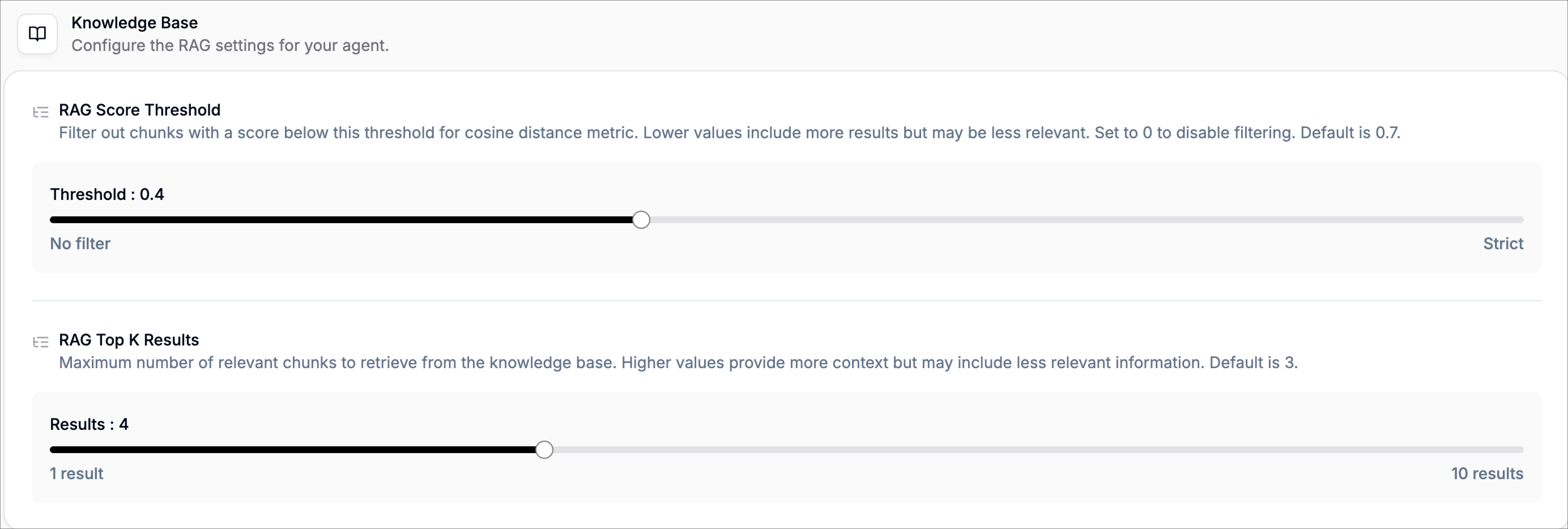
The knowledge base settings control how your agent retrieves and uses information from your uploaded documents. These influence how much context your agent pulls in and how strictly it filters irrelevant content.
## Transcription Keywords
If your business uses uncommon names, technical terms, product codes, model numbers, or industry-specific jargon, you can enter them here to help the transcriber recognize them accurately during calls.
Simply type a keyword and press **Enter** to save it. This helps improve transcript accuracy and prevents misheard words.
## Knowledge Base
The knowledge base settings control how your agent retrieves and uses information from your uploaded documents. These influence how much context your agent pulls in and how strictly it filters irrelevant content.
 ## RAG Score Threshold
This threshold determines how similar a knowledge chunk must be in order for the agent to use it in a response. Filter out chunks with a score below this threshold for cosine distance metric. Lower values include more results but may be less relevant. Set to 0 to disable filtering. Default is 0.7.
## RAG Top K Results
This controls the maximum number of chunks retrieved from your Knowledge Base for each answer. Higher values provide more context but may include less relevant information. Default is 3.
## RAG Score Threshold
This threshold determines how similar a knowledge chunk must be in order for the agent to use it in a response. Filter out chunks with a score below this threshold for cosine distance metric. Lower values include more results but may be less relevant. Set to 0 to disable filtering. Default is 0.7.
## RAG Top K Results
This controls the maximum number of chunks retrieved from your Knowledge Base for each answer. Higher values provide more context but may include less relevant information. Default is 3.