> ## Documentation Index
> Fetch the complete documentation index at: https://docs.phonely.ai/llms.txt
> Use this file to discover all available pages before exploring further.
# Add a Voice
> Learn how you can import voices into phonely
The **Add Voice** feature lets you import or connect external voices (for example, from 11 Labs) into your Phonely Voice Library. You can then use these imported voices in your agents and workflows.
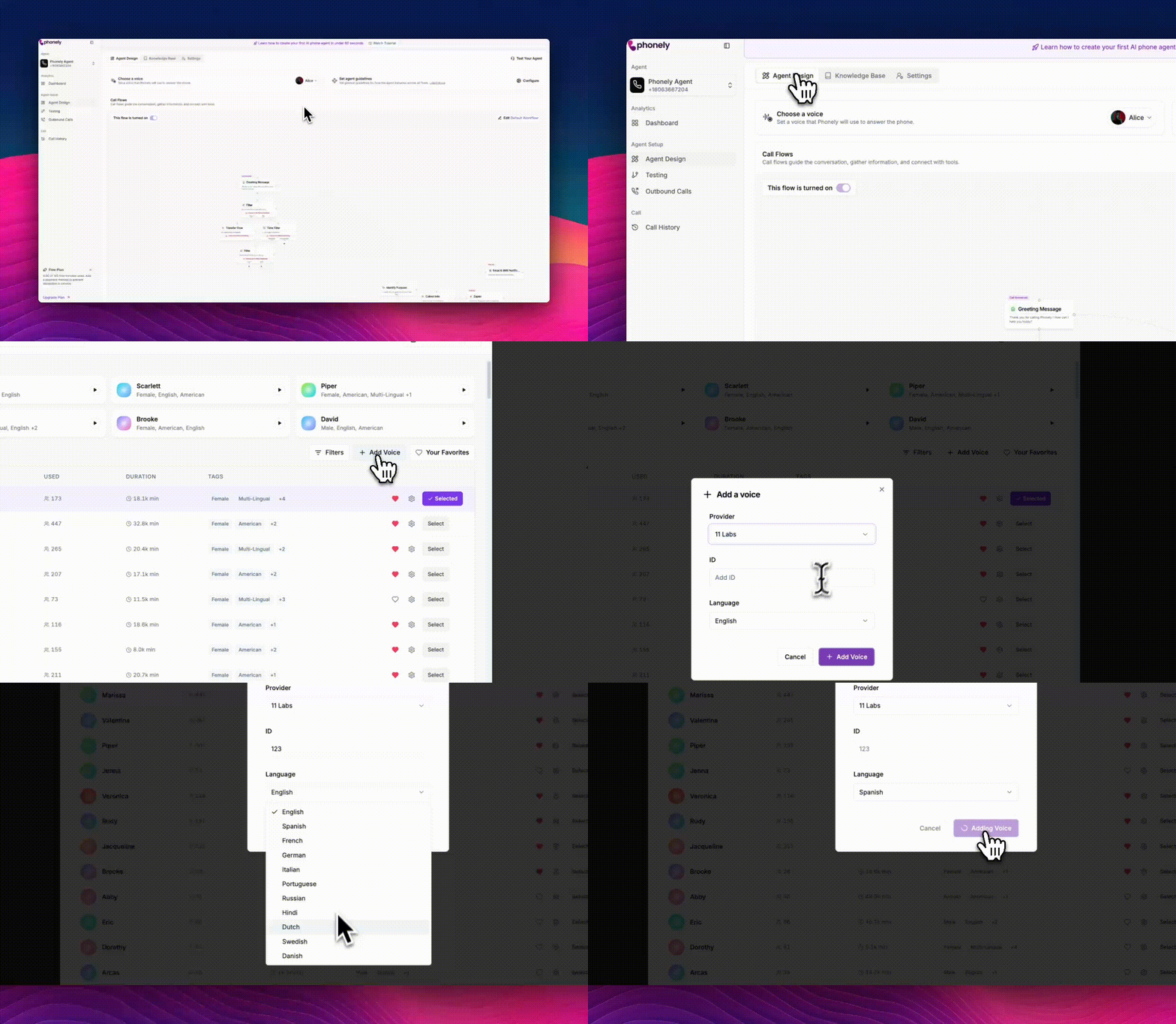 Go to the **Voices** section of your Phonely dashboard.
You’ll see:
* **Featured Voices** - curated, ready-to-use AI voices.
* **Explore All Voices** - all available voices, including imported and cloned ones.
Click the **+ Add Voice** button on the upper right or beneath the “Explore All Voices” section.
Go to the **Voices** section of your Phonely dashboard.
You’ll see:
* **Featured Voices** - curated, ready-to-use AI voices.
* **Explore All Voices** - all available voices, including imported and cloned ones.
Click the **+ Add Voice** button on the upper right or beneath the “Explore All Voices” section.
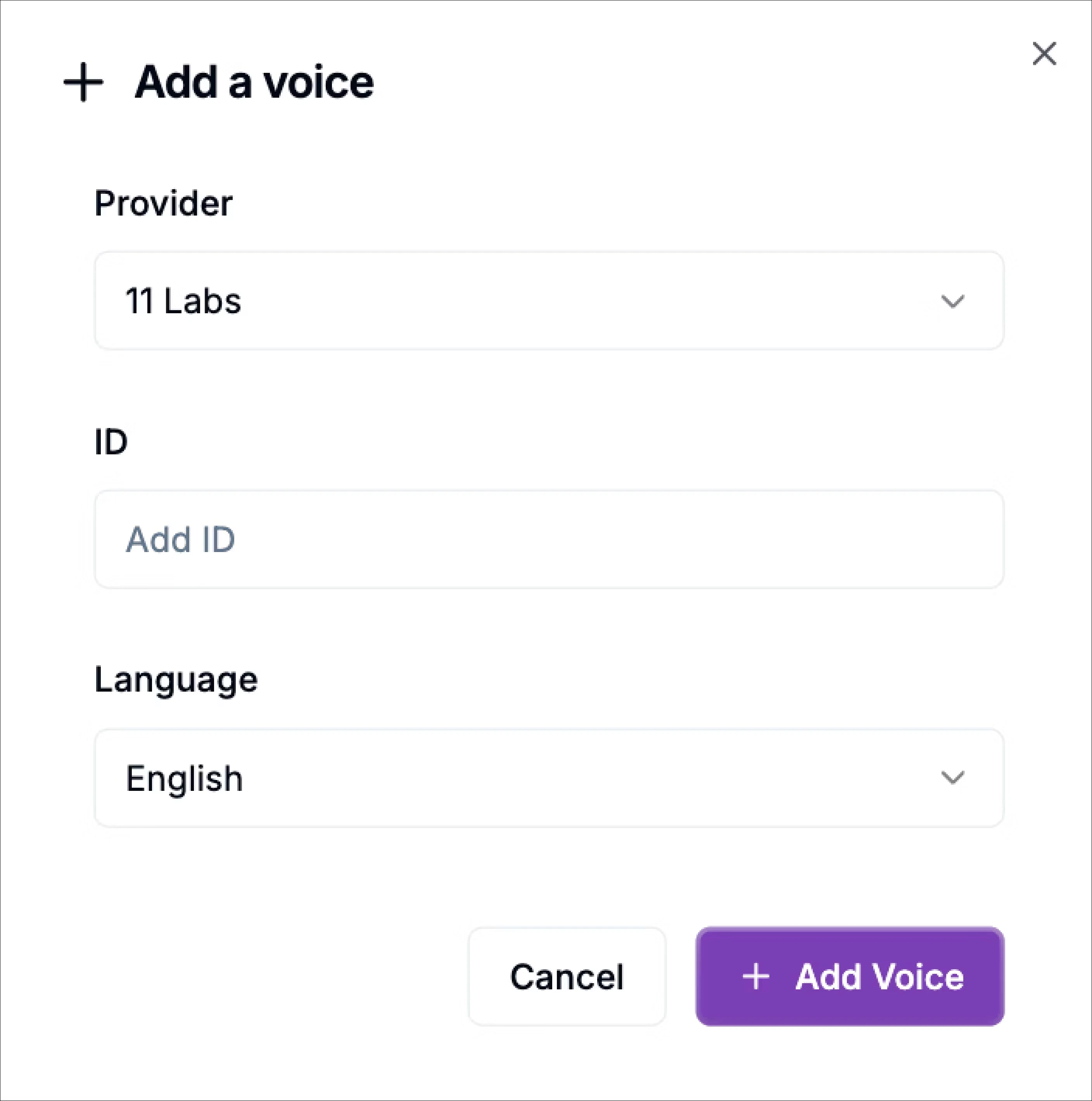
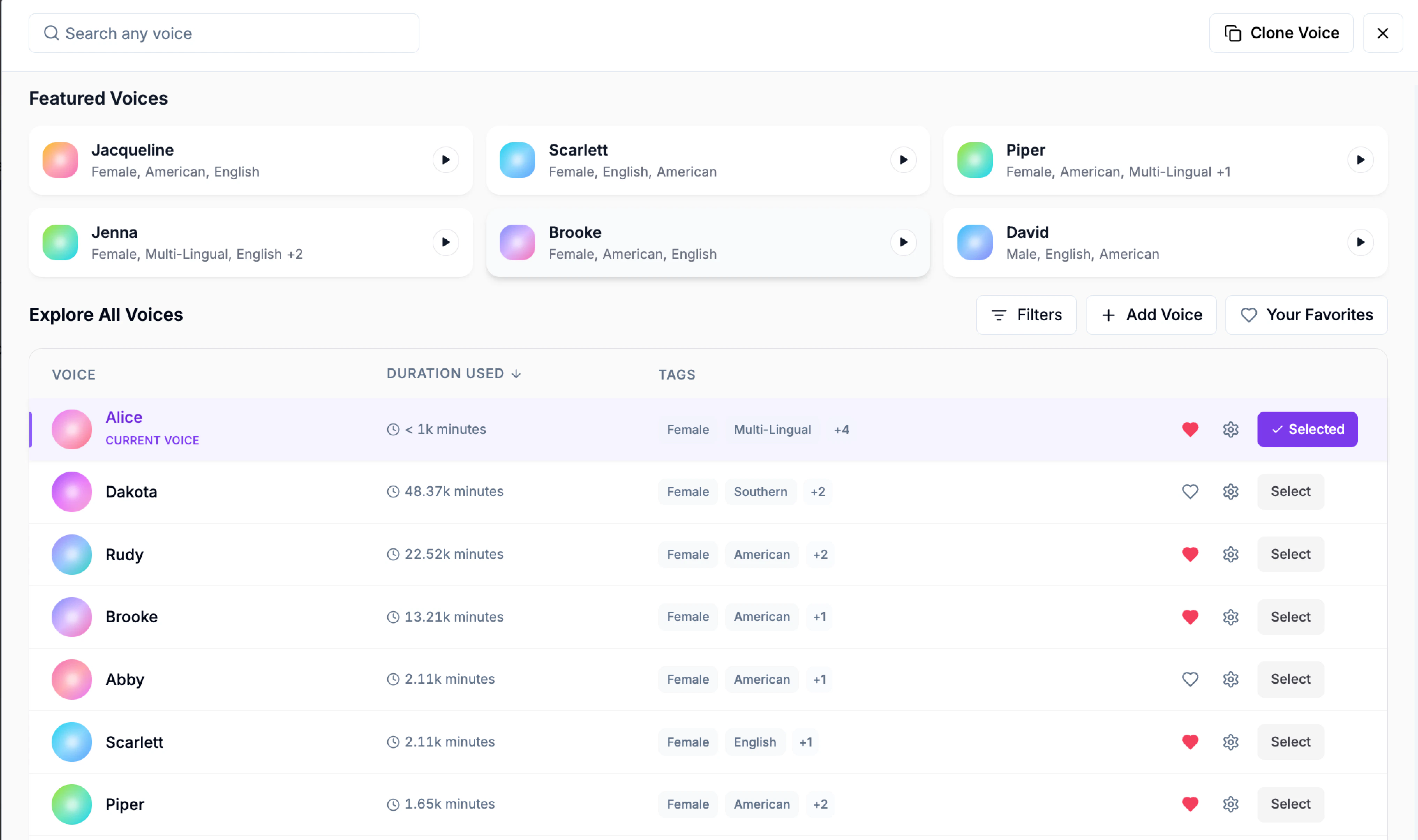 In the **Add a Voice** window, open the **Provider** dropdown.
Select your preferred provider, such as **11 Labs**.
* Phonely currently supports third-party providers like *11 Labs* for realistic and multilingual voice options.
In the **Add a Voice** window, open the **Provider** dropdown.
Select your preferred provider, such as **11 Labs**.
* Phonely currently supports third-party providers like *11 Labs* for realistic and multilingual voice options.
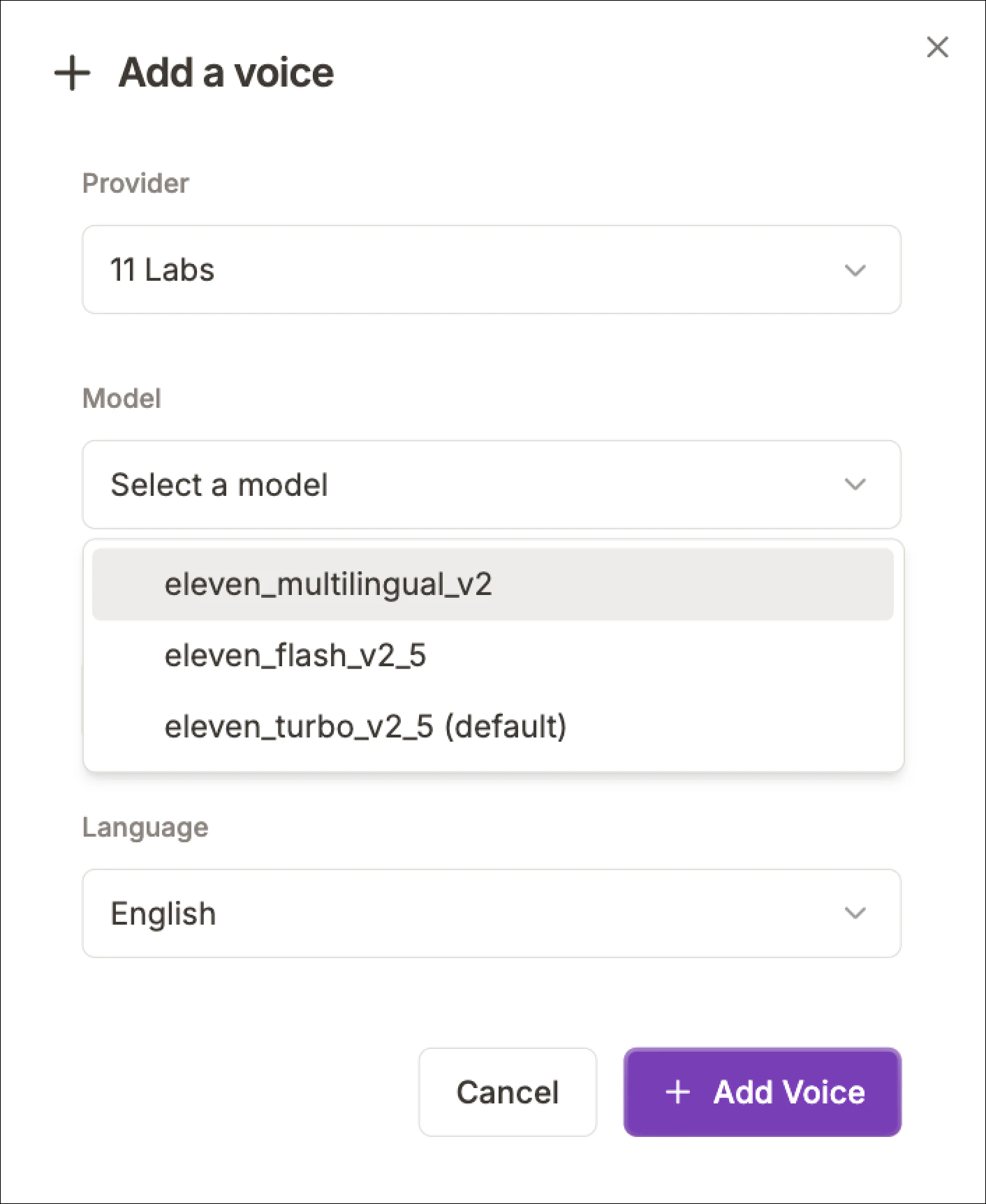
 After choosing a provider, open the **Model** dropdown and select the voice model you want to use.
For example:
Under **11 Labs**, available models may include:
* **eleven\_multilingual\_v2**
* **eleven\_flash\_v2\_5**
* **eleven\_turbo\_v2\_5 (default)**
Under **Cartesia**, available models may include:
* **sonic-2**
* **sonic-3 (default)**
Choose the model that best fits your use case. Different models may vary in speed, quality, responsiveness, or multilingual support.
After choosing a provider, open the **Model** dropdown and select the voice model you want to use.
For example:
Under **11 Labs**, available models may include:
* **eleven\_multilingual\_v2**
* **eleven\_flash\_v2\_5**
* **eleven\_turbo\_v2\_5 (default)**
Under **Cartesia**, available models may include:
* **sonic-2**
* **sonic-3 (default)**
Choose the model that best fits your use case. Different models may vary in speed, quality, responsiveness, or multilingual support.
 Use this setting to control how the provider generates speech for that voice. Different models may vary in speed, responsiveness, or multilingual support.
After selecting the provider, you’ll see an **Add ID** field.
Paste your **voice ID** from the provider’s platform (e.g., from your 11 Labs account).
* This ID uniquely identifies the voice you want to import.
Double-check that the ID is correct to ensure the voice loads successfully.
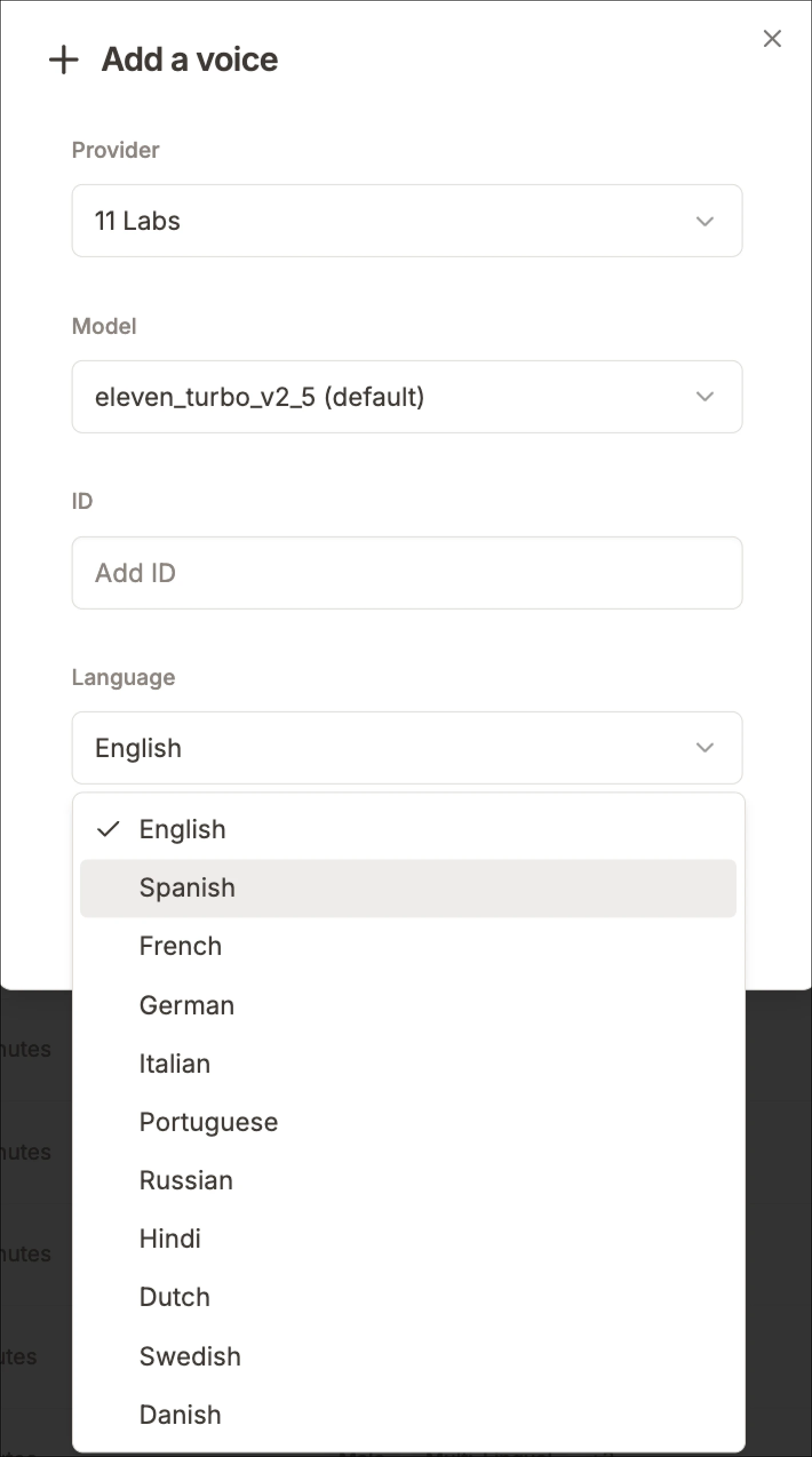
Choose the **Language** in which the voice will operate.
Available options may include: English, Spanish, French, German, Italian, Portuguese, Russian, Hindi, Dutch, Swedish, and Danish.
Select the language that best matches your voice model or intended audience.
Use this setting to control how the provider generates speech for that voice. Different models may vary in speed, responsiveness, or multilingual support.
After selecting the provider, you’ll see an **Add ID** field.
Paste your **voice ID** from the provider’s platform (e.g., from your 11 Labs account).
* This ID uniquely identifies the voice you want to import.
Double-check that the ID is correct to ensure the voice loads successfully.
Choose the **Language** in which the voice will operate.
Available options may include: English, Spanish, French, German, Italian, Portuguese, Russian, Hindi, Dutch, Swedish, and Danish.
Select the language that best matches your voice model or intended audience.
 Review your selections (Provider, ID, Language).
Click **+ Add Voice** to finalize the process.
The new voice will now appear in your Voice Library under *Explore All Voices*.
Once added, you can:
* **Preview** the voice by clicking the play button.
* **Set it as default** by clicking **Select**.
* **Add to Favorites** by tapping the heart icon ❤️.
* **Edit settings** (e.g., tone, speed, or pitch) using the gear icon ⚙️ if available.
Review your selections (Provider, ID, Language).
Click **+ Add Voice** to finalize the process.
The new voice will now appear in your Voice Library under *Explore All Voices*.
Once added, you can:
* **Preview** the voice by clicking the play button.
* **Set it as default** by clicking **Select**.
* **Add to Favorites** by tapping the heart icon ❤️.
* **Edit settings** (e.g., tone, speed, or pitch) using the gear icon ⚙️ if available.