> ## Documentation Index
> Fetch the complete documentation index at: https://docs.phonely.ai/llms.txt
> Use this file to discover all available pages before exploring further.
# Flow Settings
> Learn how to access and configure Flow Settings in Phonely to customize context, resources, and tone for each call workflow.
The Flow Settings panel allows you to customize each call flow with the specific context, resources, and configurations it needs to perform correctly. These settings define how your agent behaves, what reference materials it can use, and how it transitions between flows.
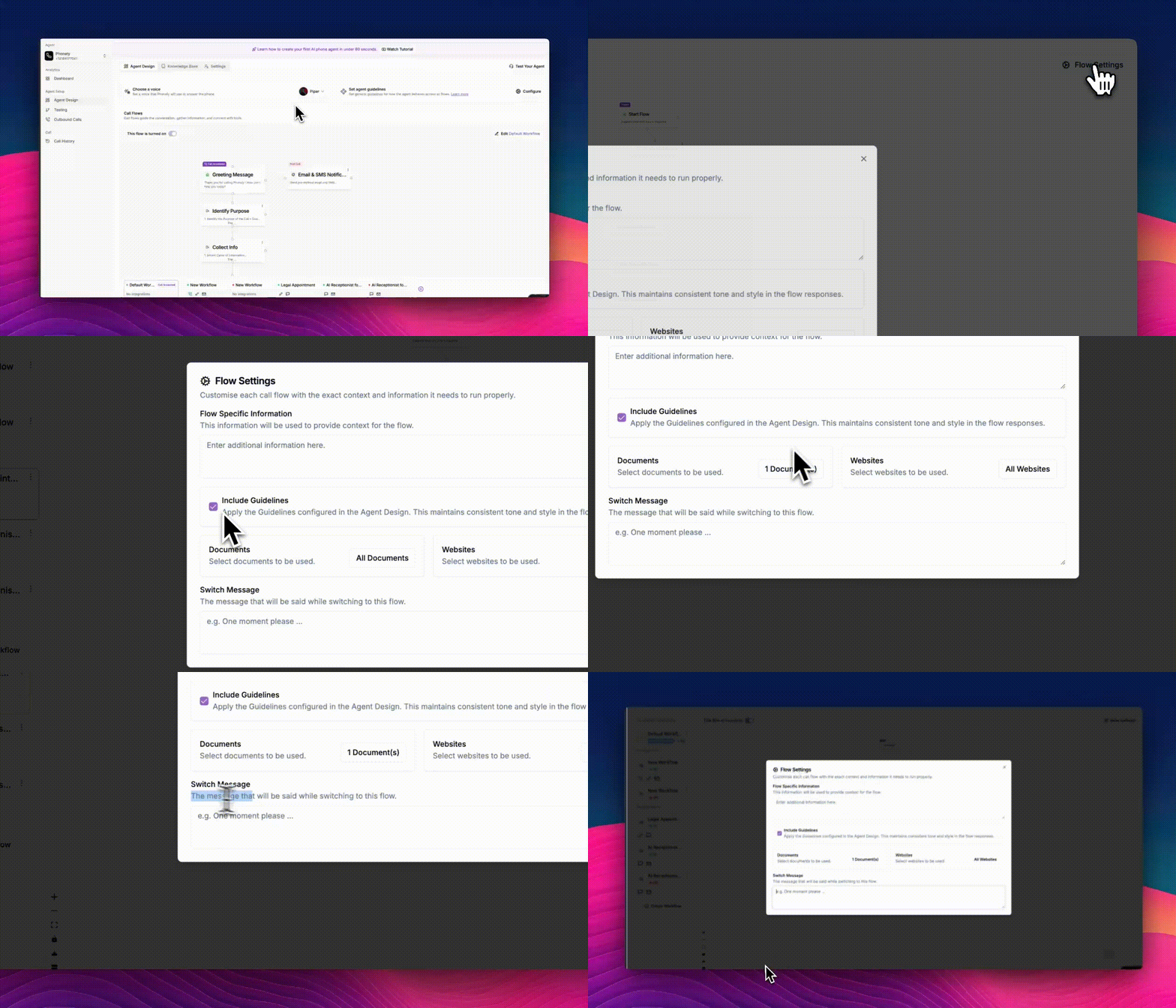 Here you can adjust contextual information, select documents, and apply tone guidelines.
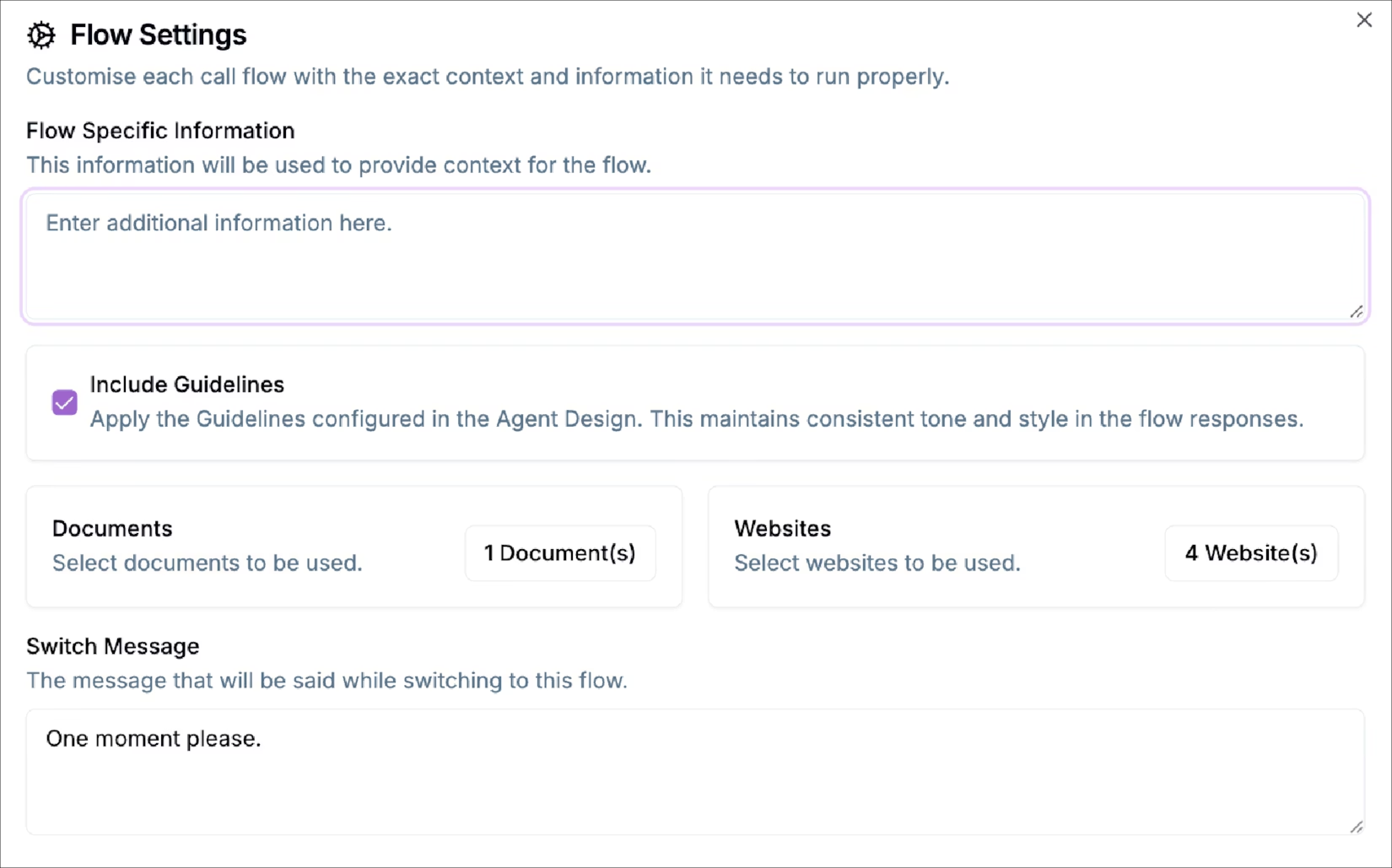 ### Flow Specific Information
Use this field to provide additional details or context about the purpose of your flow. This information helps your AI agent understand the flow’s intent and ensures that responses remain accurate and relevant.
Example:
> *“This flow handles customer support inquiries for billing, refunds, and subscription upgrades..."*
### Include Guidelines
Enable this option to apply the guidelines set in your agent guidelines file.\
This ensures that tone, style, and phrasing stay consistent across all calls, whether the agent is handling support, sales, or appointment scheduling.
* When checked, your workflow follows the rules defined in your [Agent Guidelines](/agent-design/set-agent-guidelines).
* When unchecked, the flow will operate independently without enforced guidelines.
### Documents
Attach one or more [Documents](/agent-knowledge-base/upload-documents) that the flow can reference during live calls. \
These may include FAQs, product manuals, legal disclaimers, or training materials.
1. Click **Documents**.
2. Choose specific files you want the AI Agent to access.
3. Save your selection.
### **Websites**
Select the websites that the agent can use as additional reference sources when responding during calls.
1. Click [**Websites**](/agent-knowledge-base/add-websites)
2. Pick specific sites relevant to this flow, such as your company knowledge base or product documentation portal.
3. Save your selection.
### Switch Message
The **Switch Message** defines what your AI agent says while transitioning to this flow.\
This ensures callers experience a natural, professional pause while context loads in the background.
**Example**:
> *“One moment please, I’m connecting you to our scheduling assistant.”*
You can customize this to fit your tone or scenario (e.g., “Let me transfer you to our billing department.”).
### Flow Specific Information
Use this field to provide additional details or context about the purpose of your flow. This information helps your AI agent understand the flow’s intent and ensures that responses remain accurate and relevant.
Example:
> *“This flow handles customer support inquiries for billing, refunds, and subscription upgrades..."*
### Include Guidelines
Enable this option to apply the guidelines set in your agent guidelines file.\
This ensures that tone, style, and phrasing stay consistent across all calls, whether the agent is handling support, sales, or appointment scheduling.
* When checked, your workflow follows the rules defined in your [Agent Guidelines](/agent-design/set-agent-guidelines).
* When unchecked, the flow will operate independently without enforced guidelines.
### Documents
Attach one or more [Documents](/agent-knowledge-base/upload-documents) that the flow can reference during live calls. \
These may include FAQs, product manuals, legal disclaimers, or training materials.
1. Click **Documents**.
2. Choose specific files you want the AI Agent to access.
3. Save your selection.
### **Websites**
Select the websites that the agent can use as additional reference sources when responding during calls.
1. Click [**Websites**](/agent-knowledge-base/add-websites)
2. Pick specific sites relevant to this flow, such as your company knowledge base or product documentation portal.
3. Save your selection.
### Switch Message
The **Switch Message** defines what your AI agent says while transitioning to this flow.\
This ensures callers experience a natural, professional pause while context loads in the background.
**Example**:
> *“One moment please, I’m connecting you to our scheduling assistant.”*
You can customize this to fit your tone or scenario (e.g., “Let me transfer you to our billing department.”).